Room Maintenance (Block-Unblock)
On this page
Takes rooms out of sale for maintenance for a date range and lists the blocks that exist.
Screen layout
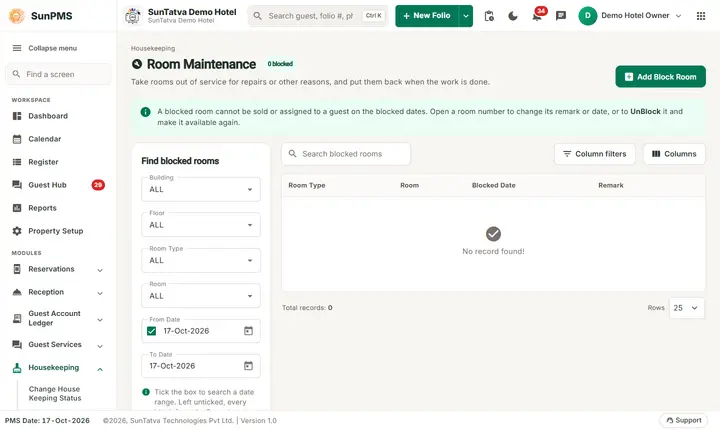
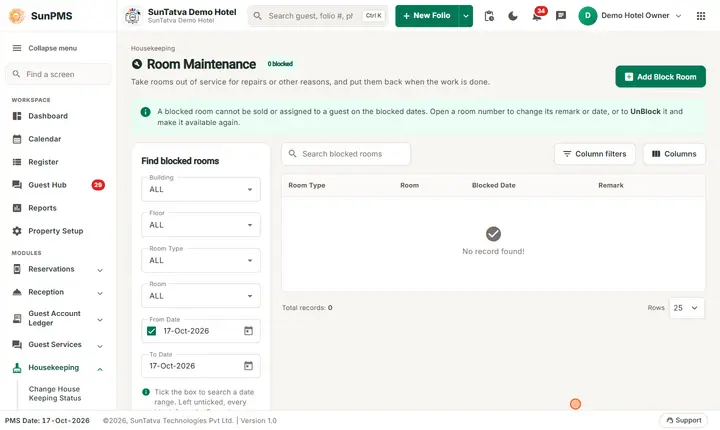
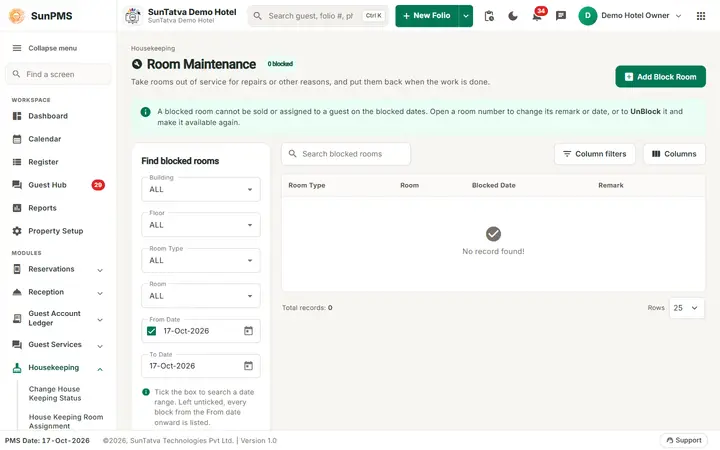
The title shows a count chip (for example "0 blocked"), with the button Add Block Room at the top right and a help line: a blocked room cannot be sold or assigned to a guest on the blocked dates; open a room number to change its remark or date, or to UnBlock it.
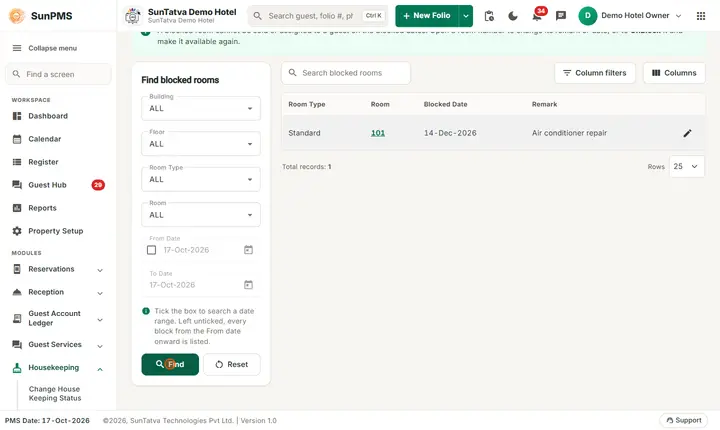
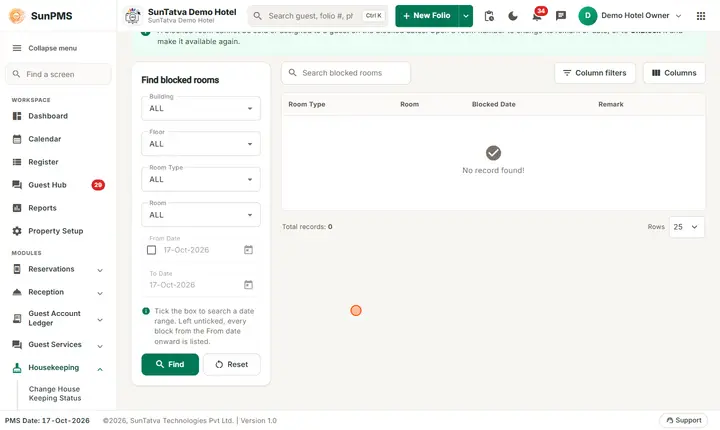
Find blocked rooms panel (left): Building, Floor, Room Type, Room, From Date (tick box; dates not before the PMS date) and To Date, then Find and Reset. With the box unticked every block from the From date onward is listed.
List (right): a search box (Search blocked rooms), Column filters and Columns (choose the visible columns). Columns: Room Type, Room (link), Blocked Date, Remark; paging shows Total records and Rows (25 by default). Each row has an edit / unblock icon.
How to block rooms
- Click Add Block Room.
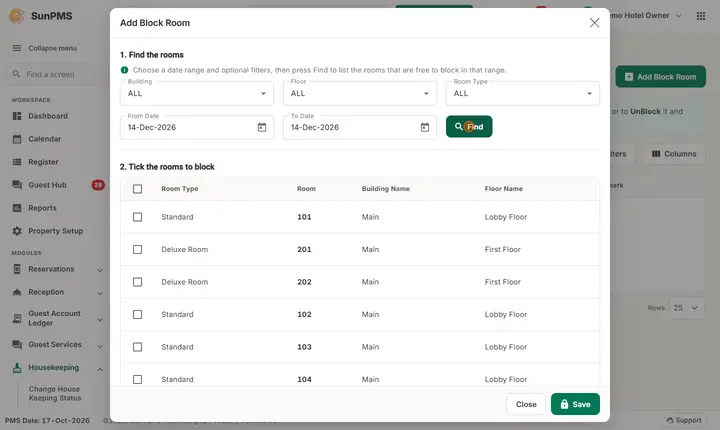
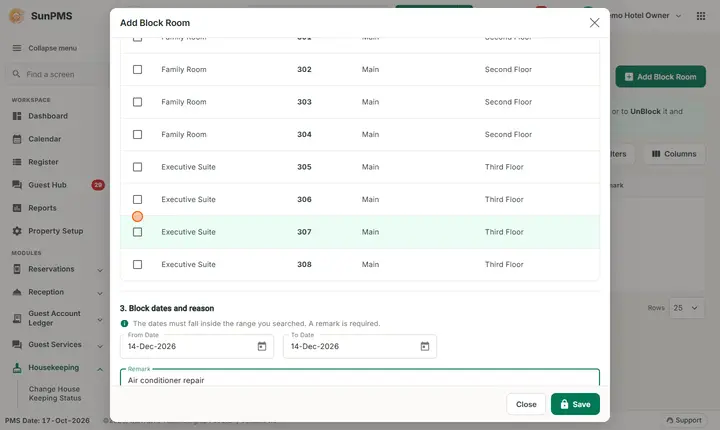
- In the dialog (steps 1 to 3): 1. Find the rooms (Building, Floor, Room Type, From Date, To Date, then Find to list free rooms), 2. Tick the rooms to block (tick all or single rooms; "n ticked"), 3. Block dates and reason (the dates must lie inside the searched dates; a Remark is required).
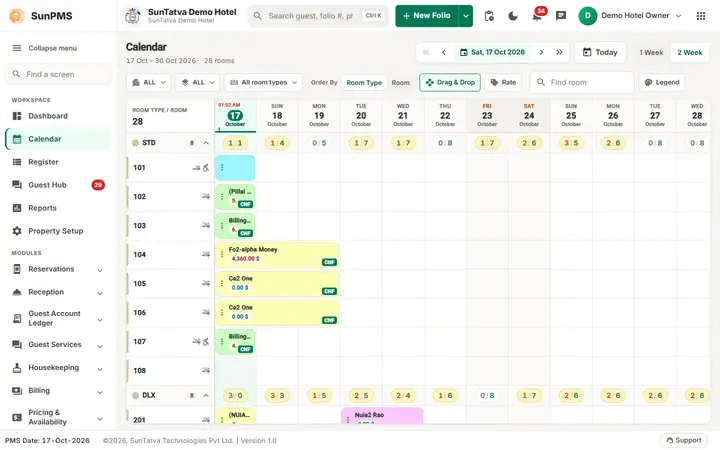
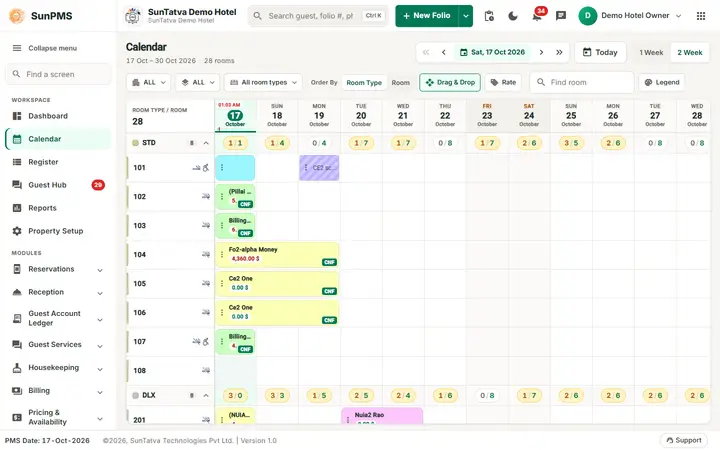
- Click Save. Result: rooms show as V/Maint. Quick block: in the Calendar or Register right-click a vacant room > V/Maintenance; the Add Block Room dialog has Room, From Date, To Date, Remark and Save & Close.
How to edit a block
- Click the room name (or the edit icon) in the list.
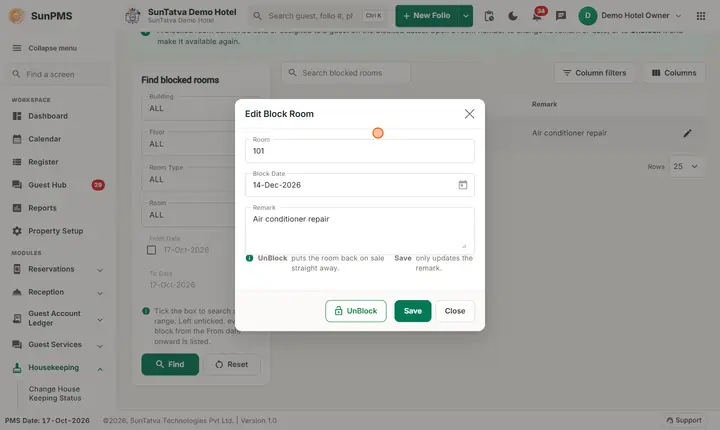
- In Edit Block Room (Room, Block Date, Remark) change the Remark and click Save.
How to unblock
Open the block in Edit Block Room and click UnBlock: the room goes back on sale straight away (Save only updates the remark). You can also right-click the room in the Calendar or Register > Remove V/Maintenance.
Messages you may see
| Message | Why |
|---|---|
| You can not perform block this Room. Reason: Please select Room | No room ticked. |
| Please enter block remark. / Please enter remark. | Remark empty. |
| Invalid block dates selected. | Dates outside the searched range. |
| Room status changed successfully. | Unblocked. |
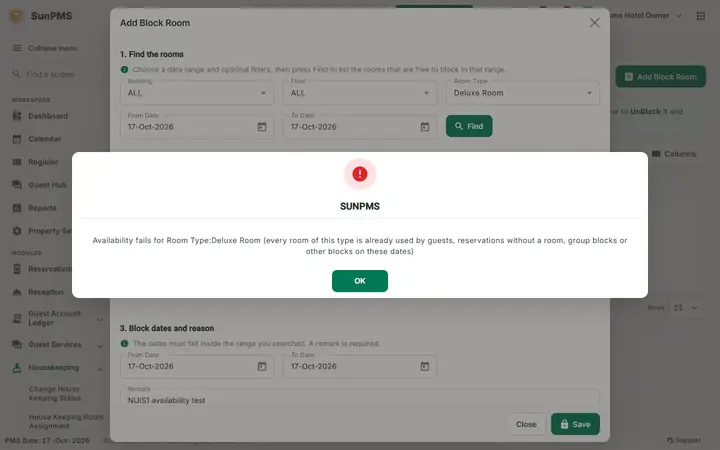
| Availability fails for Room Type: |
Checked 2026-10-19: Save refuses to block a room whose room type has no availability left for the dates (for example reservations without a room have taken the whole inventory), even when the room itself looks free in the Find list. This is intended: the rule is the inventory of the room type, not the physical room. Blocking one more room is refused when (guests in the house + reservations without a room + blocks + group blocks) already equals the number of rooms of the type (plus the overbooking percentage of the room type), because the blocked room would then be needed by a reservation that has no room yet. Since 19-Oct-2026 the message also says why. Example: Deluxe Room on 17-Oct-2026 has 8 rooms, 1 occupied, 3 reservations without a room, 2 blocks and 2 group-blocked rooms, so no further Deluxe room can be blocked. Choose another room type, other dates, or free inventory first (assign rooms to the reservations, cancel or reduce a group block). |
Screenshots