
Property Calendar
On this page
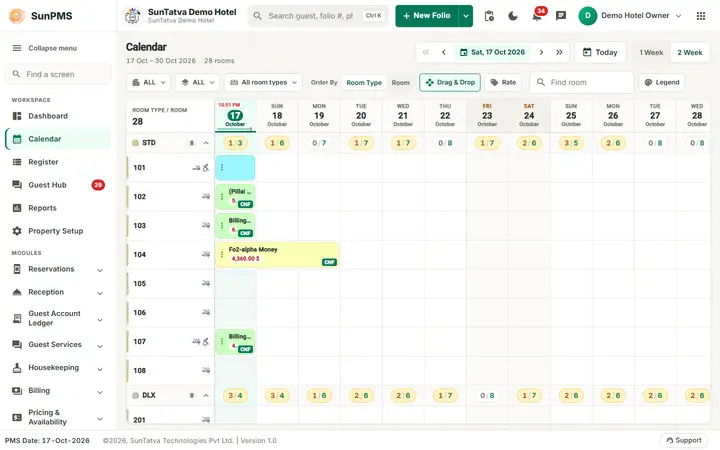
The Property Calendar (tape chart) shows rooms down the side and dates across the top. Each stay is a coloured bar. It is the main screen for seeing availability, creating bookings by double-clicking an empty cell, and moving a guest to another room by drag and drop.
Screen layout
The Property Calendar of the demo hotel in the two week view.
The heading shows Calendar, the date range and the room count (for example "17 Oct - 30 Oct 2026, 28 rooms"). The controls are in two rows above the chart.
| Item | What it means | Rules |
|---|---|---|
| Date navigator (top right) | Double arrows Previous Week / Next Week, single arrows Previous Date / Next Date, the date chip (opens a date picker with Working Date and Apply), and Today. | Dates before the minimum or after the rate limit are disabled. |
| 1 Week / 2 Week / 3 Week buttons | Number of weeks shown (7 days each). | The count follows your saved setting. |
| Building and Floor drop-downs, All room types | Filter rooms by building, floor and room type (tick several room types). | Both buildings and floors start at ALL. |
| Order By | Room Type (rooms grouped under collapsible room-type rows) or Room (one flat list plus a "Res.W/O Room" row). | |
| Drag & Drop button | Turns bar dragging on or off (saved for your user). | On by default. |
| Rate button | Shows the room-type rate in every empty cell. | Saved for your user. |
| Find room | Type a room name to jump to its row. | |
| Legend | Colour chips with counts for the room statuses and stay statuses. | |
| Date header | Day, date, month. Today's column is highlighted with the current time and an hour line. Weekends are shaded. | A warning icon marks dates with restrictions; hover for list, click for details (sold out, close to arrival, close to departure, min/max nights per room type and rate type). |
| Room-type row | Room type short name and room count; each date shows unallocated bookings / available rooms (for example 1/3). | Click a date cell to open the list of unallocated reservations. |
| Room row | Room name with its rule icons (smoking, handicap, pet). | |
| Stay bar | Guest name, group in brackets, balance with the property currency symbol after the amount, for example "250.00 $" (symbol from Currency in Localization Setting; green when zero or less), status corner (CNF confirmed, UNC unconfirmed, NOS no show, CNL cancel, TRO transfer-out), channel logo, non-refundable and prepaid icons, lock icon for locked reservations, arrows when the stay moves rooms. | Hover shows details (name, phone, dates, days, room, folio, channel, adults/children, status, due, paid) if footer Enable Tooltip is on. |
| Empty cell | A free room on that date. | Shows the rate if Rate is on. |
How to create a booking
- Double-click an empty cell on the room and date. Result: the check-in screen opens with that room and date filled in. Dates before the PMS date need the Access to Past Days privilege: "Sorry, you do not have permission to access past dated transaction."
How to open a stay
Double-click the bar. Blocked-room bars do not open.
How to use the menu
Right-click a bar or empty cell, long-press on touch, or click the three-dot icon in the cell. Options: New Folio, Open Folio, Cancel Reservation (asks a confirmation with guest, room and date), Copy Reservation, Edit Guest Details, O/Dirty, O/Clean, V/Dirty, V/Clean (needs privilege Access to Clean Room), V/Maintenance, Remove V/Maintenance, V/Ready (needs Access to Vacant Room), Other Charges, Payments, Checkout, Folio (Folio, Detail Folio, Malaysia Folio, GST Folio, Folio 2) and Info (guest details pop-up). Many are enabled only for the right status, as in the Register.
How to move a guest to another room (drag and drop)
- Make sure Drag & Drop is on.
- Drag the bar to an empty cell of another room (and a new start date for reservations).
- In Room Transfer (Adjust Stay Dates) check the FROM and TO cards (floor, room type, room, date in, date out) and click Yes. Cancel aborts.
- If the room type changes, the rate may change. Depending on the Rate change confirmation setting the system keeps the current rate, applies the new rate, or asks "Rate will be changed. Do you want to continue with current rate or new rate of selected room type?" with Current Rate / New Rate. Result: "Room changed successfully." and the calendar reloads. Checked-in guests are moved from today; reservations keep their length.
How to assign rooms to unallocated bookings
- Click the count in a room-type row.
- In the pop-up, search the reservation, click Select Room on a booking and pick a room, or click Auto Assign Room. Result: "Room(s) assigned successfully." If you save with no room: "Please assign a Room to the Reservation."
Messages you may see
| Message | Why | What to do |
|---|---|---|
| Sorry, you do not have permission to Room Change. | No Access to Change Room. | Ask for the privilege. |
| You can not change Room for this guest. Reason: Reservation is locked. | Locked reservation. | Unlock first. |
| You can not change Room when guest stay is over. | Departure date equals PMS date. | Use check-out. |
| Drag and drop operation failed. | Dropped outside a valid cell. | Retry. |
| Invalid stay date selected. | Target date is before check-in, in the future for an in-house guest, or before today for a reservation. | Choose another date. |
| Invalid stay date selected. Member's check-in date should be equal or greater than group check-in date. /...check-out date should be equal or less than group check-out date. | Group member outside group dates. | Stay within group dates. |
| N Adult(s) are allowed in |
Too many adults for the target type. | Choose another room. |
| Room is not available for the selected stay. | The room is taken. | Choose another room. |
| Room changed successfully. | Done. |
Tips and FAQ
- Q: I cannot drag a bar. A: Drag & Drop is off, the guest is checked out, or it is a blocked room.
- Q: What is the warning icon on a date? A: A restriction applies; see Restriction View.
- Q: Tooltips are annoying. A: Click Disable ToolTip in the footer.