
Register
On this page
The Register is a table with one row per room for the selected date, grouped by room type. It is the quickest way to see who is in which room, balances, and to filter by any column.
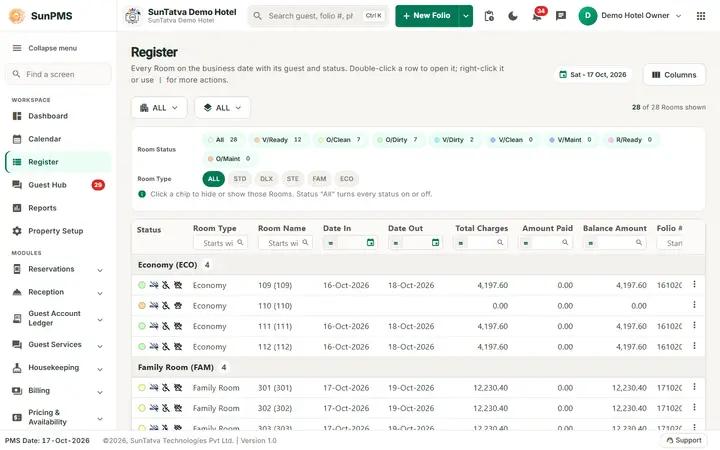
Screen layout
Under the heading Register a line explains the screen: "Every Room on the business date with its guest and status. Double-click a row to open it; right-click it or use the three dots for more actions."
| Item | What it means | Rules |
|---|---|---|
| Date chip (for example "Sat - 17 Oct, 2026") | The business date shown. | Fixed to the PMS date. |
| Columns button | Opens the list of columns: tick to show, drag the handle to reorder. | Saved for the whole property (also in Register Settings). Message "Register Setting updated successfully." |
| Building and Floor drop-downs (both ALL by default) | Show one building and floor. | |
| "n of m Rooms shown" | How many rooms the filters leave visible. | |
| Room Status chips | One chip per status with its colour and room count (All, V/Ready, O/Clean, O/Dirty, V/Dirty, V/Clean, V/Maint, R/Ready, O/Maint). Click a chip to hide or show those rooms; All turns every status on or off. | The help line under the chips says the same. |
| Room Type chips | ALL and one chip per room type (for example STD, DLX). Click to include or exclude room types. | Several can be on. |
| Table columns | Default: Room Type, Room Name, Date In, Date Out, Total Charges, Amount Paid, Balance Amount, Folio #, Total Guest, Email, Company, Guest Name. The set is configurable; optional columns include ADR and Sales & Channel (group Identification Details in Register Settings). | The table scrolls inside its card with a fixed heading row. |
| Header filters | Under each heading: text columns "Starts with..." match the start of the value; number columns take an operator (=, > or <) and a value; date columns open a calendar; x clears. | All filters combine. |
| First cell of each row | Status colour dot (hover for the status name) and room rule icons (smoking, handicap, pet). | Follow Display Setting. |
| Group header row | Room type full name and short name, with the room count. | |
| Row menu (three dots at the right of a row) | Same actions as the right-click menu. | On a phone each room is a card and the three dots open the menu. |
Rows whose stay has ended but guest not checked out are struck through.
How to open or act on a stay
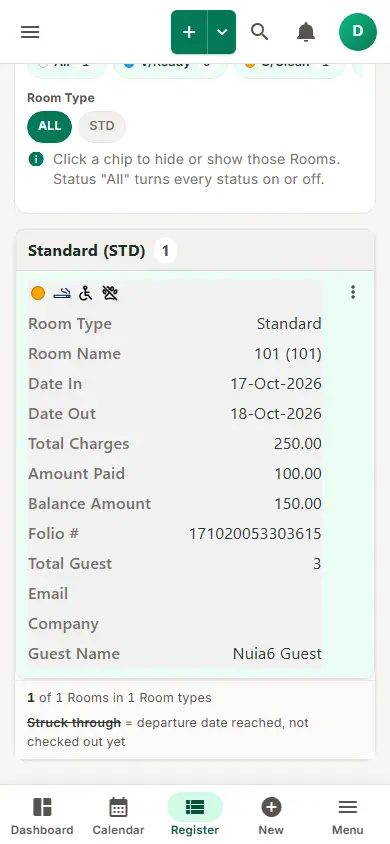
On a phone the Register shows each room as a card with the same details as the table row.
- Double-click a row to open the folio.
- Right-click (touch: long press, or the three dots) for the menu: New Folio, Open Folio, Cancel Reservation, Edit Guest Details, O/Dirty, O/Clean, V/Dirty, V/Clean, V/Maintenance, Remove V/Maintenance, V/Ready, Other Charges, Payments, Checkout, Folio. Availability by room status is the same as in the Property Calendar. Result: the dialog or screen opens; the list refreshes after you save.
How to change columns
- Click Columns.
- Tick or untick a column or drag to reorder. Result: "Register Setting updated successfully." and the table reloads.
Messages you may see
| Message | Why |
|---|---|
| Register Setting updated successfully. | Column visibility saved. |
| Reservation cancelled. | Cancel from the menu. |
| Room status changed successfully. | Status change from the menu. |
Tips and FAQ
- Q: A column I need is not there. A: Tick it under Columns, or see Register Settings in chapter 4.
- Q: Font size looks different. A: The Display Setting controls font style, size and bold for the register.