Localization Setting
Sets the regional details of the property (country, currency, number of decimals), the fiscal year, which days are weekend days (for weekend rates) and the words the screens use (for example "Room", "Guest", "New Folio"). The page title reads Localization Setting.
Screen layout
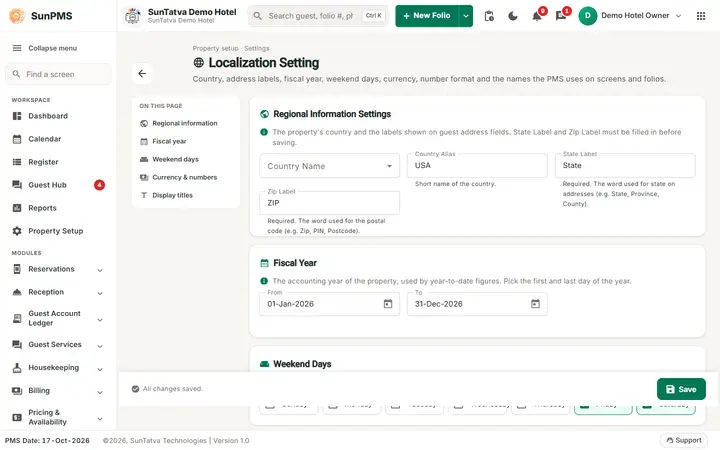
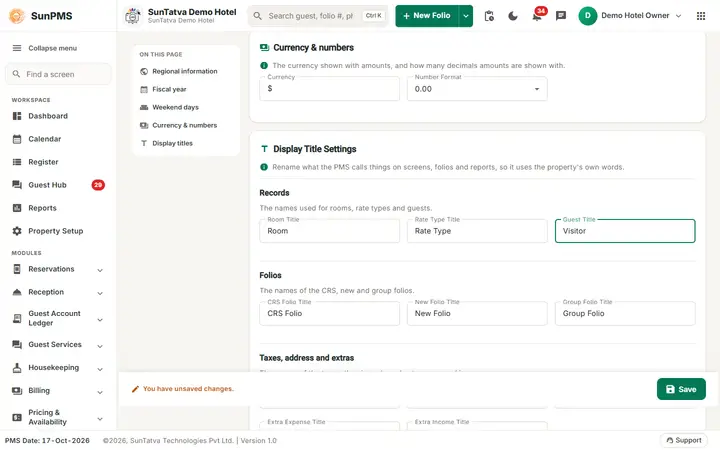
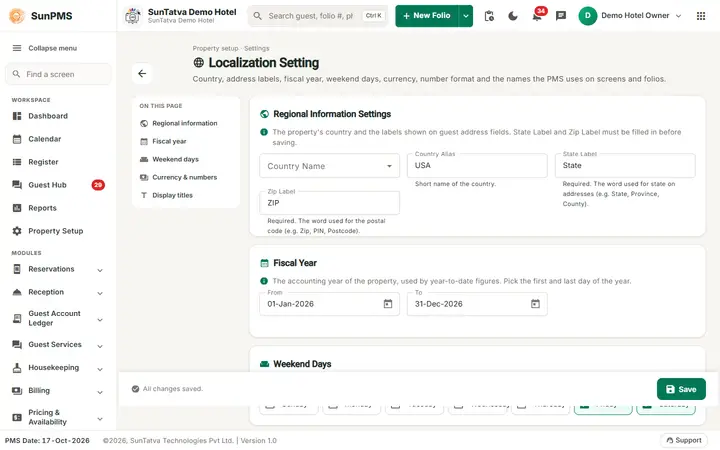
The page header shows the title Localization Setting, the line "Property setup · Settings", a description and a back arrow to the Property Setup hub. The On this page index jumps to Regional information, Fiscal year, Weekend days, Currency & numbers and Display titles. A yellow Unsaved changes chip shows in the header after an edit; the bottom bar shows "All changes saved." / "You have unsaved changes." and holds Save.
Regional Information Settings
| Field | Key | Default | Meaning / effect |
|---|---|---|---|
| Country Name | COUNTRY | UNITED STATES (seed) | Drop-down of countries. Used as the default country on guest and sales & channel forms, property detail and many reports. |
| Country Alias | COUNTRY_ALIAS | USA | Short code. |
| State Label | STATE_TITLE | State | Caption for the state field on guest forms (e.g. "Province"). Required. |
| Zip Label | ZIP_TITLE | ZIP | Caption for the postal-code field ("... Code" is appended on check-in). Required. |
Fiscal Year
| Field | Meaning |
|---|---|
| From | First day of the fiscal year (date picker; the year shown is the current PMS year). |
| To | Calculated automatically as one year minus a day after From (the picker is read-only; changing From recalculates it). |
| Stored as FISCAL_YEAR_FROM/TO_DAY and _MONTH (defaults 1 Jan to 31 Dec). Used by yearly/fiscal reports. |
Weekend Days
Switch on Sunday to Saturday (the card says: tick the days the property treats as weekend days). Stored as a 7-digit flag (Sunday first; default 0000011 = Friday and Saturday). Rates with weekend rates apply them on these days.
Currency & numbers and Display Title Settings
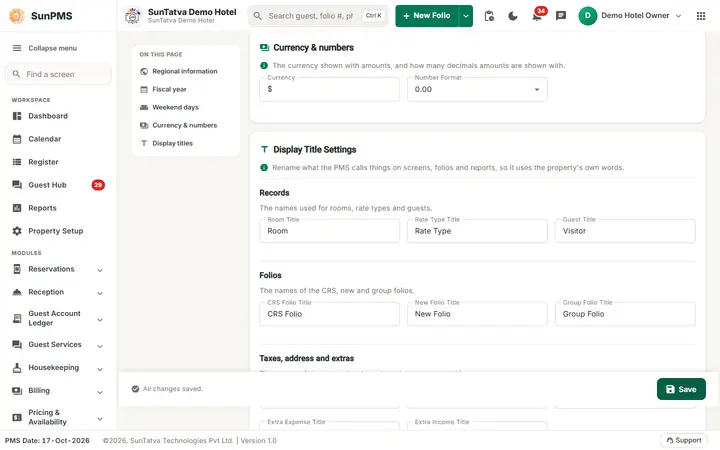
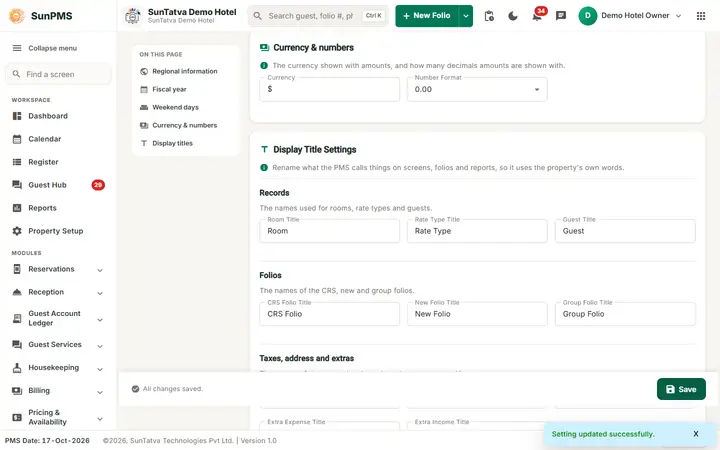
The Currency and Number Format fields have their own card, Currency & numbers ("the currency shown with amounts, and how many decimals amounts are shown with"). The title fields below are grouped in the Display Title Settings card under three headings: Records (Room, Rate Type, Guest), Folios (CRS Folio, New Folio, Group Folio) and Taxes, address and extras (Occupancy Tax, Other Charges Tax, Zipcode, Extra Expense, Extra Income). Each field has the same label as in the table.
| Field | Key | Default | Where the text appears |
|---|---|---|---|
| Currency | CURRENCY | $ | Currency symbol in payment screens, reports and folios; after the guest balance on the stay bars of the Property Calendar; and in front of the Gross Room Revenue and ADR amounts in the Grid View of Occupancy & Revenue Summary. |
| Number Format | NUMBER_FORMAT | 0.00 | Decimals shown for amounts (0.0 up to 0.000000). Reports on the server use it too. |
| Room Title | ROOM_TITLE | Room | Replaces the word "Room" in labels. |
| Rate Type Title | RATE_TYPE_TITLE | Rate Type | Replaces "Rate Type". |
| Guest Title | GUEST_TITLE | Guest | Used in sentences and reports ("You can not perform checkout operation on this guest."). |
| CRS Folio Title | CRS_FOLIO_TITLE | CRS Folio | Caption of the channel folio number. |
| New Folio Title | NEW_FOLIO_TITLE | New Folio | Caption of the New Folio button in the header and sidebar. |
| Group Folio Title | GROUP_FOLIO_TITLE | Group Folio | Name of the group reservation entry in the sidebar. |
| Occupancy Tax Title | OCCUPANCY_TAX_TITLE | Occupancy Tax | Name of the room tax in check-in, Tax Configuration and reports. |
| Other Charges Tax Title | OTHER_CHARGES_TAX_TITLE | Other Charges Tax | Name of the other-charges tax. |
| Zipcode Title | ZIPCODE_TITLE | Zip Code | Caption of the zip code in some forms. |
| Extra Expense Title | MISCELLANEOUS_EXPENSE_TITLE | Miscellaneous Expense | Caption of the extra expense module. |
| Extra Income Title | MISCELLANEOUS_INCOME_TITLE | Miscellaneous Income | Caption of the extra income module. |
All text fields accept up to 500 characters.
Fixed 2026-10-18: New Folio Title, Group Folio Title, Occupancy Tax Title, Other Charges Tax Title and Zipcode Title used to be saved under the wrong key, so the live caption never changed. They now save under their own keys; after Save and a browser reload (F5) the new caption shows. A value saved before the fix may need to be typed and saved once more.
How to change and save
- Open Property Setup in the left menu and click the Localization Setting card (group Configuration).
- Edit fields; choose the fiscal year start with the calendar icon; switch on the weekend days. The header shows Unsaved changes.
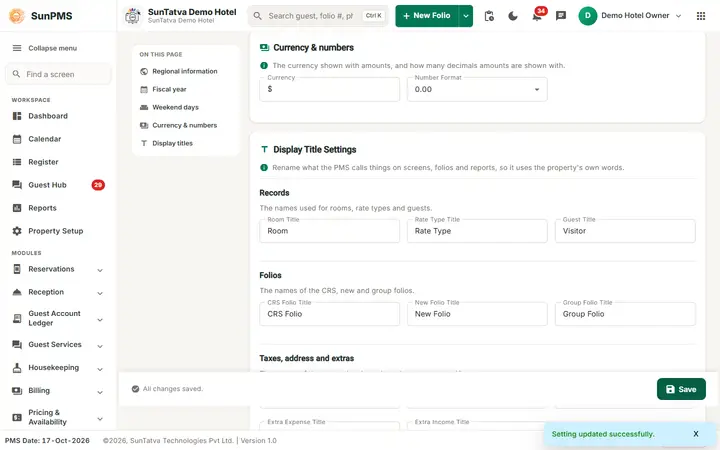
- Click Save in the bottom bar. Result: "Setting updated successfully." Reload the browser (F5) so menu captions update.
Messages you may see
| Message | Why | What to do |
|---|---|---|
| Please enter State Label. | State Label empty | Fill it |
| Please enter Zip Label. | Zip Label empty | Fill it |
| Setting updated successfully. | Saved | - |
Tips and FAQ
- Q: How do I call guests "Customers"? A: Change Guest Title.
- Q: Amounts show 3 decimals. A: Set Number Format to 0.00.
Screenshots