
Occupancy & Revenue Summary
A forward-looking "Revenue Studio" screen that answers "this year against the same days last year": room revenue, rooms sold, occupancy and ADR (average daily rate), day by day. A scorecard totals the chosen range; the board below shows the days as columns, with paired figures for this year and last year and a change badge.
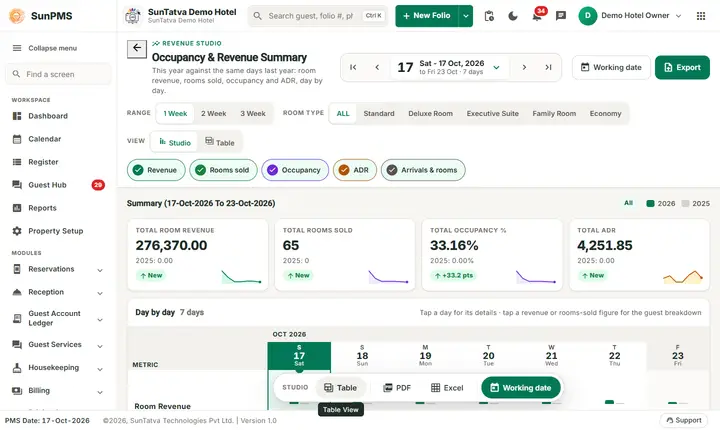
Screen layout
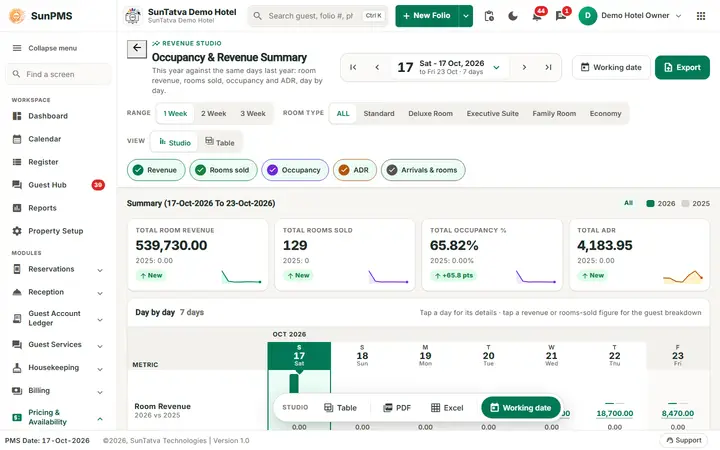
The screen on the demo hotel (figures change).
Header. Back arrow, label REVENUE STUDIO, the title and the line "This year against the same days last year: room revenue, rooms sold, occupancy and ADR, day by day." The date control (arrows, big date button with Working Date, range text such as to Fri 23 Oct · 7 days) sits on the right; the buttons Working date and Export (PDF / Excel) are beside it.
Control row
| Control | Meaning |
|---|---|
| Range: 1 Week / 2 Week / 3 Week | How many weeks are loaded. |
| Room type: ALL and one button per room type | Restrict the figures to one room type (default ALL). |
| View: Studio / Table | Studio is the heat board; Table is a plain table with one row per day. |
| Layers (Studio only): Revenue, Rooms sold, Occupancy, ADR, Arrivals & rooms | Show or hide those rows of the board. |
Scorecard "Summary (from To to)" with a chip for the room type and a key for this year and last year: TOTAL ROOM REVENUE, TOTAL ROOMS SOLD, TOTAL OCCUPANCY % and TOTAL ADR, each with last year's value and an arrow badge (New when last year was zero, a percentage change, or points for occupancy such as +33.2 pts). Occupancy = rooms sold / (rooms - blocked rooms). ADR = revenue / rooms sold.
Board "Day by day". Hint: "Tap a day for its details · tap a revenue or rooms-sold figure for the guest breakdown". Rows: Room Revenue (2026 vs 2025), Rooms Sold, Occupancy % (tinted by how full, change in points), ADR (average rate per room sold), then Available / Total Rooms, V/Maint, Stay Over, Exp. CheckIn, Exp. CheckOut, Exp. Inhouse. In the Studio view the revenue and ADR amounts carry the property currency symbol (the Currency field of Localization Setting).
The side panel (click a day)
Click a day. The panel "Selected day" shows the date, the room type and "against the same date in
Detail window
Clicking a Room Revenue or Rooms Sold figure, or a Guest breakdown button, opens "Occupancy & Revenue Summary" for that date: a chart and boxes for Rent (In House, Reservations, Total), Other Charges, Gross Room Revenue, Room Sold and ADR, with a card per In House guest and per Reservation (folio, balance, source) and a search box. Use the arrows or the date picker in the window to change the day. Figures at zero do not open.
Messages you may see
| Message (exact text) | Why it appears | What to do |
|---|---|---|
| From Date should not be greater than To Date. | The dates are reversed. | Correct the range. |
| (server error text) | Loading failed. | Retry or contact support. |
Tips and FAQ
- Revenue is rent without tax, plus other charges when they exist ("Gross Revenue w/ Other Charge").
- The availability counts are the same as on the Rate & Availability Summary. Demo hotel check, 18-Oct-2026 (demo figures change): 15 of 28 rooms available, 13 rooms sold, so occupancy 13 / 28 = 46.43 % and ADR 62,600.00 / 13 = 4,815.38.
- The Dashboard can show a lower occupancy for the same day because it counts only rooms in house, while this forecast also counts reserved rooms arriving that day. This is by design.
- Last-year columns need history in the system.
- Q: Why is the last-year column zero (badge New)? A: The property has no history for that year.
- Q: A figure will not open the detail window. A: Figures at zero do not open.