Rate & Availability Summary (Flash)
On this page
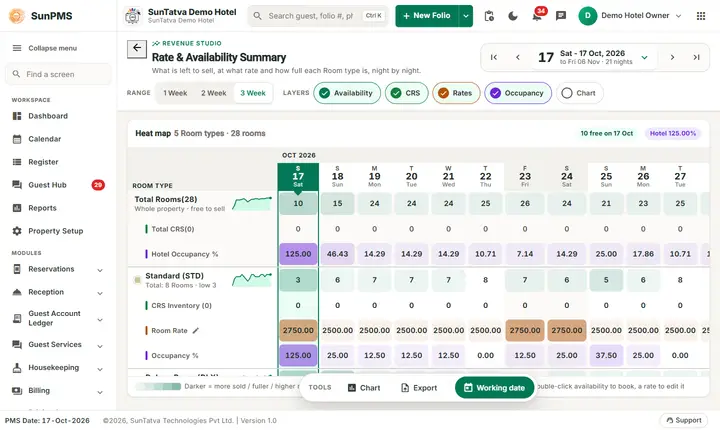
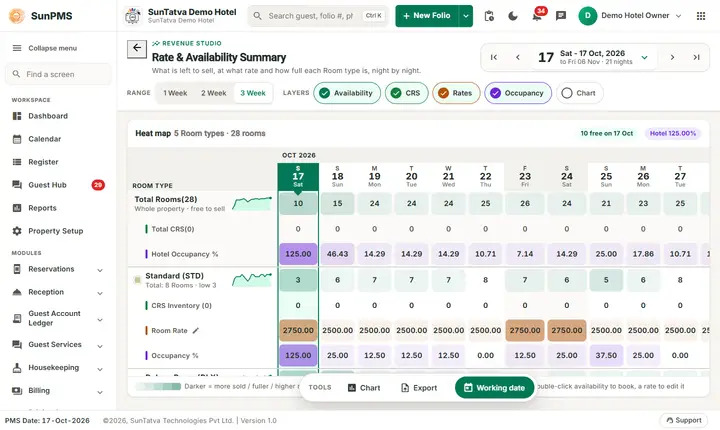
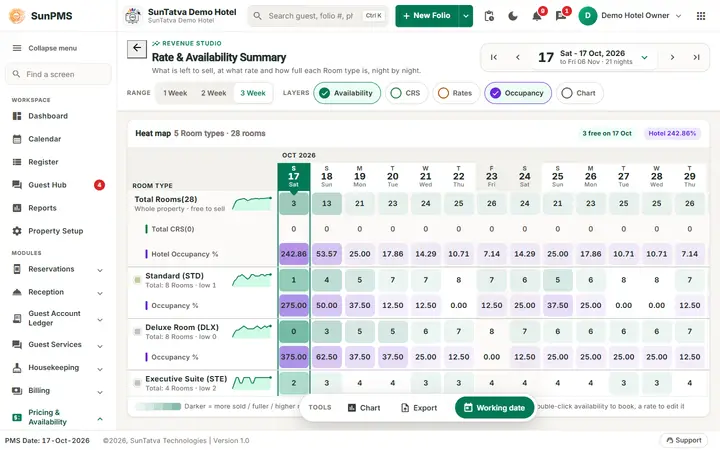
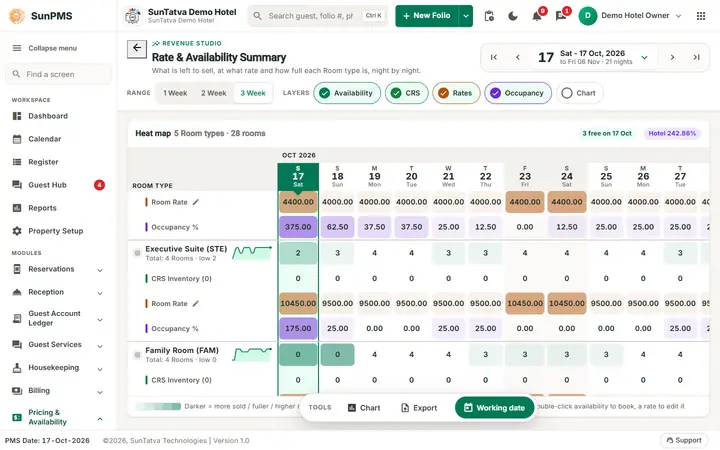
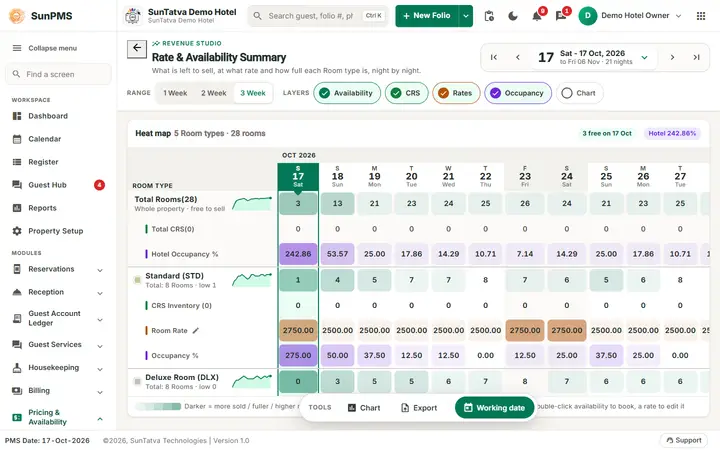
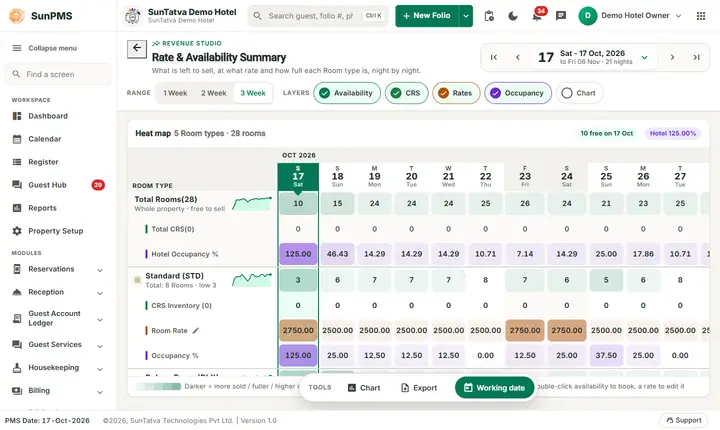
This "Revenue Studio" screen answers one question: what is left to sell, at what rate and how full is each room type, night by night. It is a heat map with a row of numbers per room type and one column per date; the darker a cell, the more sold, the fuller or the higher the rate within its row. You can add rows for the rate, the occupancy percentage and the inventory given to the channel manager (CRS). A single click on any number opens the side panel that explains it, and from there you can start a booking or correct that day's rate.
Before you start
- You have the Access to flash view privilege, otherwise the menu item is hidden.
- To change a rate you also need Access to configure rate; without it the panel shows no Edit rate button.
- Room types exist and have rooms (Room Type).
Screen layout
Header. Back arrow, the label REVENUE STUDIO, the title and the line "What is left to sell, at what rate and how full each Room type is, night by night." On the right the date control: first / previous / next / last arrows (tooltips Previous Week, Previous Date, Next Date, Next Week) and the big date button (for example 17 Sat - 17 Oct, 2026 to Fri 06 Nov · 21 nights). The date button opens a calendar with Working Date and Apply; dates before the earliest allowed date or after the last rate date are disabled.
Control row
| Control | What it means |
|---|---|
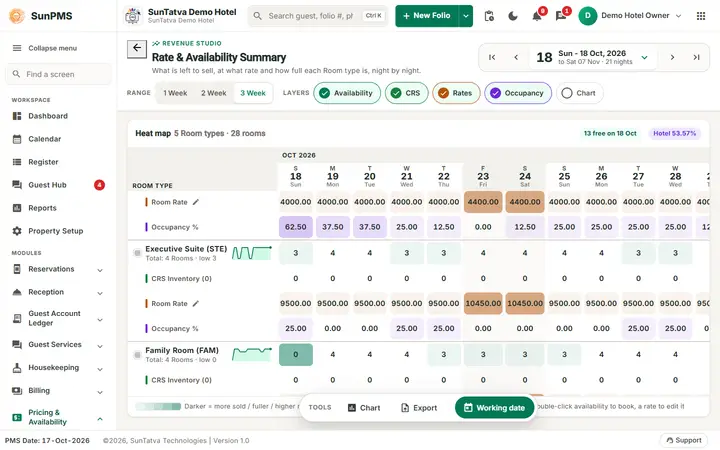
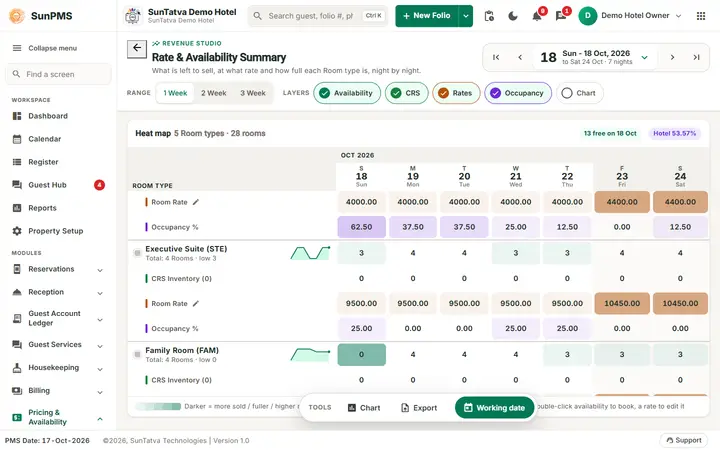
| Range: 1 Week / 2 Week / 3 Week | How many weeks (7, 14 or 21 nights) are shown. |
| Layers: Availability, CRS, Rates, Occupancy, Chart | Show or hide the CRS inventory, rate and occupancy rows under every room type. Your choice is remembered for your user. The Chart chip is remembered too, but the chart itself opens from Chart in the dock. |
The heat map. Its heading shows the number of room types and rooms and two chips: how many rooms are free on the first date and the Hotel occupancy of that date. The ruler on top has month bands, weekday letter, day number and weekday, the working date marked and weekends shaded.
| Row | What it shows |
|---|---|
| Total Rooms(n) "Whole property · free to sell" | Rooms still free to sell in the whole property per date, with a sparkline of the trend. |
| Total CRS(n) | Free rooms of the CRS inventory per date. |
| Hotel Occupancy % | Whole-property occupancy per date. |
| Room type row (name, short name, "Total: n Rooms · low n") | Rooms of that type still available per date. "low n" is the lowest value in the window. |
| CRS Inventory (n) (CRS layer) | Rooms of the type counted for your channels and still free. |
| Room Rate (Rates layer, pencil icon) | The rate per date. Bound rates show a lock and cannot be edited. |
| Occupancy % (Occupancy layer) | Share of the type's rooms sold per date. |
The legend under the grid reads "Darker = more sold / fuller / higher rate in its row" and explains the working date, weekend and bound-rate marks; the tip reads "double-click availability to book, a rate to edit it".
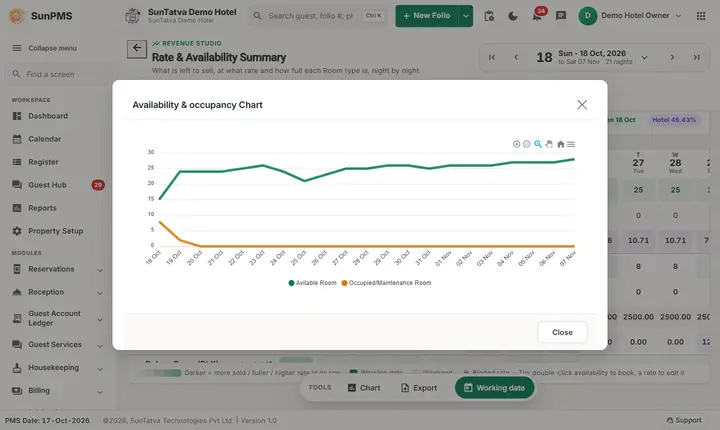
Dock.Chart (opens the "Availability & occupancy Chart" with a Close button), Export (menu PDF and Excel) and Working date. On a phone the panel becomes a bottom sheet and the grid scrolls sideways.
The side panel (click a cell)
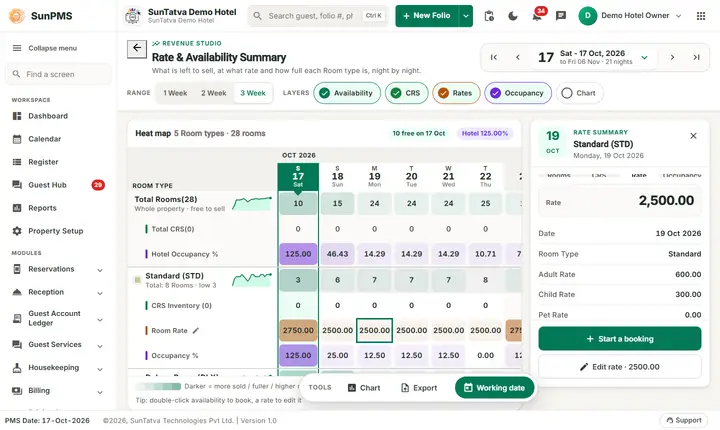
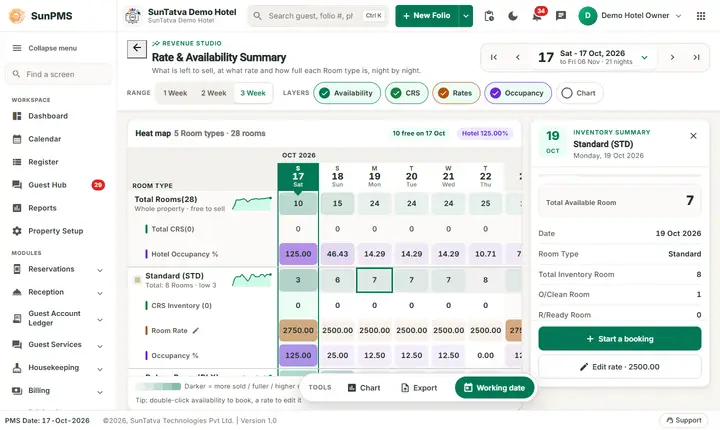
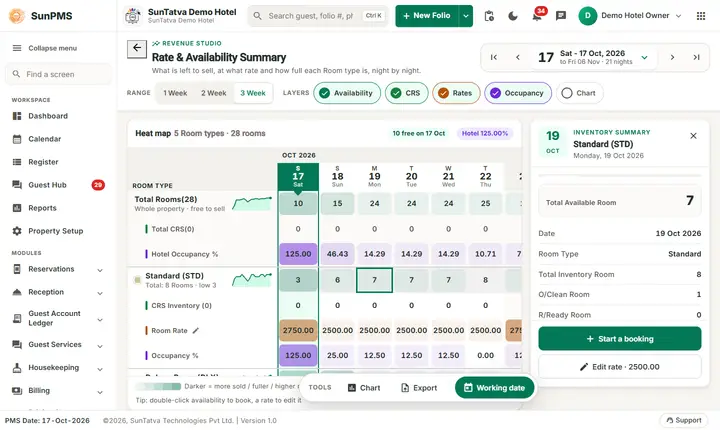
Click one cell (availability, CRS, rate or occupancy). The panel shows the date, the room type and a button row Rooms / CRS / Rate / Occupancy to look at the same day from another angle without closing it.
- Rooms (inventory) and CRS: the big figure Total Available Room, then the date, the room type, Total Inventory Room (or the CRS total), O/Clean Room (occupied), R/Ready Room (reserved with a room), R/WO Room (reserved without a room), V/Maint Room (blocked for maintenance), Group Block Room and Unposted Reservation (only when there are some). The word "Room" follows your property's naming.
- Rate: the rate of that day with Adult Rate, Child Rate and Pet Rate.
- Occupancy:Occupancy %.
A help text under the figures explains the number. A date without stored details shows "No... details are stored for this night." Buttons: Start a booking (opens check-in for that date and room type) and Edit rate ·
How each row is calculated
Every number is counted per room type and per date.
| Row | Counted as |
|---|---|
| Total Inventory Room | Active rooms of the room type (inactive rooms and inactive room types are not counted). With the CRS view only rooms marked CRS inventory in CRS-enabled room types count. |
| O/Clean (occupied) | In-house folios (checked in, not yet checked out) with a room of this type on that date. If your property settings count Vacant/Dirty or Vacant/Clean rooms as not available, those rooms are added here too. |
| R/Ready (reserved with a room) | Reservations arriving today or later that already have a room assigned. |
| R/WO (reserved without a room) | Reservations of this room type that have no room assigned yet. |
| V/Maint | Rooms blocked (block/maintenance) on that date. |
| Group Block | Rooms still held (not released) by active group blocks. |
| Unposted Reservation | Reservations received from the channel manager (CRS) but not yet posted to the PMS. Counted only when the property setting that includes unposted reservations in inventory is on. |
| Total Available | Total Inventory Room minus O/Clean, R/Ready, R/WO, V/Maint, Group Block and Unposted Reservation. |
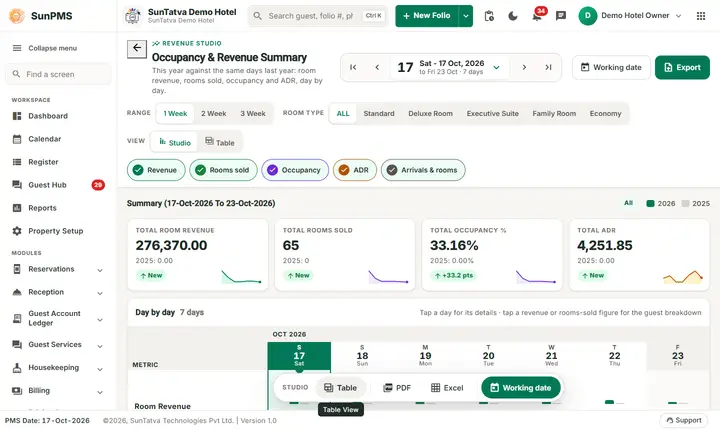
Example (demo hotel, 17-Oct-2026): the Standard type has 8 rooms and 1 occupied on 19 Oct, so 7 are available. Demo figures change as reservations are made; the working date can even read above 100 % when the demo data has more rooms in house than rooms in the type. To check a number, compare it with the Calendar, the In-House Guests list and the Occupancy & Revenue Summary.
How to change a rate here
- Switch on the Rates layer.
- Click the rate cell of a room type that is not bound. The panel opens on Rate.
- Click Edit rate (or double-click the rate cell). The window Edit Room Rate shows Room Type and Rate Date and the note "Saved for this one date as soon as you press Save."
- Type the new Rate and click Save (or Close). Result: Rate updated successfully. The grid reloads. The change uses the default rate type of the property and is sent like a Rate Manager change (Rate Manager). If the value breaks the room type's minimum or maximum rate, the server shows an error and the rate stays.
Other actions
- Start a booking in the panel, or double-click an availability cell: opens a new reservation for that room type and date.
- Chart (dock): opens "Availability & occupancy Chart", a line chart of available and occupied / maintenance rooms for the dates shown.
- Export > PDF / Excel: downloads the grid for the dates and rows currently shown. The Excel file is titled Flash View from
to .
What happens behind the scenes
- The page refreshes by itself when another user changes a reservation or a rate (live update), so figures can change while you look at them.
- A rate change is saved for that date and room type only, and queued to the channel manager when the property is connected.
Messages you may see
| Message (exact text) | Why it appears | What to do |
|---|---|---|
| Rate updated successfully. | A rate was saved. | None. |
| (red pop-up with the server text) | Rate outside the allowed range, or loading failed. | Correct the value or reload. |
Tips and FAQ
- Q: Why does CRS Inventory differ from Available? A: CRS inventory counts only room types marked CRS-enabled, and also counts unposted reservations (Unposted Reservation).
- Q: I cannot find Edit rate in the panel. A: The rate type is bound to another one (lock icon), or you lack Access to configure rate.
- Q: The occupancy rows read 0.00. A: Switch the Occupancy layer off and on, or reopen the page. Hotel Occupancy % = rooms sold / (total rooms minus blocked rooms), for example 7 of 26 = 26.92 when two rooms are blocked.
- Q: I typed a rate with decimals and it did not change. A: The screen compares the two-decimal values, so a change only in the decimals (for example 100.00 to 100.50) is saved. Rate Manager is the place for bulk rate changes.
- Q: Where is revenue? A: See Occupancy & Revenue Summary.
Screenshots