Restrictions
On this page
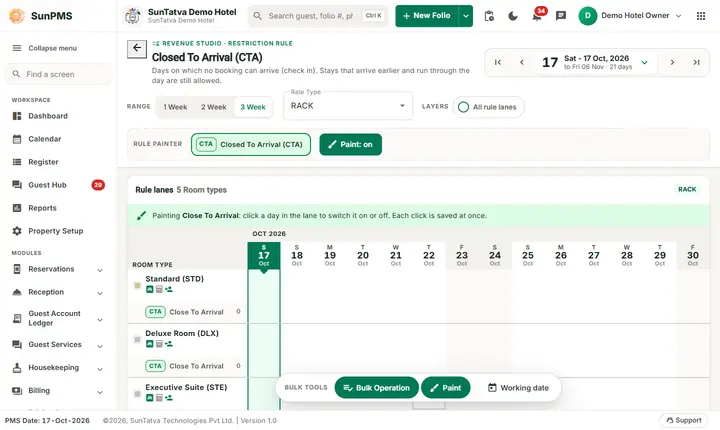
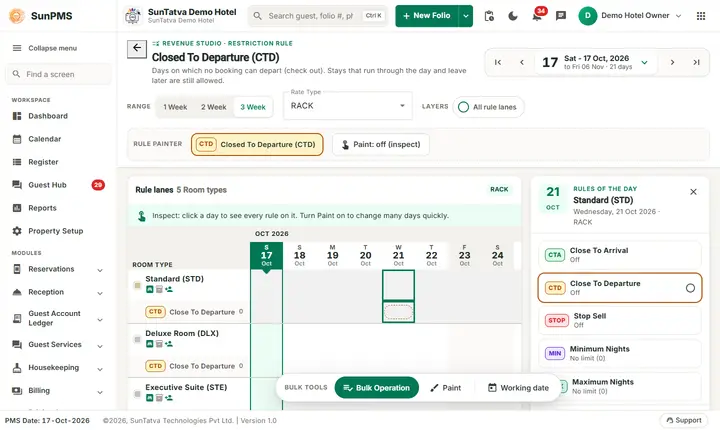
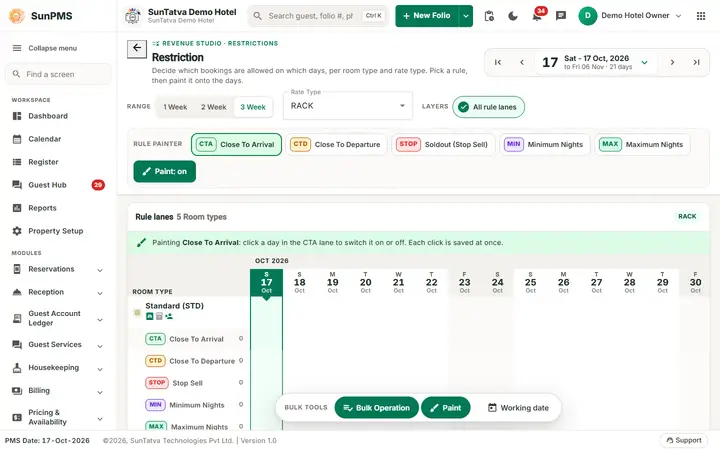
Restrictions control which stays can be booked on each date, per room type and rate type. They are sent to online channels (via the CRS) so guests cannot book what you do not want to sell. The screen is a "Revenue Studio" board of rule lanes: for every room type there is a row of dots showing which rules are on, and one lane per rule where restricted days appear as coloured bars that span consecutive days. You change a day with the rule painter (one click per day) or from the side panel, and many days at once with Bulk Operation.
The five restrictions
| Code | Rule | Meaning |
|---|---|---|
| CTA | Close To Arrival | No new stay may start (arrive) on this date. Stays that arrive earlier and run through the day are not affected. |
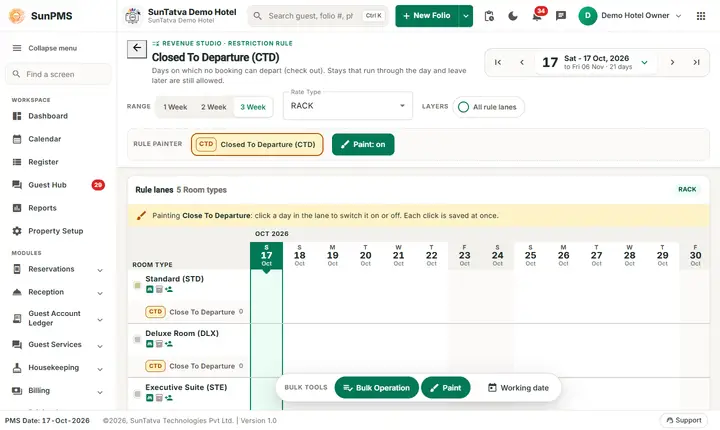
| CTD | Close To Departure | No stay may end (depart) on this date. |
| STOP | Soldout (Stop Sell) | The room type is shown as sold out on this date for this rate type, so it cannot be booked whatever the availability. |
| MIN | Minimum Nights (Min LOS) | A stay arriving on this date must be at least this many nights. 0 means no minimum; a saved minimum is never below 1. |
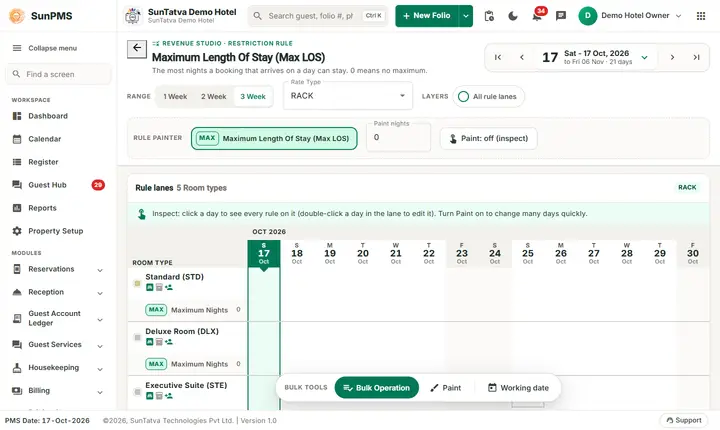
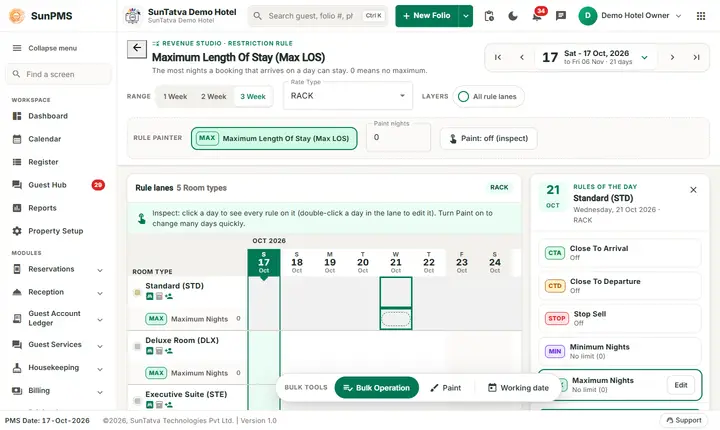
| MAX | Maximum Nights (Max LOS) | A stay arriving on this date may be at most this many nights. 0 means no limit. |
Screen layout
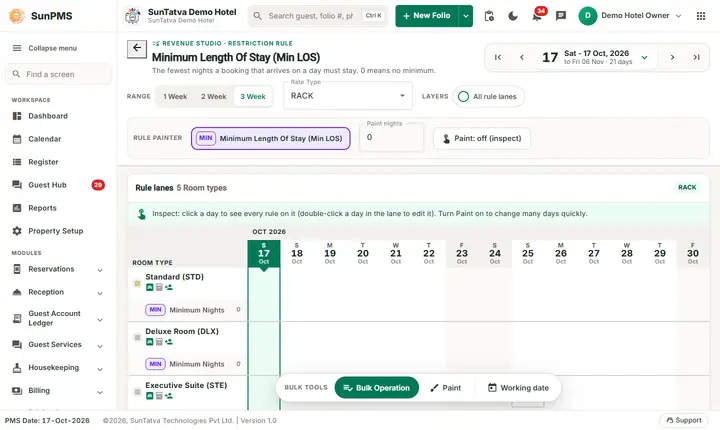
Header. Back arrow, the label REVENUE STUDIO · RESTRICTIONS, the title Restriction and the line "Decide which bookings are allowed on which days, per room type and rate type. Pick a rule, then paint it onto the days." The date control (arrows, big date button with Working Date) is on the right.
Control row
| Control | Meaning |
|---|---|
| Range: 1 Week / 2 Week / 3 Week | How many weeks are shown. |
| Rate Type (drop-down) | Restrictions are kept per rate type; pick the one you edit. |
| Layers: All rule lanes | On by default on this board: all five lanes are drawn under each room type. Switch it off to draw only the lane of the rule you are painting (the rule pages start with it off). |
Rule painter (second band). One button per rule - CTA Close To Arrival, CTD Close To Departure, STOP Soldout (Stop Sell), MIN Minimum Nights, MAX Maximum Nights - disabled when you lack that rule's privilege. The chosen rule is highlighted. For MIN and MAX a Paint nights box holds the number of nights to paint. The toggle Paint: on / Paint: off (inspect) switches the click behaviour. The hint under the board heading states what a click will do.
Board "Rule lanes". A date ruler (month bands, weekday letter, day, month; working date and weekends marked). Each room type has a header row of coloured dots (one per rule that is on that day) and its lanes (CTA green, CTD amber, STOP red, MIN blue, MAX violet). A lane label shows the rule code, its name and how many days are restricted. Restricted days are drawn as one bar across consecutive days; MIN and MAX bars carry the number of nights. The legend at the bottom names the codes, the working date and the weekend.
Dock.Bulk Operation, Paint (the same switch as in the painter band) and Working date.
How a click behaves (important)
- Paint on (the default for CTA, CTD and Stop Sell): a click on a day in the active lane switches that rule on or off for that room type and day and saves at once. For MIN and MAX with paint on, a click sets the day to the Paint nights value.
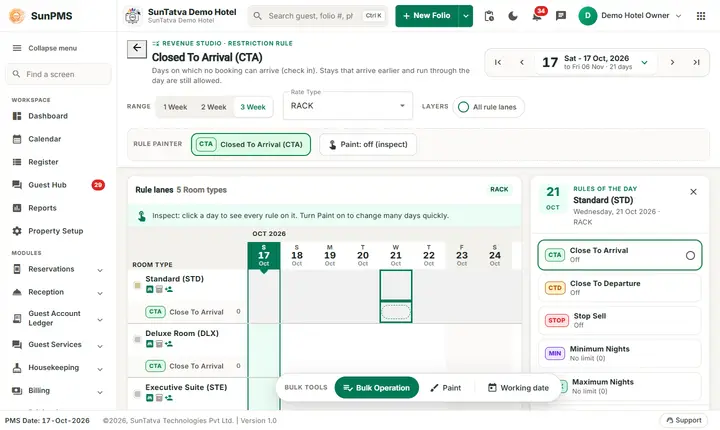
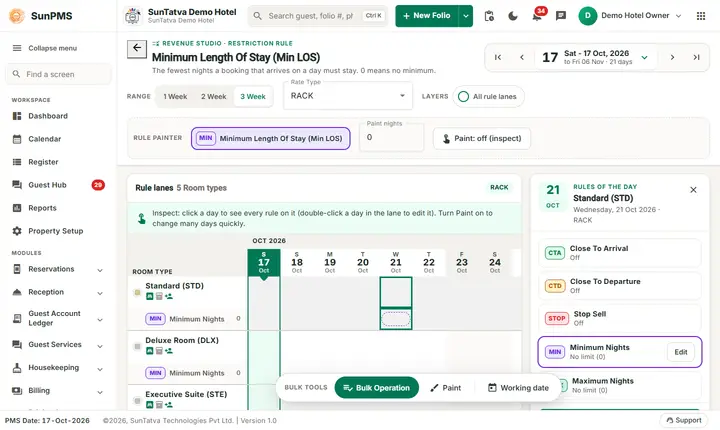
- Paint off (the default for Minimum and Maximum Nights): a click on a day only opens the side panel, nothing is changed.
- A click on a room type's dot row (the first row of the group) always opens the side panel. Turn paint off when you only want to look.
The side panel (rules of the day)
It lists all five rules for that room type, date and rate type with their state (Off, On, or the number of nights; "No limit (0)"). The active rule has the control - a tick box for CTA, CTD and Stop Sell, a number box for MIN and MAX (saved when you press Enter or leave the box). Other rules have an Edit button that makes them the active rule. The button Apply CTA on this day / Remove CTA on this day (and the same for CTD and STOP) sets or clears the active rule for the day. A help text explains the active rule in plain words.
How to set a restriction on one day
- Choose the rate type and the rule in the painter.
- With paint on, click the day in the lane. With paint off, click the day, then tick the box (or type the nights) in the side panel. Result: a small message Restriction updated successfully. appears. Click again (or untick) to remove. Min nights below 1 is saved as 1.
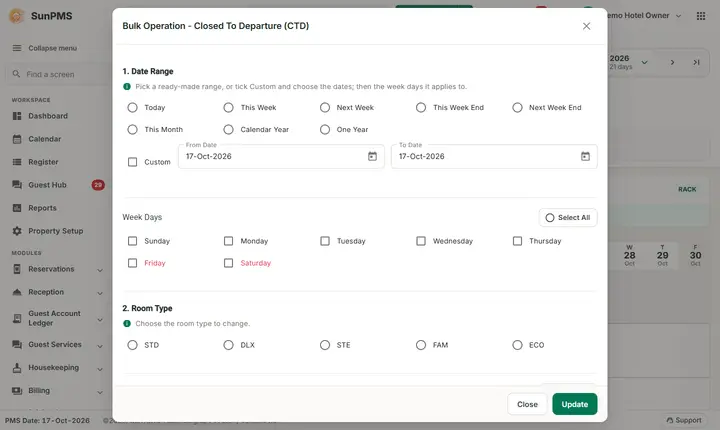
How to set many days (Bulk Operation)
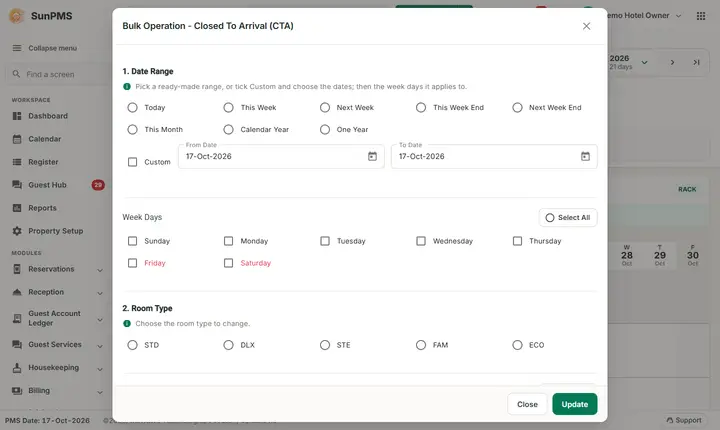
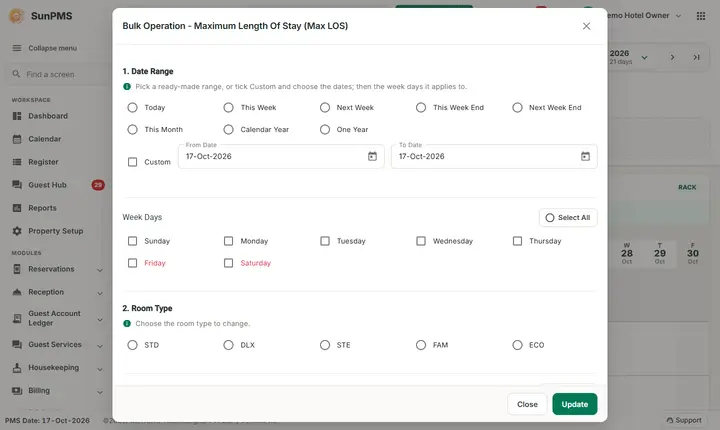
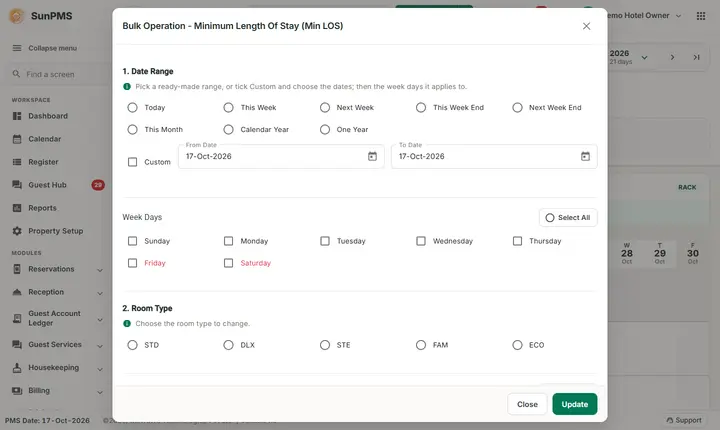
- Click Bulk Operation (window "Restriction Bulk Operation").
- When and where: choose Select Date Range (or set From Date / To Date), Rules To Update (any of Close To Arrival, Close To Departure, Sold Out, Min Nights, Max Nights) and Select Room Type (one room type per run).
- Rate Type: tick the rate types (or the header box for all).
- Rules Value: tick Close To Arrival, Close To Departure or Sold Out to apply the restriction (untick to remove it); type the Min Nights / Max Nights. A value is only used when its rule is selected in Rules To Update.
- Day Wise Update: tick the weekdays (Select All ticks all); weekend days show in red.
- Click Update (the window stays open) or Update & Close. Result: Restriction updated successfully.
Messages
| Message | Why |
|---|---|
| Please select Room Type. | No room type chosen. |
| Please select Rate Type(s). | No rate type ticked. |
| Please select Day(s). | No weekday ticked. |
| The minimum night should be greater than or equal to one. | Min Nights chosen with value below 1. |
| Please select valid MaxNight. | Max Nights negative or empty. |
Sync to OTA / CRS
Each change is saved and then queued to the CRS if the property is connected to one (rates, restrictions and, for Soldout, inventory). The channel manager passes it to the OTAs; delivery can take minutes. Night audit also pushes the 365th-day restrictions. To resend a range use the CRS bulk restriction update (Sync overview). Webhook partners receive the change as well.
Tips and FAQ
- Q: I clicked a day and something changed. A: Paint was on: each click in the active lane saves immediately. Click again to undo, or switch Paint off first.
- Q: Stop sell vs room type inactive? A: Stop sell closes only the dates you paint, per rate type.
- Q: Does CTA stop front-desk bookings? A: The restriction is for channels; check Settings for whether reservation screens also warn.
- Q: I cannot select a rule. A: The button is greyed because your role lacks that rule's privilege.
- Night audit carries yesterday's restrictions forward to the new last day.
Screenshots