
Restriction rule pages
On this page
Besides the combined board on the Restriction screen (Restrictions), each of the five restrictions has its own page. It is the same Revenue Studio board with only that rule's lane under every room type and only that rule's brush in the painter, so it is simpler on a tablet or phone and safer for staff who hold just one of the privileges. The pages read and write the same data as the combined board, so a change made here is visible there at once.
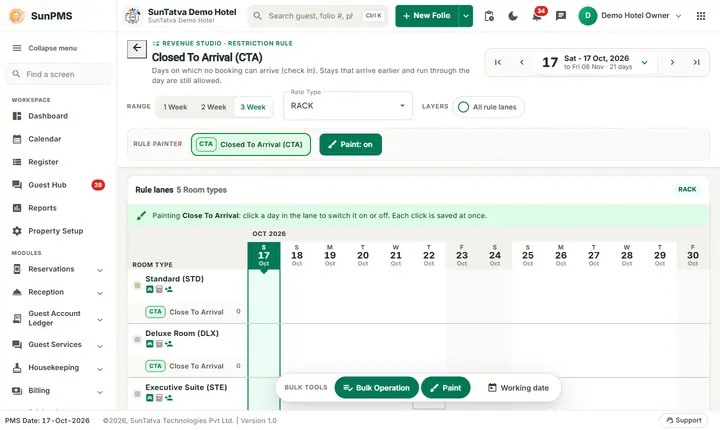
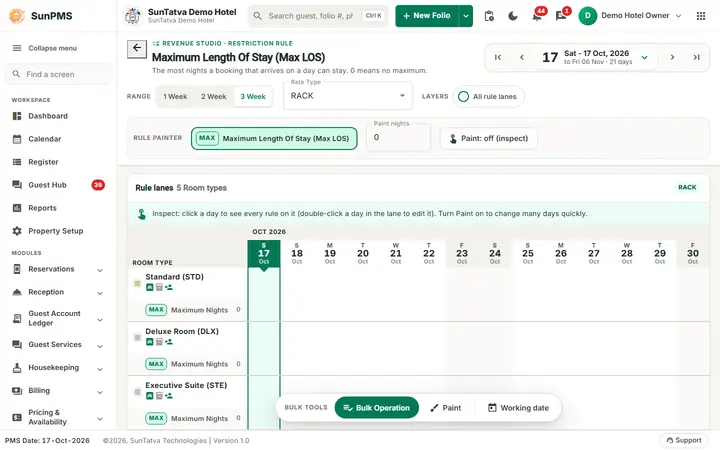
The Maximum Length Of Stay screen in inspect mode: click a day to see every rule on it.
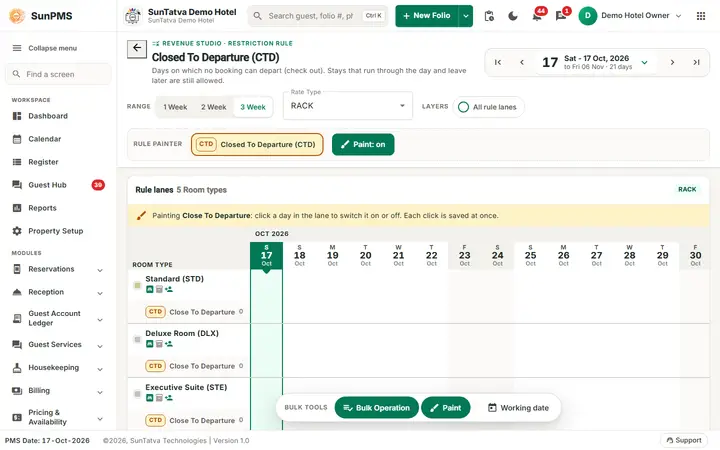
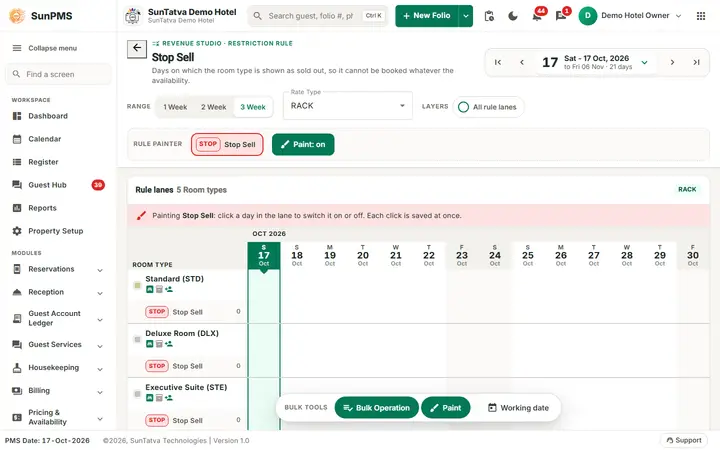
The Closed To Departure screen: the rule painter on top and one lane per room type; with Paint on, each click on a day switches the rule.
The five pages
| Page title (as shown) | Address | What a day holds | Privilege |
|---|---|---|---|
| Closed To Arrival (CTA) | #/restrictions/closed-to-arrival |
On / off. On = no new stay may arrive on that date. | Close to arrival |
| Closed To Departure (CTD) | #/restrictions/closed-to-departure |
On / off. On = no stay may depart on that date. | Close to departure |
| Stop Sell | #/restrictions/stop-sell |
On / off. On = the room type / rate type cannot be sold on that date. | Sold out |
| Minimum Length Of Stay (Min LOS) | #/restrictions/min-stay |
A number of nights. | Minimum nights |
| Maximum Length Of Stay (Max LOS) | #/restrictions/max-stay |
A number of nights. | Maximum nights |
(The old addresses such as #/closed-to-arrival still open the same pages.)
Before you start
- At least one room type and one rate type exist, and the rate type is bound to the room type (Rate Type Binding).
- Your role holds the privilege for the page you open.
- Rates and restrictions are kept per rate type, so always check which rate type is selected.
Screen layout
| Area | What it does | Rules |
|---|---|---|
| Header | Back arrow, the label REVENUE STUDIO · RESTRICTION RULE, the page title and one line explaining the rule (for example Stop Sell: "Days on which the room type is shown as sold out, so it cannot be booked whatever the availability."). | |
| Date control (right) | Arrows, the big date button (calendar with Working Date and Apply) and the range text. | You cannot go earlier than the PMS date or later than the last rate date of the property. |
| Range: 1 Week / 2 Week / 3 Week | How many weeks are shown. | |
| Rate Type drop-down | Choose the rate type being edited. | One rate type at a time. |
| Layers: All rule lanes | Show the lanes of the other four rules as well (dimmed). | Off by default. |
| Rule painter | One brush for this rule, a Paint nights box on the Min and Max pages and the toggle Paint: on / Paint: off (inspect). | Tick-box rules start with paint on, Min and Max with paint off. |
| Board | Per room type: a row of dots and the rule lane with bars for restricted days; room type colour, name, short name and small feature icons (hover for the tooltip; greyed icons are off). | Today is marked and weekends have a weekend tint. |
| Dock | Bulk Operation, Paint, Working date. |
How to set a restriction on one date (CTA, CTD, Stop Sell)
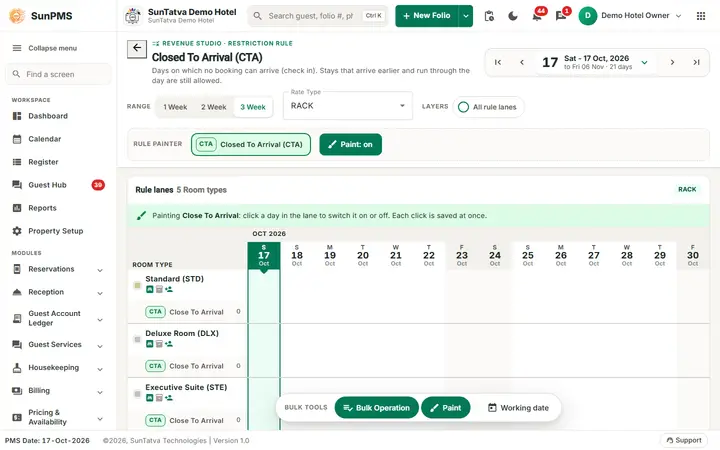
The Closed To Arrival (CTA) page: pick the Rate Type, then click days in the lane of a room type. Stop Sell looks the same with its own colour.
- Choose the Rate Type.
- With Paint: on (the default), click the day in the lane of the room type. The bar appears and the change is saved at once; click again to remove it.
- With paint off, click the day, then use Apply CTA on this day / Remove CTA on this day (the wording follows the rule) in the side panel. Result: Restriction updated successfully.
How to set the minimum or maximum nights for one date
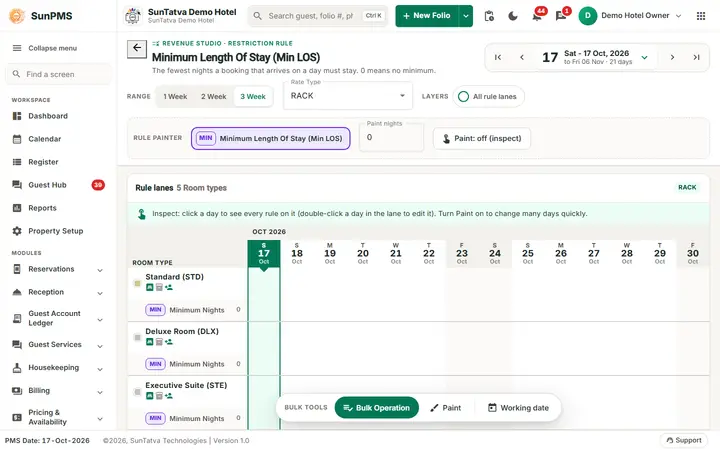
The Minimum Length Of Stay (Min LOS) page has a Paint nights box next to the painter. Maximum Length Of Stay has the same layout.
- Paint is off by default on these pages: click the day in the lane. The side panel shows the rule and Edit nights · now
. (Double-clicking the day opens the same editor.) - The window Edit Minimum Length Of Stay (the maximum page re-uses the same title) shows Room Type, Rate Type and Rate Date.
- Type the number of nights (Min Length on the minimum page, Rate on the maximum page; whole numbers from 0).
- Click Save. Result: Restriction updated successfully. and the lane shows the new number. Alternatively type the nights in the Paint nights box, switch Paint on and click days to set each to that value.
A minimum below 1 is saved as 1. A maximum of 0 means no limit.
How to change many dates at once (Bulk Operation)
- Click Bulk Operation. The window title is Bulk Operation -
. - 1. Date Range: pick one of Today, This Week, Next Week, This Week End, Next Week End, This Month, Calendar Year, One Year, or tick Custom and fill From Date and To Date (the To date cannot be earlier than From). Under Week Days tick the days to change, or click Select All. Days that are your weekend days show in red.
- 2. Room Type: choose one room type (shown by its short name).
- 3. Rate Type: tick one or more rate types, or Select All.
- 4. Set Restriction Value: on CTA, CTD and Stop Sell choose Apply (set the restriction) or Remove (clear it). On the Min / Max LOS pages type the number of nights.
- Click Update. Close leaves the window without saving. Result: Restriction updated successfully. and the lanes refresh.
What happens behind the scenes
- The change is saved for each selected date, room type and rate type, and queued for the CRS / channel manager when the property is connected, exactly as on the combined board (Restrictions).
- Stop Sell removes the room type from online sale for that date but does not stop a front-desk booking by itself.
- CTA and CTD do not affect guests already in house.
Messages you may see
| Message (exact text) | Why it appears | What to do |
|---|---|---|
| Please select Room Type. | Bulk Operation without a room type. | Choose one room type in step 2. |
| Please select Rate Type(s). | Bulk Operation without a rate type. | Tick at least one rate type. |
| Please select Day(s). | No week day ticked. | Tick days or Select All. |
| The minimum night should be greater than or equal to one. | Min LOS value empty or below 1. | Enter 1 or more. |
| Please select valid MaxNight. | Max LOS value empty or negative. | Enter 0 or more. |
| Restriction updated successfully. | Success. | None. |
Tips and FAQ
- Q: I do not see the page. A: The related privilege is missing; ask the administrator (Roles and Privileges).
- Q: A click changed a day when I only wanted to look. A: Paint was on. Click again to undo, or switch Paint off first.
- Q: Which is faster for 30 days: painting or the bulk window? A: Use Bulk Operation; painting is best for a few days and for checking one room type across a few weeks.
- Q: I set Stop Sell but the OTA still sells. A: Delivery is queued and can take minutes; check Sync Statistics.