Rate Manager
On this page
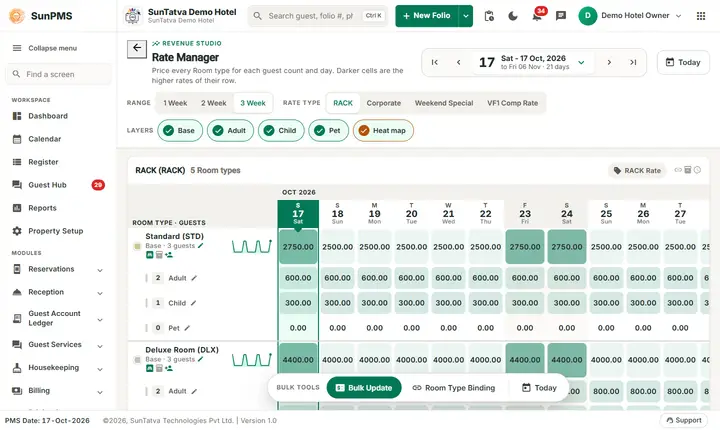
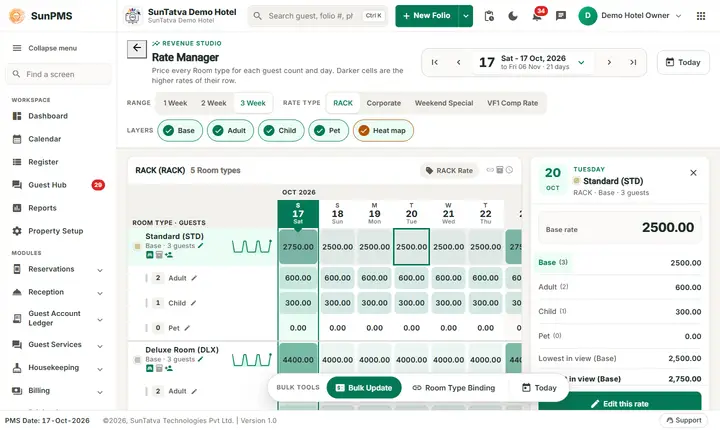
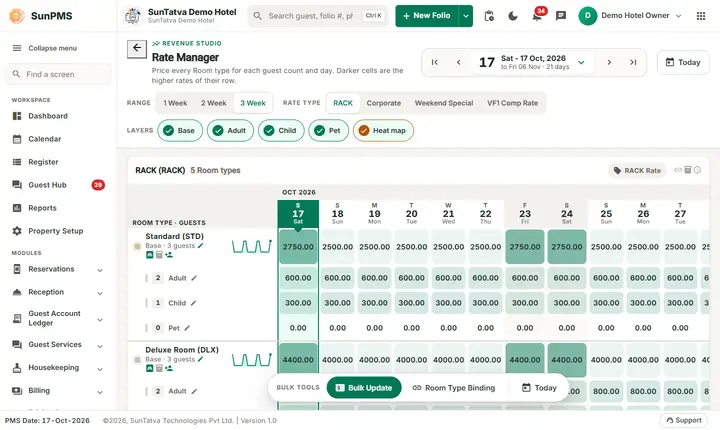
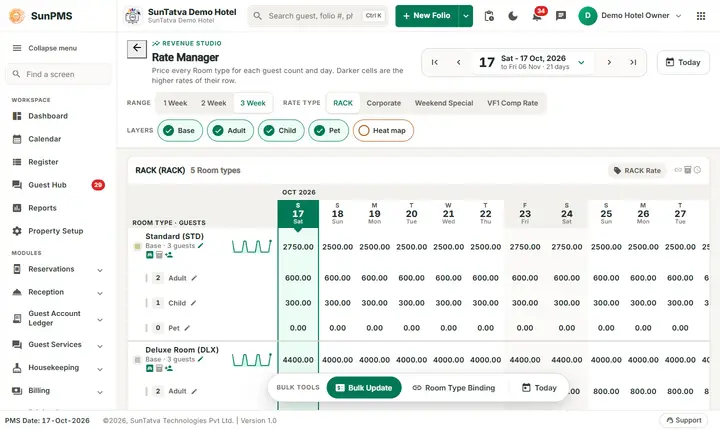
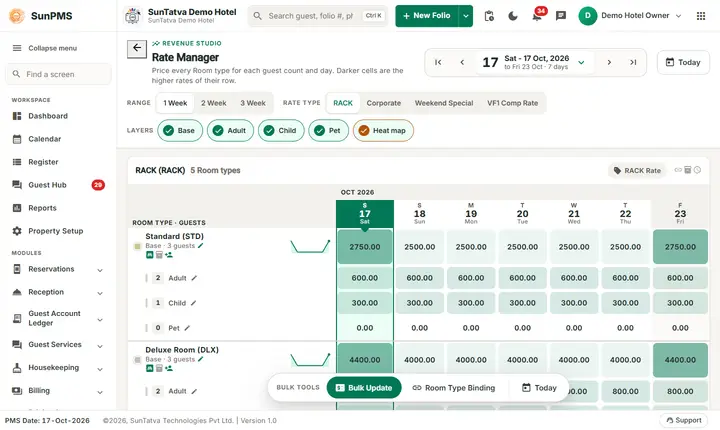
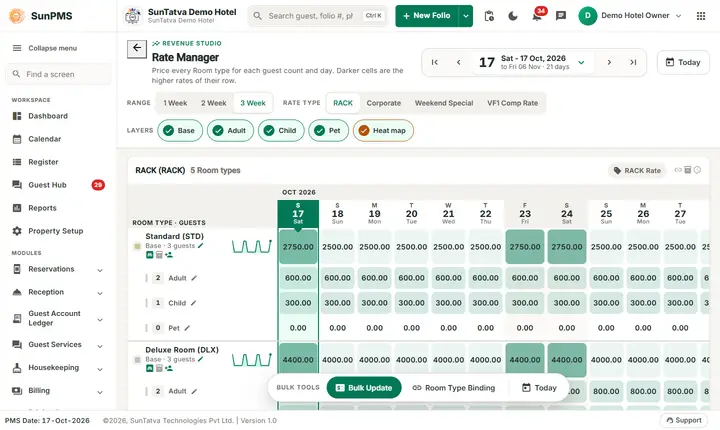
The Rate Manager is the calendar of room prices, built as a "Revenue Studio" screen. For each room type and rate type it shows, day by day, the Base, Adult, Child and Pet rates as a heat map: darker cells are the higher rates of their own row, so a weekend peak or a cheap Tuesday is visible at a glance. A single click on a rate opens the side panel with every guest count of that day. You change one day from the panel, change many days and room types at once with Bulk Update, or make one room type's rate follow another with Room Type Binding.
Before you start
- Rate types (Configuration masters) and room types must exist. Only active ones appear.
- Rates cannot be set outside the minimum and maximum rate of the room type; the system refuses the change otherwise.
- Rate binding needs a base room type (the one the others follow) to be marked in Room Type settings. Without it, Room Type Binding shows "Base Room Type not configured."
Screen layout
Header (the sticky studio head). Back arrow, the small label REVENUE STUDIO, the title Rate Manager and a one-line explanation. On the right is the date control:
| Control | Meaning |
|---|---|
| First / Previous / Next / Last arrows (tooltips Previous Week, Previous Date, Next Date, Next Week) | Move the visible window by one day or by the number of weeks shown. |
| Big date button (for example 17 Sat - 17 Oct, 2026 to Fri 06 Nov · 21 days) | Opens the calendar (tooltip Select Date) with Working Date and Apply. Dates before the PMS date and beyond the rate maximum cannot be chosen. |
| Today | Starts the window on the working (PMS) date. |
Control row
| Control | Meaning |
|---|---|
| Range: 1 Week / 2 Week / 3 Week | How many weeks are shown (the number of choices follows the Week setting of the property). |
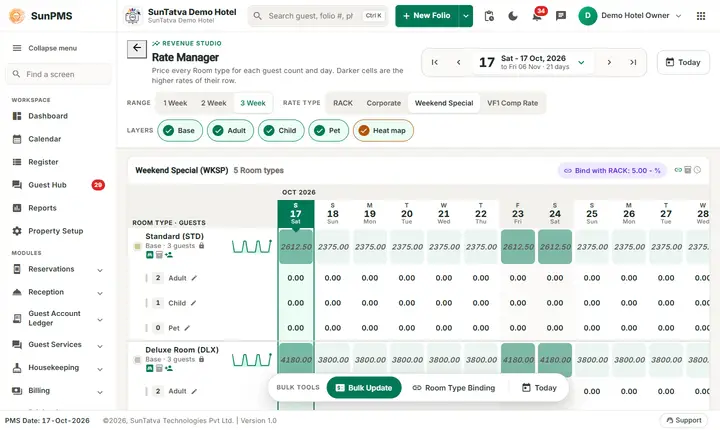
| Rate type buttons (for example RACK, Corporate, Weekend Special) | Pick the rate type you view and edit. The board header repeats it ("RACK Rate") with small icons for "binding rate type", "CRS enabled" and "hourly rate type", and shows the binding (for example "Bind with |
| Layers: Base, Adult, Child, Pet, Heat map | Show or hide the Adult, Child and Pet rows, and switch the heat tint on or off. Base is always on. |
The board. A date ruler (month bands, weekday letter, day number, weekday), the working date marked and weekends shaded. For each active room type there is a group of rows: Base (with the guest count it covers, for example "Base · 3 guests"), then Adult, Child and Pet, each with its number of guests on the left. A small sparkline beside the room type name draws its base rate over the window. A pencil beside a row label means the row is editable, a lock means the rate is derived (bound) and cannot be typed here. The legend under the board explains the tint, the working date, weekends and bound rates.
Dock (floating tools).Bulk Update, Room Type Binding and Today. The first two are disabled without the privilege.
On a tablet or phone the side panel becomes a bottom sheet and the dock stays at the bottom; the board scrolls sideways.
The side panel (click a rate)
Click any rate cell once. The panel on the right shows:
- the date, the room type, the rate type and the guest count ("RACK · Base · 3 guests");
- the big figure (the rate you clicked);
- Base, Adult, Child and Pet of that day, with a lock on bound ones (click one of them to switch the panel to it);
- Lowest in view and Highest in view for that row, which is what the heat tint is measured against;
- a short help text. For a bound rate it says the rate is locked because it follows another rate; without the privilege it says you can see but not change it. Buttons: Edit this rate (not for bound rates or without the privilege) and, for bound rates, Room Type Binding. Close the panel with the x, by clicking the dimmed area or by pressing a different cell. Double-click a rate (or press Enter on it) to open the editor straight away.
How to change one rate
- Pick the rate type button and the date window.
- Click the rate cell once, then Edit this rate (or double-click the cell). A cell with a lock does not open.
- In Edit Rate you see Room Type, Rate Type, Occupancy (the guest count) and Rate Date. Type the new Rate (two decimals) and click Save (or Close to cancel). Result: Rate updated successfully. If the value is unchanged the window just closes. The edit changes that one day only.
How to change many rates (Bulk Update)
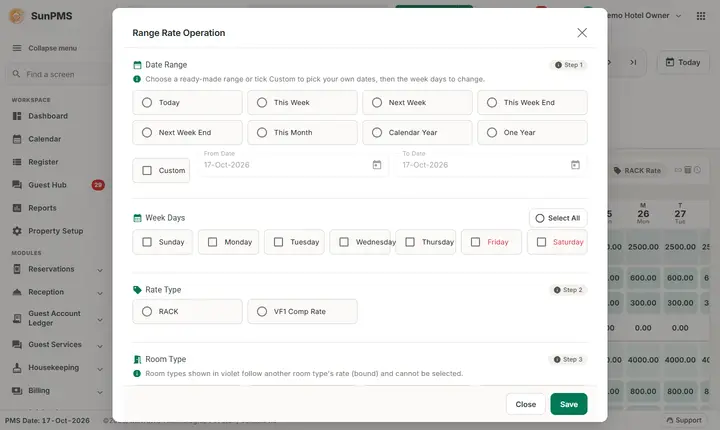
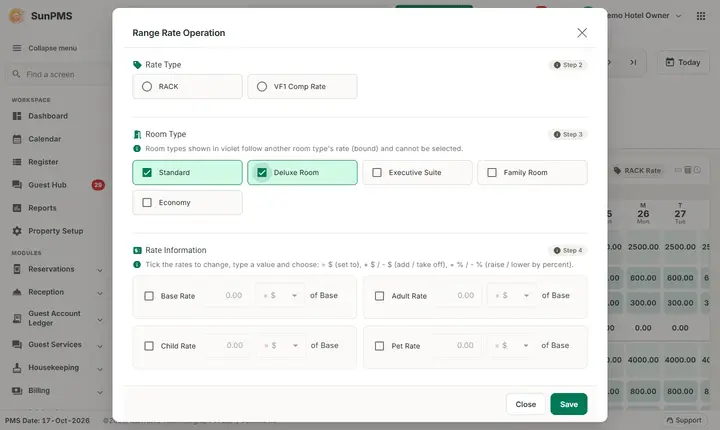
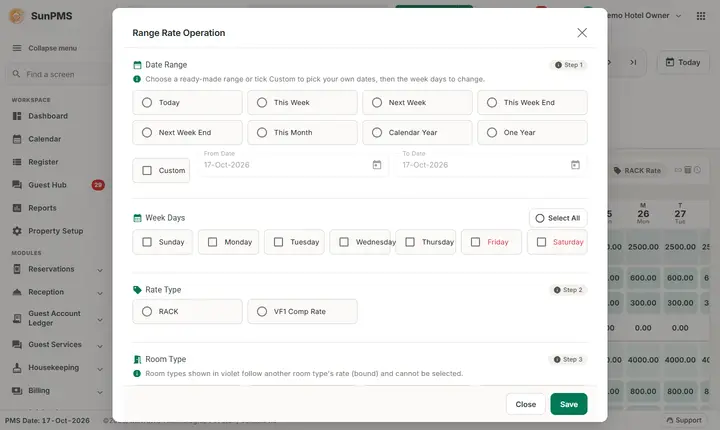
Click Bulk Update in the dock to open "Range Rate Operation". It is one window in numbered sections:
- Date Range (Step 1): choose one of Today, This Week, Next Week, This Week End, Next Week End, This Month, Calendar Year, One Year, or tick Custom and set From Date / To Date. Under Week Days tick the days to change (or Select All); days in red are your weekend days (Weekend setting).
- Rate Type (Step 2): pick one. Only rate types that are not derived are listed.
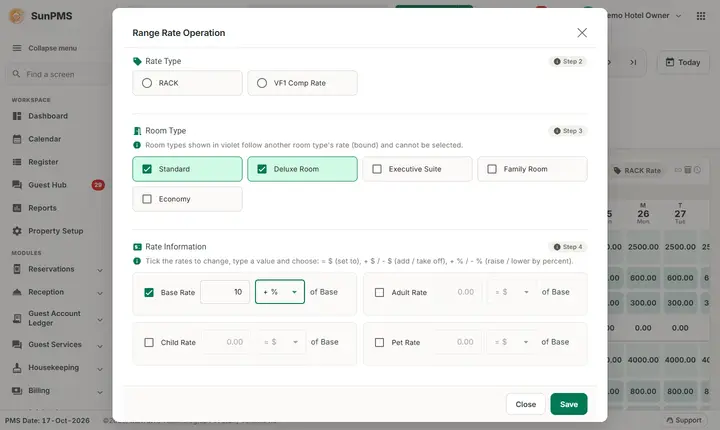
- Room Type (Step 3): tick the room types. Room types whose rate is bound are shown in violet and cannot be ticked (they follow the base room type).
- Rate Information (Step 4): tick Base Rate, Adult Rate, Child Rate, Pet Rate and for each a value and an operation: = $ (set to the amount), + $ (add), - $ (subtract), + %, - % (raise or lower by percent of the current base). The first operation reads = $ here but = % in the Room Type Binding window (it takes that percentage of the base rate): the same position means "set the amount" in a bulk update and "percent of base" in a binding. Click Save. Result: Rate(s) updated successfully.Close leaves without saving.
Derived rates: Room Type Binding
Click Room Type Binding (dock, or the button in the side panel of a bound rate). The window has two sections. Bind With
What happens behind the scenes
- Every change is checked against the room type's minimum and maximum rate. If it is outside, the error shows the allowed range; for bound room types it shows the resulting bound rate.
- Bound room types and bound rate types are recalculated automatically.
- Rates on future dates are sent to the channel manager (CRS) and to rate webhooks (for example a revenue-management tool) in the background, see Sync overview.
- If the audit-trail rate log is on, each change is stored with user, IP and machine.
- New reservations use the rate for each night from this calendar; existing reservations keep their saved rate unless you edit them.
- Night audit copies the last day's rates forward so the calendar never runs out.
Messages you may see
| Message | Why | What to do |
|---|---|---|
| Invalid rate format. | Non-numeric rate. | Type a number. |
| Rate updated successfully. / Rate(s) updated successfully. | Saved. | - |
| Please select Rate Type. | No rate type chosen in Bulk Update. | Pick one. |
| Please select Room Type(s). | None ticked. | Tick at least one. |
| Please select Rate. | No Base/Adult/Child/Pet ticked. | Tick one. |
| Please select atleast one Day for update. | No weekday ticked. | Tick days. |
| Please provide valid Base / Adult / Child / Pet Rate value. | Negative or badly formatted value. | Correct it. |
| Base Room Type not configured. | Binding opened but no base room type. | Mark a base room type in Room Type settings. |
| No binded Room Type found. | Only one room type exists. | Add another room type. |
| Please provide valid... Rate binding value. | Binding value 0 or invalid while ticked. | Enter a value above 0. |
| Rate:... The rate range for... is Min... Max... | Rate outside allowed range. | Choose a rate in the range or change the limits in Room Type. |
Tips and FAQ
- Q: Why can't I edit a cell? A: It shows a lock (bound rate) or you lack "Access to configure rate"; the side panel says which.
- Q: What do the darker cells mean? A: Within one row, the darker the cell the higher the rate; the panel shows the lowest and highest of the row. Switch Heat map off for plain cells.
- Q: I changed a rate but the OTA still shows the old one. A: The push is queued; wait a few minutes or use the CRS bulk rate update.
- Q: Is the rate for a past date editable? A: The calendar starts at the allowed minimum date; past dates cannot be chosen.
Screenshots