
Sync Statistics
On this page
Sends your daily Revenue and Room Sold numbers to a partner interface again. Revenue-management and benchmarking partners use these figures to forecast demand and set prices. Use the screen when the partner missed days or when a new interface needs history.
Before you start
- At least one interface exists in Webhook settings.
- Night audit has been run for the days you want to resend, otherwise those days show zero.
Screen layout
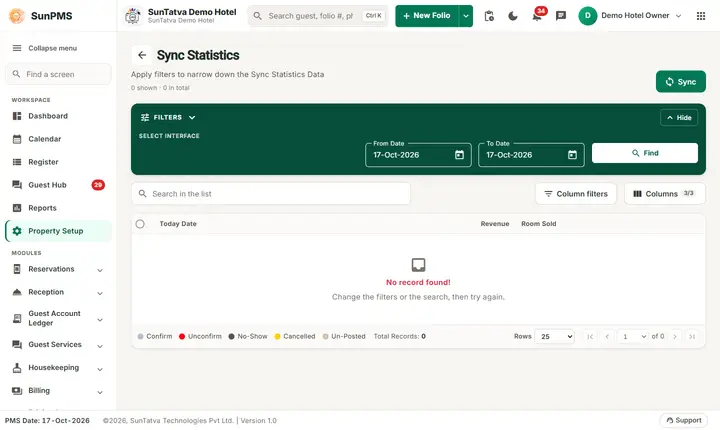
The page has the title Sync Statistics, the count "n shown · n in total", the Sync button, the green Filters band (Hide folds it), a Search in the list box, Column filters, Columns (3/3) and the grid with the pager (Rows 25 / 50 / 100).
| Field / column / button | What it means | Rules |
|---|---|---|
| Select Interface (chips) | Partner to send to | Required for Sync. |
| From Date | First date of the range | Pre-filled with the PMS date. |
| To Date | Last date | Cannot be earlier than From Date. |
| Find | Loads the statistics grid | See note below. |
| Sync (top right of the page) | Sends the statistics for From Date to To Date | Confirmation asked. |
| Grid columns | Today Date (business date), Revenue, Room Sold | Search box and column filters are available. |
Note: Find always loads the window from 364 days before to 364 days after the PMS date, and then writes those two dates into From Date and To Date. So after Find the Sync range is that whole window. To send a shorter range, set the dates again after clicking Find.
How to sync statistics
- Click Sync (left menu) > Sync Statistics.
- In the Filters band choose an interface chip.
- Optional: click Find to see the numbers, then set From Date and To Date to the days you want to send.
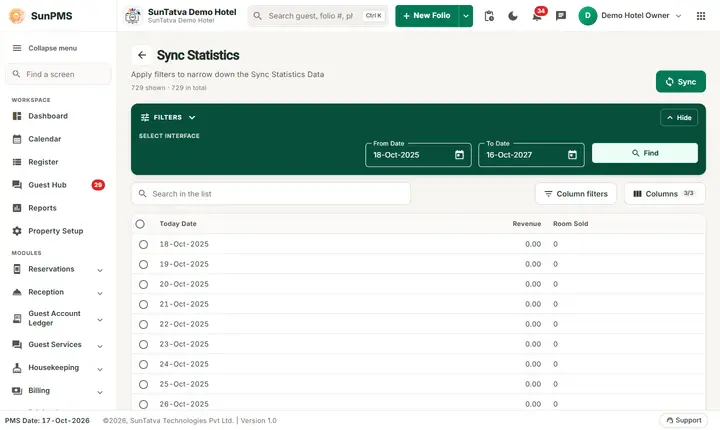
After Find the grid shows one row per day with Revenue and Room Sold. 4. Click Sync and answer Are you sure you want to sync statistics data? with Yes.
Result: Statistics sync successfully.
What happens behind the scenes
A webhook event of type statistics (event sync) is queued for the property and range. The consumer reads revenue and rooms sold per business date and delivers them to the interface. This screen is for manual resends.
Messages you may see
| Message (exact text) | Why it appears | What to do |
|---|---|---|
| Please select webhook interface type. | No interface chip chosen | Select one. |
| Are you sure you want to sync statistics data? | Confirmation | Yes/No. |
| Statistics sync successfully. | Queued | Wait for partner. |
| Error while sync Statistics. | Server rejected request | Retry or contact support. |
| Something went wrong. | Find failed | Retry. |
Tips and FAQ
- Q: Why do my chosen dates change when I click Find? A: Find resets the range to a year either side of the PMS date (see note above). Pick the dates after Find.
- Q: Can I tick rows to sync only them? A: The check boxes only select or highlight rows; Sync always uses the date range.
- Q: Why are some days zero? A: Revenue appears only for days that were audited/posted.