
Sync Reservation/Statistics/Inventory (tabbed page)
On this page
An older all-in-one version of the three sync screens. It has three tabs, Sync Reservation, Sync Statistics and Sync Inventory, and one Sync button at the bottom that acts on the tab you are looking at. The menu entry for it is switched off in current versions; the same functions live in the Sync group (Sync Reservation, Sync Statistics, Sync Inventory). Support staff may still use this address.
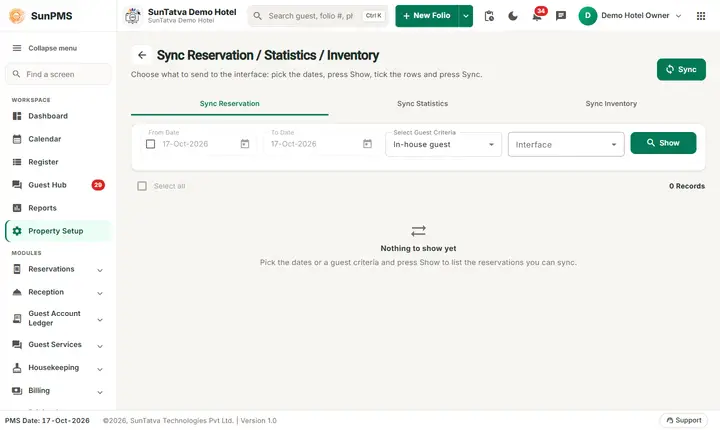
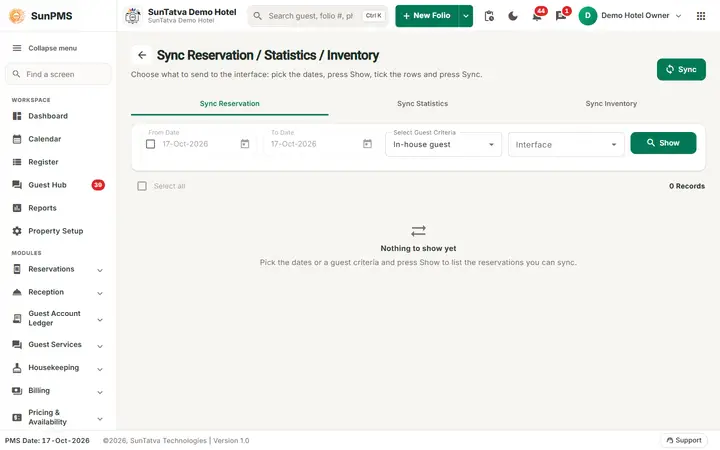
The combined Reservation Sync screen as it opens.
Before you start
- An interface exists in Webhook settings.
Screen layout
Page title: Sync Reservation / Statistics / Inventory with the line "Choose what to send to the interface: pick the dates, press Show, tick the rows and press Sync." Before you press Show the list says "Nothing to show yet" ("Pick the dates or a guest criteria and press Show to list the reservations you can sync."); the grid header shows "n Records" and a Select all box.
Tab Sync Reservation
| Field / column | Meaning | Rules |
|---|---|---|
| From Date (check box in front) | Start of date range | Disabled until the check box is ticked. |
| To Date | End of range | Same check box. |
| Select Guest Criteria | In-house guest, Today's Arrival, Future Arrival, Today's Checked-Out | Disabled while the date check box is ticked. |
| Interface | Partner interface | Required to sync. |
| Show | Lists folios for the criteria | |
| Grid | Select-all box, Guest Name, Folio No, Room, Room Type, Date In, Date Out, Total Charges, Payments; footer "N Records" | Row text takes the status colour. |
Tab Sync Statistics
From Date, To Date, Interface, Show; grid Today Date, Revenue, Room Sold. Show loads 364 days either side of the PMS date and overwrites the two dates (same behaviour as Sync Statistics).
Tab Sync Inventory
From Date, To Date, Interface, Show; grid Today Date, Total, Total Available.
Footer
Sync button (right): sends the data of the active tab.
How to sync
- Open the tab you need.
- Choose the Interface (and the dates or guest criteria).
- Optional: click Show to preview.
- Click Sync at the bottom and confirm.
Messages you may see
| Message (exact text) | Tab | Why |
|---|---|---|
| Please select webhook interface type. | all | No interface selected in that tab. |
| Are you sure you want to sync reservations? | Reservation | Confirmation. |
| Are you sure you want to sync statistics data? | Statistics | Confirmation. |
| Are you sure you want to sync inventory for the selected interface? | Inventory | Confirmation (asked before the interface check). |
| Reservation sync successfully. / Statistics sync successfully. / Inventory sync successfully. | each | Request queued. |
| Error while sync reservation. / Error while sync Statistics. / Error while sync inventory. | each | Server rejected the request. |
| Something went wrong. | each | Show failed. |
What happens behind the scenes
Identical to the separate screens: a webhook event (folio, statistics or inventory) is queued and delivered by the background consumer.
Tips and FAQ
- Q: Where did this page go in the menu? A: Use the Sync group in the left menu; it offers the same three functions on separate pages.
- Q: Does the bottom Sync button send all three tabs? A: No, only the tab that is open.
- Q: The error messages show as green. A: Known cosmetic issue: some error messages use the success colour.