
CRS Bulk Update
On this page
The history and control screen for pushes to your CRS / channel manager. It lists every earlier inventory, restriction and rate push (who requested it, when, the status and the CRS answer) and lets you open the data that was sent. Use it to check whether a push worked.
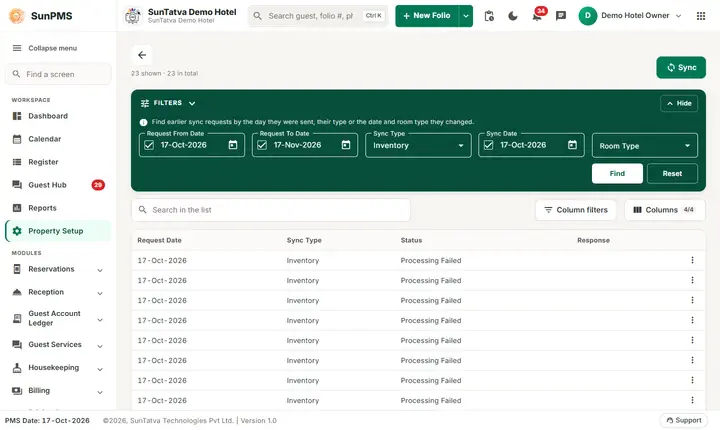
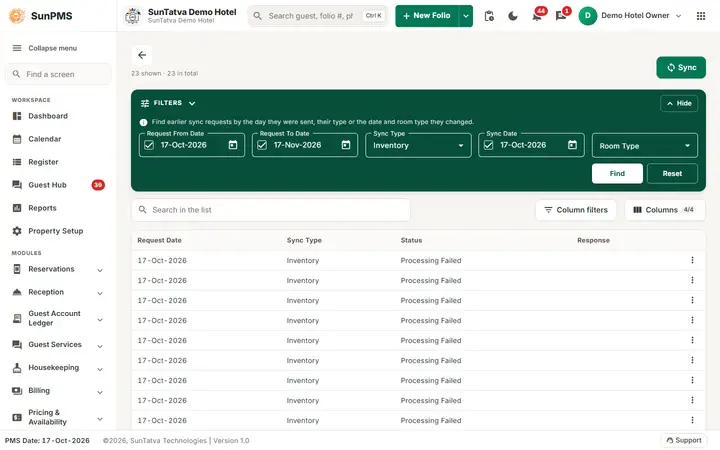
The CRS Bulk Update screen: earlier sync requests with their type, status and response, and the filters above them.
Before you start
- The property must be flagged as CRS-connected. The page is opened by its address
#/setup/channel-sync(the older address#/admin/crs-syncredirects); it has no item in the left menu. - To start a new push for one type use the pages in Bulk Inventory / Restrictions / Rate Update. This page itself lists all types.
Screen layout
The page has the title, the line "Filter... Data" and the count "n shown · n in total", a green Sync button at the top right and a green Filters band (fold it with Hide) with the info line "Find earlier sync requests by the day they were sent, their type or the date and room type they changed." Under the band come Search in the list, Column filters and Columns (4/4).
Filters:
| Field | Meaning | Rules |
|---|---|---|
| Request From Date (check box) | Earliest date the request was made | Tick to apply. Default: PMS date. |
| Request To Date (check box) | Latest request date | Default: one month after PMS date. Not before From. |
| Sync Type | All, Inventory, Restrictions, Rate | When Sync Date is ticked, "All" is removed from the list and the first type is chosen. |
| Sync Date (check box) | The stay date that was synced | Ticked by default; default is the PMS date. |
| Room Type | Room type filter | Enabled only when Sync Date is ticked. List text: short name - name (id). |
| Find / Reset | Reload / restore defaults | Reset ticks all three check boxes and loads again. |
Grid columns: Request Date, Sync Type, Status, Response, Actions. Paging at the bottom (25, 50, 100 rows). Columns hides or shows columns.
Row menu (the three-dot button in the Actions column):
- Request: shows the data that was sent, as a JSON tree (Event Data).
- CRS Result: fetches the CRS answer for that request (CRS Result).
Top button Sync opens a dialog (see below).
Status values: Sent To Queue Success, Received By Consumer, Processed Successfully, Processing Failed.
How to check whether a push worked
- Open
#/setup/channel-sync. - Set the request dates and click Find.
- If Status is Processing Failed, open the row menu of that row and click CRS Result to read the reason.
- Click Close.
How to start a bulk sync
- Click Sync. The dialog is titled with the page title and has the section "Period to send".
- Pick a ready range with the radio buttons: Today, This Week, Next Week, This Week End, Next Week End, This Month, Calendar Year, One Year. They fill From Date and To Date, which you may still edit.
- Click the button Sync... at the bottom (it ends with the type name). Result: snackbar Data sync successfully. The row shows up in the list after a moment.
On the plain CRS Bulk Update address the type is not fixed, so use the three dedicated pages to push a specific type.
What happens behind the scenes
The request goes to the CRS bulk service, which queues an event for the background consumer (inventory, restriction or rate). The consumer reads current values and calls the CRS. The result key is stored on the log row so CRS Result can fetch the answer.
Messages you may see
| Message | Why | What to do |
|---|---|---|
| Data sync successfully. | Request accepted | Check status after a minute. |
| (server error text in a red snackbar) | Sync or list failed | Read the text; retry or contact support. |
| (alert box with server text) | CRS Result could not be found | The result may have expired; push again. |
Tips and FAQ
- Q: Why is Room Type greyed out? A: It is available only when Sync Date is ticked.
- Q: What does Reset do to Room Type? A: It selects a fixed room-type id, which may not exist in your property; re-pick the room type after Reset.