
Bulk Inventory / Restrictions / Rate Update
On this page
Three pages that push a whole date range of one data type to your CRS / channel manager at once. Use them when you first connect the CRS, after big changes (new season rates, many rooms closed), or when OTAs show values that differ from SunPMS.
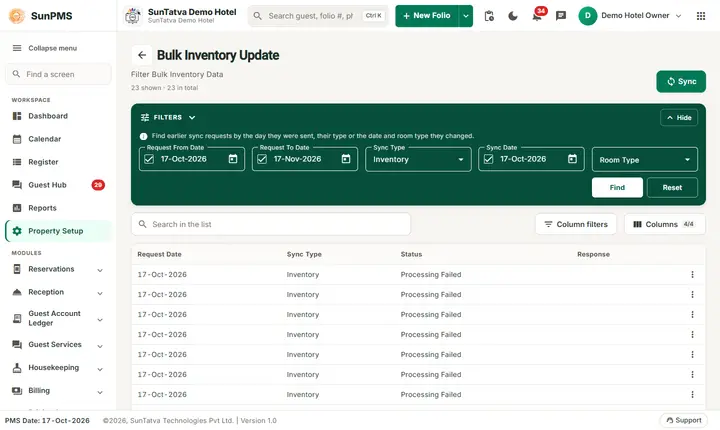
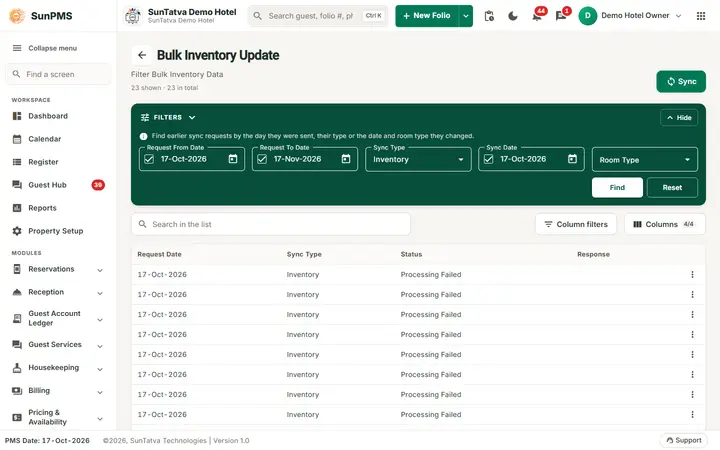
The Bulk Inventory Update screen with the request date, sync type and room type filters above the list of requests.
Before you start
- The property is CRS-connected (the CRS Settings group exists in Settings).
- Room types and rate types are mapped to the CRS (done by support at activation).
Screen layout
All three pages are the same grid as CRS Bulk Update with a different title and data type:
| Page | Title | Sends |
|---|---|---|
#/channel-sync/inventory |
Bulk Inventory Update | Rooms available per room type |
#/channel-sync/restrictions |
Bulk Restrictions Update | Closed to arrival/departure, minimum and maximum nights, stop sell |
#/channel-sync/rates |
Bulk Rate Update | Rates per rate type |
The grid sits under a green Filters band ("Find earlier sync requests by the day they were sent, their type or the date and room type they changed.") with a Search in the list box, Column filters and Columns (4/4). Columns: Request Date, Sync Type, Status, Response; filters Request From Date, Request To Date, Sync Type, Sync Date, Room Type, buttons Find, Reset; row menu Request and CRS Result. The subtitle reads Filter Bulk Inventory Data, Filter Bulk Restrictions Data or Filter Bulk Rate Data depending on the page.
How to push a date range
- Open Property Setup, the group CRS Settings, and click the card of the update you need (the group also holds CRS Tax Exempt).
- Click Sync (green button, top right). The dialog has the title of the page and the sections "Period to send" ("Pick a ready-made range, or set the dates yourself.").
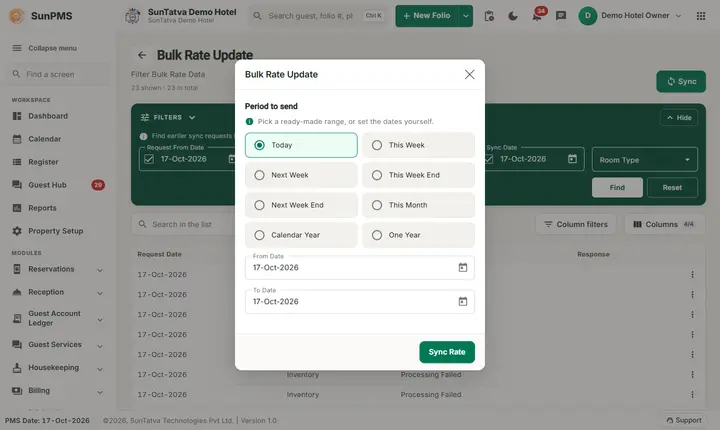
The Period to send dialog of Bulk Rate Update. The other two pages open the same dialog with their own title and button. 3. In the dialog choose a quick range (Today, This Week, Next Week, This Week End, Next Week End, This Month, Calendar Year, One Year) or change From Date and To Date by hand. To date cannot be before From date. 4. Click Sync Inventory, Sync Restrictions or Sync Rate (the button name follows the page). Result: Data sync successfully. The request appears in the grid after Find.
How to check the result
Click Find, open the three-dot menu of the row (Actions) and choose Request (what was sent) or CRS Result (the CRS answer).
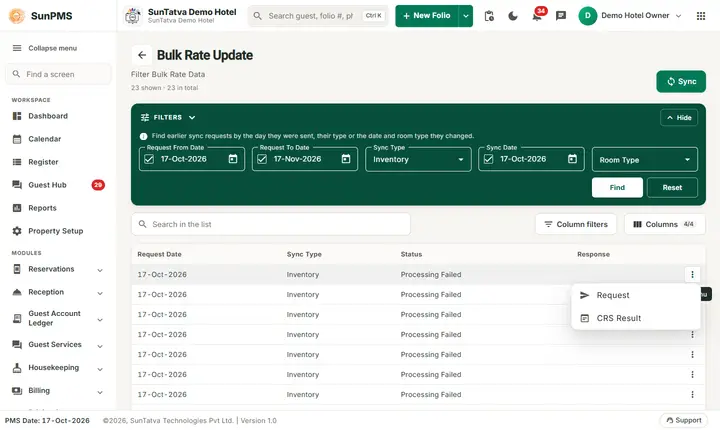
The three-dot menu of a request row offers Request and CRS Result.
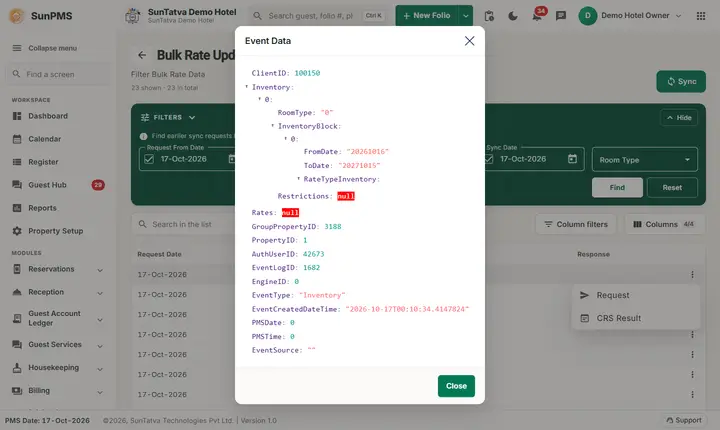
Request opens the Event Data window with the exact data that was sent.
What happens behind the scenes
SunPMS queues one bulk event for the date range and data type. The consumer reads availability, restrictions or rates from the system and sends them to the CRS, which forwards them to the OTAs. Normal changes (editing a rate in Rate View, closing a room) are sent automatically; use bulk only to re-send.
Messages you may see
| Message | Why | What to do |
|---|---|---|
| Data sync successfully. | Queued | Check history later. |
| (red snackbar with server text) | Server refused the push | Read the text, retry or contact support. |
Tips and FAQ
- Q: How big a range should I send? A: Start with This Month; use One Year only for first-time load.
- Q: Does a rate push overwrite OTA-side promotions? A: It sends the base rates SunPMS holds for the range; check promotions in the OTA extranet afterwards.
- Q: Why is there no card for this? A: The CRS Settings group in Property Setup appears only for CRS-connected properties.
- Q: The grid only shows one type of request. A: The grid shows all types; choose Sync Type to filter.