
Restriction View
On this page
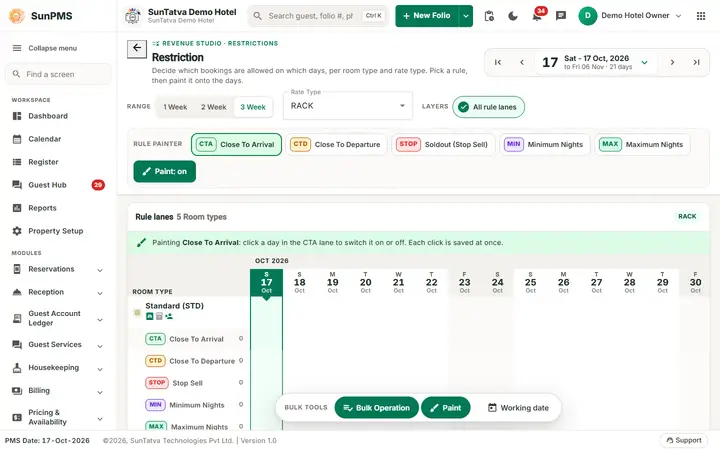
The Restriction screen (heading Restriction, small caption "REVENUE STUDIO - RESTRICTIONS") decides which bookings are allowed on which days, per room type and rate type. You pick a rule and paint it onto the days. Five rules exist: Close To Arrival (CTA), Close To Departure (CTD), Soldout (Stop Sell) (STOP), Minimum Nights (MIN) and Maximum Nights (MAX). The side menu's Restriction group opens the same screen with one rule preselected (see Sidebar menu). The screen belongs to the Revenue Studio family; the other screens of that family are in Pricing and availability.
Before you start
- Each rule is available only if your role has its privilege (Access for Close To Arrival, Close To Departure, Sold Out, Minimum Nights, Maximum Nights).
- The room types and rate types must exist and be bound.
Screen layout
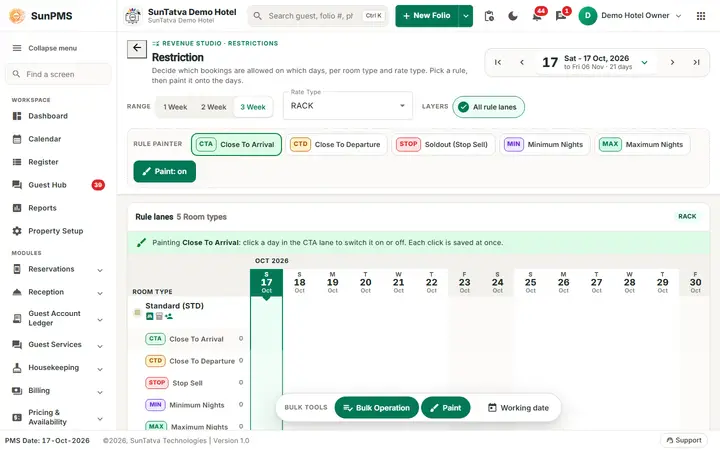
All five rules on one screen; All rule lanes shows every lane under each room type.
| Item | Meaning | Rules |
|---|---|---|
| Back arrow | Returns to the previous screen. | |
| Date navigator (top right) | First / previous / next / last buttons around a date chip (for example "Sat - 17 Oct, 2026 to Fri 06 Nov - 21 days"). Click the chip to pick a start date. | |
| Range | 1 Week, 2 Week, 3 Week: how many weeks the grid shows. | |
| Rate Type | Which rate type the screen edits (for example RACK). | Changing it reloads. |
| Layers | All rule lanes or a single rule, to show fewer lanes. | |
| Rule painter | One button per rule (CTA, CTD, STOP, MIN, MAX) and the Paint: on / off switch. | The chosen rule is what a click on the grid changes. |
| Rule lanes grid | Rows = room types (name and short name) each with five lanes (CTA, CTD, Stop Sell, Minimum Nights, Maximum Nights) and a count; columns = days with weekday and date, today highlighted, weekends shaded. | A banner explains the active tool, for example "Painting Close To Arrival: click a day in the CTA lane to switch it on or off. Each click is saved at once." |
| Bulk tools dock (bottom) | Bulk Operation, Paint and Working date (jump back to the PMS date). |
How to set a restriction
- Choose the Rate Type.
- In Rule painter click the rule (for example Close To Arrival) and make sure Paint: on.
- Click the day in that rule's lane of the room type. For minimum and maximum nights type a number and press Enter or leave the box. Result: "Restriction updated successfully." The change is saved at once and sent to channels. For many days or room types at once use Bulk Operation.
Rules
- Minimum nights below 1 is stored as 1. Maximum nights: 0 means no limit.
- Numbers only are accepted.
Messages you may see
| Message | Why |
|---|---|
| Restriction updated successfully. | Saved. |
| Server error text | Saving failed. |
Tips and FAQ
- Q: A bulk update tool? A: The code contains a Restriction Bulk Operation dialog (date range, rules, room type, rate types, days of week) but its button is turned off in this version.
- Q: Why does the calendar show a warning icon? A: A restriction exists on that date.