
Sidebar menu
On this page
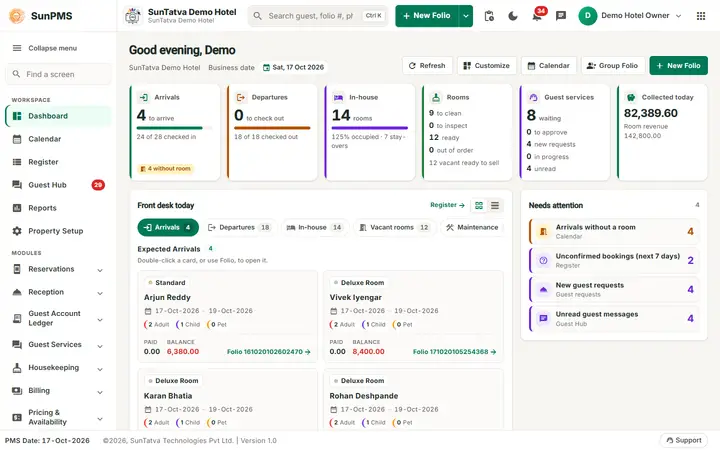
The side menu is the full menu of SunPMS. On a desktop screen (wider than 900 pixels) it is always on the left, 234 pixels wide, with icon and name for every entry. It has three parts: a Collapse menu button, a Find a screen search box and the menu itself, which starts with the Workspace group (Dashboard, Calendar, Register, Guest Hub, Reports, Property Setup) followed by Modules (Reservations, Reception, Billing and the rest, as groups that open and close).
Before you start
- A menu only appears when you may use it. If a menu is missing, check your role's privileges in Roles & Privileges, the property's Feature Setting, and the property's licences.
- The property name and logo are in the header, not in the menu.
Screen layout
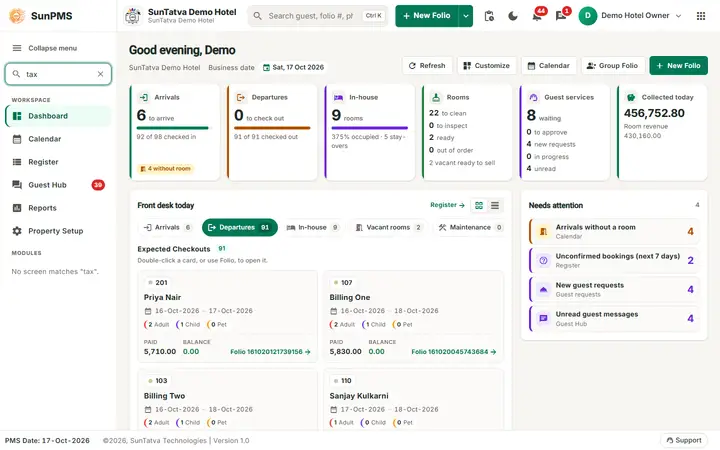
Find a screen narrows the menu while you type.
| Part | What it does | Rules |
|---|---|---|
| Collapse menu / Expand menu | Collapses the menu to a 68 pixel icon rail (the content widens) or expands it again. | The choice is remembered in your browser. A collapsed rail opens over the page while the pointer is on it; labels come back and it closes when you move away. |
| Find a screen | Type part of a screen name (for example "ledger"). Only matching groups and screens are listed, groups open by themselves. The x clears the search. | If nothing matches it says: No screen matches "...". |
| Workspace | Dashboard, Calendar, Register, Guest Hub, Reports, Property Setup. | Guest Hub only with the Guest Interface licence; it shows the unread count. The current screen is highlighted. |
| Modules | Groups with a chevron; click a group to show its screens. The group of the screen you are on opens by itself. | Items follow the table "Menu tree" below. |
| PMS Date and Support (phones only) | At the foot of the drawer. | See Phone and tablet layout. |
On tablets and phones (900 pixels or less) the menu is a drawer: tap the menu button in the header (or Menu in the phone tab bar), pick a screen and the drawer closes; tap outside it or the x to close it without choosing.
Menu tree
Item names are exactly as shown. "Always" means no condition.
| Menu | Sub-menu | Opens | Shown when |
|---|---|---|---|
| Reservations | New Folio (name = New Folio title setting) | Check-in screen | Always |
| Group folio (name = Group Folio title setting) | Group check-in | Property setting Group is on (Feature Setting) | |
| Reception | Search Reservation | Search Reservation | Always |
| Deep Guest Search | Deep Guest Search | Always | |
| Search Group | Search Group | Group feature on | |
| Late Checkout | Late checkout list | Privilege Access to Late Check-Out | |
| Guest Account Ledger | In-House Guests; Due Check-Out Guests; Checked-Out Guests; Reserved Guests; Room Move Requests | Guest account ledger lists | Always |
| Guest Services | Guest Hub | Guest Hub | Licence Guest Interface |
| Arrival List; Pending Approvals | Online check-in lists | Licence Guest Interface - Check-in | |
| Guest Conversations | Guest chats | Licence Guest Interface | |
| Guest Requests | In-stay requests | Licence Guest Interface - Services & Chat | |
| Housekeeping | Change House Keeping Status | Change housekeeping status | Always |
| House Keeping Room Assignment | Room assignment | Always | |
| Housekeeping Report | Housekeeping report | Always | |
| Room Maintenance | Room maintenance | Privilege Access to Block Room | |
| Billing | Batch Folio; Credit Card Reservation Authorization; Credit Card Release Authorization; Night Audit; Noshow/Cancel Revenue Posting | Billing and audit screens | Always |
| Extra Income; Extra Expense | Miscellaneous income / expense | Privilege Access to Expense Management | |
| FAS Interface | FAS accounting export | Property setting FAS accounting system is not "0" | |
| Pricing & Availability | Rate Manager | Rate view | Always |
| Rate & Availability Summary | Flash view | Privilege Access to Flash View | |
| Occupancy & Revenue Summary | Forecasting view | Privilege Access to Forecasting | |
| Restriction | Closed to Arrival (CTA); Closed to Departure (CTD); Stop Sell; Minimum Length of Stay (Min LOS); Maximum Length of Stay (Max LOS) | Restriction screens | At least one of the privileges: close to arrival, close to departure, sold out, minimum nights, maximum nights |
| Guests | Guest Search | Guest search | Always |
| Creditable Sales & Channels | Creditable Invoice; Creditable Settled Invoice | Invoices | Privilege Generate Sales & Channel Invoices |
| Commissionable Sales & Channels | Commissionable Invoice; Commissionable Settled Invoice | Invoices | Privilege Generate Sales & Channel Invoices |
| Utility | Undo Transaction | Undo | Privilege Access to Undo Transaction |
| Redo Transaction | Redo | Privilege Access to Redo Transaction | |
| Import Reservation | Import reservations | Always | |
| Sync | Sync Reservation; Sync Statistics; Sync Inventory | Sync | Always |
The code also lists Lost & Found, Contact Database and Import Guest screens; they are reached from the Guests screens and by their addresses, see chapter 13.
Reports and Property Setup are in the Workspace group at the top of the menu. Nine report groups exist there (Room, Guest, Daily, Monthly, Yearly, Ledger, Reservation, Housekeeping Reports and Charts); only reports that are enabled and permitted for your role show.
Property Setup tiles (Workspace > Property Setup)
Tabs: All, then groups. The tiles open the master data screens:
- Property: Property Detail, Building, Floor, Room Type, Room, Room Status, Room Type Amenities, Tax, Tax Configuration.
- Configuration: Rate Type, Document Type, Other Charge Category, Other Charges, Measurement Unit, Payment Type, Exchange Rate, Roles & Privileges, User, E-Mail Templates, Policy.
- Settings: Guest Mandatory Data, Device Configuration; WebHook only for the Owner role; FAS Settings only when the property uses FAS.
- Extra: Extra Income Category, Extra Expense Category, Non Rental Room, Room Owner, Owner Room Assignment, DNR Reason, Room Type Amenities, Deposit, Notice. "All" has a Search settings... box. A tile that is not licensed or not allowed is hidden.
How to find a screen
- Click Find a screen at the top of the menu (or press Ctrl K anywhere to use the command palette, see Main layout and header).
- Type part of the name (for example "ledger").
- Click the screen. Result: the screen opens (on a phone the drawer closes).
What happens behind the scenes
- The menu is rebuilt whenever you change property, because privileges and settings are per property.
- Hiding a menu does not by itself block a screen address; the server still checks your privilege on each action.
Tips and FAQ
- Q: A colleague sees a menu I do not. A: Roles differ per property. Ask an owner to review your role in Roles & Privileges.
- Q: Search Group / group folio is missing. A: Turn on Group in Feature Setting.
- Q: Room Maintenance is missing. A: Give the role the Access to Block Room privilege.
- Q: Restriction menu is missing. A: The role has none of the five restriction privileges.