
Reports (overview)
On this page
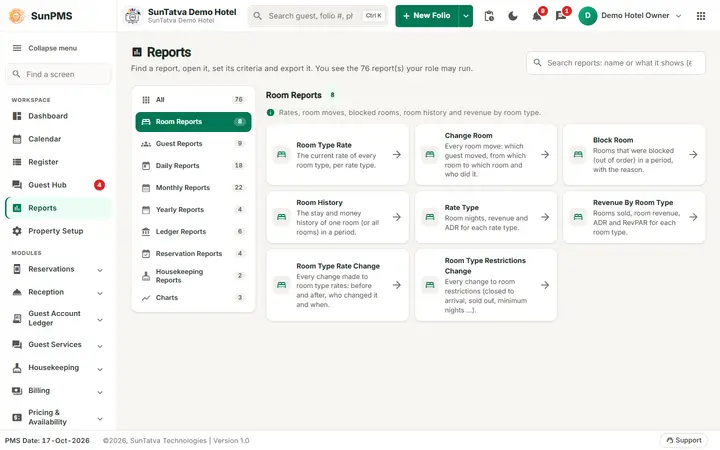
SunPMS has about 75 reports grouped in categories: Room, Guest, Daily, Monthly, Yearly, Ledger, Reservation, Housekeeping and Charts. You find them in a report library (search box, category list, one card per report) and almost all of them open in one common report page: a header with the period, property and user, a plain-language About this report bar, a Report criteria card and a Results table. This page explains how to open a report, set the criteria, read the explanation, change columns, export, and who is allowed to see what.
Before you start
- Your role must have the privilege for each report. An owner or administrator assigns these in Property Setup > User & Access > Assign Report Privileges (see below).
- Reports use the PMS date (shown bottom left, for example "PMS Date: 17-Oct-2026"), not the computer date. Date pickers start on the PMS date.
- Titles such as "Room", "Guest" and "Tax" follow your property's own naming settings, so your column headings may differ slightly from this manual.
- The wording is Sales & Channel(s) everywhere (for example Sales & Channel ADR); the old wording is no longer used on screen or in report addresses.
Two ways to open a report
| Screen | How to open | What it shows |
|---|---|---|
Reports (library, #/reports) |
Reports in the left menu (Workspace), or Ctrl+K and the report name | A search box ("Search reports: name or what it shows (e.g. ADR, deposit)"), a category list on the left (All, Room Reports, Guest Reports, Daily Reports, Monthly Reports, Yearly Reports, Ledger Reports, Reservation Reports, Housekeeping Reports, Charts, each with a count) and cards with the report name and a one-line description. The header says "You see the n report(s) your role may run." On All the cards are grouped by category with an Only these button. Searching looks through names and descriptions in every category. On a tablet or phone the categories become a scrolling strip. The last category you used is remembered. |
Report Dashboard (#/reports/dashboard) |
Type the address, or Ctrl+K | Category pills (Room Reports, Guest Reports, Daily Reports, Monthly Reports, Yearly Reports, Ledger, Reservation, House Keeping, Chart, and Customized Report when your property has custom reports and you have the privilege), report cards with a star that adds the report to Favorite Reports at the top (Report Dashboard). |
Differences you may notice:
- A card only appears if you have the privilege for it.
- Daily Guest Payment is a customized report: it has no card in the library. It is listed in the Customized Report tab of the Report Dashboard when the property has it in its custom report list and you have the privilege Customize Report (Daily Guest Payment).
- The library lists Occupancy Chart (Charts), which is not on the Report Dashboard. Booking Comparison Report (Reservation Reports) opens a criteria window first and then its result page (Booking Comparison Report).
- The four Sales & Channel reports have these report addresses:
#/report/sales-channel-adr,#/report/sales-channel-aging,#/report/monthly-sales-channelsand#/report/monthly-sales-channels-summary. The older addresses still redirect.
Screen layout of a report
| Area | What it does | Rules |
|---|---|---|
| Header | Back arrow (to the library), the report name, a one-line purpose, and small facts: Period, Property, By (you) and Run (time of the last run). | |
| Hide criteria / Show criteria | Folds the criteria card away to give the table more room; a one-line Criteria summary with chips (and Change) stays in its place. | On a tablet or phone the criteria fold by themselves after Show. |
| Table / Cards | Shows the result as a table or as one card per line (empty values left out). | Cards are the default on phones; the choice is remembered per screen width. The Monthly Hotel Statistics report has no switch. |
| Columns (with a count such as 9/9) | Opens a panel with one check box per column. Untick to hide a column; drag the grip icon to reorder. | Hidden columns are also left out of PDF and Excel. The button is disabled until a result with columns is loaded. |
| Export | Menu with PDF, Excel, Email (PDF). | Always shown; disabled (tooltip "Show a report with data first") until the report has at least one row. |
| About this report bar | The purpose in one line and a button Explain / Hide. Opened, it shows What this report shows, How to read it, Good to know and Columns explained. | Written in plain words for every report; each report page of this manual repeats it under "About this report on screen". |
| Report criteria card | Filters specific to that report (dates, user, room type...), then Show. | "The report runs once with the defaults when it opens". Reports with no criteria say "This report has no criteria: it always shows the current data." and have no Show button. Each report's criteria are listed in its own page. |
| Results card | Heading with "n row(s) shown" (and the number of groups), figure cards for key totals (for example payment-type totals or the report's Grand Total), then the table. | Money columns right-aligned, number format from your property settings. |
| Table | Sticky header and first column. Click a column title to sort (reports that allow sorting). Group rows (dates, "Check In", user names...) split the data. Rows named Total or Grand Total are highlighted. A small ? icon next to a column title shows its plain-language meaning. "No record found!" means no data for the criteria. | |
| Paging (Guest List, Room Type Rate Change, Room Type Restrictions Change, Reservation Detail and other long reports) | Total Records, Rows per page, first / previous / next / last. | Large reports are loaded page by page. PDF is meant to contain all rows; Excel contains only the rows of the page on screen. |
How to run a report
- Click Reports in the left menu and pick the card (or use the dashboard, or press Ctrl+K and type the name).
- The report runs once for the PMS date (or the current month) with its default criteria.
- Change the criteria if needed. In a date picker you can click Working Date to jump back to the PMS date.
- Click Show.
- Open Explain if you are unsure what a column means. Use Columns to hide or reorder columns and click a heading to sort if allowed.
Result: the table fills. Changing a criterion does nothing until you click Show again.
Date rules: the To Date cannot be before From Date (picking a later From Date moves To Date). Month-based reports (Yearly, Yearly Sheet) show "From Month should not be greater than To Month." if you reverse them. Switching to another report resets the dates to that report's defaults.
How to export, print or e-mail
- Run the report and click Export.
- PDF: a PDF is built in the browser from the visible columns and opens in a new tab (also on a property without an uploaded logo). Allow pop-ups for the PMS site. Print from that tab with the browser print command. There is no separate Print button and no CSV option in the report screen.
- Excel: downloads an.xlsx file named after the report, with the report title, date range and the visible columns. Numbers are rounded to your decimal setting.
- Email (PDF): the server builds the PDF and e-mails it to the property e-mail address (from Property Master), with the addresses in the EMAIL_CC setting in copy. Subject is the report name. The screen shows "Email sent successfully." immediately, even when the property has no e-mail address or the mail server refuses it, so check the inbox if it matters.
- The three Charts also have a chart menu (download as PNG, SVG or CSV) above the graph.
The PDF header shows your property name, logo, address and "Printed by" and print date (print date shown according to the REPORT_SHOW_PRINT_DATE setting).
Report privileges
Open Property Setup > User & Access > Assign Report Privileges (route #/setup/report-privileges). The list shows the roles: Owner, Administrator, Manager, Desk User, House Keeper (and custom roles). Click a role, tick the reports it may see (grouped by module, with a select-all tick per module, and a Search privileges... box), then Save.
Rules:
- No privilege = no card. If a user types the report address directly, the system logs them out.
- Daily Shift has two privileges: Daily Shift Report for All Desk Users (can pick any user) and Daily Shift Report (sees only own shifts).
- Cashiers works differently for Owners (can pick a user) and everyone else (always sees their own current shift).
- Custom reports (tab Customized Report) need the Customize Report privilege and a report configured for your property.
- A new report may need the privilege tick before anyone, including managers, can see it.
What happens behind the scenes
- Reports are read-only; they never change data.
- Most figures come from the data posted at night audit and from live folios. Today's report can still change while the business day is open.
- "Year to date" always means 1 January to the report date (calendar year), not a financial year.
- The explanations on screen are fixed texts written for each report; they describe how the figures are built, not your own data.
Messages you may see
| Message | Why | What to do |
|---|---|---|
| No record found! | No data for the criteria ("Change the filters or the search, then try again.") | Widen dates, check status filters |
| From Month should not be greater than To Month. | Yearly reports | Reverse the months |
| Select atleast one Guest status. | Special Request report with no status ticked | Tick at least one |
| No Sales & Channels available for this category. | Chosen category has none | Pick another category |
| You can select a maximum date range of 1 year only. | Guest Detail Revenue (not in default menu) | Shorten range |
| Email sent successfully. | Request sent to mail server | Check inbox |
Tips and FAQ
- Q: My user cannot see a report. A: Add the privilege in Assign Report Privileges, then ask the user to log in again.
- Q: Excel has fewer columns than expected. A: Hidden columns are left out; tick them in Columns first.
- Q:Export is grey. A: The report has no rows yet; click Show or widen the criteria.
- Q: PDF does not open. A: The browser blocked the pop-up; allow pop-ups.
- Q: Report totals differ from the Dashboard. A: See the "numbers don't match" notes in each report; the commonest causes are different dates (posting date vs stay date), no-show/cancel revenue, and deposits.
- Q: What does a column mean? A: Hover over the ? icon next to its title, or open Explain under the header.
- Q: Can I schedule a report? A: No. Use Email (PDF) on demand.