Room Reports
On this page
Eight reports about rooms, room types and rates. Open them from Reports > Room Reports. For common behaviour (filters, columns, export) see 00-overview. Column headings use your property's word for "Room" and "Guest".
Before you start
- You need the report's privilege.
- Rate-change reports need rate history, which exists only after rates were saved in the system.
Room Type Rate
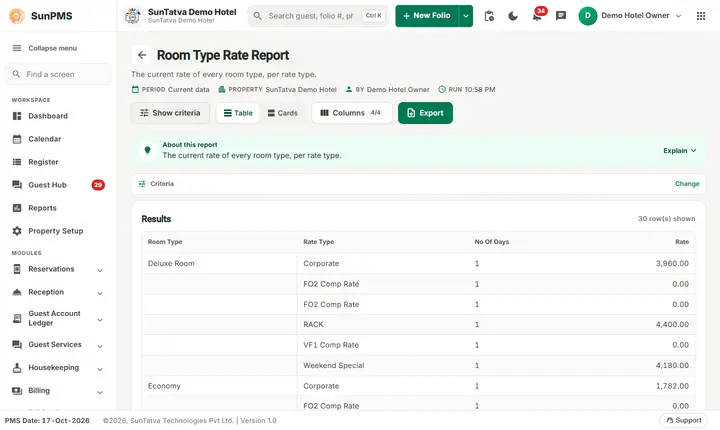
Screen title: Room Type Rate Report. Purpose: the current rate card, one line per room type and rate type. Who: front desk, revenue manager.
- Filters: none; it runs at once (no Show button). Sortable.
- Columns: Room Type, Rate Type, No Of Days, Rate.
- Answers: "What is our rack rate for a Deluxe room on a 3-night plan?"
- If numbers don't match: this is the master rate table, not what a guest was charged. Use Daily Rate Change for overrides.
Change Room
Screen title: Change Room Report. Purpose: log of guests moved from one room to another.
- Filters: From Date, To Date (date of the room change). Sortable.
- Columns: Guest Name, Folio #, From Date, To Date, Room, Desk User, Remark. Grouped by header.
- Answers: who moved, when, and who did it.
Block Room
Screen title: Block Room Report. Purpose: rooms blocked out of inventory (maintenance, owner use).
- Filters: From Date, To Date (blocked date). Only active blocks.
- Columns: Today Date (blocked date), Floor, Room, Remark, Desk User. Grouped by building.
- Note: one row per room per blocked date.
Room History
Screen title: Room History Report. Purpose: day-by-day stay and money history of a room.
- Filters: From Date, To Date, Building, Floor, Room (each defaults to the first list entry, normally ALL).
- Columns: Guest, Date, Rent, tax (name from settings), Other Charges, Other Charge Tax, Cash, Bank, Card, Sales & Channel (direct billing). Grouped by room.
- Calculation: rent comes from each night of checked-in stays (confirmed or unconfirmed) in the range; other charges by charge date (deleted charges by deletion date); payments after the stay end are also listed.
- Answers: "Who stayed in room 204 and what did they pay?"
Rate Type
Screen title: Rate Type Report. Purpose: sales per rate plan.
- Filters: From Date, To Date.
- Columns: (rate type name), No.Of Days, # of Room(s), Room Sold(%), Room Charges, Total Charges, ADR. After each group a "Total of..." line.
- Calculation: Room Sold(%) = rooms sold on that rate type ÷ total rooms in the property × 100; ADR = room charges ÷ rooms sold.
- Answers: which rate plans sell the most and at what ADR.
Revenue By Room Type
Screen title: Revenue By Room Type Report. Purpose: revenue split by room type.
- Filters: From Date, To Date. Includes checked-in stays and future reservations (dated on/after the PMS date), confirmed or unconfirmed only.
- Columns: Room Type, Room Sold, Rent, tax, Other Charges, other-charge tax, ADR, RevPAR.
- Calculation: ADR = Rent ÷ Room Sold. RevPAR = Rent ÷ available room-nights of that type in the period (active rooms, not blocked/out of order).
- Mismatch: Room Sold counts room-nights, not guests.
Room Type Rate Change
Screen title: Room Type Rate Change Report. Purpose: audit trail of rate edits.
- Filters: From Date, To Date, Rate Type, Room Type, and a selector On Trigger Date / On Date. On Trigger Date = date and time the change was made; On Date = the stay date the rate applies to.
- Columns: Room Type, Rate Type, Rate Date, Current Rate, Rate Comparision (up/down arrow icon), Previous Rate, then the same trio for Adult, Child and Pet rate, Trigger Date, User Name.
- Paged; export includes every row.
- Answers: "Who lowered the 25 Dec rate and when?"
Room Type Restrictions Change
Screen title: Room Type Restrictions Change Report. Purpose: audit trail of restrictions.
- Filters: From Date, To Date, Rate Type, Room Type, Restriction Type (ALL, Close To Arrival, Close To Departure, SoldOut, Minimum Nights, Maximum Nights), On Trigger Date / On Date.
- Columns: Room Type, Rate Type, Restrictions Type, Restrictions Value, On Date, Trigger Date, User Name. Paged.
Messages you may see
No record found! when nothing matches.
Tips and FAQ
- Q: Room History is empty for a room I know was used. A: The room must be selected; also reservations not yet checked in are not listed (only checked-in stays).
- Q: ADR in Revenue By Room Type differs from Daily Summary. A: Daily Summary adds no-show/cancel revenue and uses calendar month/year to date; check the date range and whether future reservations are included.
One page per report
Each room report has its own page with filters, columns, an example from the demo hotel, export notes and troubleshooting:
- Room Type Rate
- Change Room
- Block Room
- Room History
- Rate Type (money figures are not reliable, see the page)
- Revenue By Room Type (the Total line has wrong A D R and Rev Par, see the page)
- Room Type Rate Change
- Room Type Restrictions Change
Screenshots