
Room Type Rate Report
On this page
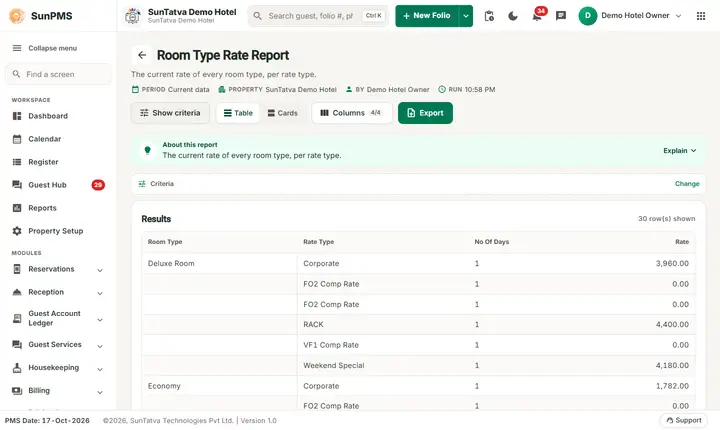
The Room Type Rate Report is the printed rate card of the hotel. It lists, for every room type and every rate plan (rate type), the price that is loaded in the system for the current PMS date. It has no filters: it opens already run.
Purpose
- Answer "what is the rate for a Deluxe room on the Corporate plan today?" without opening the Rate Manager.
- Check that every room type has a price for every rate plan before you sell.
- Give agents or the owner a quick one-page tariff to print or e-mail.
Who uses it
Front desk staff when they quote a price, reservation and sales staff, and the revenue manager. Owners use it to check that the rate plans keep the intended relation to the rack rate (for example Corporate = 90% of rack).
About this report on screen
Every report page has an About this report bar under its header (button Explain / Hide). It explains the report in plain words:
- Summary: The current rate of every room type, per rate type.
- What this report shows: One line per room type and rate type with the rate the hotel sells it for today.
- How to read it:
- Use it to check the rate set-up before a busy period or after a rate change.
- Click a column title to sort.
- Good to know:
- This report has no criteria: it always shows the rates as they are now.
Before you start
- Your role needs the privilege Room_Report_RoomTypeRate. Without it the card is not shown in the report library, and typing the address makes SunPMS log you out.
- Rates must exist in the Rate Manager for the PMS date. A room type or rate plan with no price for today is not listed.
- The report shows the PMS date rates (the business date shown bottom right, for example "PMS Date: 17-Oct-2026"), not the computer date.
Step by step
- Click Reports in the left menu (or press Ctrl+K and type the report name). The report library opens at
#/reports. - Choose the category Room Reports (or type in the search box) and click the card Room Type Rate ("Rates by room type"). You can also open
#/report/room-type-ratedirectly. - The report opens and runs once with its default criteria, so you already see data. This report has no criteria: it always shows the current data.
- To sort, click a column heading (Room Type, Rate Type, No Of Days or Rate).
- Read the result as a Table or as Cards (switch at the top right). Columns shows or hides columns and lets you drag them into another order; click a column title to sort. Hide criteria / Show criteria folds the criteria away; on a tablet or phone it folds by itself after Show and leaves a one-line summary.
- Click Export and choose PDF, Excel or Email (PDF). The button is always in the header but stays disabled until the report has rows.
Filters
| Filter | Meaning | Default |
|---|---|---|
| none | The report always uses the current PMS date. | - |
The only control besides the criteria is the Columns panel (tick the columns to show). Your column choice is kept while you stay in the reports area.
Columns
| Column | Meaning and calculation |
|---|---|
| Room Type | Name of the room type. It is written once for each group; the following lines of the same room type are blank. The heading uses your property's word for "Room" (setting ROOM_TITLE). |
| Rate Type | The rate plan. On the demo hotel: Corporate, RACK and Weekend Special. The heading follows the RATE_TYPE_TITLE setting. |
| No Of Days | The number of days the plan is defined for (the No Of Days value of the rate type). It is 1 for all demo plans, meaning a normal nightly rate. |
| Rate | The room rate loaded for that room type and plan on the PMS date, before tax. It is the rate that is stored in the Rate Manager, not an amount charged to a guest. |
Totals and grouping
There are no totals. The table is grouped visually by room type (the name appears on the first line only) and ordered by room type name, then rate plan name.
How to read an example
Screen of 17-Oct-2026, demo hotel SunTatva Demo Hotel:
| Room Type | Rate Type | Rate |
|---|---|---|
| Deluxe Room | Corporate | 3,960.00 |
| RACK | 4,400.00 | |
| Weekend Special | 4,180.00 | |
| Standard | RACK | 2,750.00 |
Read it like this: a Deluxe room sold on the RACK plan costs 4,400.00 plus tax per night. The Corporate plan is 3,960.00, which is 90% of the rack rate; Weekend Special is 4,180.00, which is 95%. The same 90% and 95% relation holds for every room type (Standard 2,475.00 and 2,612.50). With the 12% GST of the demo hotel a guest on Standard RACK pays 2,750.00 + 330.00 tax = 3,080.00 per night, which is what the Arrival report shows as total charges for a one-night Standard stay.
Common questions it answers
- What is today's price for room type X on plan Y?
- Is every plan priced for every room type?
- Did my last rate change load? (Compare with Room Type Rate Change, which shows who changed what and when.)
Export, print and e-mail
- Excel downloads Room Type Rate Report.xlsx: the property name, a Print Date line, the title and the four columns. There is no date-range line because the report has no range. (Tested: downloaded with 15 data lines.)
- Email (PDF) sends the report as a PDF to the property e-mail address (Property Master) with the addresses of the setting EMAIL_CC in copy. The screen shows Email sent successfully. at once. (Tested: message shown.)
- PDF builds the PDF in the browser and should open it in a new tab, from where you print it. Since 19-Oct-2026 the PDF also opens on a property without an uploaded logo. Use Excel or Email (PDF), or upload a property logo, then try again. See also Reports overview.
Troubleshooting
- The report is empty ("No record found!"). No rate exists for today's PMS date. Open Rate Manager and load rates for the date, then reopen the report.
- A room type or plan is missing. It has no price for today, or the plan is switched off. Check the Rate Manager and the Rate Type master.
- The rate here is not what the guest was charged. This report is the rate card. The guest may have a different plan, a manual rate or a discount. Open the guest's folio, or run Daily Rate Change for overrides.
- Rates for another date. The report cannot be run for another date. Use Room Type Rate Change with On Date to see how a future date was priced.
- Numbers do not match the Rate Manager. Check the date: this report uses the PMS date, the Rate Manager grid shows the date you are looking at. This report shows the stored rate before tax.
Messages you may see
| Message | Why | What to do |
|---|---|---|
| No record found! | No rates are loaded for the PMS date. | Load rates in the Rate Manager. |
| Email sent successfully. | The server accepted the e-mail request. | Check the inbox; the screen cannot tell you if the mail server refused it. |
Related reports
Room Type Rate Change, Rate Type, Revenue By Room Type, Room Reports overview, Report Finder.