
Room Type Restrictions Change Report
On this page
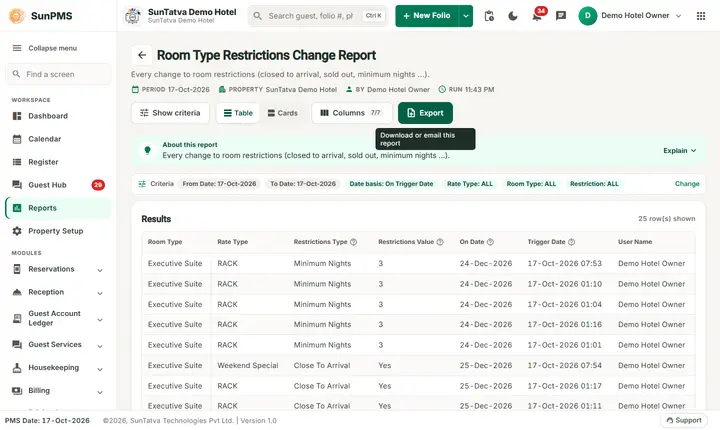
The Room Type Restrictions Change Report is the audit trail of the booking restrictions in the Rate Manager: Close To Arrival, Close To Departure, Sold Out, Minimum Nights and Maximum Nights. For each change it shows the room type, the rate plan, the restriction, the new value, the date the restriction is for, and who saved it and when.
Purpose
- Find out who closed a date or set a minimum stay, and when.
- Check that restrictions entered for a busy date (a festival, 24-26 December) were saved.
- Explain why a guest or a channel could not book a date.
Who uses it
Revenue and reservation managers, general managers, owners, and support staff answering "why was this date closed?".
About this report on screen
Every report page has an About this report bar under its header (button Explain / Hide). It explains the report in plain words:
- Summary: Every change to room restrictions (closed to arrival, sold out, minimum nights...).
- What this report shows: Restriction changes per room type and rate type: which restriction, its value, the date it applies to, when it was changed and by whom.
- How to read it:
- Close To Arrival: no check-in on that date. Close To Departure: no check-out on that date. SoldOut: not for sale. Minimum / Maximum Nights: shortest / longest stay allowed.
- The report is shown page by page; use the pager under the table.
- Good to know:
- Date basis "On Trigger Date" finds changes MADE in the period; "On Date" finds changes FOR stay dates in the period.
Columns explained (the same text shows on the help icon next to a column title):
| Column | Meaning |
|---|---|
| Restrictions Type | Close To Arrival, Close To Departure, SoldOut, Minimum Nights or Maximum Nights. |
| Restrictions Value | The value set (for example the number of nights). |
| On Date | The stay date the change applies to. |
| Trigger Date | When the change was made. |
Before you start
- You need the privilege Room_Report_RoomTypeRestrictionsChangeReport.
- Restrictions are set in the Rate Manager; only saved changes appear here.
Step by step
- Click Reports in the left menu (or press Ctrl+K and type the report name). The report library opens at
#/reports. - Choose the category Room Reports (or type in the search box) and click the card Room Type Restrictions Change ("Room restriction updates"). You can also open
#/report/room-type-restrictions-changedirectly. - The report opens and runs once with its default criteria, so you already see data. Under Report criteria set From Date, To Date, Rate Type, Room Type, Restriction Type, (selector without label) as you need (in a date calendar, Working Date jumps to the current business date).
- Click Show to run it again with the new criteria. The line under Results tells how many rows are shown.
- Choose Rate Type, Room Type and Restriction Type (all default to ALL).
- Choose the date mode in the last selector: On Trigger Date (day of the change) or On Date (the restricted stay date).
- Page through the result with the bottom bar (Rows 25, 50, 100).
- Read the result as a Table or as Cards (switch at the top right). Columns shows or hides columns and lets you drag them into another order; click a column title to sort. Hide criteria / Show criteria folds the criteria away; on a tablet or phone it folds by itself after Show and leaves a one-line summary.
- Click Export and choose PDF, Excel or Email (PDF). The button is always in the header but stays disabled until the report has rows.
Filters
| Filter | Meaning | Rules and default |
|---|---|---|
| From Date | Start of the period. | Default PMS date. |
| To Date | End of the period. | Default PMS date; not before From Date. |
| Rate Type | One rate plan or ALL. | Default ALL. |
| Room Type | One room type or ALL. | Default ALL. |
| Restriction Type | ALL, Close To Arrival, Close To Departure, SoldOut, Minimum Nights or Maximum Nights. | Default ALL. |
| (selector without label) | On Trigger Date: dates filter when the change was made. On Date: dates filter the restricted stay date. | Default On Trigger Date. |
Columns
| Column | Meaning |
|---|---|
| Room Type | Room type the restriction belongs to. |
| Rate Type | Rate plan. |
| Restrictions Type | Which restriction was changed: Close To Arrival, Close To Departure, Sold Out, Minimum Nights or Maximum Nights. |
| Restrictions Value | Yes or No for the three on/off restrictions (Yes = restriction switched on), or the number of nights for Minimum and Maximum Nights. |
| On Date | The stay date the restriction applies to. |
| Trigger Date | Date and time the change was saved. |
| User Name | Full name of the user who saved it. |
Totals and grouping
No grouping and no totals. The bottom bar shows Total Records and the paging controls. Lines are ordered by the On Date.
How to read an example
Filter 16-Oct-2026 to 17-Oct-2026, On Trigger Date, ALL, on the demo hotel: 55 records (first page of 25 shown):
| Room Type | Rate Type | Restrictions Type | Value | On Date | Trigger Date | User |
|---|---|---|---|---|---|---|
| Executive Suite | RACK | Minimum Nights | 3 | 24-Dec-2026 | 17-Oct-2026 07:53 | Demo Hotel Owner |
| Executive Suite | Weekend Special | Close To Arrival | Yes | 25-Dec-2026 | 17-Oct-2026 07:54 | Demo Hotel Owner |
| Executive Suite | RACK | Close To Departure | Yes | 26-Dec-2026 | 17-Oct-2026 07:55 | Demo Hotel Owner |
Read it as: on 17-Oct-2026 the owner user set a minimum stay of 3 nights for the Executive Suite on 24-Dec-2026, closed that suite to arrivals on 25-Dec-2026 (Weekend Special plan) and closed it to departures on 26-Dec-2026. The same restriction appears several times with different trigger times (for example Minimum Nights 3 for 24-Dec at 01:01, 01:04, 01:10, 01:16 and 07:53): every save of the Rate Manager writes a line, even when the value is unchanged.
Common questions it answers
- Who closed 25 December to arrivals?
- Which dates have a minimum stay and who set it?
- Did my restriction update reach all room types and plans?
- How many times was the same restriction saved?
Export, print and e-mail
- Excel downloads Room Type Restrictions Change Report.xlsx. The file contains all lines of the report, not only the page on screen.
- Email (PDF) shows Email sent successfully.
- PDF: Since 19-Oct-2026 the PDF also opens on a property without an uploaded logo. Use Excel or Email (PDF).
- The Excel header date line shows the From Date and To Date you chose.
Troubleshooting
- No record found! No restriction was saved in the period (or the Restriction Type you chose was not changed). Try ALL.
- A restriction I set is missing. Check the date mode: with On Trigger Date the dates are the days you saved; with On Date they are the restricted stay dates.
- A line shows a restriction type that is not the one I filtered. One audit row can hold several restrictions; the screen shows the first one that is set. Filter by the specific Restriction Type to see the rows of that kind.
- Value looks wrong (No instead of Yes). "No" means the restriction was switched off in that save.
- Many repeated lines. See the example: every save of the grid writes a line.
Messages you may see
| Message | Why | What to do |
|---|---|---|
| No record found! | No restriction change in the period. | Widen the dates or set ALL. |
| Email sent successfully. | Mail request accepted. | Check the inbox. |
Related reports
Room Type Rate Change, Room Type Rate, Room Reports overview.