
Block Room Report
On this page
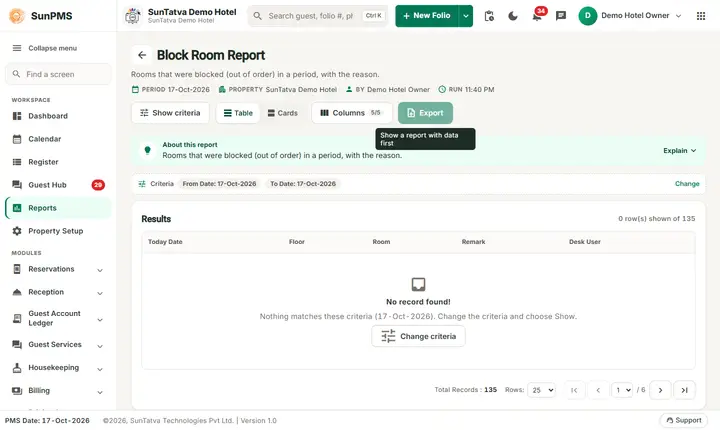
The Block Room Report lists the rooms that are blocked out of sale (for repair, maintenance, owner use) for a range of dates, with the reason and the user who blocked them. A blocked room cannot be sold and does not count as available in the occupancy figures.
Purpose
- See which rooms are unavailable on which dates and why.
- Find out who blocked a room (accountability for long out-of-order periods).
- Explain why occupancy or RevPAR looks low: blocked rooms are removed from the rooms available in Revenue By Room Type.
Who uses it
Maintenance and housekeeping managers, the front desk manager who wants to release rooms back to sale, and the revenue manager.
About this report on screen
Every report page has an About this report bar under its header (button Explain / Hide). It explains the report in plain words:
- Summary: Rooms that were blocked (out of order) in a period, with the reason.
- What this report shows: Every room block between From Date and To Date with the floor, the desk user who blocked it and the remark.
- How to read it:
- A blocked room cannot be sold for the blocked dates.
- Group headings are the rooms or dates the API groups by.
Before you start
- You need the privilege Room_Report_BlockRoom.
- Rooms are blocked on Housekeeping > Room Maintenance (button Add Block Room; see Room Maintenance). A block that was removed again is no longer active and is not listed.
Step by step
- Click Reports in the left menu (or press Ctrl+K and type the report name). The report library opens at
#/reports. - Choose the category Room Reports (or type in the search box) and click the card Block Room ("Blocked room details"). You can also open
#/report/block-roomdirectly. - The report opens and runs once with its default criteria, so you already see data. Under Report criteria set From Date, To Date as you need (in a date calendar, Working Date jumps to the current business date).
- Click Show to run it again with the new criteria. The line under Results tells how many rows are shown.
- To sort, click a column heading. To hide a column untick it in the Columns panel.
- Read the result as a Table or as Cards (switch at the top right). Columns shows or hides columns and lets you drag them into another order; click a column title to sort. Hide criteria / Show criteria folds the criteria away; on a tablet or phone it folds by itself after Show and leaves a one-line summary.
- Click Export and choose PDF, Excel or Email (PDF). The button is always in the header but stays disabled until the report has rows.
Filters
| Filter | Meaning | Rules and default |
|---|---|---|
| From Date | First blocked date to include. | Default PMS date. |
| To Date | Last blocked date to include. | Default PMS date; cannot be before From Date. |
Only blocks that are still active are listed (a block that someone released is hidden).
Columns
| Column | Meaning |
|---|---|
| Today Date | The date for which the room is blocked (the column is called Today Date on screen). One line is written for every blocked date, so a room blocked for 5 nights has 5 lines. |
| Floor | Floor of the room. |
| Room | Room number (heading follows ROOM_TITLE). |
| Remark | The reason typed when the room was blocked. |
| Desk User | Full name of the user who created the block. |
Totals and grouping
Lines are grouped under a grey heading Building Name:
How to read an example
Range 16-Oct-2026 to 20-Oct-2026 on the demo hotel:
| Today Date | Floor | Room | Remark | Desk User |
|---|---|---|---|---|
| 17-Oct-2026 | First Floor | 203 | Air conditioner repair | Demo Hotel Owner |
| 17-Oct-2026 | First Floor | 202 | Air conditioner repair | Demo Hotel Owner |
Note (19-Oct-2026): these two test blocks were removed afterwards with Remove V/Maintenance on the Property Calendar, so the report for the same range is now empty for 17-Oct-2026 and the rooms are Vacant Dirty. Read it as: two rooms, 202 and 203 in the building Main, are out of order on 17-Oct-2026 for air conditioner repair, blocked by the owner user. The same two rooms were also blocked on 16-Oct-2026, but those two blocks were released, so they are not listed. Because these two rooms are blocked, the Revenue By Room Type report counts two rooms fewer as available for the Deluxe room type on that date.
Common questions it answers
- Which rooms can I not sell on 17 October?
- How long has room 203 been out of order, and who blocked it?
- Which blocks were forgotten and still active after the repair?
Export, print and e-mail
- Excel downloads Block Room Report.xlsx (property name, print date, title, date line and the table). The date line in the file header shows the From Date and the To Date you chose.
- Email (PDF) shows Email sent successfully. and mails the PDF to the property e-mail.
- PDF: Since 19-Oct-2026 the PDF also opens on a property without an uploaded logo. Use Excel or Email (PDF).
Troubleshooting
- No record found! No active block in the range. Remember that released blocks are not shown.
- A room I blocked is missing. Check that the date range includes the blocked dates and that the block was not released. The report shows one line per date, so a room blocked from tomorrow does not show for today.
- The same room is listed many times. One line per blocked date is normal.
- Floor or building looks wrong. They come from the room master (Settings > Property > Room).
- The numbers in Revenue By Room Type do not match. That report subtracts blocked room-nights from the rooms available; compare the count of lines per room type here with the difference there.
Messages you may see
| Message | Why | What to do |
|---|---|---|
| No record found! | No active block in the range. | Widen the dates. |
| Email sent successfully. | Mail request accepted. | Check the inbox. |
Related reports
Room History, Revenue By Room Type, Change Room, Room Reports overview.