User
On this page
Users are the staff who log in to SunPMS. Every user is stored in the central sign-in system (SunAuth) and linked to this property with a role. Use this screen to create desk users, give them a role, reset passwords, unlock accounts and deactivate or reactivate them.
Before you start
- Roles must exist (Roles & Privileges); the default roles are Owner, Administrator, Manager, Desk User, House Keeper.
- The Property Access section lists every property of your group when you have the user-modification privilege; without it only your current property is listed.
Screen layout
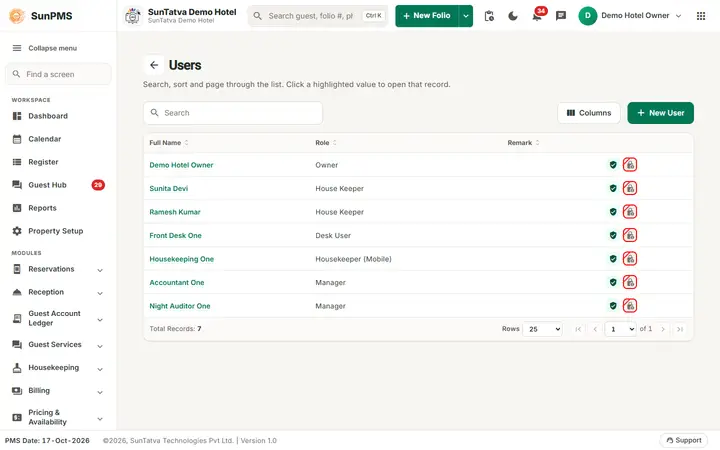
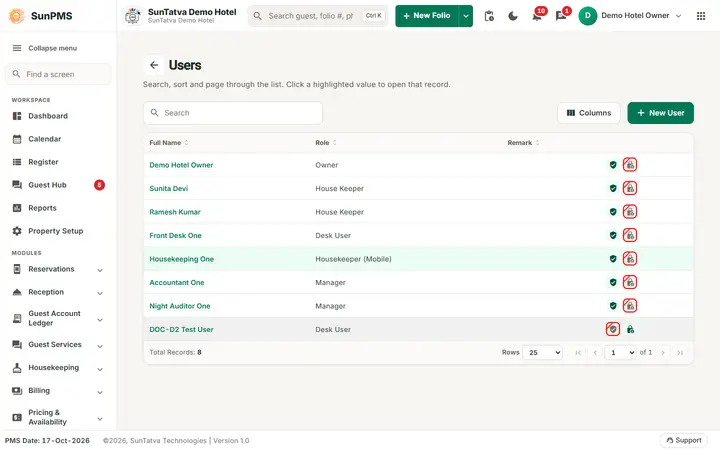
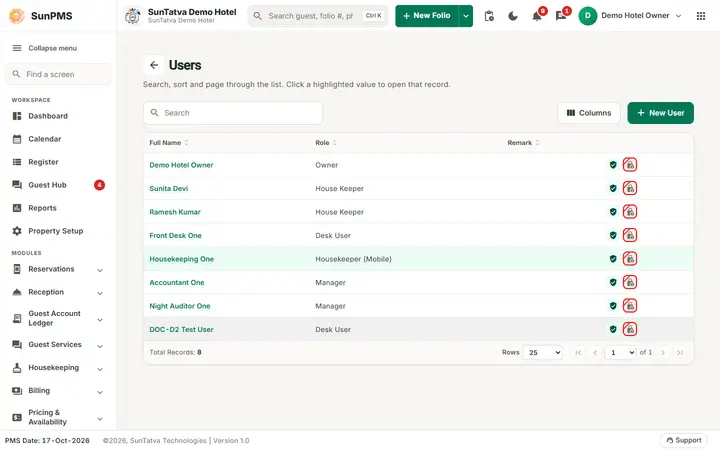
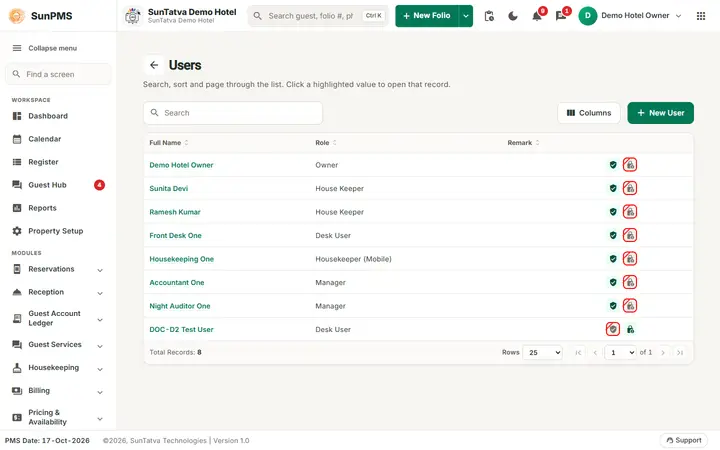
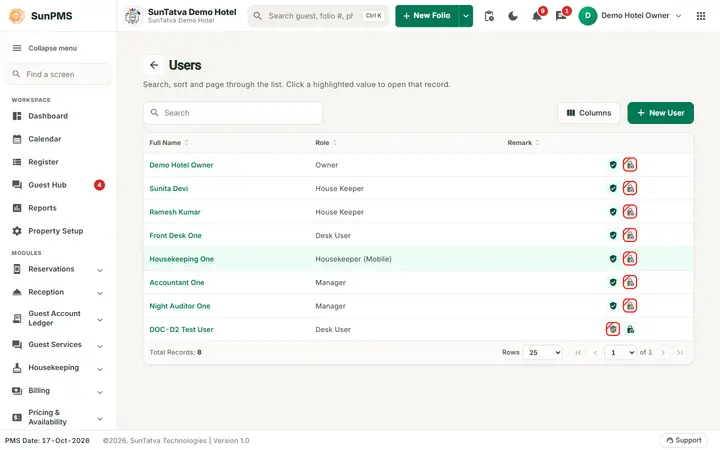
Header: the back arrow and the title Users, with the line "Search, sort and page through the list. Click a highlighted value to open that record." The toolbar has the Search box, Columns and the button New User. List: Full Name (click to edit), Role, Remark, and icons Active (verified) and Lock (crossed = No). There is no active / inactive filter on the screen. Button New User, shown only to users with the user-modification privilege.
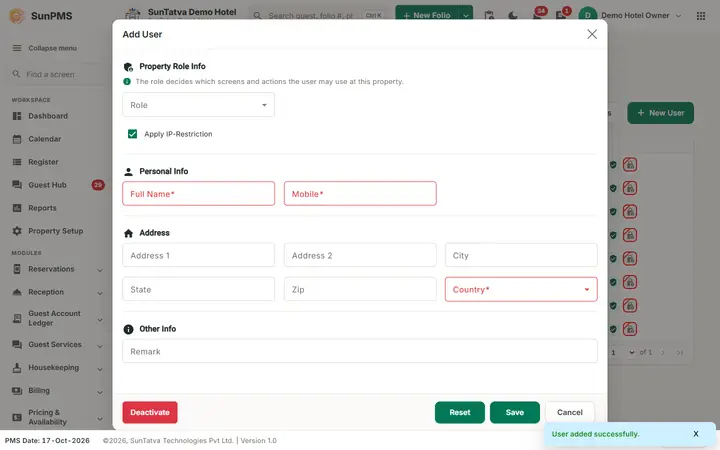
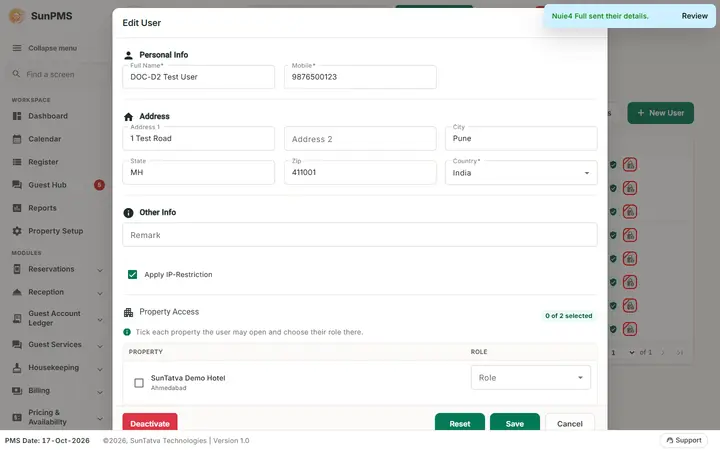
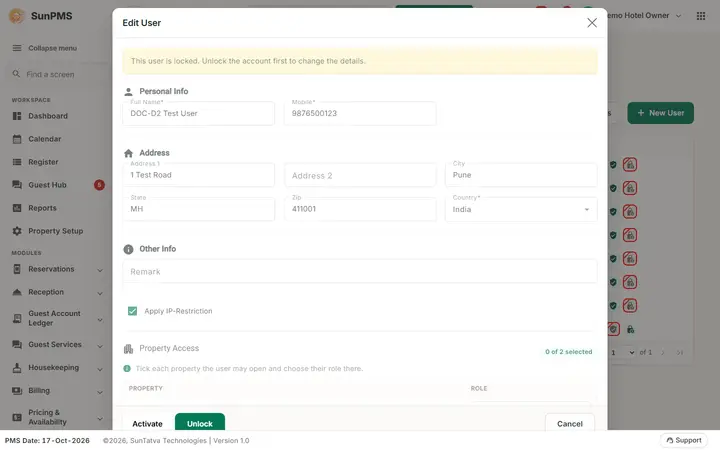
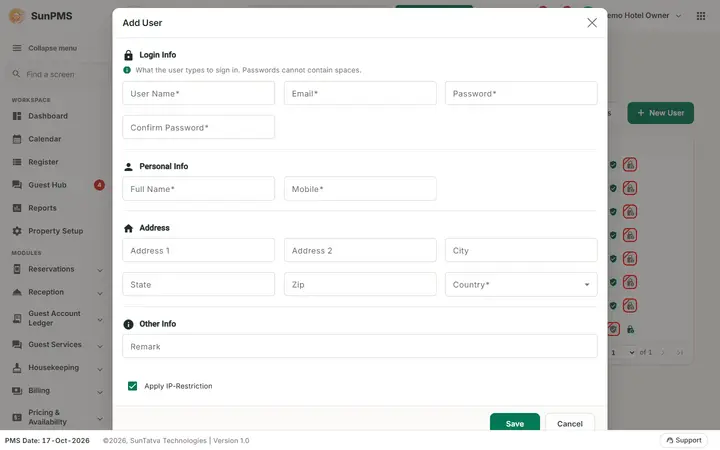
Edit window. A new user's window shows the sections Login Info, Personal Info, Address, Other Info and, last, Property Access; for an existing user the Login Info section is not shown (sign-in name, e-mail and password are not editable). A locked user's window starts with the warning "This user is locked. Unlock the account first to change the details." and its fields are disabled until you click Unlock. Footer buttons (left to right): Deactivate / Activate, Unlock, Reset, Save, Cancel.
| Section / field | Meaning | Rules |
|---|---|---|
| Login Info ("What the user types to sign in. Passwords cannot contain spaces."): User Name | Login name | New users only; required; max 50 |
| Login e-mail | New users only; required; checked on leaving the box ("Invalid E-Mail ID.") | |
| Password / Confirm Password | Initial password | New users only; required; no spaces; must match. Not shown when you open an existing user; no password is ever displayed. |
| Personal Info: Full Name | Required, max 100 | |
| Mobile | Required, digits | |
| Address: Address 1, Address 2, City, State, Zip | Optional | |
| Country | Required | |
| Other Info: Remark | Optional | |
| Other Info: Apply IP-Restriction (tick box) | If ticked the user can log in only from addresses in the IP White List | New users start ticked; changeable only by the group's main user |
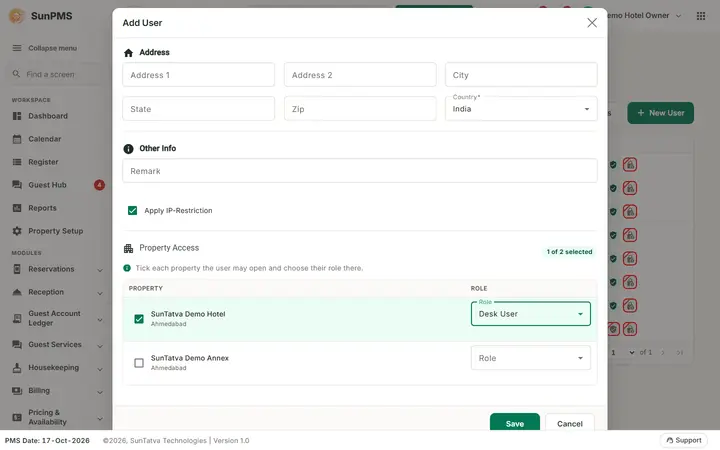
| Property Access ("Tick each property the user may open and choose their role there."): a counter chip " |
The properties of the group the user may open, and the role at each. The role decides which screens and actions the user may use at that property. Ticked rows are highlighted. | Choosing a role ticks the property; unticking a property clears its role. Disabled when editing without UserModificationAccess. At least one property with a role is required. "No properties to choose from." when the list is empty. On a phone each row shows the property above its role. |
| Buttons: Deactivate / Activate (labelled "Acitve" before 2026-10-17), Unlock, Reset, Save, Cancel | See below |
How to create a user
- Click New User.
- Fill User Name, Email, Password, Confirm Password.
- Fill Full Name, Mobile, Country (and address if wanted). In Property Access tick each property the user may open and choose the Role at each.
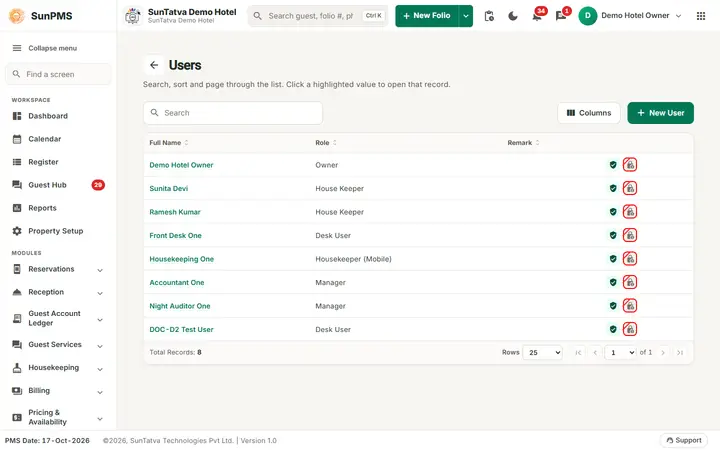
- Click Save. Result: "User added successfully." The user is created in SunAuth and linked to every ticked property with the role chosen there. If linking fails the SunAuth user is deleted again.
How to edit
Click the full name, change the properties and roles in Property Access / personal info, Save: "User updated successfully."
How to deactivate / activate
How to reset a password
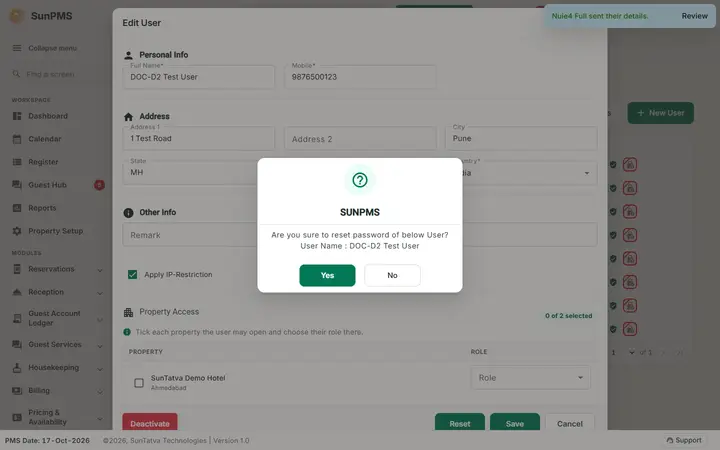
Open the user, click Reset, confirm "Are you sure to reset password of below User?". SunAuth e-mails a temporary password to the user's e-mail address and shows "A temporary password was e-mailed to the user. It must be changed at the next sign-in." The password is never shown on screen. At the first sign-in with it the user sees "Your password is expired" and chooses a new password. If the user has no e-mail address, or the e-mail cannot be sent, the password is not changed and the reason is shown. Available to users with UserModificationAccess or for your own account.
How to unlock a locked user
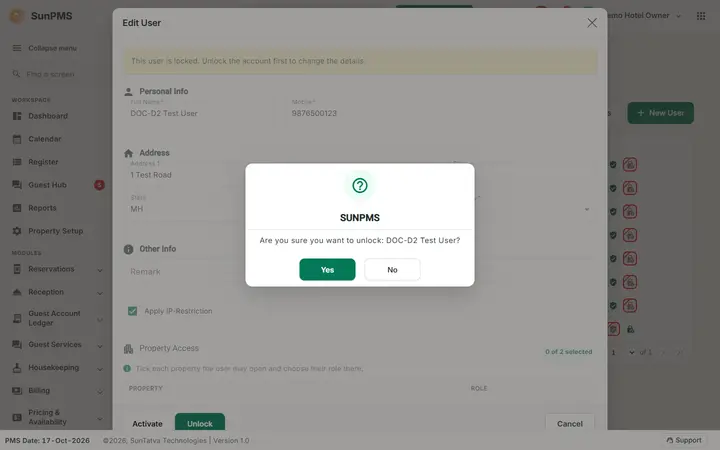
An administrator opens the user (click the name) and clicks Unlock. The Unlock button is shown only when the account is locked and only to an administrator; it replaces the other buttons. The window asks "Are you sure you want to unlock:
What happens behind the scenes
Passwords are stored securely and can never be read back. The user exists in SunAuth (global) and in the property database (role mapping). Privileges come from the role at login. Owner role always has every privilege.
Messages you may see
| Message | Why |
|---|---|
| Please enter User Name. / Please enter User Email. / Please enter Full Name. / Please enter Mobile number. / Please select Country. | Required field empty |
| Please enter New Password. / Please enter confirm New Password. | Password empty |
| Password and confirm password does not match. | Mismatch |
| Please select at least one Property. / Please select Role of selected Properties. | No role chosen |
| Invalid E-Mail ID. | Bad e-mail |
| You are not allowed to view / change this account. (or another reason in the server's words) | The action is refused: the user is not in a group you manage, is another owner, or your sign-in may not manage users. The screen shows the message and does not report success. |
| A temporary password was e-mailed to the user. It must be changed at the next sign-in. | Reset succeeded. |
| This user has no e-mail address, so a temporary password cannot be sent. Add the e-mail address first. | Reset on an account without e-mail. |
| User added / updated / deleted successfully. | Done |
Tips and FAQ
- Q: User cannot log in. A: Check Active status, IP restriction and the password (Reset). The Lock icon (Unlock) applies only when an account is locked, which the current build does not do by itself.
- Q: Can I change a user's e-mail or user name? A: Not on this screen after creation.
Sign-in lock. On the SunAuth sign-in page, each wrong password shows "Invalid Username or password" with the number of attempts used and left; from the second wrong password a Security check must be solved before the next attempt. After the fifth wrong password the account is locked and the page says "User is locked, Please contact to your hotel admin!"; even the correct password is refused until an administrator clicks Unlock in this screen. The later steps (fifth attempt, locked page, sign-in after unlock) are not shown as screenshots because the Security check cannot be completed in an automated recording. A deactivated user also shows the locked banner and the Unlock button, as in the lock window screenshot above.
Screenshots