Exchange Rate
On this page
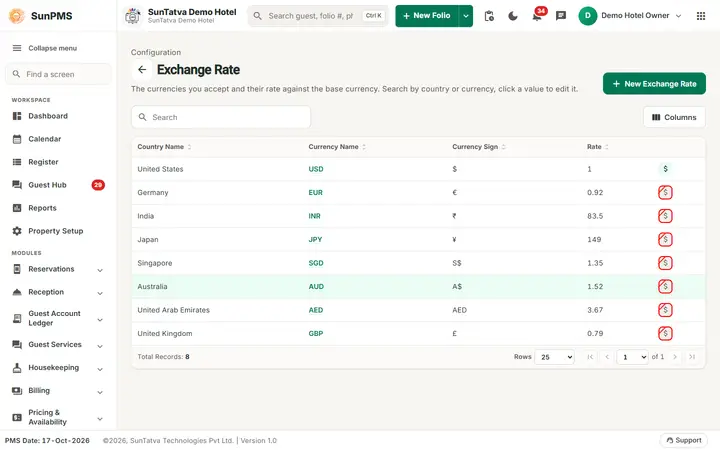
Lets guests pay in a foreign currency. You define each currency and its rate against your base currency. New properties start with United States / USD / $ / 1 as base currency.
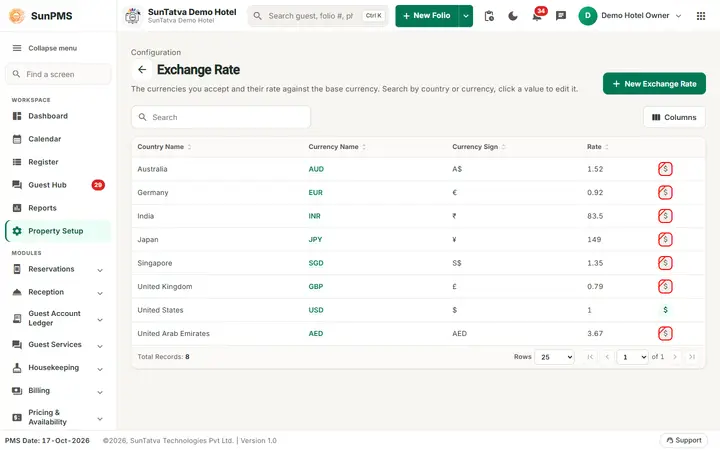
Screen layout
This screen follows the common master layout described in Property Setup (section "Master screens: one pattern"): a header with the back arrow, the title, a one-line explanation and the main button on the right; a Search box and a Columns button above a sortable table; a footer with Total Records, Rows and page buttons; and an add / edit window with Delete (left, only when editing), Cancel and Save. Specific to this screen:
| Column / field | Meaning | Rules |
|---|---|---|
| Country Name | Country of the currency | Required in the window ("Country"); one active rate per country |
| Currency Name | e.g. USD, EUR (click to edit) | Required |
| Currency Sign | e.g. $ | Required |
| Rate | How many units of this currency equal one unit of base currency (payment screen: foreign amount = balance x rate) | Decimal. Locked to 1 for the base currency |
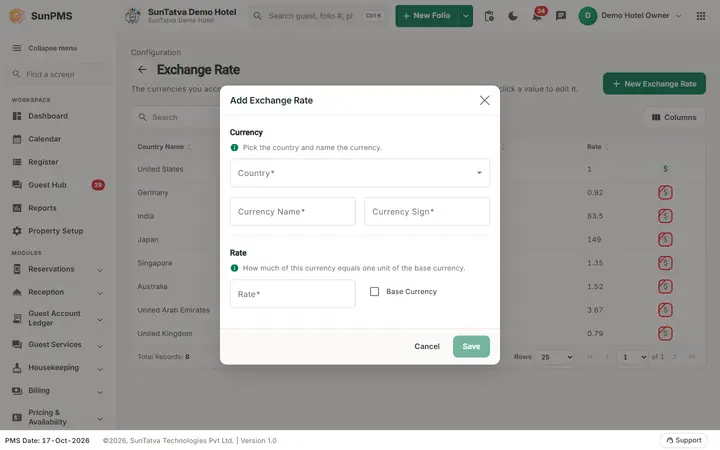
| Base Currency | Icon column / tick box | Only one base currency. In the window the section Currency ("Pick the country and name the currency.") holds Country, Currency Name, Currency Sign and the Base Currency tick box; the section Rate ("How much of this currency equals one unit of the base currency.") holds Rate. |
How to add
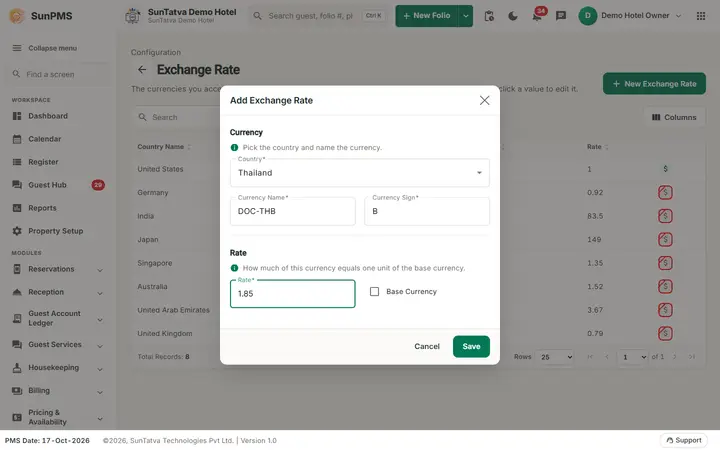
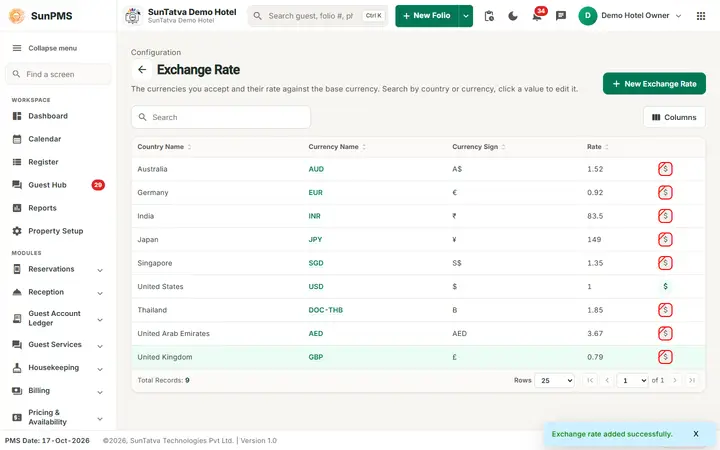
- New Exchange Rate. 2. Choose Country, enter Currency Name, Currency Sign, Rate. 3. Save ("Exchange rate added successfully."). Form resets; Cancel closes.
How to change the base currency
Tick Base Currency. If one exists, confirm "Are you sure want to change Base Currency?". The rate becomes 1 and the old base is unticked on save.
How to edit
Click the currency name, change, Save ("Exchange rate updated successfully.").
How to delete
Click the currency name to open the edit window and click Delete (shown only for an existing rate). Confirm "Are you sure want to delete this ExchangeRate?". The rate is deactivated (it is not erased) and leaves the list.
What happens behind the scenes
The folio Payment window lists these currencies; the amount in the foreign currency is converted to base currency using the rate and the base amount is what posts to the folio. The Multiple Currency report uses them.
Messages you may see
| Message | Why |
|---|---|
| Please enter Currency Name. / Please enter Currency Sign. | Empty |
| Exchange Rate already exists. | Active rate for that country exists |
| Are you sure want to change Base Currency? | Confirmation |
Tips and FAQ
- Q: How do I remove a currency? A: Open it and click Delete in the edit window (works since 2026-10-18).
- Q: Do rates update automatically? A: No; edit the Rate manually.
Screenshots