Document Storage
On this page
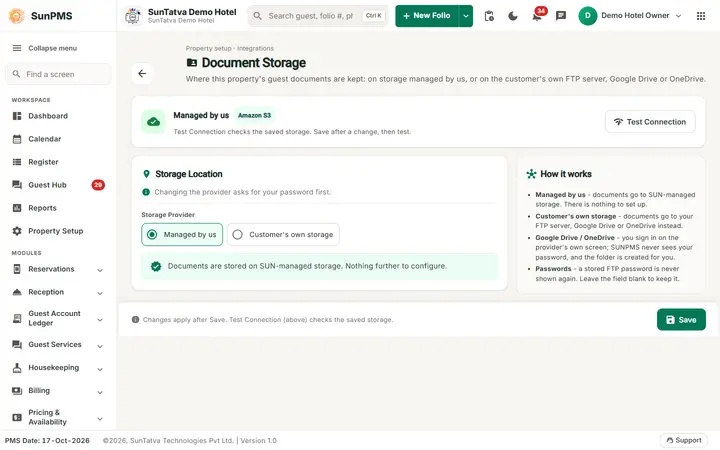
Chooses where the images and files attached to guests (passports, ID scans, signatures, credit-card images, sales & channel documents) are kept: on SunTatva-managed storage, or in the hotel's own FTP server, Google Drive or OneDrive.
Before you start
- For your own storage have ready: the FTP server address, folder, user and password, or a Google / Microsoft account that may store files.
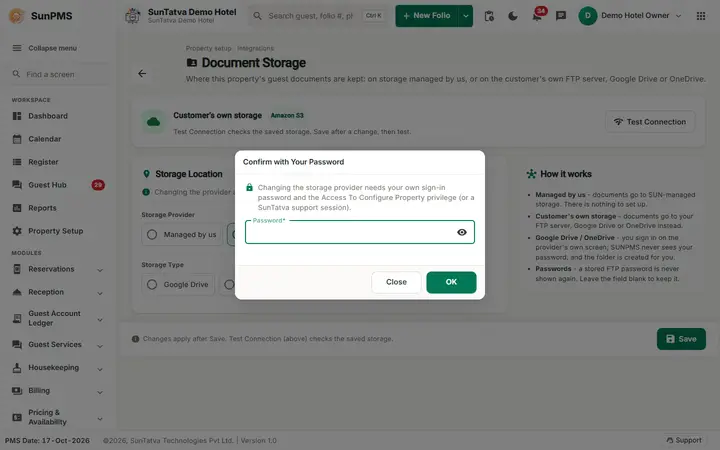
- Switching the Storage Provider asks you to confirm with your own sign-in password, because existing documents are not moved automatically. Your user needs the privilege Access To Configure Property (SunAdmin sessions pass too). There is no shared password.
Screen layout
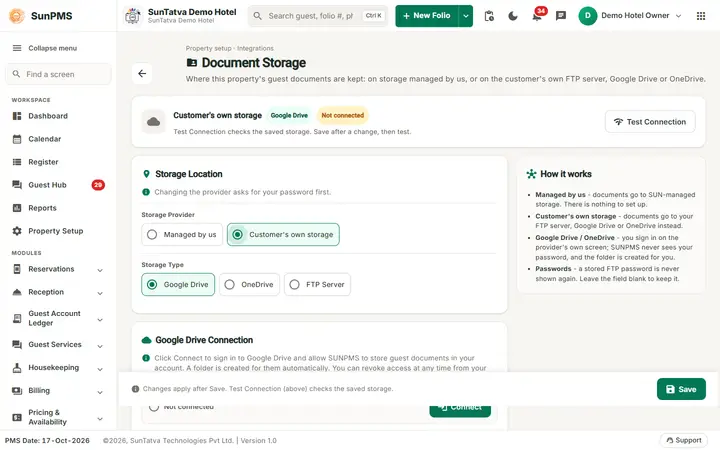
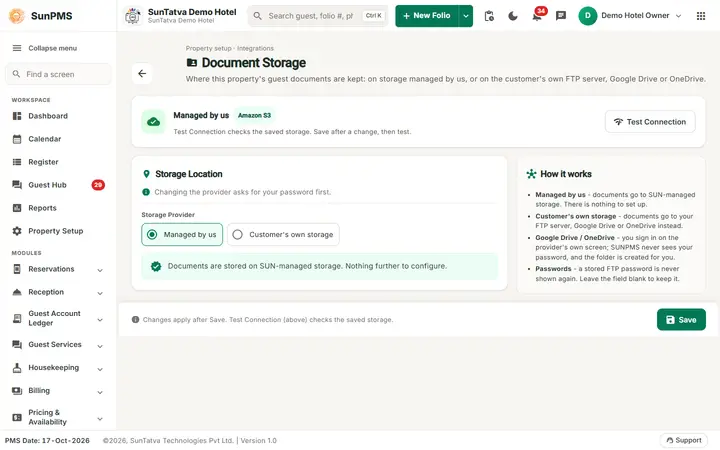
The page header shows the title Document Storage, the line "Property setup · Integrations", a description and a back arrow to the Property Setup hub. The top card shows the current provider (Managed by us or Customer's own storage), the storage type and the Test Connection button ("Test Connection checks the saved storage. Save after a change, then test."). The cards are Storage Location (Storage Provider and Storage Type; "Changing the provider asks for your password first"), FTP Connection or <Google Drive / OneDrive> Connection (depending on the type), and How it works. The bottom bar says "Changes apply after Save. Test Connection (above) checks the saved storage." and holds Save.
| Field | Meaning | Rules |
|---|---|---|
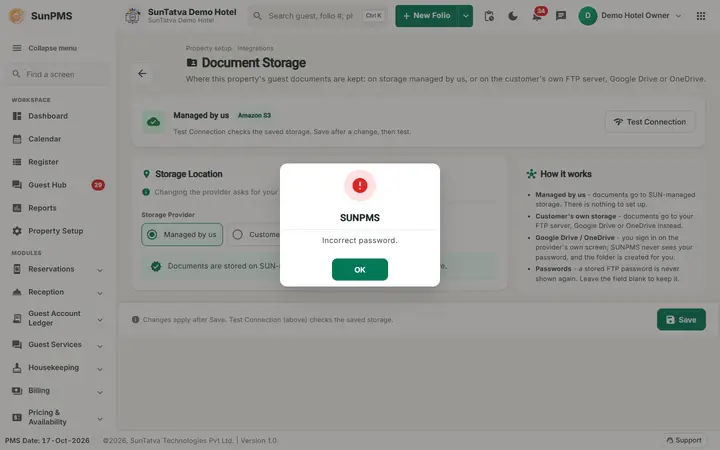
| Storage Provider | Managed by us (SUN-managed storage, nothing else to configure) or Customer's own storage. | Changing opens Confirm with Your Password; a wrong password (or a missing privilege) shows a message and the choice reverts. A wrong password is not a failed sign-in and cannot lock your account; after 5 wrong passwords within 15 minutes the confirmation pauses for 15 minutes. |
| Storage Type (own storage only) | Google Drive, OneDrive or FTP Server. | For SUN-managed storage the type is Amazon S3 or Local Disk and is set by support. |
| FTP Server | Host name, e.g. ftp.example.com. | Required for FTP: "Please enter the FTP server address." |
| Folder Path | e.g. /guest-documents. | |
| Username, Password | FTP login. Password blank = keep the current one. | |
| Drive status | "Connected as |
Google Drive and OneDrive are tracked separately. |
| Connect / Reconnect | Opens the sign-in window to allow SUNPMS to store guest documents in your drive; a folder is created automatically. You can revoke access in your drive account. | Success: "<Google Drive/OneDrive> connected successfully." Failure: "Could not connect |
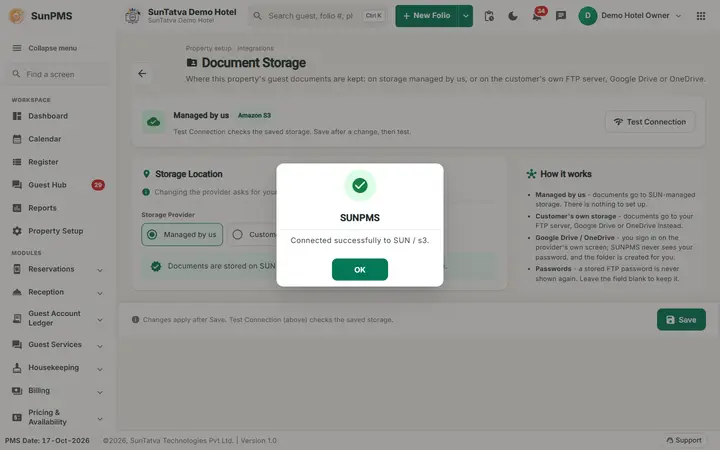
| Test Connection | Checks the current settings. | Shows the server's answer, for example "Connected successfully to SUN / s3." for SUN-managed storage on Amazon S3, or "The connection test failed." |
| Save | Stores the settings. | "Document storage settings saved." |
How to use your own Google Drive
- Open Property Setup in the left menu and click the Document Storage card (group Configuration).
- Select Customer's own storage; the dialog Confirm with Your Password opens ("Changing the storage provider needs your own sign-in password and the Access To Configure Property privilege (or a SunTatva support session)"). Enter your own sign-in password and click OK (Close cancels and the choice reverts).
- Select Google Drive and click Connect (it saves the page first, then opens the Google sign-in in a new window); sign in and allow access.
- Click Test Connection, then Save.
How to use FTP
Select Customer's own storage, then FTP Server, fill server, folder, user name and password, Test Connection, Save.
What happens behind the scenes
All document uploads (check-in documents, group, sales & channel, guest master, SunHardware scans) go through the storage service, which picks the store from the provider and type settings (DOCUMENT_STORAGE_PROVIDER, DOCUMENT_STORAGE_TYPE, FTP detail). Documents already stored stay where they are; only new uploads use the new location. The old Display Setting fields for storage type/FTP detail are legacy.
Messages you may see
| Message | Why | What to do |
|---|---|---|
| Please enter your password. | OK clicked with the password field empty | Type your sign-in password |
| You do not have the privilege to change this setting (Access To Configure Property). | Your user lacks the privilege | Ask an administrator to grant it |
| Your password could not be checked. Please try again. | The sign-in service could not be reached | Try again |
| Incorrect password. | The password is not the signed-in user's own password | Type your own password again; the choice reverts to the saved provider. It does not count as a failed sign-in |
| Too many wrong passwords. Try again in N minute(s). | 5 wrong passwords within 15 minutes in Confirm with Your Password (here or in Credit Card Setting) | Wait the minutes shown; your sign-in is not affected |
| Your account is locked. Please contact your administrator. | The user is locked (by wrong sign-ins or by an administrator) | Ask the administrator to unlock the user |
| Please enter the FTP server address. | FTP chosen without host | Fill it |
| Could not save the document storage settings. | Server error | Retry |
| Could not start the authorisation. | Drive sign-in failed to start | Retry |
| Document storage settings saved. | Saved | - |
Tips and FAQ
- Q: Are old documents moved? A: No.
- Q: Can I revoke access? A: Yes, in your Google / Microsoft account security settings.
- Q: Can a wrong password in Confirm with Your Password lock my account? A: No. It is checked against your own password only (SunAuth
verify-own-password) and never counts as a failed sign-in. After 5 wrong passwords the confirmation pauses for 15 minutes; a correct password resets the count.
Screenshots