Device Configuration
On this page
One page to register the card payment devices (terminals) of the property and save the whole list with a single Save. It shows the same payment device list as Payment Gateway Integration. ID scanners, signature pads and door locks are not entered here any more: they are set up in SunHardware.
Before you start
- Unlike the Property Setup cards, this page does not check the Payment Gateway licence in the screen itself. A device saved here that the property is not licensed for will not work at the payment screen.
- Turn on Online Credit Card Processing and choose the gateway in Credit Card Setting first; have the terminal's serial number or device ID and its IP address and port ready.
- The page has no card in the Property Setup hub. Open it by its address (
#/setup/devices) or from a link in the manual.
Screen layout
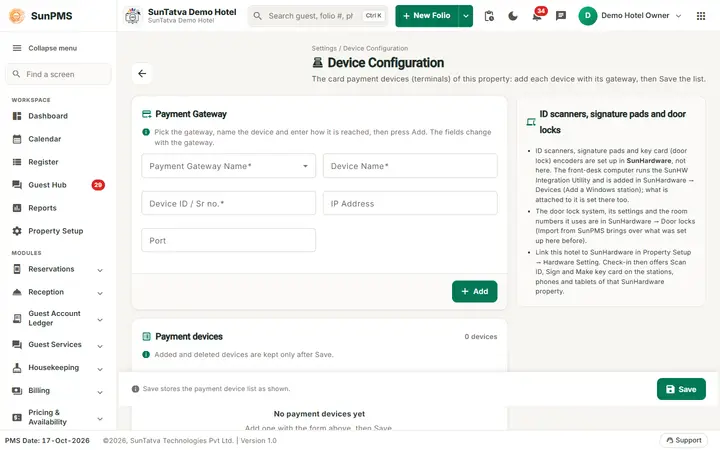
The page header shows the small heading "Settings / Device Configuration", the title Device Configuration, the line "The card payment devices (terminals) of this property: add each device with its gateway, then Save the list." and a back arrow to the Property Setup hub. Two columns follow.
| Part | What it holds |
|---|---|
| Card Payment Gateway | The entry form. Help text: "Pick the gateway, name the device and enter how it is reached, then press Add. The fields change with the gateway." Fields: Payment Gateway Name, Device Name, Device ID / Sr no. (SlimCDT: a terminal type drop-down), IP Address, Manufacturer and Is Cloud (Shift4 API devices), Port. Buttons More Setting (SlimCDT only, opens Other Configuration Setting with CFG-Contactless Mode and the other CFG options) and Add. Same fields, defaults and rules as in Payment Gateway Integration. |
| Card Payment devices | The table of devices already added (company name, device name, device ID, IP address, port) with a delete icon per row. Help text: "Added and deleted devices are kept only after Save." When empty it says "No payment devices yet. Add one with the form above, then Save." |
| Card ID scanners, signature pads and door locks (grey) | Three notes: these devices are set up in SunHardware, not here (the front-desk computer runs the SunHW Integration Utility and is added in SunHardware > Devices as a Windows station); the door lock system, its settings and room numbers are in SunHardware > Door locks (Import from SunPMS brings over what was set up here before); link the hotel to SunHardware in Property Setup > Hardware Setting, after which check-in offers Scan ID, Sign and Make key card on the stations, phones and tablets of that SunHardware property. |
| Bottom bar | "Save stores the payment device list as shown." and the Save button. |
How to add devices
- Open Device Configuration (
#/setup/devices). - In the Payment Gateway card fill the fields and click Add; the device appears in the Payment devices table (not yet saved).
- Repeat for other devices.
- Click Save in the bottom bar. Result: "Device Configuration successfully done". To remove a device, click the delete icon in its row and save.
Messages you may see
| Message | Why | What to do |
|---|---|---|
| Please select Payment Gateway. / Please enter Device Name. / Please select Manufacturer. / Please select Device. / Please enter Serial Number. / Please enter Device ID. | Payment section incomplete | Fill the field |
| Payment Gateway already exists. | Same device added twice | Edit existing |
| Device Configuration successfully done | Saved | - |
Tips and FAQ
- Q: What is the difference to Payment Gateway Integration? A: None in data. Payment Gateway Integration is a list with a dialog (one device at a time, saved at once); this page edits the whole list and saves it together.
- Q: Where do I enter the ID scanner, signature pad or door lock? A: In SunHardware (see Hardware Setting, Scanner Integration, Signature Pad Integration, Door Lock Integration).
Screenshots