Group Block Rooms and Single Room Blocks
On this page
A group block holds a number of rooms of a room type for the group on selected dates, without naming rooms, so they are not sold elsewhere. The window also stores the group's release rule: when the unsold rooms of the block go back to general sale. The night audit applies that rule: after each audit, the unsold block nights whose release day has come are released by themselves.
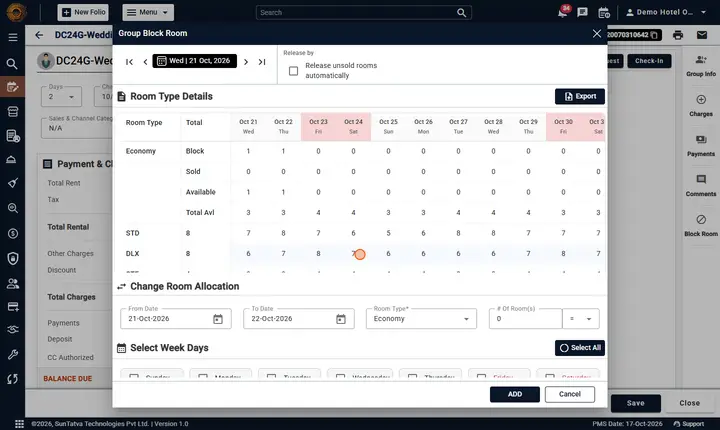
Group Block Room dialog
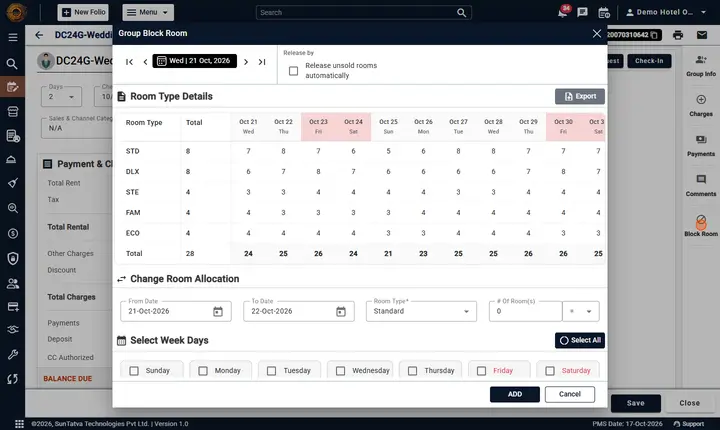
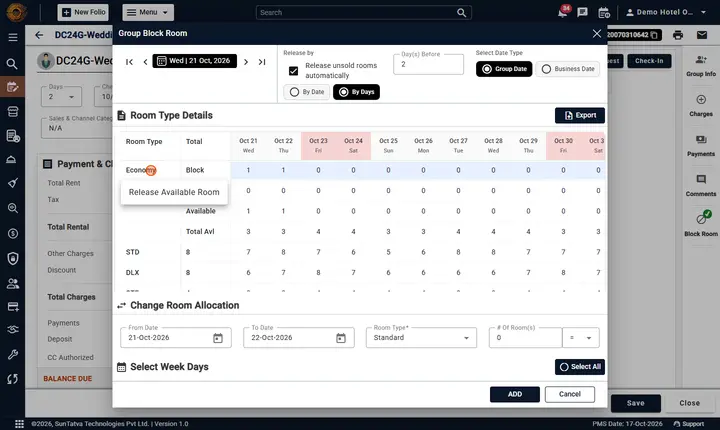
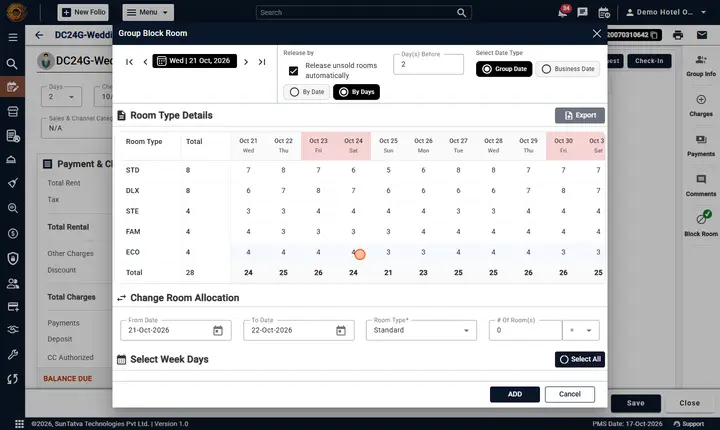
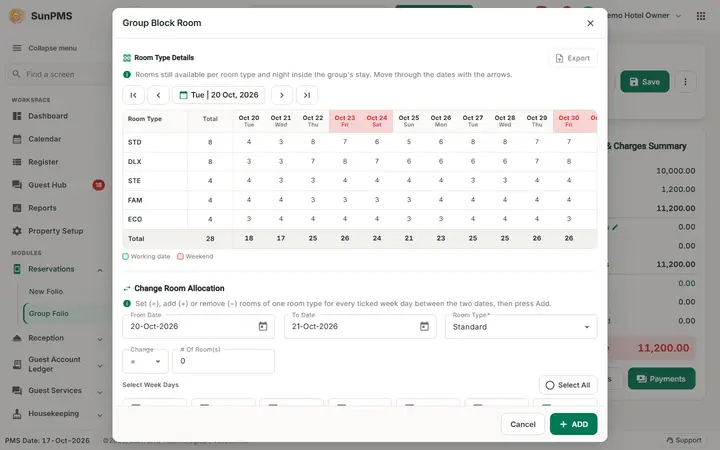
The window is titled Group Block Room (with the channel name for an online group) and has three parts in this order: Room Type Details (the grid by date), Change Room Allocation and Release by. Its footer has Cancel and ADD.
- Date strip with previous/next week and day and a date picker. The grid lists each room type by date: Block, Sold, Available (sold = blocked minus available).
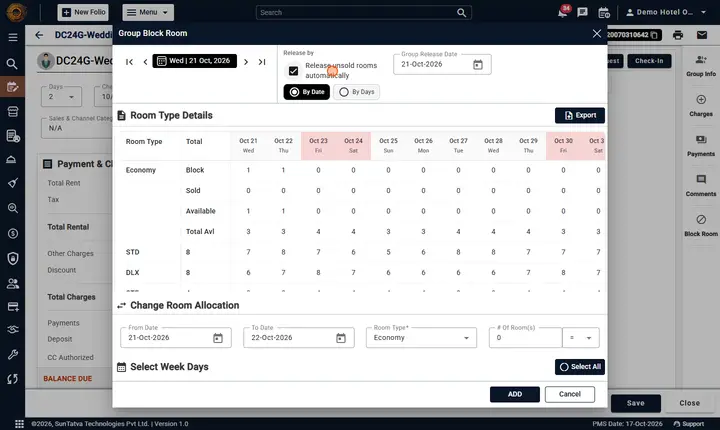
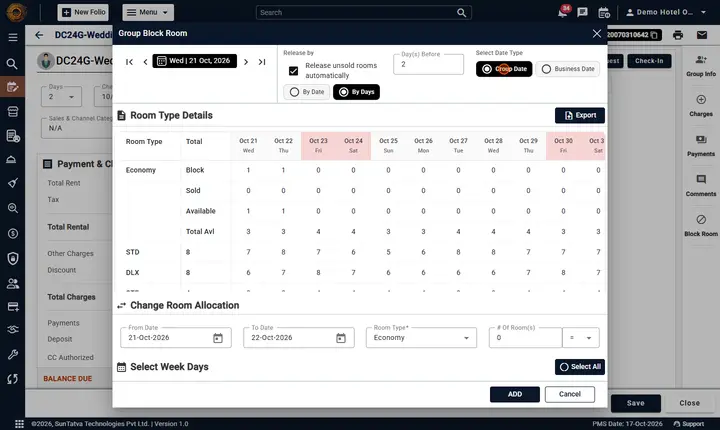
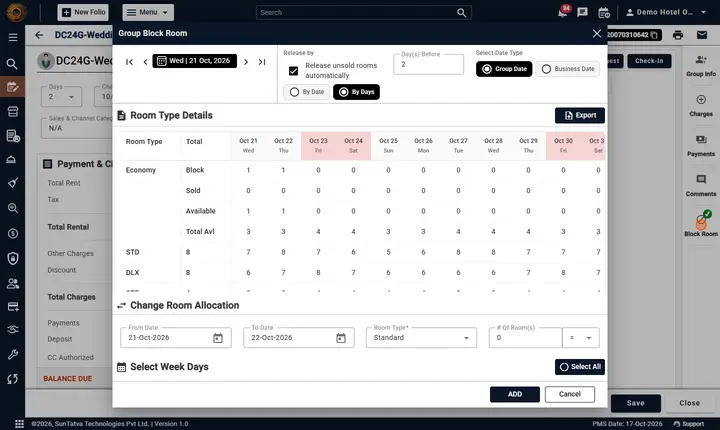
- Release by: the checkbox Release unsold rooms automatically. Tick it to give the group a release rule; the choices then appear: By Date (Group Release Date, a date up to the arrival date) or By Days (Day(s) Before and Select Date Type: Group Date or Business Date). Untick it to remove the rule. The night audit releases the unsold rooms by this rule (see Automatic release by the night audit).
- Room Type Details with Export to PDF or Excel.
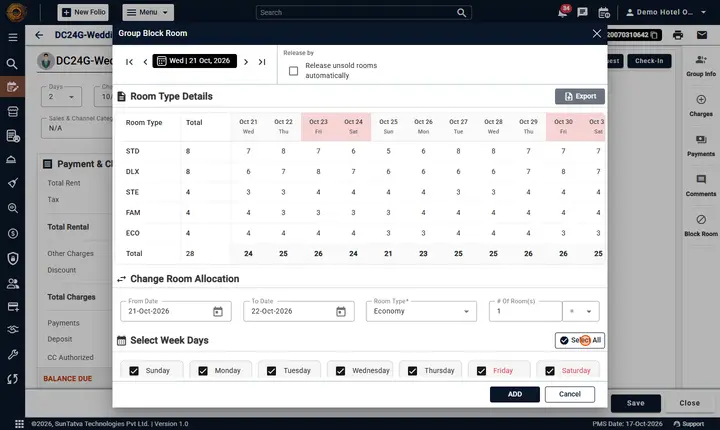
- Change Room Allocation: From Date, To Date, Room Type, # Of Room(s) with sign (=, +, -), and Select Week Days. Click ADD.
- Once a block exists, click a room type name in its block section (that room type, for the whole group stay) or a date in the header row (that date, for every blocked room type) and choose Release Available Room.
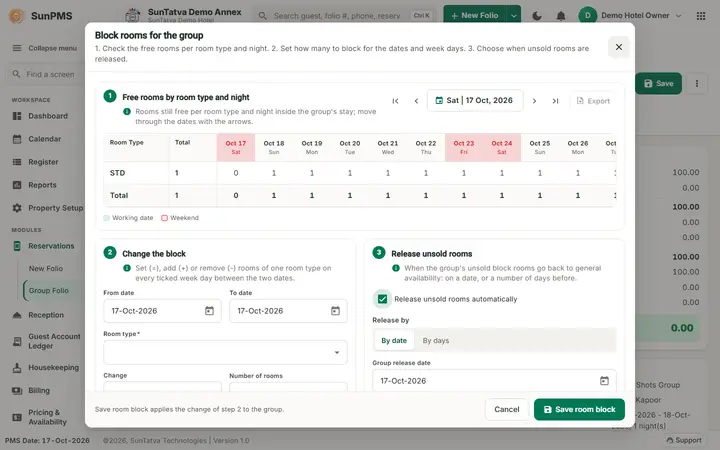
With the simplified group screen the same window opens from the header More (three-dot) menu > Block rooms for this group as Block rooms for the group, in three numbered parts: 1 Free rooms by room type and night (with date arrows and Export), 2 Change the block (From date, To date, Room type, Change, Number of rooms), Week days, and 3 Release unsold rooms with the same checkbox Release unsold rooms automatically. While it is ticked it shows Release by (By date / By days), Group release date or Day(s) before and Count the days before (Group date / Business date). Buttons Cancel and Save room block. The rule is saved and applied exactly as in the standard window.
How to block rooms
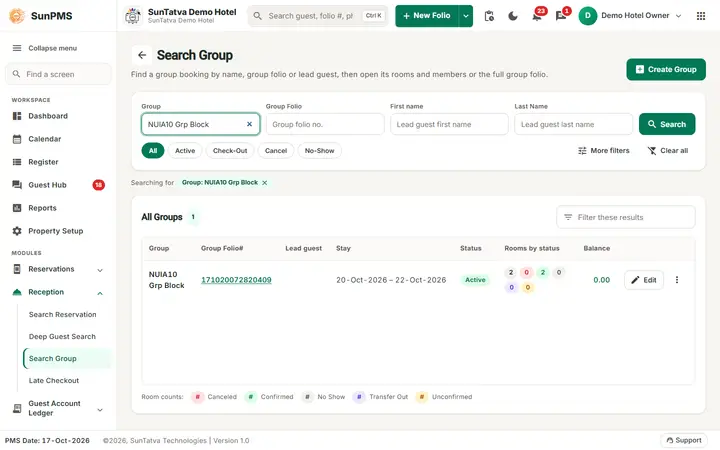
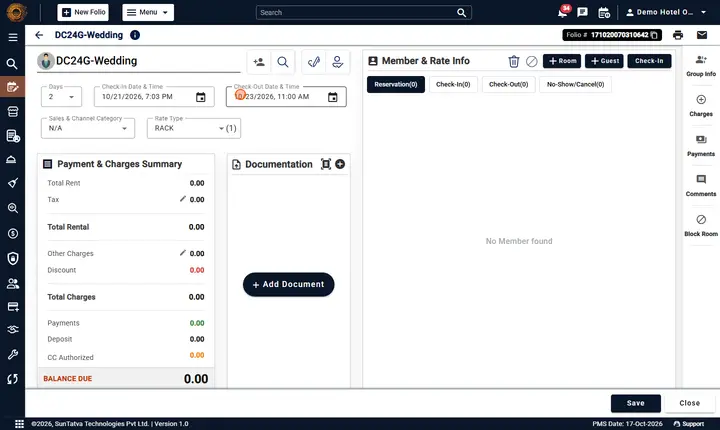
- Open the group, click More > Block Room (or the Room block chip when a block already exists).
- Fill the allocation block, choose weekdays, click ADD (Room block successfully.).
- To set a release rule, tick Release unsold rooms automatically, choose By Date and the Group Release Date, or By Days with Day(s) Before and Group Date or Business Date.
- Close the window (Cancel or the cross). The release rule is saved with the group when the window closes, provided the group has a block. Open Block Room again: the box is ticked and shows the saved rule. Rooms blocked appear as availability reduced for the public; group members consume the block.
How to release rooms
- Click the room type name in its block section (that type, whole group stay) or a date in the header row (that date, all blocked types) and choose Release Available Room (Room Release successfully.). The unsold rooms of the block go back to general sale at once.
- When the last block is released and you close the window, the release rule is cleared as well (a group without a block has no rule).
- You can release by hand at any time, before or after the day of the release rule.
Automatic release by the night audit
When the group has a release rule, the night audit releases the unsold nights of its block by itself. It runs right after the audit has moved the PMS date, for the new business date, and does what Release Available Room does: the unsold rooms of those nights go back to general sale (and to the channel manager, for room types sent to CRS). Which nights are released:
| Release rule | Released after the audit |
|---|---|
| By Date | Every block night that is still held, once the business date has reached the Group Release Date. |
| By Days, Group Date | Every block night that is still held, once the business date has reached the group's arrival date minus Day(s) Before. Example: arrival 21-Oct, 2 days before: released by the audit that opens 19-Oct. |
| By Days, Business Date | Each night on its own, once the business date has reached that night minus Day(s) Before (a rolling cut-off). Example: 2 days before: the night of 21-Oct is released by the audit that opens 19-Oct, the night of 22-Oct by the audit that opens 20-Oct. |
- Only nights from the new business date onward are released; past nights keep their history.
- Rooms that members already booked stay with them; only the rooms of the block that nobody used go back.
- A rule whose day has already passed (saved late, or an audit skipped) releases at the next night audit.
- Nights already released by hand are not touched again. A group without a rule is never released by the audit.
- A problem in this step never stops the night audit; the block then stays held and you can release it by hand.
What the screen does today (checked 2026-10-18)
- The calendars of From Date and To Date only offer the nights of the group stay (a group arriving 17-Oct for two nights offers 17-Oct and 18-Oct). Group Release Date offers dates up to the arrival date, and starts on the PMS date.
- The Release by area shows the checkbox Release unsold rooms automatically; the By Date / By Days choices and their fields appear only while it is ticked.
- After ADD each blocked room type gets its own section in the table with the lines Block, Sold, Available and Total Avl (rooms still free in the hotel). Blocking two Executive Suites reduced the free suites from 4 to 2 on both nights.
- Setting # Of Room(s) to 0 is refused with Please provide number of Room to block., so a block cannot be removed by entering zero; use Release Available Room.
Room lists: deleted rooms are not offered. Single-room blocks and group blocks use the same inventory rule: a block is refused when the room type has no availability left for the dates, even if the room is physically empty (see Room Maintenance, message Availability fails for Room Type).
Messages you may see
| Message | Why |
|---|---|
| From date can not be greater than To date. | Dates |
| Please select Room Type. / Please provide number of Room to block. | Missing input |
| Please select atleast one day for update. | No weekday |
| Number of room can not be less than sold room. | Cannot block fewer than reserved |
| There are n group member(s) already exist in this group. Please provide block room more than or equal to n. | The block is smaller than the members already in the group (checked 2026-10-29) |
| Number of room should not be more than available room. | Not enough inventory |
| Room block successfully. / Room Release successfully. | Success |
The automatic release by the night audit shows no message; the night audit answers Audit done successfully. as usual. Open Block Room afterwards: the released nights show no held rooms.
Tips and FAQ
- Q: Does the PMS give unsold block rooms back by itself? A: Yes, when the group has a release rule (Release unsold rooms automatically ticked). The night audit releases them on the rule's day. Without a rule they stay held until you click Release Available Room.
- Q: The release day has come but the rooms are still blocked. A: The release happens only when the night audit runs, for the date it opens. Check that the audit ran, that the box is ticked and the rule is the one you meant (Group Date or Business Date), or release by hand.
- Q: Will the audit cancel the group's reservations? A: No. Only rooms of the block that no member used are released; the members keep their rooms.
- Q: What is the difference between Group Date and Business Date? A:Group Date releases the whole block at once, the given number of days before arrival. Business Date releases night by night, each night the given number of days before it.
Single room block (Add Block Room)
From the Register (List View) or Calendar: choose Room, From Date, To Date, Remark, Save & Close. Messages: Please enter block remark.
Related: sold-out room types in the Group Reservation window
The Sold and Available columns of this dialog show the availability that the Group Reservation window also uses. Since 2026-10-19 that window greys out the room cards of a room type with no availability (tag Sold out for these dates) instead of letting OK fail with Availability Fail. It's Overbooking. See Group reservation.
Screenshots