Night Audit
On this page
Night Audit closes the current business day (the PMS date) and opens the next one. Until you run it, the PMS keeps working on the old date, even after midnight. A hotel runs it once a day, normally in the early morning after the last transactions of the day are entered.
Before you start
- The PMS date (shown in the footer) must be earlier than today's real date in the property's time zone. If the PMS date is already today, the audit button stays disabled and the system says the audit was already created.
- The Audit Date field can only hold the current PMS date. You cannot audit an older or future date.
- You need the privilege Access to create new day. Without it Create Audit is greyed out.
- The time must be later than the Night Audit Time set in Property Setup > Night Audit Setting (when the PMS date is yesterday).
- Clear the work that blocks the audit (see "What can stop the audit" below): guests due to check out today, folio balances, deposits and card authorizations.
Screen layout
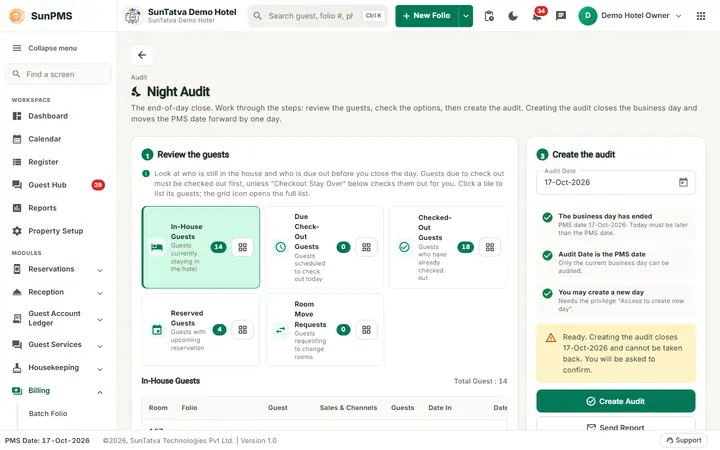
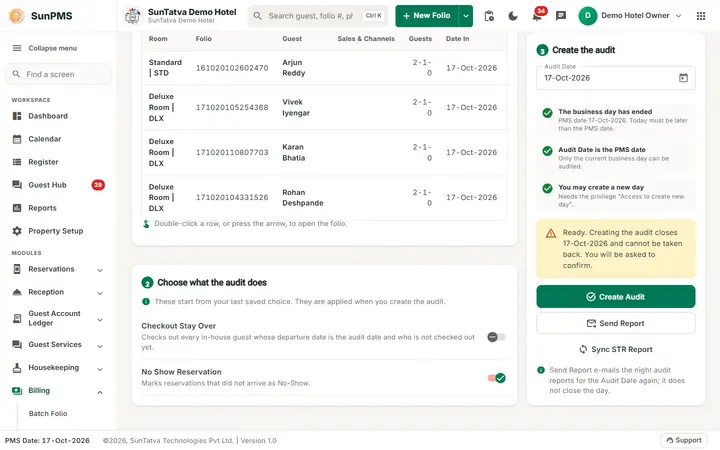
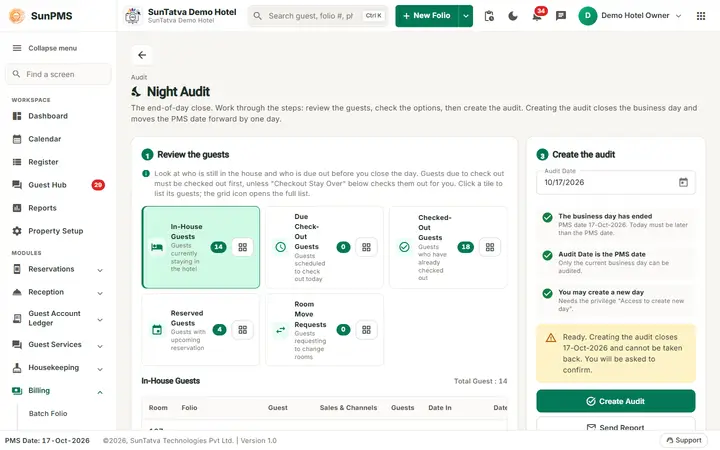
The screen has a heading "Night Audit" with the line "The end-of-day close. Work through the steps: review the guests, check the options, then create the audit." and a back arrow. Three numbered steps follow; steps 1 and 2 are on the left, step 3 is a panel on the right (below the steps on a phone).
Step 1: Review the guests
| Item | What it means | Rules |
|---|---|---|
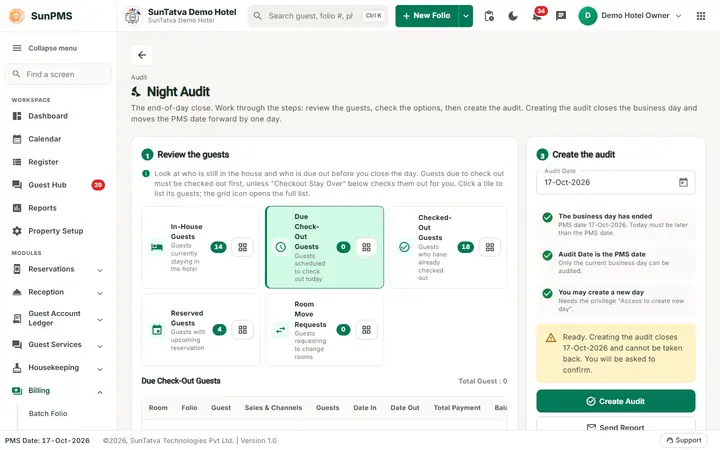
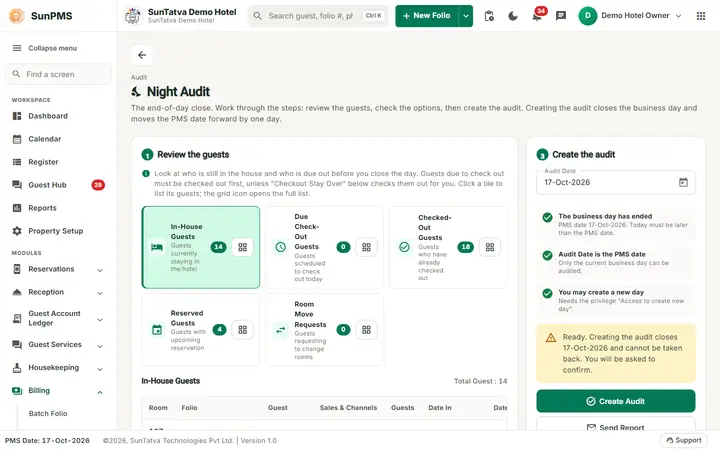
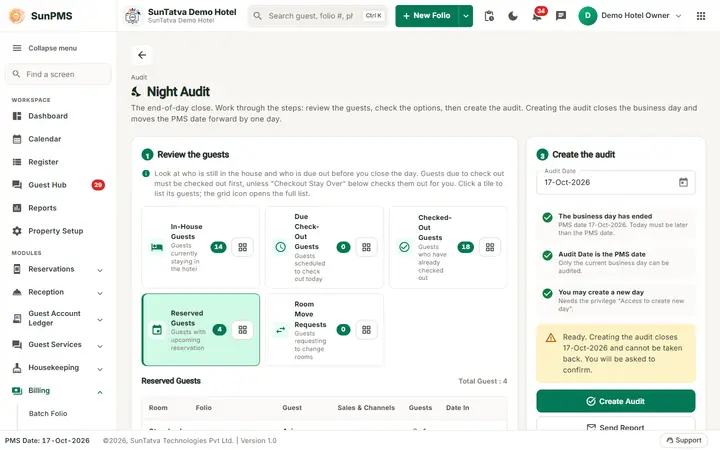
| Guest list tiles | In-House Guests, Due Check-Out Guests, Checked-Out Guests, Reserved Guests, Room Move Requests, each with a short description and a count. Click a tile to list its guests below. The grid icon on a tile opens the full list in its own screen. | Which tiles show follows the guest ledger screens you may open. |
| Guest list | Room, Folio, Guest, Sales & Channels, Guests, Date In, Date Out, Total Payment, Balance (red when owed) and an arrow button. The heading shows the list name and "Total Guest: n". | Double-click a row, or press the arrow, to open the folio. Empty list: "No guests in this list." On a phone each row is a card. |
Step 2: Choose what the audit does (switches; they start from your last saved choice and are applied when you create the audit)
| Switch | What it means | Rules |
|---|---|---|
| Checkout Stay Over | "Checks out every in-house guest whose departure date is the audit date and who is not checked out yet." | Starts from the last saved choice (Settings: "auto checkout stay over at night audit"). |
| No Show Reservation | "Marks reservations that did not arrive as No-Show." | Starts from the last saved choice. |
| Auto Post To FAS | "Sends the day's accounting totals to the FAS (accounting) system after the audit." | Shown only when a FAS system is selected (Property Setup > FAS Settings) and "Auto post to FAS on night audit" is on. |
Step 3: Create the audit (the readiness checklist)
| Item | What it means | Rules |
|---|---|---|
| Audit Date | The business day being closed, with a date picker. | The picker cannot go past the PMS date, and the date must equal the PMS date. |
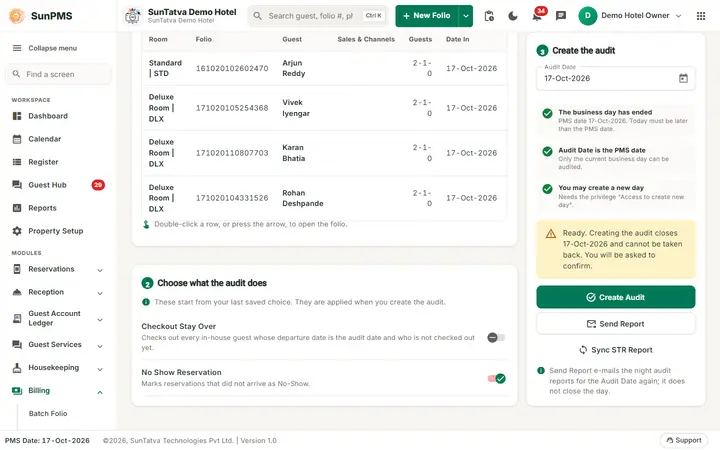
| Readiness checklist | Three lines, each with a green tick when satisfied or a block sign when not. The business day has ended (PMS date shown; today must be later than the PMS date). Audit Date is the PMS date ("Only the current business day can be audited."). You may create a new day (needs the privilege "Access to create new day"). | A blocked line explains what to fix. |
| Notice under the checklist | Amber: "Ready. Creating the audit closes |
|
| Create Audit | Runs the audit. | Disabled until all three checklist lines are green. |
| Send Report | E-mails the night audit reports for the Audit Date again. It does not close the day. | Asks for confirmation. Reports sent are the ones ticked in Night Audit Setting > Report At Night Audit. |
| Sync STR Report | Sends the STR (hotel benchmarking) statistics for the date. | Visible only for properties registered as STR. |
Use step 1 to find the guests who still need attention before you audit.
How to run the night audit
This is how the screen is used on a real audit day. (This manual shows the screen and its checklist only; the audit is never run on the demo hotel because it moves the PMS date for everybody.)
- Open Billing > Night Audit.
- In step 1 open the Due Check-Out Guests tile. Check out those guests, or switch on Checkout Stay Over in step 2 to let the audit do it.
- Check In-House Guests and Reserved Guests for balances and arrivals you still have to deal with. Decide whether No Show Reservation should be on.
- In step 3 confirm that Audit Date is the date you want to close and that all three checklist lines are green.
- Click Create Audit.
- Read the question "You are creating a audit for date
. Do you want to continue?" and click the confirm button.
Result: you see Audit done successfully. (with an extra note if FAS posting failed). The PMS date moves forward by one day, the screen reloads and, if the setting "Redirect to previous view after audit" is on, you are taken back to the screen you were using (otherwise Dashboard, or Calendar when you cannot see the Dashboard).
What the audit checks and does, step by step
Checks (in this order). If any fails nothing is changed:
- Already created? If the PMS date is not earlier than today, the audit stops with "Cannot create night audit. Night audit already created."
- Too early? If the PMS date is yesterday and the clock time is not yet past the configured Night Audit Time: "Cannot create night audit before configured night audit time."
- Pending check-outs. The system lists guests due to leave on the audit date who are not checked out.
- If the setting Allow Night Audit with Pending Check-Outs is off and Checkout Stay Over is off, and there are such guests, the audit stops: "Some guest need to be check out today. Please check out them before creating a night audit."
- If Checkout Stay Over is on, each of those guests is checked out automatically using the normal check-out rules. If a guest cannot be checked out the audit stops with "Some guests have folio balance exist.", "Some guests have authorize payment exist." or "Some guests have deposit payment exist."
Actions when the checks pass (one database transaction, all or nothing):
- Saves the two switch choices as the new defaults.
- Where a stay uses more than one room, makes the folio point to the room it occupies on the new date.
- No-Show: if No Show Reservation is on, reservations still unconfirmed-arrival whose arrival date plus the "No-show days after" setting equals the audit date become No-Show (the date and time are recorded). Cancelled and transferred reservations are not touched.
- Room status for the new day: creates a status for every active room. Vacant Dirty and Vacant Clean rooms keep their status and folio link; every other room starts as Vacant Ready. Guests checking out today stay in their room as it is. Occupied rooms for guests still in house become Occupied Dirty (or keep their previous status when no housekeeping task is due). Rooms blocked for maintenance become Vacant Maintenance. Rooms with an arriving reservation become Reserved Ready. If Auto Change Room Status At Night Audit is on, Vacant Dirty and Vacant Clean rooms become Vacant Ready. Rooms leaving maintenance take the status chosen in "Room status after maintenance".
- Rates and restrictions: copies the last day's rates and restrictions (closed to arrival/departure, stop sell, minimum and maximum nights) to the new last day of the calendar, so the rate calendar always extends forward.
- Group expiry: group reservations with an expiry date up to today, still Confirmed and without a group block, are cancelled and their rooms released.
- New day: adds the next date to the audit table. This is what moves the PMS date.
After the date has rolled (the audit is already complete if these have a problem):
- Group block release: for groups with a release rule (Block Room > Release unsold rooms automatically), the unsold block nights whose release day has come for the new business date are released, as Release Available Room would do, and the inventory is re-sent to the channel manager for CRS room types. By Date: once the business date reaches the release date; By Days + Group Date: once it reaches the arrival minus the days; By Days + Business Date: each night once the business date reaches that night minus the days. Members keep their rooms. A problem here never stops the audit. See Group block rooms.
- If No-Show was on, no-show revenue is posted automatically (unless "Manual posting of no-show/cancel revenue" is on, then use No-Show/Cancel Revenue Posting). Inventory is re-sent to the channel manager (CRS/OTA) for the affected room types, webhooks and CRS no-show reports are sent.
- Housekeeping tasks are created for the new date for guests on late check-out.
- A background job then: auto-collects prepaid guest payments (if "Auto collect prepaid guest payment at night audit" is on) using the card on file, releases card authorizations of checked-out guests (if "Auto release checked-out guest authorized amount" is on), e-mails the night audit reports, closes the card payment batch (if "Automatically close payment batch" is on), and sends the STR report.
- Re-sends inventory, rate and restriction for the 365th day, and 100 days of inventory from the new date, to the channel manager.
- Sends webhook events (inventory, rates, statistics, room status) and a live refresh to all open PMS screens.
- On the last day of a month, updates the room-owner balances (see Room Owner Payment).
- If Auto Post To FAS is ticked, the totals are sent to FAS. If that fails you still get "Audit done successfully. FAS Data not posted." and you can post again from FAS Interface.
What the audit does not do: it does not post room rent or tax. Each night's room charge and tax already exist on the folio from the moment the reservation is saved (they are recalculated whenever the stay or rate is edited). The audit only closes the day for revenue reporting. The one exception is no-show and cancellation revenue (see above).
How Night Audit Setting changes the audit
| Setting (Property Setup > Night Audit Setting) | Effect |
|---|---|
| Night Audit Time | Earliest clock time at which the next audit can be created. |
| Prompt for night audit at | Time after which users are reminded to run the audit. |
| Set Vacant Status When Room Is Dirty or Clean | Dirty/clean vacant rooms become Vacant Ready on the new day. |
| Allow Night Audit with Pending Check-Outs | Lets the audit run even if departures are not checked out. |
| Automatically Close Payment Batch During Night Audit | Closes the card gateway batch after the audit. |
| Restrict Changes on Audited Transactions (owner only) | After the audit, transactions of closed dates cannot be changed. |
| Report At Night Audit | Choose which reports are e-mailed after the audit. |
What to do when the audit fails
- Read the red message. It starts with Audit creation failed. followed by the reason.
- "Some guest need to be check out today": check out the guests in the Due Check-Out tile, or tick Checkout Stay Over, or turn on "Allow Night Audit with Pending Check-Outs".
- "folio balance exist", "authorize payment exist", "deposit payment exist": open those folios, settle the balance, release the card authorization on Credit Card Authorization or refund the deposit, then audit again.
- "before configured night audit time": wait, or ask an administrator to change the Night Audit Time.
- "Night audit already created": the PMS date is already today. Refresh the page.
- "Procedure failed." or "Invalid time to create night audit.": nothing was changed. Retry once, then contact support.
- If the page shows the new date but you receive no e-mail, use Send Report.
Messages you may see
| Message | Why | What to do |
|---|---|---|
| You are creating a audit for date |
Confirmation. | Confirm to run. |
| Audit done successfully. | Success. | Nothing. |
| Audit done successfully. FAS Data not posted. | Audit ok, FAS post failed. | Post from FAS Interface. |
| Audit creation failed. |
A check failed. | See table above. |
| Are you sure you want to send night audit report for date: |
Send Report confirmation. | Confirm. |
| Report sent successfully. / Failed to send report. Error:... | Result of Send Report. | Check e-mail settings if it failed. |
| STR Report data sync successfully. / Failed to sync STR report. | Result of Sync STR Report. | Retry. |
Tips and FAQ
- Q: The Create Audit button is grey. A: Either the PMS date is already today, you lack the privilege, or the Audit Date field was changed (it must equal the PMS date).
- Q: Does the audit post room rent? A: No. Rent is already on the folio; the audit only rolls the date.
- Q: After the audit a group has fewer blocked rooms. A: The group has a release rule; the audit released the unsold block nights whose release day had come. Members keep their rooms. See Group block rooms.
- Q: Can I undo a night audit? A: No. Transactions of past days can be viewed but the date cannot be rolled back.
- Q: A guest arrives after midnight but before I have run the night audit. Which day is the arrival? A: The PMS date, not the clock, decides. Until you run the audit the PMS date is still the old business day, so a check-in or payment made at 1 am is booked on that old day. Run the audit only when all of that business day's arrivals, departures and payments are entered; the guests who come later belong to the new business day.
- Q: Should I wait for the last late arrival before auditing? A: Only if the guest is expected soon and you want them on the old day. Otherwise run the audit at your normal time; a guest who arrives afterwards is checked in on the new PMS date.
Run on the demo hotel (2026-10-18)
- With the PMS date 16-Oct-2026 the Create Audit button was enabled (earlier it was greyed out). Clicking it asks You are creating a audit for date 16-Oct-2026. Do you want to continue?; after Yes the audit took about 25 seconds and answered Audit done successfully. The PMS date moved to 17-Oct-2026.
- With No Show Reservation ticked, the 5 reservations of 16-Oct that nobody checked in became No-Show (7 reservations in total are No-Show in the demo hotel). The Reserved Guests tile then counts only the reservations of the new day.
- The no-show revenue then waits in No Show-Cancel Revenue Posting.
What the screen shows after a successful audit
There are no screenshots of the result, because the audit cannot be undone and is not run for documentation. From the code and the 2026-10-18 run: the message Audit done successfully. appears, the property settings are read again, the page reloads for the new business date (the Audit Date field takes the new PMS date, so Create Audit is grey until the next day), the header and the status bar show the new PMS Date, and the readiness tiles count the new day: Reserved Guests lists only the reservations of the new day. With the property setting "Redirect to previous view after audit" on, you are taken back to your last view or the Dashboard.
Screenshots