Noshow/Cancel Revenue Posting
On this page
When a guest does not arrive (No-Show) or cancels, the hotel may keep part or all of the advance payment. This screen turns those retained payments into room revenue, with tax, so they appear in revenue reports.
Before you start
- The reservation must already be marked No-Show or Cancel.
- The reservation must have a payment received (total payment above zero) and must not already be posted.
- If Manual posting of no-show/cancel revenue is off in settings, the night audit posts no-show revenue by itself when "No Show Reservation" is ticked. Use this screen for cancellations, or for everything when manual posting is on.
Screen layout
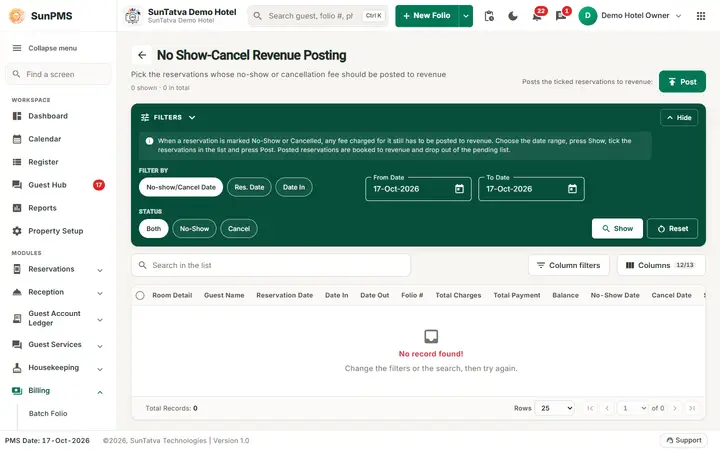
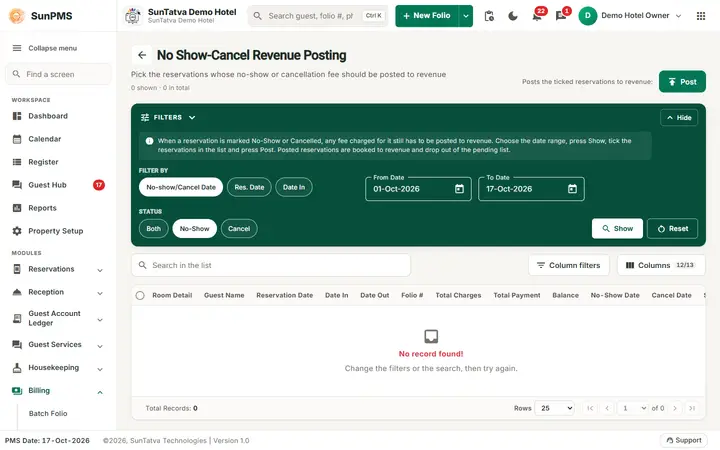
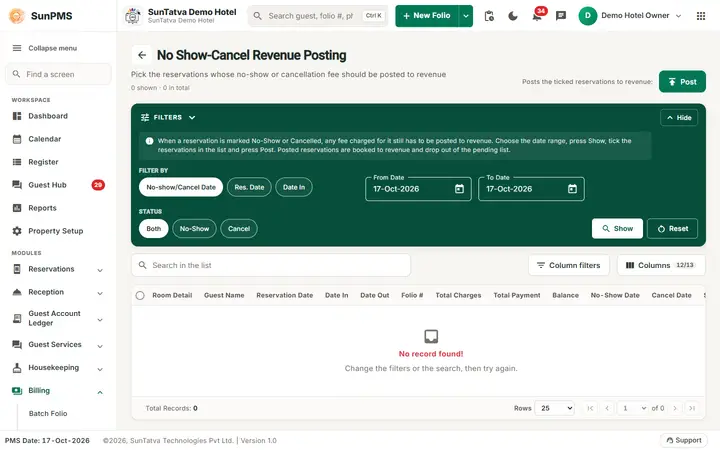
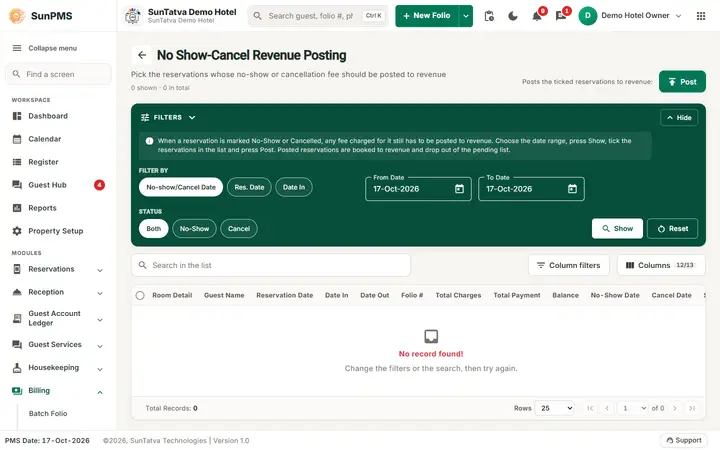
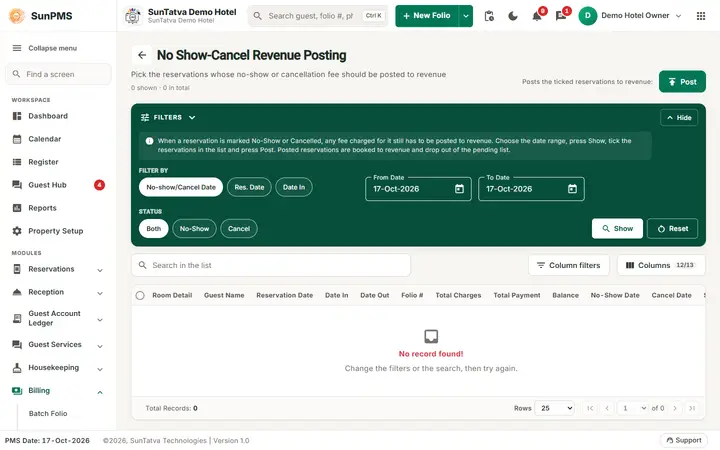
This screen uses the standard search-first list layout: a dark Filters band on top, then a full-width table with Search in the list, a column filter button, Columns, sortable headings and a paging bar (rows become cards on phones). The common parts are explained in Search-first list screens; the fields and columns specific to this screen are listed below. Filter panel
| Field | Meaning |
|---|---|
| Filter By | No-show/Cancel Date, Res. Date (reservation date) or Date In (arrival date). The date range applies to the one chosen. |
| From Date / To Date | Cannot be later than the PMS date. Default: PMS date. |
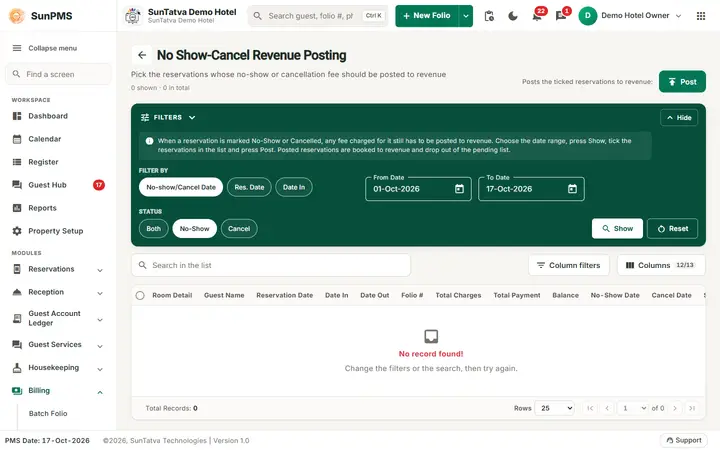
| Status | Both, No-Show or Cancel. |
| Show / Reset | Load the list / restore defaults (Filter By No-show/Cancel Date, today, Both). |
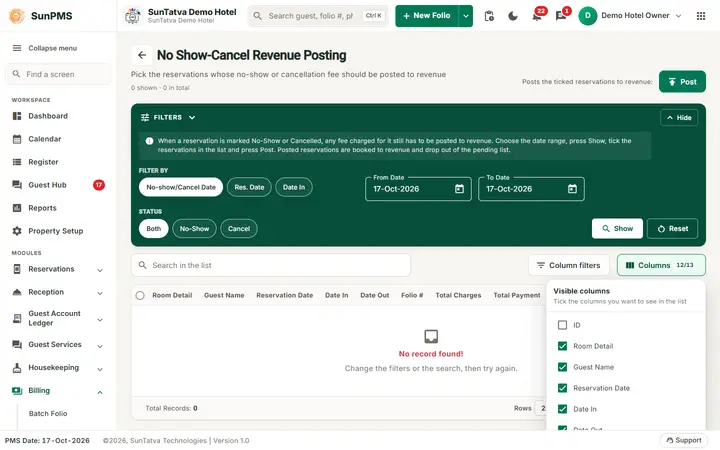
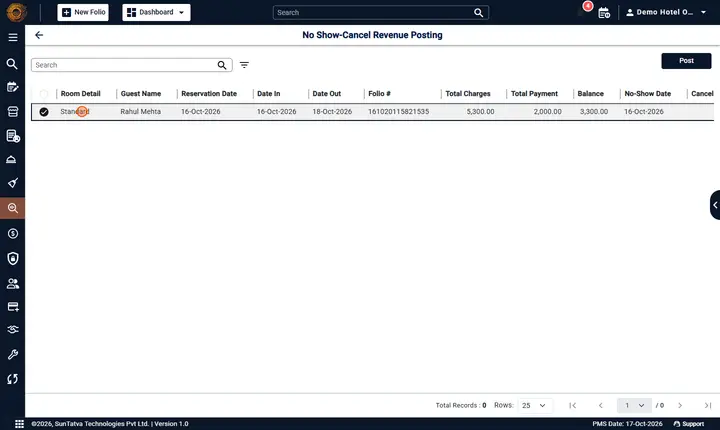
Grid columns: Room Detail, Guest Name, Reservation Date, Date In, Date Out, Folio #, Total Charges, Total Payment, Balance, No-Show Date, Cancel Date, Status. (An ID column is hidden.) Use the column chooser to show or hide columns; use the search box or the advanced search (filter icon) to narrow the list. The tick box on each row, and the header tick box, select rows. Post posts the selected rows.
How to post revenue
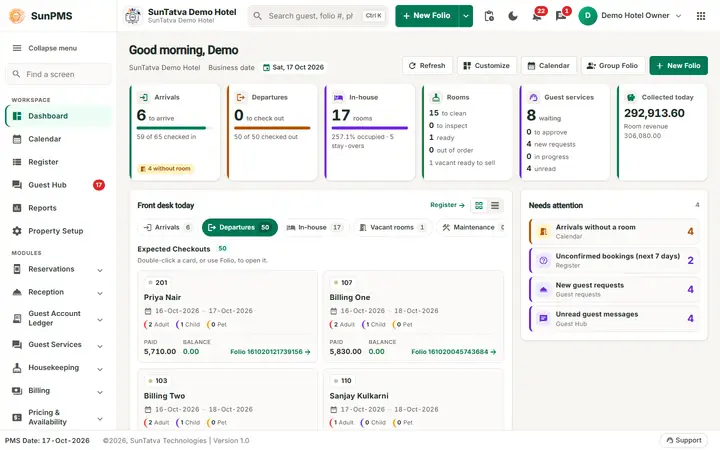
- Open Billing > Noshow/Cancel Revenue Posting.
- Choose Filter By, the dates and Status, then click Show.
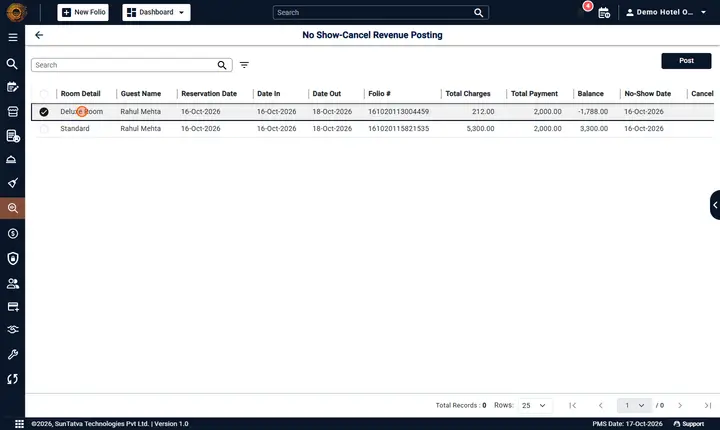
- Tick the reservations to post (or the header box for all).
- Click Post.
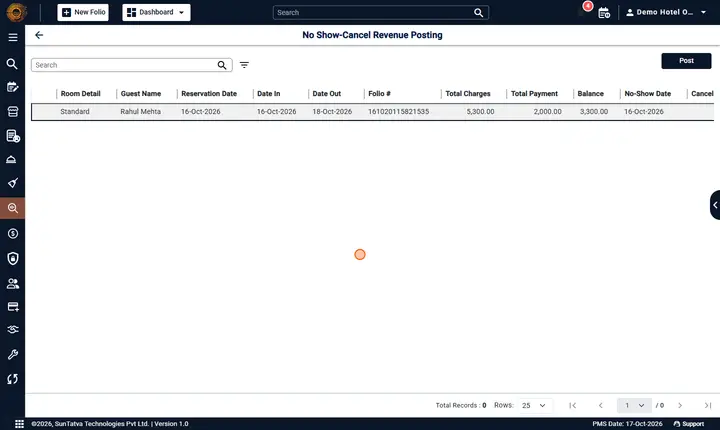
Result: Revenue posted successfully. The posted rows disappear from the list.
What happens behind the scenes
- For each selected reservation the system takes each payment that is not deleted and not a card authorization hold, and posts its amount as a one-night room charge dated on the posting date (the PMS date), with tax calculated from the tax configuration. Tax exemption that existed on the original booking is kept.
- A payment added or removed after posting is later adjusted automatically (a posted payment that is deleted is reversed).
- The reservation is flagged as revenue-posted with the date, time and user, so it will not be listed again.
- The posted amounts feed the reports "No show / cancel revenue".
Messages you may see
| Message | Why | What to do |
|---|---|---|
| Please select a record. | Post clicked with nothing ticked. | Tick at least one row. |
| Revenue posted successfully. | Done. | - |
| (server error text) | Rate or tax calculation failed. | Check tax set-up for that date, retry. |
Tips and FAQ
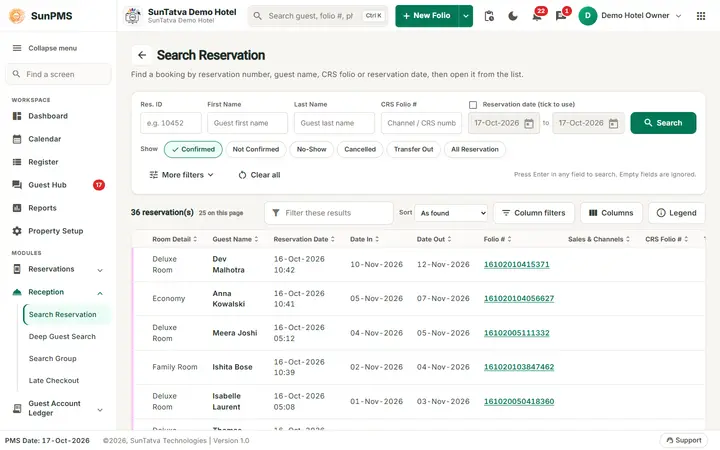
- Q: A cancelled booking with no payment is missing. A: Only reservations with a payment received are listed.
- Q: Can I post for several days at once? A: Yes, widen From/To Date; all selected rows post on the current PMS date.
- Q: I posted by mistake. A: Delete the guest payment on the folio; the posting is reversed automatically.
Current behaviour (checked 2026-10-18)
- After a night audit the screen lists the no-shows when you choose Filter By: Date In, set From Date to the arrival date and click Show. Select a row by clicking it (a tick circle appears) and click Post.
- Video: Posting no show revenue after the night audit. The video After the night audit (re-recorded) also shows the post: the system answers Revenue posted successfully., the Guest Name and Folio # columns are filled, and the posted entry leaves the list.
Screenshots