Group Reservation and Group Check-In
On this page
A group ties many room folios to one group record (name, dates, rate, sales channel, group payments and charges). Members are normal folios opened from the group.
Guided variant: when Simplified Group Check-In / Reservation Screen is ticked in Feature Setting, the group opens as a guided screen with 8 sections (group details, stay and rate, rooms and members, charges, payments, documents, remarks, check in / out), and Search Group uses the same style. See Simplified Group Check-In / Reservation Screen.
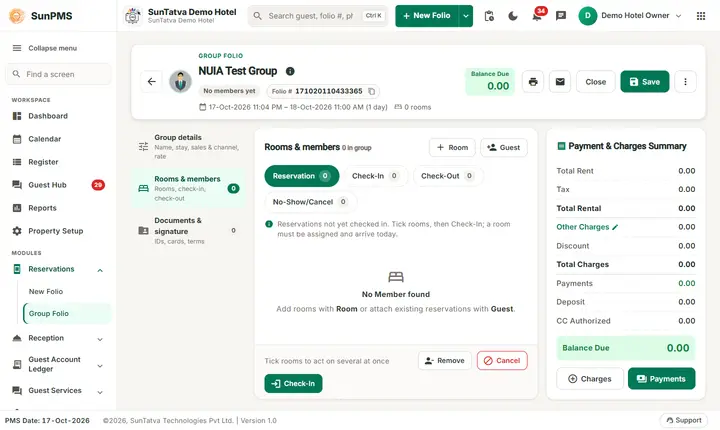
Screen layout (Group Folio)
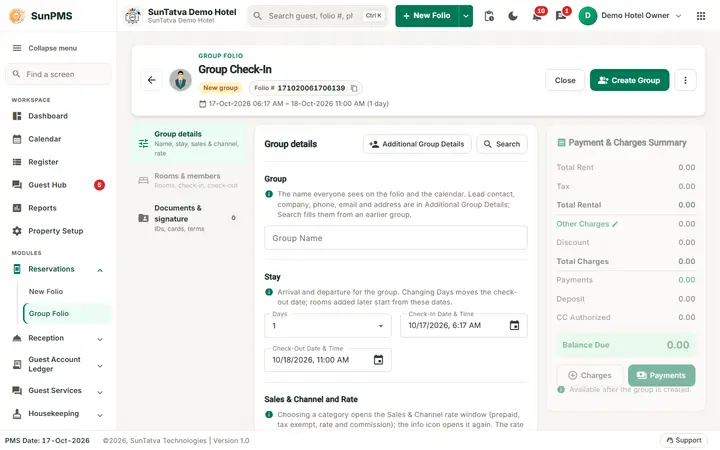
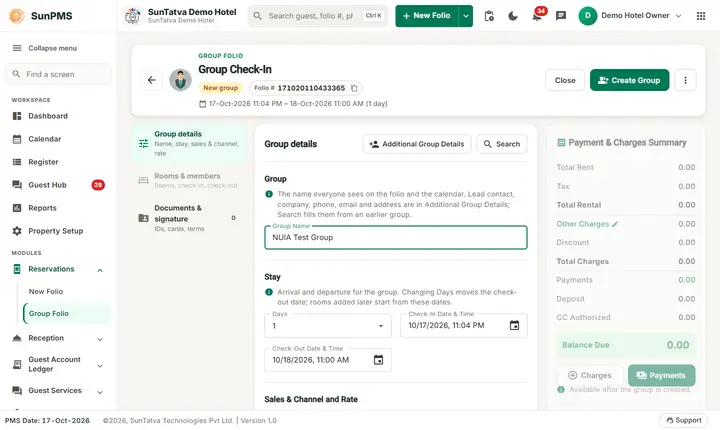
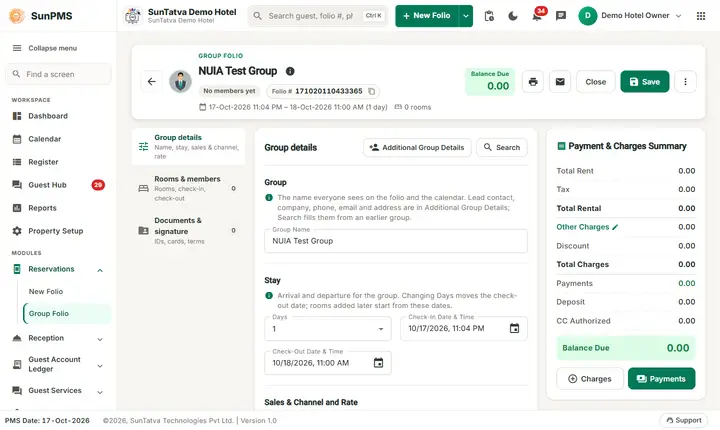
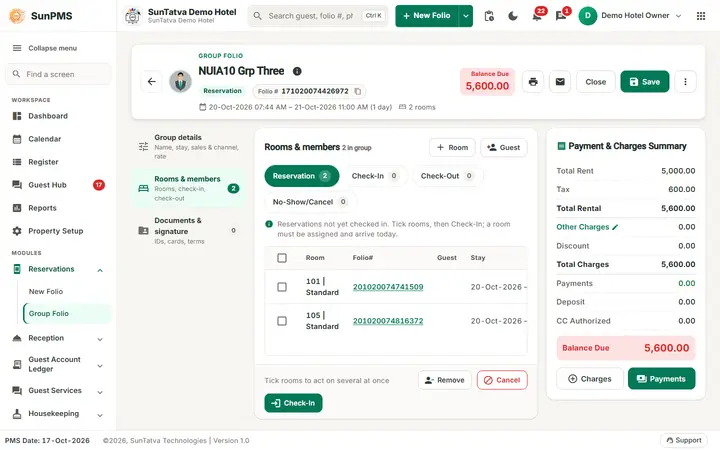
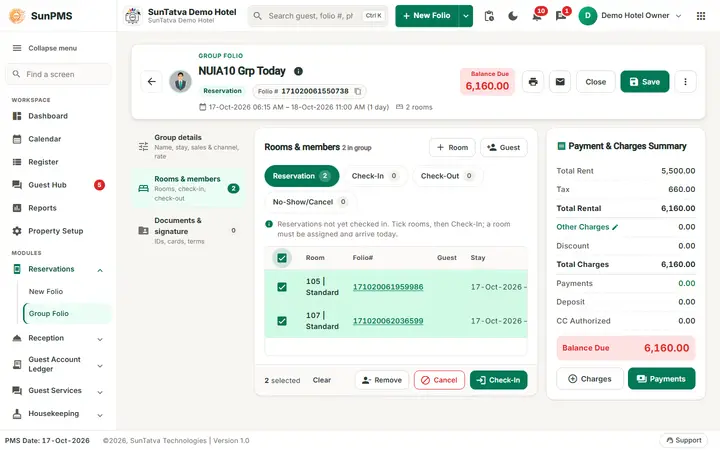
Identity header (a card at the top): back arrow, the small title GROUP FOLIO, the group name with an i button (created / updated by), a chip (No members yet or the member count), the Folio # pill of the group with a copy icon, a line of facts (stay dates and nights, number of rooms, Sales & Channel) and the chips Remarks (when a remark exists) and Room block (when blocks exist; click to open them). On the right: the Balance Due box once the group is saved, Print (Group Summary, Group Detail, Payment Receipt, Other Charges Report) and Email icons, Close, the primary button Create Group (it becomes Save once the group exists) and the three-dot More menu.
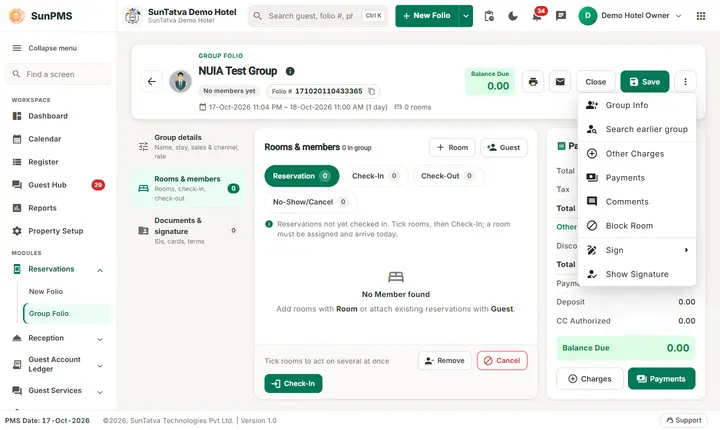
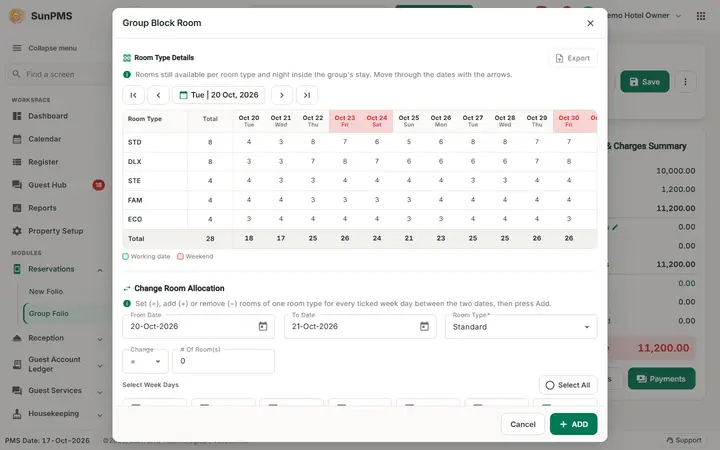
More menu: Group Info, Search earlier group, Other Charges, Payments, Comments (tick when a remark exists), Block Room and Sign / Show Signature.
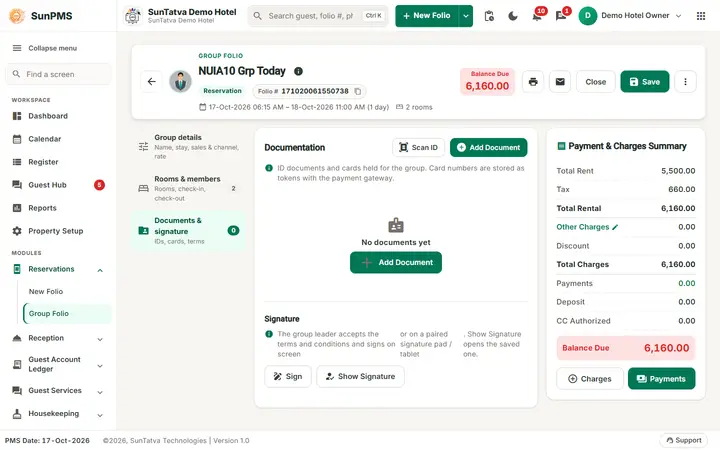
Section list (left on a laptop, a row of chips on tablet and phone): Group details (name, stay, Sales & Channel, rate), Rooms & members (rooms, check-in, check-out; enabled after the group is created) and Documents & signature (IDs, cards, terms). Each shows a count where it applies.
Payment & Charges Summary (right column, the group's own money box): the rows described below, the green Balance Due box and the buttons Charges and Payments (they open the group's other charges and payments). Group details section: the cards Group (Group Name, guest tools), Stay (Days, Check-In Date & Time, Check-Out Date & Time) and Sales & Channel and Rate (Sales & Channel Category, Sales & Channel, Rate Type). Payment & Charges Summary rows: Total Rent, Tax, Total Rental, Other Charges (click to open the group charges), Discount, Total Charges, Payments, Deposit, CC Authorized, Balance Due. Discount is read only: it shows the total of the members' own discounts (tooltip Total of the members' own discounts. A discount for the whole group is not supported; give a discount in a member's folio.). To give a discount, open the member folio and use its discount (Folio discount).
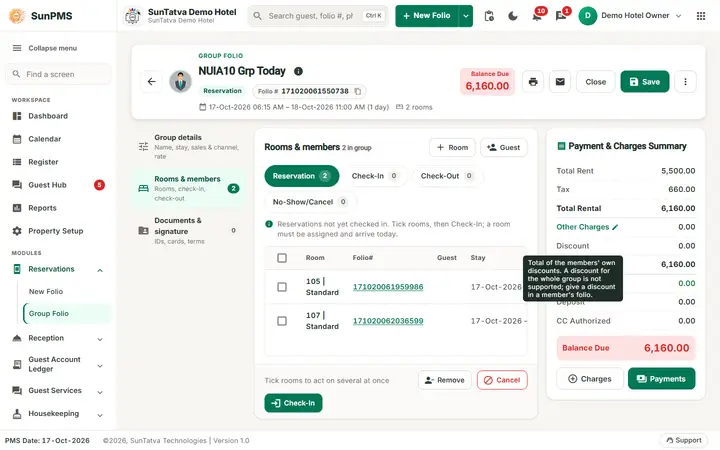
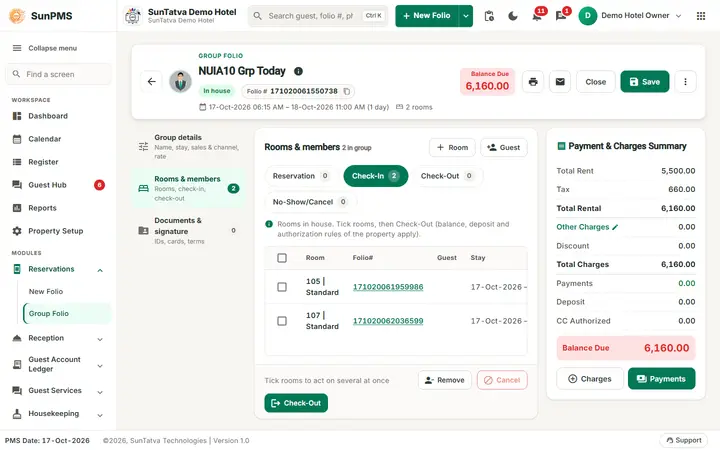
Rooms & members section ("n in group"): the buttons + Room and + Guest, the status tabs Reservation, Check-In, Check-Out, No-Show/Cancel (each with its count, and a one-line help for the tab), and a table of members (tick box, Room, Folio#, Guest, Stay, Total, Balance, row menu). Under the table a bulk bar says Tick rooms to act on several at once and, when rows are ticked, shows the number selected and Clear; its buttons Remove, Cancel and Check-In (it becomes Check-Out on the Check-In tab) act on the ticked rows. On a phone the rows are cards.
How to create a group
- Open Reservations > Group Folio, type Group Name in Group details, set dates and rate type, add contact and company in More > Group Info.
- Click Create Group (top right). Result: Group created successfully. The Member area enables.
How to add members
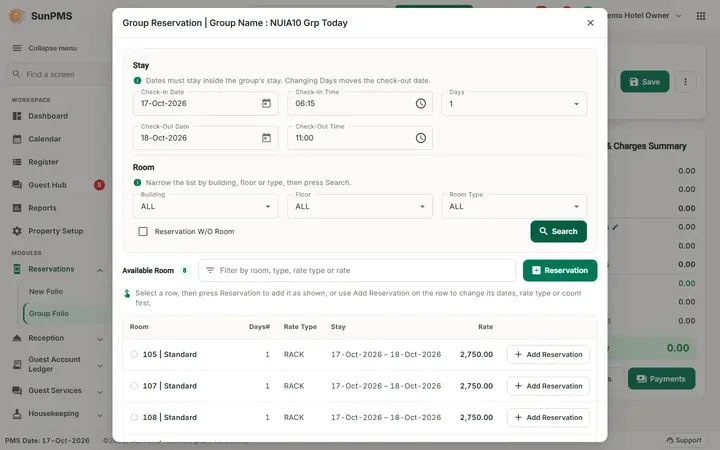
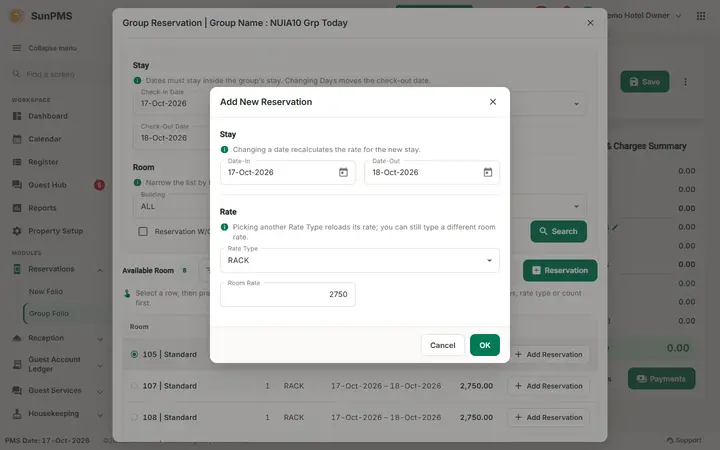
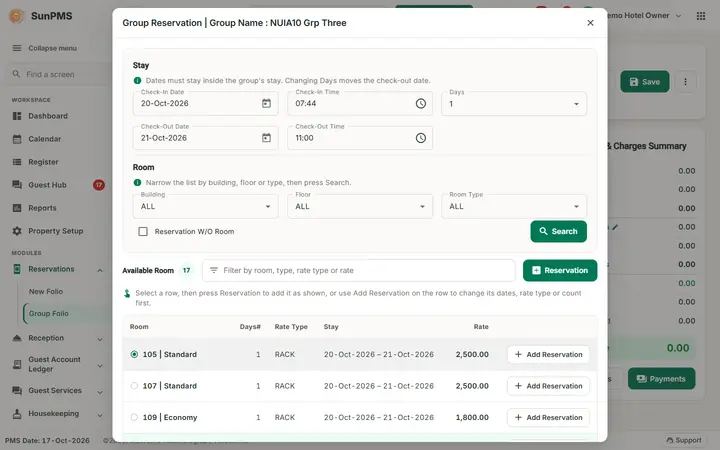
- + Room: pick building/floor/room type, dates, Search; tick rooms or enter # Of Reservation per room type (Add New Reservation: Date-In, Date-Out, Rate Type, # Of Reservation, Room Rate); click Reservation (or Check-In when the Check-In tab is active). One request is sent for every ticked room card (before 2026-10-18 only the selected card was sent, so a second or third room could be missing). Result: Reservation member(s) created successfully. If only some members could be created, the member list is refreshed and the reason is shown; check the list before adding again.
- + Guest: add named guests with their own details.
- Members cannot exceed the group stay dates. You cannot add members to a checked-out group or a back-dated group (when audited changes are blocked).
- Available reservation tab lets you attach existing single reservations.
Member actions
| Action | Rule |
|---|---|
| Open folio (pencil / folio link) | Opens the normal folio; returns to the group on close |
| Check-In (Reservation tab) | Selected members must be dated today, have a room. Reservation(s) successfully checked-in. |
| Check-Out (Check-In tab) | Same rules as single check-out: date, zero balance, authorized payment, deposit. Member(s) successfully checked-out. |
| Remove (bin) | Are you sure you want to remove? then Group member(s) removed successfully. The member leaves the group and stays a normal reservation. |
| Cancel | Are you sure you want to cancel selected member(s)? then Group Member(s) cancelled successfully. Reservation tab only |
Each member row has its own menu for that member alone. The bin and cancel buttons of the bulk bar act only on the ticked members of the status tab on screen. Ticks you set on another tab stay but are not used, so tick, check the tab, then click. Please select a Member. appears when nothing is ticked on the tab on screen.
Contact name details
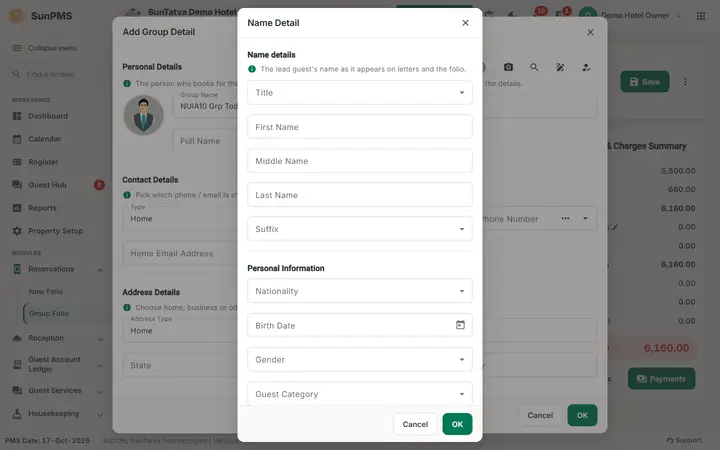
The person icon Additional Group Details opens Add Group Detail with the contact person. The round arrow at the end of Full Name opens Name Detail (Title, First Name, Middle Name, Last Name, Suffix, Nationality, Birth Date, Gender, Guest Category, Letter Greeting, Address Greeting). The group has no Stay Private switch: mark a stay as private per member, in the member's folio (Name Detail).
Payments, charges, allocation
Group payments and charges are entered in More > Payments and More > Other Charges (or the Other Charges link of the summary). Charges are allocated to chosen guests (Other Charge Allocation). Refund and auth-to-sale work as on a single folio.
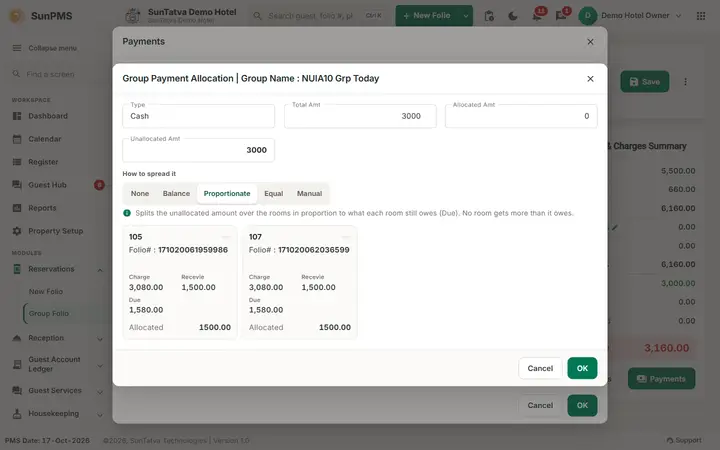
A normal group payment (not a deposit, not a card authorisation) is shared to the member folios in Group Payment Allocation | Group Name:
| Choice | What each room gets |
|---|---|
| None | 0; the payment stays with the group (unallocated). |
| Balance (default) | Rooms in list order are paid up to their Due until the payment is used up. |
| Proportionate | A share of the payment in proportion to the room's Due (what it still owes). Shares are rounded to the property's decimals; the last room that owes takes the rounding difference. A room that owes nothing gets 0, and no room gets more than it owes. If the payment is larger than all rooms owe together, every room is paid off and the rest stays unallocated, with the note |
| Equal | The payment divided by the number of rooms. |
| Manual | You type each room's amount. |
Click OK to save the payment with its allocation (Payment allocation done successfully. when you change the allocation of a saved payment). Cancel closes the window without saving the new payment. The allocated total cannot exceed the payment (Allocated Amount should not be greater then Payment Amount.), and OK with nothing allocated on an existing payment answers Please allocate Payment Amount to Member(s).
Worked example (demo hotel, 24-Oct-2026; demo figures change): group DC24D-Wedding with room 102 (Standard, Due 5,600.00) and room 202 (Deluxe Room, Due 8,000.00), 13,600.00 in total, takes a cash payment of 3,000.00. Balance gives 3,000.00 to room 102 and 0.00 to room 202. Proportionate gives 1,235.29 to room 102 (3,000 x 5,600 / 13,600, rounded) and 1,764.71 to room 202 (the rest, so the shares add up to 3,000.00 exactly). Equal gives 1,500.00 each.
Search Group
Search Group (Reception > Search Group, address #/groups) opens with a search card: Group, Group Folio, First name and Last Name (lead guest), the green Search button, the status chips All, Active, Check-Out, Cancel, No-Show, More filters (Date In, Source...) and Clear all; Create Group is at the top right. The criteria you used appear as removable chips (Searching for Group:...); with no match the list says No group found with a Clear filters button. The list All Groups (with the count) has the columns Group, Group Folio# (click to open the group folio), Lead guest, Stay, Status, Rooms by status (coloured counts: Canceled, Confirmed, No Show, Transfer Out, Unconfirmed, explained under the table), Balance, Edit and a three-dot menu with Rooms & members (the member window), Cancel group and Delete. Both read the members of that group first: Delete is refused while the group has members (You can not delete this group. Reason: Group member(s) exists.), Cancel group cancels the group and its members, releases its room block, and is refused when one of its members is checked in (You can not cancel this group. Reason: Some group member(s) already checked-in.). The member pop-up has Add Room, Add Guest and per member a check-in / check-out button, Delete (removes only that member from the group: Group Member removed successfully.) and Cancel this reservation (cancels only that member: Are you sure you want to cancel?, then Group Member cancelled successfully.). See Search Group.
Rooms in the room window
The room window of the group (Select Room / Assign) lists only rooms that are active on the arrival date. A room deleted on the Room screen disappears from it from the date of the deletion; before the fix the deleted test rooms still appeared as free cards.
Messages you may see
| Message | Why |
|---|---|
| Please enter Group Name. | Name missing |
| Invalid No Of Days. / Invalid Stay Date. / Check-Out must be greater then Check-In. | Dates |
| You can not update this group. Reason: Group stay date is beyond the group member's stay. | Group dates do not cover members |
| Do you want to change stay information for members of group? Yes - group and members changed. No - only group. | Date change |
| Some of the Group member is Checked-In | Cannot change |
| Please select Member(s). / Please select a Member. | Nothing ticked on the status tab on screen |
| Back date reservation can not be converted to Check-In. / Invalid Check-In Date. / Please assign Room to reservation before converted it to Check-In. | Check-in rules |
| Member stay should not be exceed to group stay. | Member dates |
| Number of Reservation should not be more than available Room. | Add room count |
| The following room(s) have Vacant Dirty status... Do you want to continue? | Dirty rooms |
| Allocated Amount should not be greater then Payment Amount. / Please allocate Payment Amount to Member(s). | Allocation |
| Proportionate with a payment larger than the rooms owe; the rest stays with the group | |
| The group members could not be read. Please try again. | Search Group: Delete or Cancel group could not read the members of that group; try again |
| Please save the Group details before taking Credit Card Payment | Save group first |
| You can not do check-in to No-show/Cancel Member. | Edit Group |
| You do not have permission to add payment as Bad Debts. | Privilege |
| Group deleted successfully. / Group cancelled successfully. | Success |
Signature and notice (one flow)
- When Sign Mandatory at check-in is on, Check-In of members is refused (Reservation(s) failed to convert to check-in. ResID: n Failed Reason: Guest signature required...) unless the member has signed or the group signature is for the same notice as the signing notice now. Sign the group once and check in all members.
- A member's registration card and folio print the group signature when the member has none. See Signature and notice flow.
Screenshots