Folio - Payments, Advance, Deposit and Refund
On this page
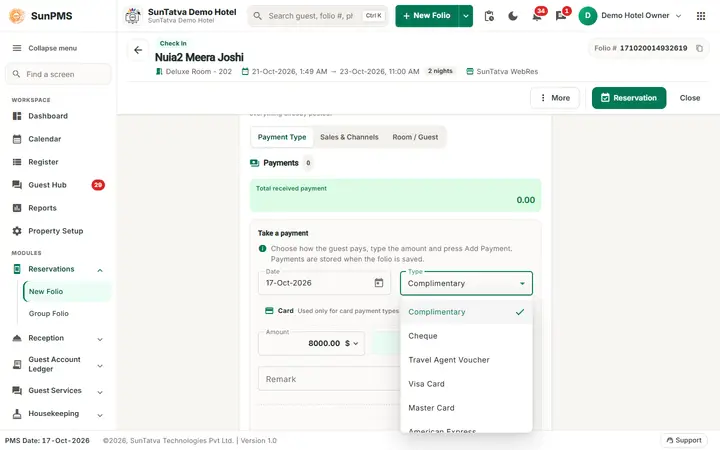
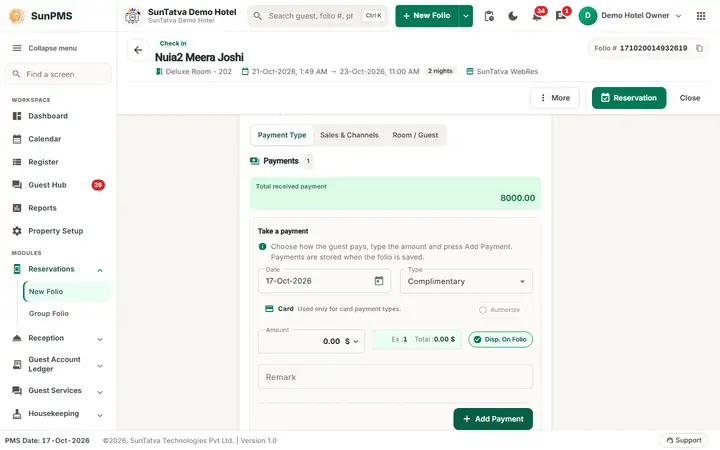
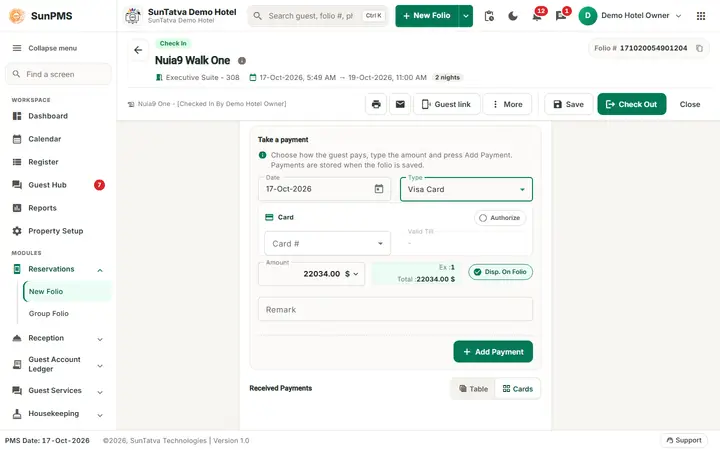
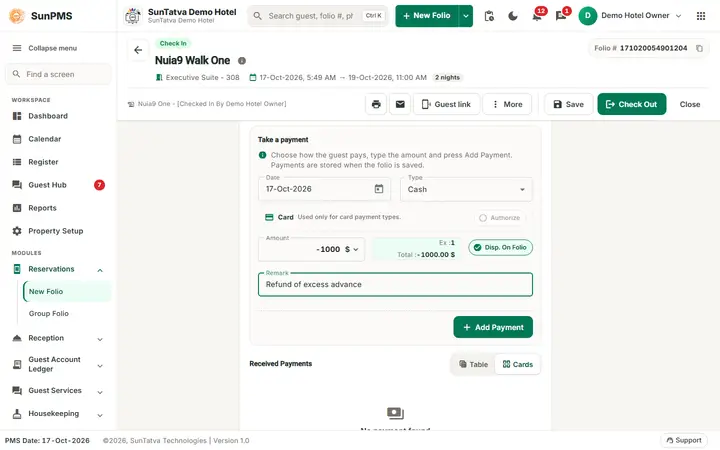
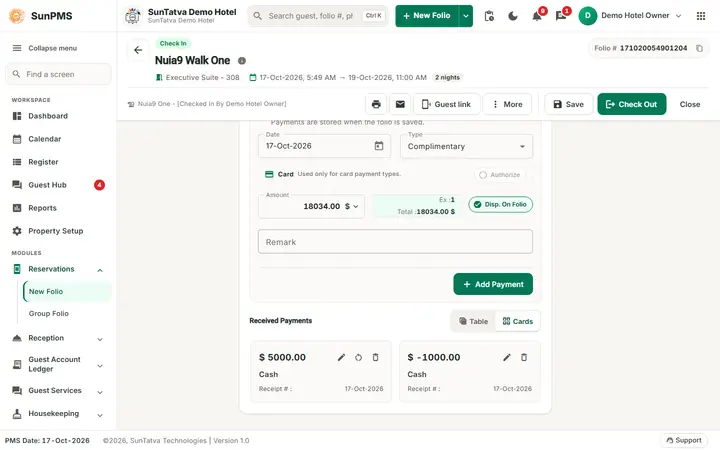
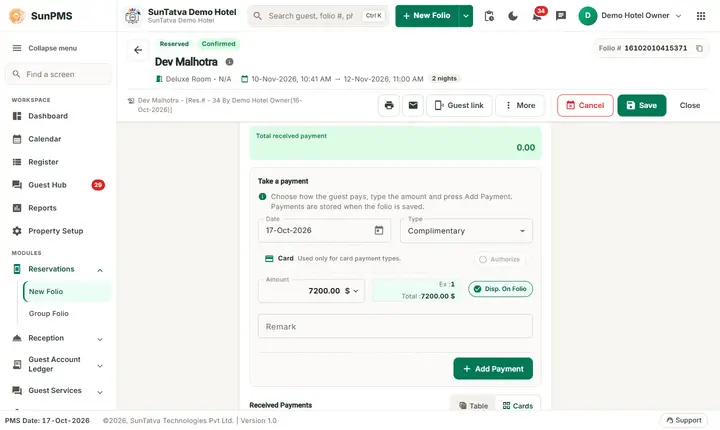
The Take payment section is the last section of the folio (click Take payment in the ON THIS FOLIO list). A Receipt # chip and a Show Payments button are at its top; below them are three tabs: Payment Type, Sales & Channels and Room / Guest. The tab Payment Type shows the Total received payment and the form Take a payment (Date, Type, Card, Amount with currency, Disp. On Folio, Remark, Add Payment) and, under Received Payments, the payments already entered as a table or cards. Show Payments (or Payments in the OPEN list) opens the same list in a window.
Screen layout
| Field | Meaning | Rules |
|---|---|---|
| Receipt # badge | Next receipt number | Shown when receipt numbering is on |
| Date | Payment date | Only today unless you have the past-date add privilege |
| Type | Payment type (cash, bank, card...) | Required in the Payment Type tab |
| Deposit Type | Marks the payment as a deposit | Shown when Deposit is enabled; not allowed on a reservation |
| Device | Card terminal | Shown when two or more terminals exist |
| Card #, Valid Till | Credit-card document of the guest | Add the card first in Documentation |
| Authorize | Pre-authorize instead of charging | Card payments only, new lines only |
| Retrive card balance | Prepaid card balance (CRS type 6 only) | |
| Sales & Channels tab | Payment taken by the booking source (OTA / company) | Select a channel |
| Room / Guest tab | Browse Guest - transfer payment to another in-house folio | Select a guest |
| Amount, currency menu | Amount in selected currency (multi-currency on) | Ex: rate and Total: converted amount are shown |
| Disp. On Folio | Show on printed folio | Off for Prepaid |
| Remark, Add Payment / Update |
How to take an advance or payment
- Choose the tab, Type (and Deposit Type for a deposit), amount.
- Click Add Payment. The line appears under Received Payments.
- Click Save on the folio. For a cash payment with Display change screen on, a denomination/change dialog appears. Payments are stored only when the folio is saved. Card payments are processed through the payment gateway at that moment. When this computer has a cash drawer chosen in Hardware Setting, the drawer opens when a cash payment, deposit or refund is saved (needs the licence for SunHardware integration); the Open cash drawer icon in the top bar opens it by hand with a reason (privilege Access Cash Drawer).
Row actions
- Pencil: edit. The panel opens on the tab that matches the payment: Payment Type for a normal payment, Sales & Channels for a payment of the booking's channel, Room / Guest for a payment transfer (Room Name and Guest filled, Browse Guest disabled). Change what is allowed and click Update. The tab header above the form highlights that tab too, on the folio's own Payment panel as in the Show Payments window; after an edit or a refund the next Add Payment uses the tab that is highlighted. Bin: delete (Are you sure you want to delete?).
- Refund icon: Refund Payment (Payment Date, Payment Type, Original Amount, Refund Amount, Remark). Offered for Payment Type payments and for Sales & Channels payments, each with its own refund privilege. For a Sales & Channels payment the Payment Type box shows the channel name and the refund line is saved on the same channel. Never offered for a payment transfer (Room / Guest), when the folio is Non-Refundable, for group payments, or for authorized lines.
- Auth to Sale icon: Auth To Sale Payment (Auth Amount, Sale Amount) converts an authorization into a sale.
- Post Payments: when unposted card payments exist the folio offers to post them (There are pending unposted payments exists that need to be posted in the SUNPMS. Do you want to post the payment?); pick card type and receipt text, POST.
Deposits at check-out
If Allow check-out with deposit is off and a deposit exists, Check Out opens the Deposit list: Refund (Refund Deposit: Refund Amount, Post Payment Amount) or Post Charge & Refund (Post Charge Deposit: Post Charge Amount to the charge linked to that deposit type). A rental deposit cannot be post-charged.
Messages you may see
| Message | Why |
|---|---|
| Do not allow payment before night audit. | Night audit overdue and the setting is on |
| You cannot add negative Credit Card payment. / You cannot add negative deposit payment. | Negative amount |
| Please enter valid Amount. / Please specify payment amount. | Amount 0 or invalid |
| Please select Payment Type. / Please select Sales & Channels. / Please select a Guest. | Add Payment without a selection on the open tab. Editing and refunding use the payment's own tab, so these messages do not appear there. |
| Please select Device/Credit Card Document. / Please select Credit Card Document. | Card without token |
| Generate the PG API Key before making a card payment. | Gateway not set up |
| An unprocessed Credit Card transaction already exists. Please save it before adding new Credit Card transaction. | Save first |
| Negative payment amount not allowed. / Past date payment not allowed. | Privilege |
| Back dated payment not allow to add. Reason: It will changed the audited reports. | Audit lock |
| You can not delete this Payment. Reason: Refund Payment exist. | Delete the refund first |
| Please enter Refund Amount. / Refund Amount should not be greater then Original Amount. | Refund |
| Please enter Sale Amount. / Sale Amount should not be greater then Original Authorized Amount. | Auth to sale |
| Refund amount cannot be greater than Deposit amount. / Post Charge amount cannot be greater than Deposit amount. | Deposit dialogs |
| You can not post this deposit to charge. Reason: There is no other charge assosiated with selected deposit. | Link a charge to the deposit type |
| No Payment(s) left for Posting. / Select at least one transaction. / Please select a Card Type for transactions. / You do not have the required permission to post payments in SUNPMS. | Post Payments |
Screenshots