Check-out, Settlement and Invoice Printing
On this page
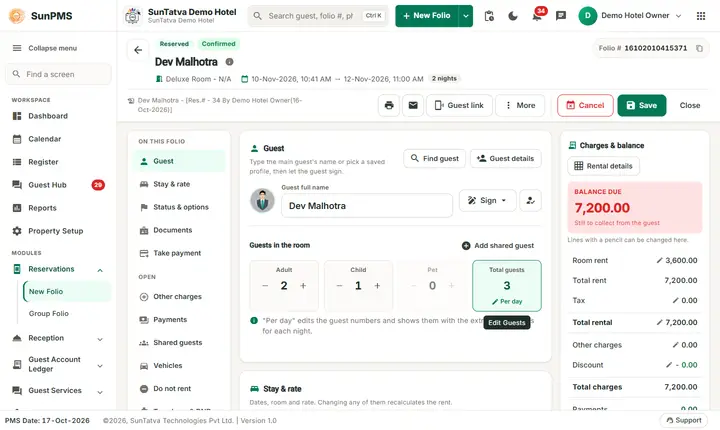
How to check out
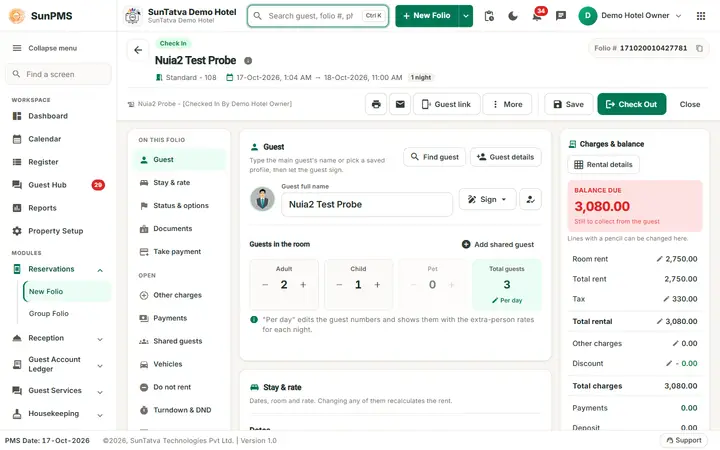
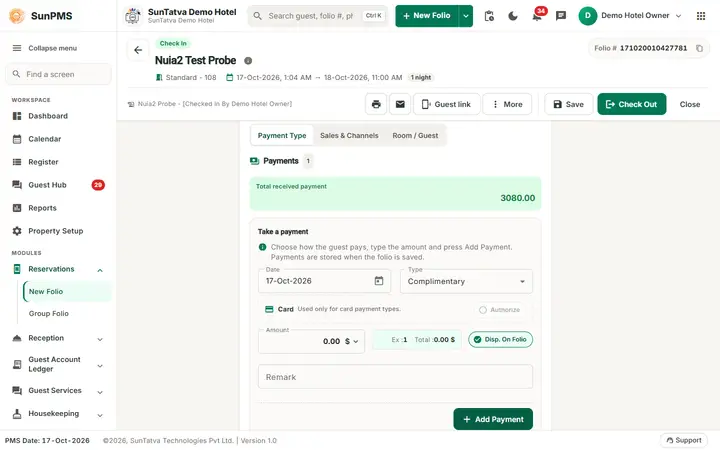
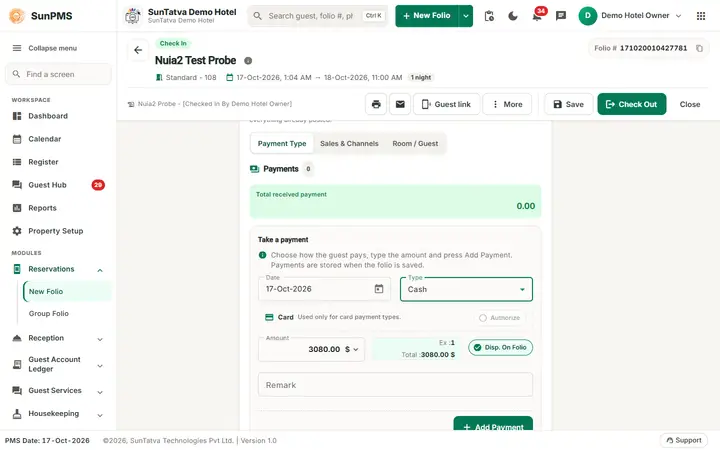
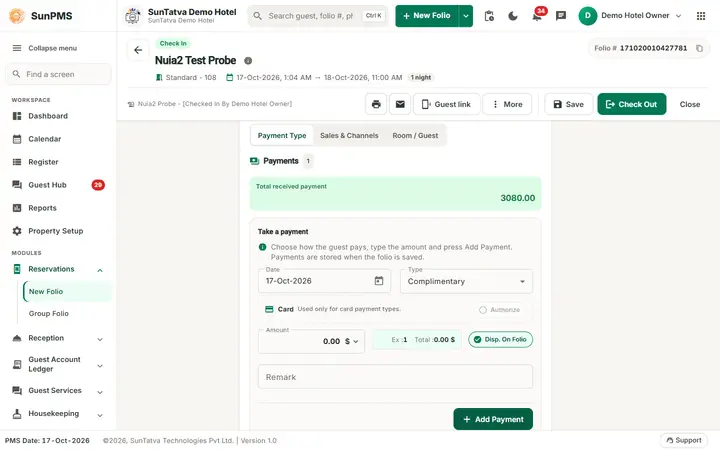
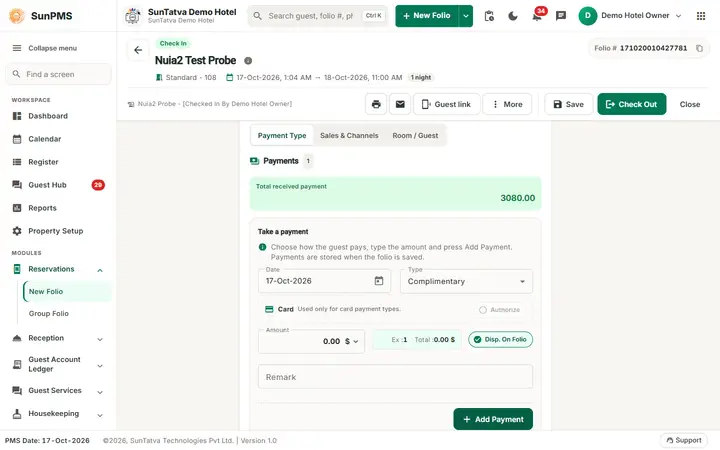
- Open the in-house folio. Settle the Balance due (right column) with Take payment > Add Payment (or post a discount / adjustment payment type).
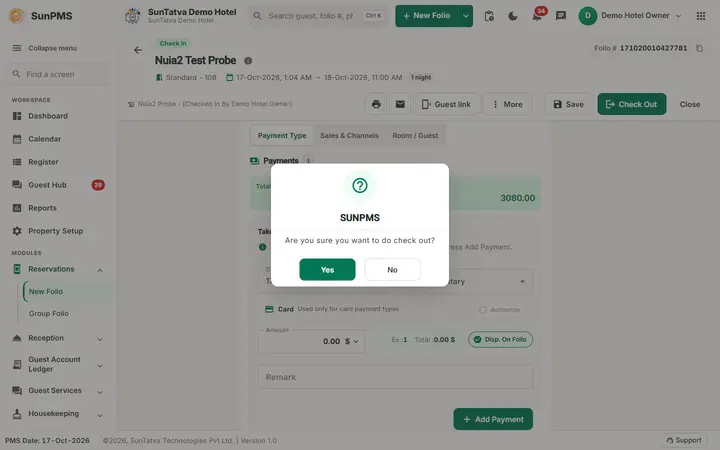
- Click Check Out and confirm Are you sure you want to do check out? If there are unsaved changes you are asked Do you sure want to save changes? first.
- If SunParking has an open ticket for the guest (or a parked car with the guest's name is not linked) the window Parking is still open for
appears first (before the confirmation in step 2): Post to the folio now , Link to this stay, Check out anyway (needs the privilege Check Out With Pending Parking and a reason) or Back. See Parking notifications, vehicle linking and walk-in guests (section 6 has a worked example with screenshots; video: Check out with parking still open). After Post to the folio now the folio screen is not refreshed: open the folio again to see the new balance, pay it and click Check Out once more. Result: folio becomes Checked Out, the room turns Vacant Dirty, and the folio / registration-style document prints automatically when Print check-out folio is on (Folio or Detail Folio).
The Check Out window (from the lists)
From the guest lists (Due Check-Out Guests, Late Check-Out, In-House Guests) the row menu Check Out opens a window Check Out - Guest Name:... with three steps shown as a numbered bar:
| Step | What it shows |
|---|---|
| 1 Review charges | A money strip with Total Rent, Total Charges, Received Payment and Total Balance (each opens its detail; the balance says Settled, Due from guest or Due to guest), and the tabs Summary, Rental, Other Charges, Payments. |
| 2 Settle balance | Buttons to take or refund a payment, post Other Charges (Post late charges (minibar, laundry...)) and open the Rental Detail, and the box Before you check out that lists the property rules that would stop the check-out (or No property rule stops this check-out.). |
| 3 Check out | Departure: the check-in time (read only) and the Check-Out Date & Time; if you change it the button turns into Save and you press Check Out again; What happens next (confirmation, parking and spa items, automatic folio print). |
The footer has Back, Close, Next and the primary Check Out. The same rules and messages as the folio button apply.
Rules (property settings)
| Setting | Effect |
|---|---|
| Zero-balance check-out (from / to range) | Check-out only when Balance Due is inside the range |
| Allow check-out with authorized payment = No | Blocks while CC Authorized > 0 |
| Allow check-out with deposit = No | Opens the Deposit dialog to refund or post-charge (see Payments) |
After check-out
The More menu of the folio then offers Set room V/Clean and then V/Ready (or O/Dirty for maintenance) to move the room status without leaving the folio. Editing a checked-out folio needs the privilege Update checked-out guest.
Messages you may see
| Message | Why |
|---|---|
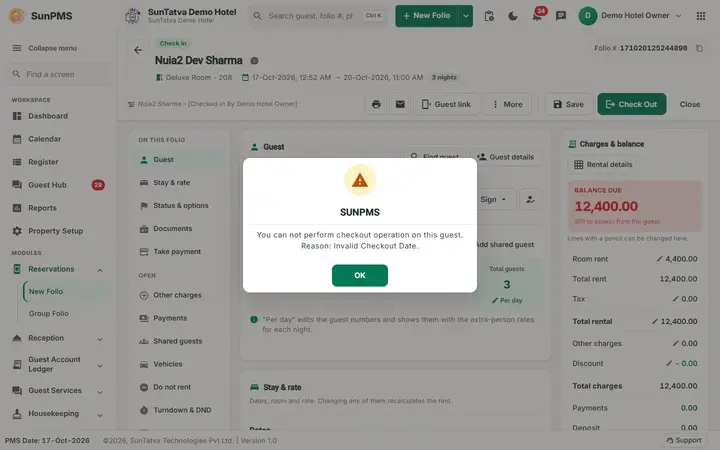
| You can not perform checkout operation on this Guest. Reason: Invalid Checkout Date. | Departure more than a day after PMS date |
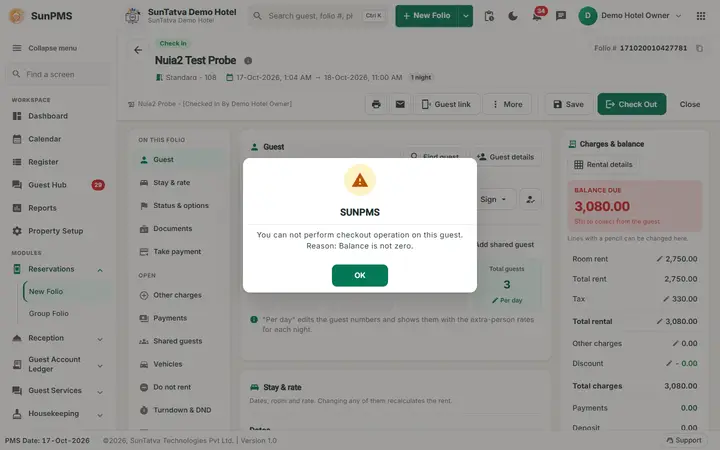
| ... Reason: Balance is not zero. | Zero-balance rule |
| ... Reason: Authorized payment exist. | Release or convert authorization first |
| This guest has parking open in SunParking... Settle it in SunParking first..., or check out anyway? | Parking integration |
| Room status changed successfully. | Status shortcut |
Checked on the demo hotel (2026-10-18)
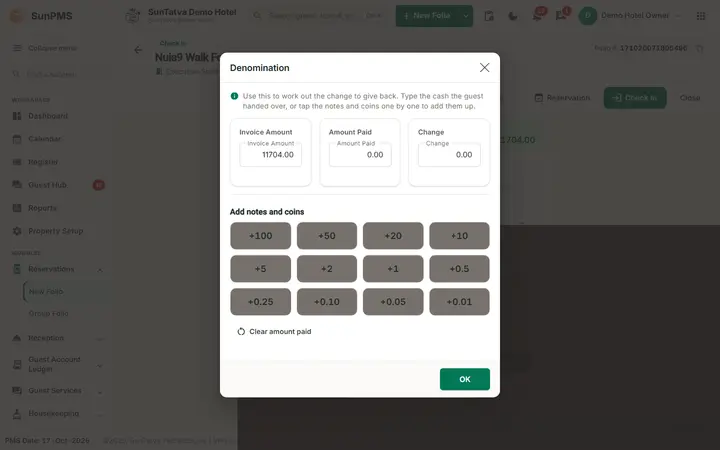
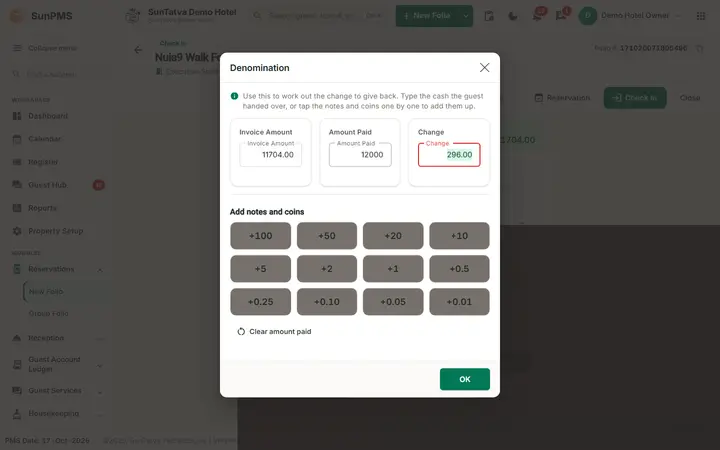
- The Denomination window (Invoice Amount, Amount Paid, Change, note and coin buttons) opens at Check In of a walk-in with a cash payment, not at Check Out; a cash payment taken while saving a reservation does not open it. The two screenshots at the end of this page show it at check-in.
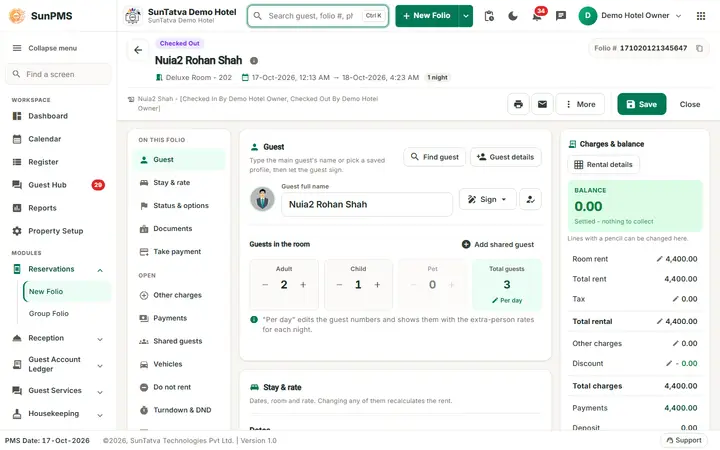
- A walk-in guest (cash paid in full on the folio, Check In with the Denomination window) was checked out from the In-House Guests folio one night early: Check Out asks Are you sure you want to do check out?; after Yes the guest moved to Checked-Out Guests at once, with no extra charge and no further message. The room became Vacant Dirty. The invoice (printer icon > Folio) opens as a PDF with guest address, room, dates, charges, payment and a zero balance.
Early check-out checked on the demo hotel (2026-10-18)
Priya Nair (folio 161020121739156, room 201, booked 16-18 Oct, in house on 17-Oct-2026) was checked out one night early. What the screens did:
- Check Out with the booked departure (18-Oct) and a balance due of 1,710.00: Are you sure you want to do check out? > Yes > You can not perform checkout operation on this guest. Reason: Balance is not zero.
- Days changed from 2 to 1: the Check-Out Date became 17-Oct-2026, total rent fell from 8,000.00 to 4,000.00 and the balance due became -2,290.00 (the guest had paid 8,000.00 against 5,710.00 of charges).
- The overpayment was returned with the refund icon (grid view of Received Payments > refund icon > Refund Payment: Refund Amount 2290, a remark > OK). The balance due became 0.00.
- Check Out > Yes > Do you sure want to save changes? > Yes > Information saved. The folio moved to Checked-Out Guests, with the departure date saved as 17-Oct-2026. The invoice then shows Total Charges 5,710.00 and Payment by Guest 5,710.00 (8,000.00 paid less 2,290.00 refunded), balance 0.00.
- The date rule (test guest, 3 nights from 17-Oct, fully paid): Check Out with departure 20-Oct and with departure 19-Oct gave Reason: Invalid Checkout Date. With departure 18-Oct (one day after the PMS date of 17-Oct) the check-out was accepted. So an early check-out needs the departure date moved to the PMS date or the day after. Videos: Early check out of Priya Nair, Early check out: the date rule, Invoice, Detail Folio and Payments Receipt.
Screenshots