Checking in a Reservation
On this page
Before you start
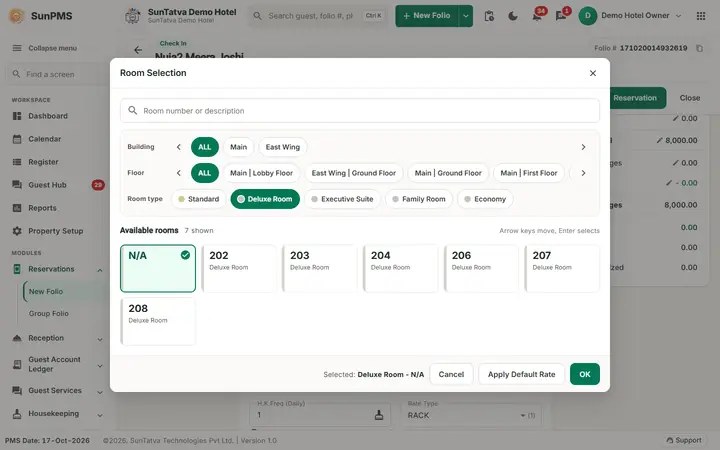
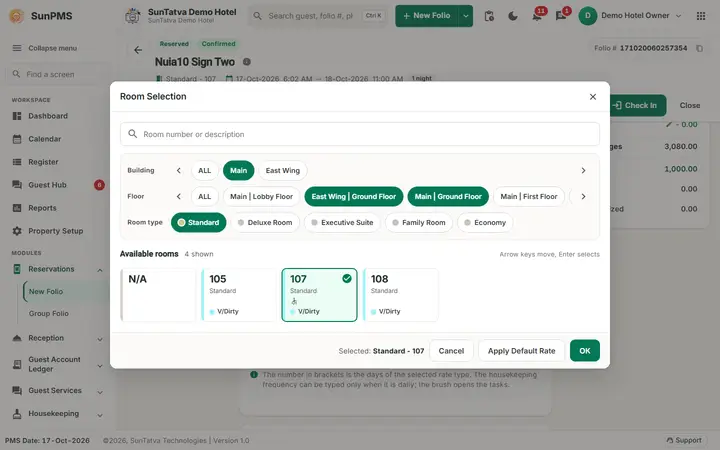
A room must be assigned. The reservation must be dated today (or earlier if back-dating is allowed). Cancelled and Transfer-Out folios cannot be checked in.
How to check in
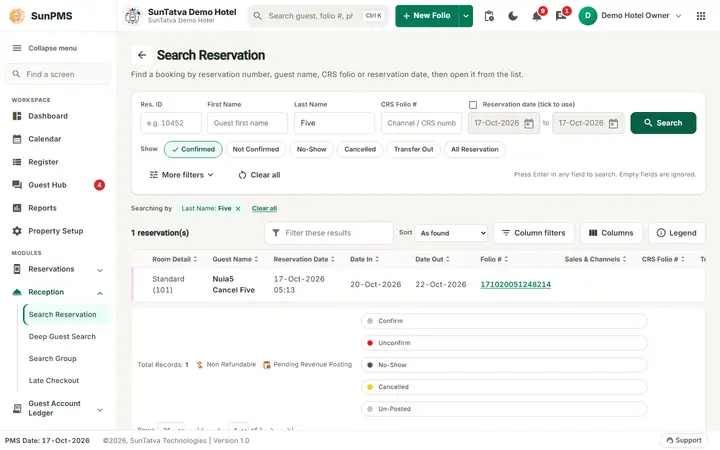
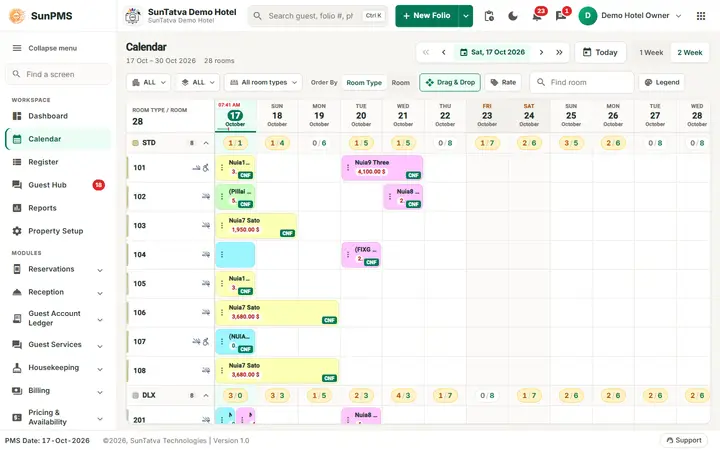
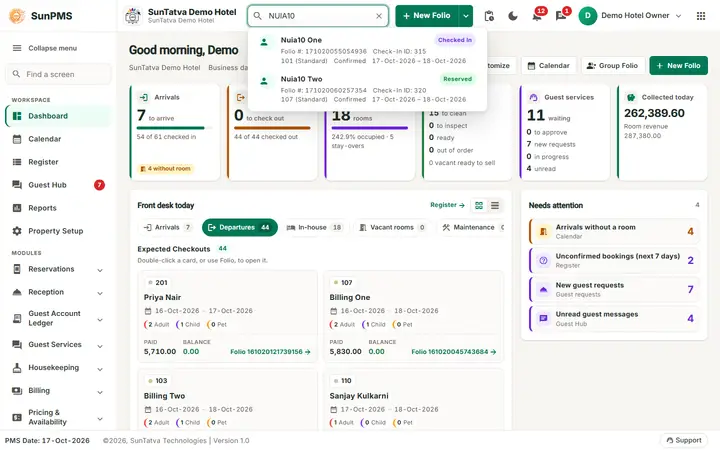
- Open the reservation from Dashboard (Expected Arrivals), Search Reservation or the views.
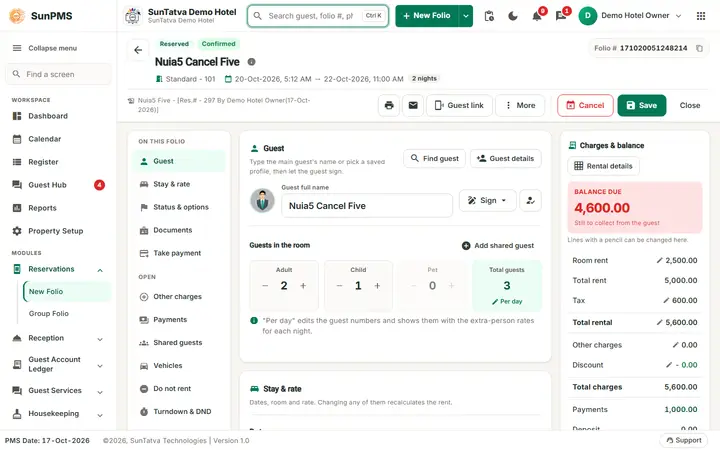
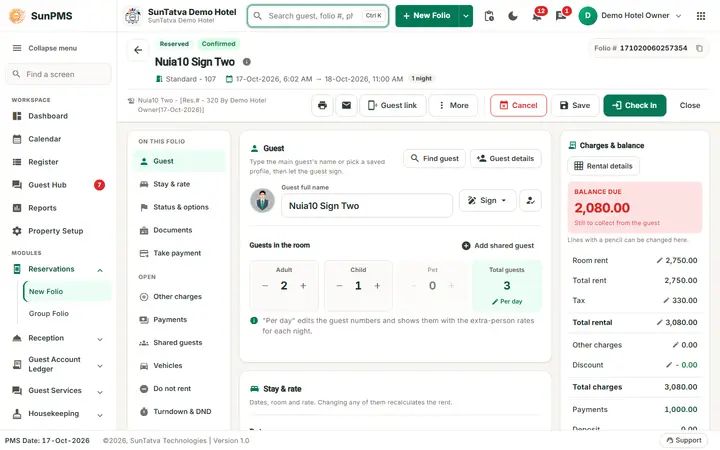
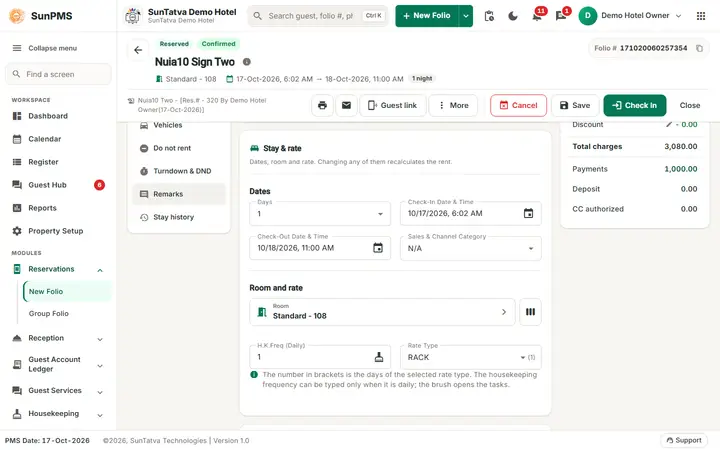
- Verify guest, documents, rate, payments. Add a signature if required.
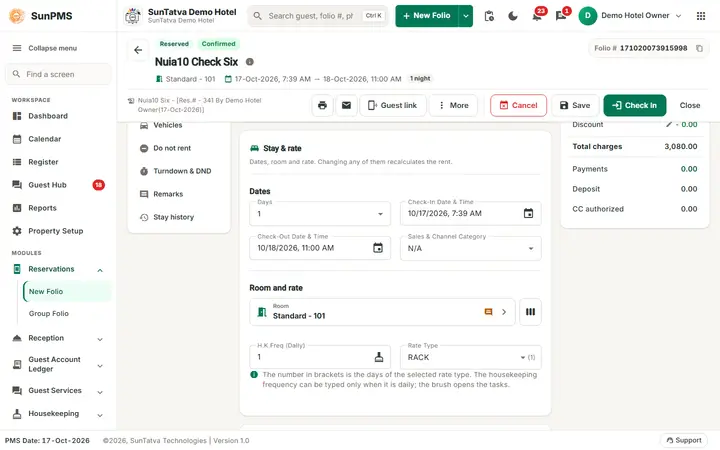
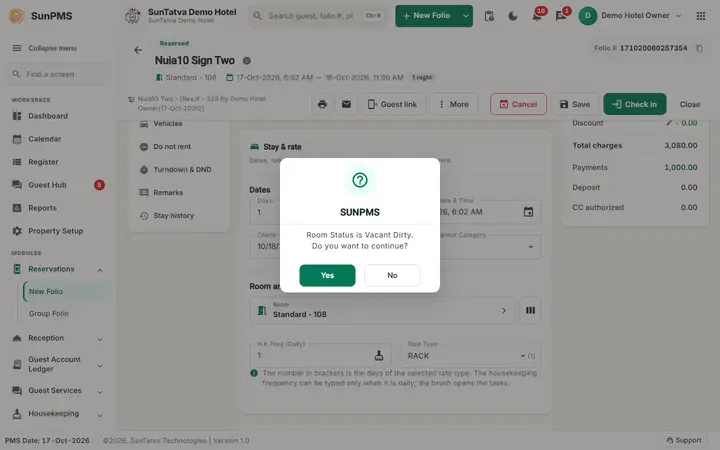
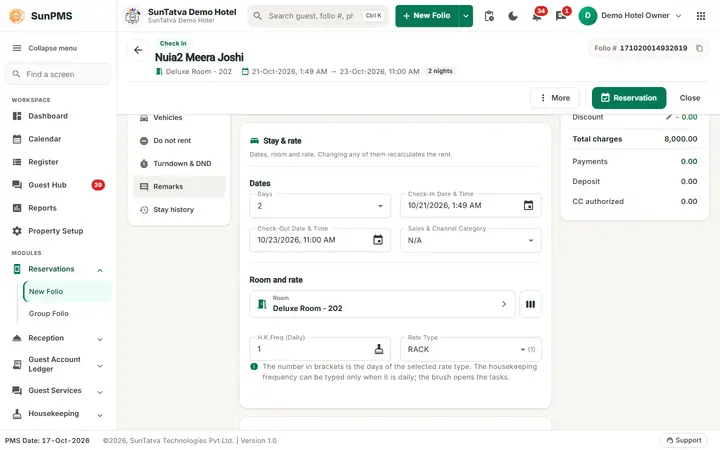
- Click Check In (green button, top right; it shows only when a room is selected and the arrival date is today or earlier). The room must be Vacant Ready/Clean/Dirty or Reservation Ready (Room is not vacant. otherwise). Dirty room asks Room Status is Vacant Dirty. Do you want to continue?
- Check-in time becomes the current time. Result: the status chip becomes Check In, optional message Guest X successfully checked in to Room Y., optional automatic folio and registration form, and the DoorLock Key dialog (# Of Cards, Device, Make Card, Duplicate Card) when a lock is configured. The DoorLock Key button reopens it any time.
Undo check-in
See Undo check-in for the full window, the two cases (reservation and walk-in) and every refusal reason. In short: More > Undo (same-day check-in) asks which status the room returns to (V/Ready, V/Dirty, V/Clean) and an Undo Reason. It is refused when: the room is not available, audited reports would change, multiple rooms exist, a Sales & Channel invoice or payment transfer exists, or a credit-card payment exists (setting Refund credit card amount at undo).
Messages you may see
| Message | Why |
|---|---|
| Invalid date for Check-In. | Future date |
| Transfer out guest is not allows for check-in. | Status Transfer-Out |
| Reservation already checked in by X. | Duplicate |
| Sign Mandatory... Signature Required | Guest Data Mandatory |
| You can not perform undo operation. Reason: Room is not available. / Multiple room selection exist. / Sales & Channel invoice created. / Payment transfer entry exist. / Credit card payment exist. | Undo rules |
| Please provide Undo reason. | Reason empty |
| Undo operation sucessfully done. | Success |
| Doorlock Key successfully done. | Card made |
Signature and notice (one flow)
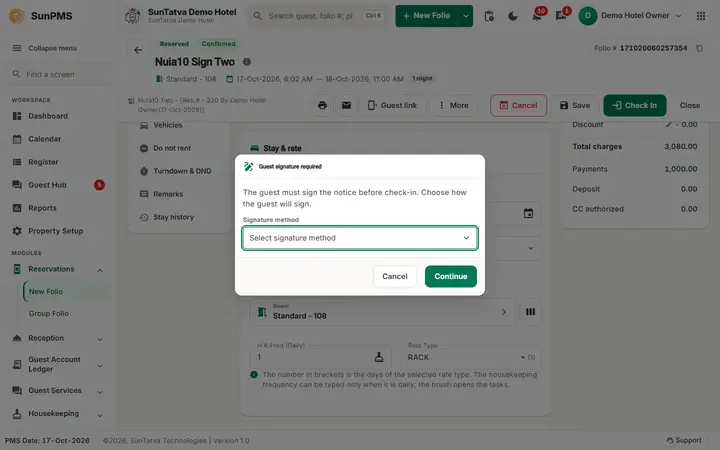
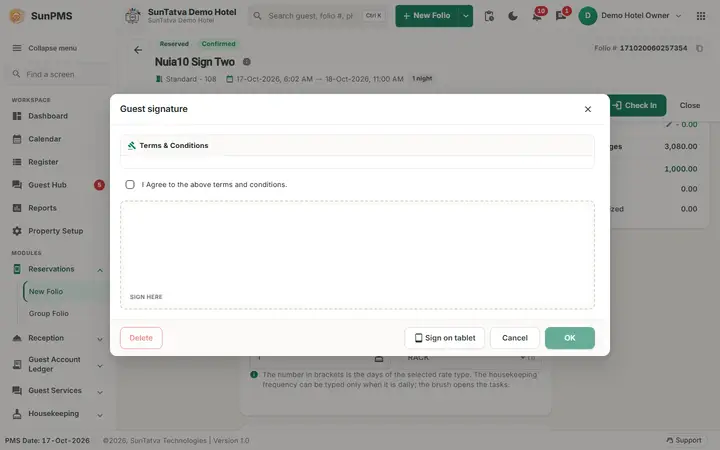
If Sign Mandatory at check-in is on and the guest has not signed, Check In is refused with Guest signature required... and the Guest signature required dialog opens: choose On screen, a signature pad or Phone / tablet (SunHardware), let the guest sign the notice shown, then click Check In again. A signature already taken at reservation counts. The signed notice text is kept with the signature and printed on the registration card. See Signature and notice flow.
Screenshots