Late CheckOut
On this page
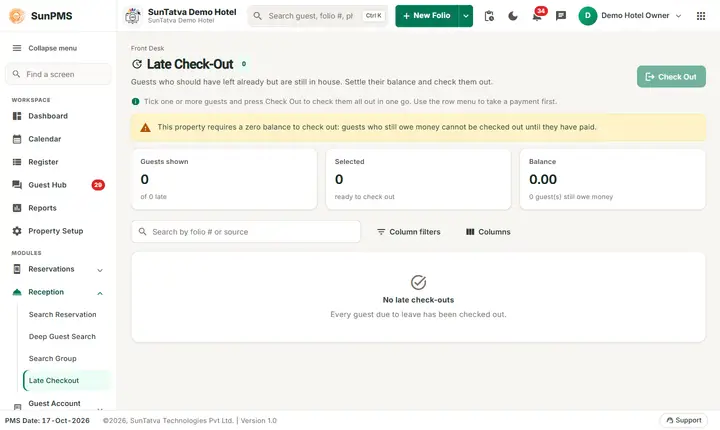
Late CheckOut lists in-house guests whose departure date has already passed but who have not been checked out. This happens when a guest leaves without telling the desk, or when the desk forgets to check out. The list lets you take payment, open the folio or check out several guests in one go, so the rooms return to inventory and the night audit does not keep charging them.
Before you start
- You have the Access to Late Check-Out privilege; otherwise the item is hidden in the Reception menu.
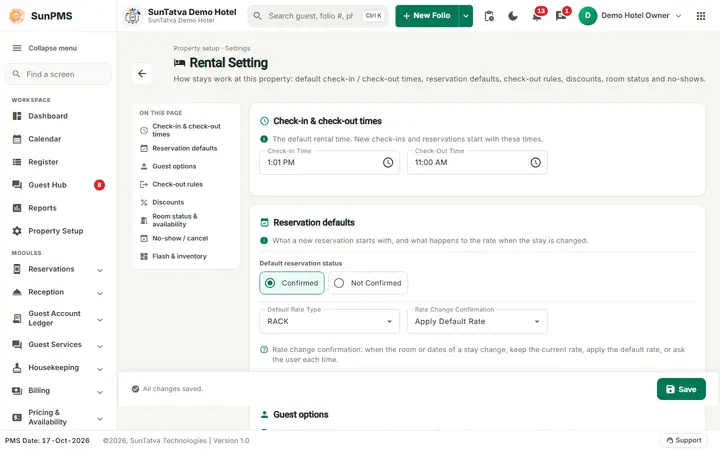
- If the property setting for zero-balance check-out is on, folios must have no balance (Feature Setting).
- Payments still due should be recorded first.
Screen layout
The screen is titled Late Check-Out with a count chip and a help line (Tick one or more guests and press Check Out to check them all out in one go. Use the row menu to take a payment first.). Above the list there is a search box (Search by folio # or source), column filters (text columns match what a value starts with; date and amount columns compare with =, greater than or less than; Clear filters resets them) and a column picker.
| Element | What it means | Rules |
|---|---|---|
| Tick box on each row, and in the header | Selects guests. The header box selects every row shown. | Check Out is enabled only when at least one row is ticked. |
| Room Type, Room | The booked room type and the room. | |
| First Name, Last Name | Primary guest. | |
| Date In, Date Out | Arrival and the departure date that has passed. | Filter with =, > or <. |
| Folio # | Folio number, shown as a link. | Click it, or double-click the row, to open the folio. |
| Sales & Channels | Business source of the booking. | |
| Total Charges, Total Payment, Balance | Money on the folio. | Number filters offer =, >, <. |
| Row menu (three dots or right-click) | Payments opens the payment window for that folio; Check Out opens the check-out window for that folio. | See below. |
| Check Out button (top right) | Checks out all ticked guests at once. | |
| Records count | At the foot, the number of rows. |
How to check out several guests
- Tick the guests (or the header box).
- Click Check Out.
- If a guest's check-out fails, a message with the reason appears; click OK to go on with the next guest. Result: Guest(s) successfully checked-out. and the list reloads. Each folio is closed as a normal check-out dated on the PMS date. If some failed: Some guest(s) failed to checked-out. The failed ones stay in the list.
How to take a payment first
- In the row menu choose Payments.
- The window Payments (Room Name:... - Guest Name:...) opens with the folio's payment tab. Add the payment and click Save.
- Close the window; the list refreshes with the new balance.
How to check out one guest with the check-out window
In the row menu choose Check Out. The folio's check-out window opens (invoice, print options) as in Check-out and invoice.
How to open a folio
Double-click the row or click its Folio #. The folio opens; from there use Back to return here.
What happens behind the scenes
- Each selected folio is loaded and checked out with early check-out turned off; the check-out user is you and the date is the PMS date.
- Rooms become vacant dirty and the next night audit no longer charges them.
- Guests with a departure date up to the PMS date who are still in house are the ones listed.
Messages you may see
| Message (exact text) | Why it appears | What to do |
|---|---|---|
| Please select alteast one guest to checkout. | Check Out with nothing ticked. | Tick at least one guest. |
| You can not perform checkout operation. Reason: Some guest(s) have balance exist. | Zero-balance check-out is on and a ticked guest still owes money. | Take the payment, or untick that guest. |
| Sorry, you do not have permission for past date transaction. | You opened a folio entirely in the past without the past-date privilege. | Ask a manager. |
| Guest(s) successfully checked-out. | All ticked guests were checked out. | None. |
| Some guest(s) failed to checked-out. | At least one failed. | Read the reason messages; fix and retry those. |
| Guest(s) failed checked-out. | All ticked guests failed. | Read the reason; contact support if unclear. |
Tips and FAQ
- Q: A guest is not in the list although the departure has passed. A: The guest may already be checked out, or the folio is cancelled; check the guest ledger lists (Guest account ledger).
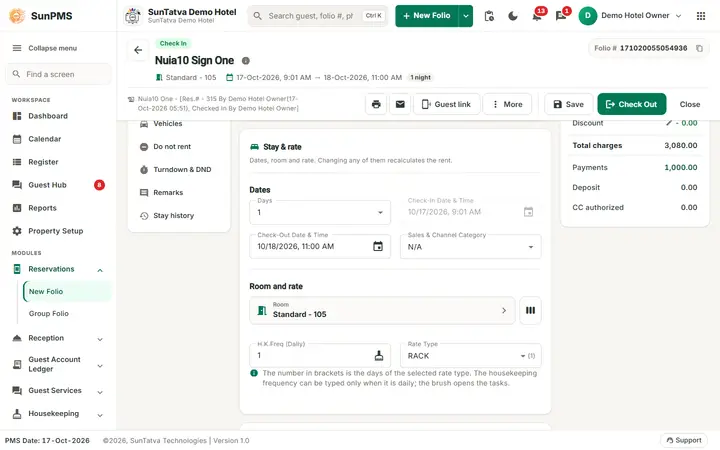
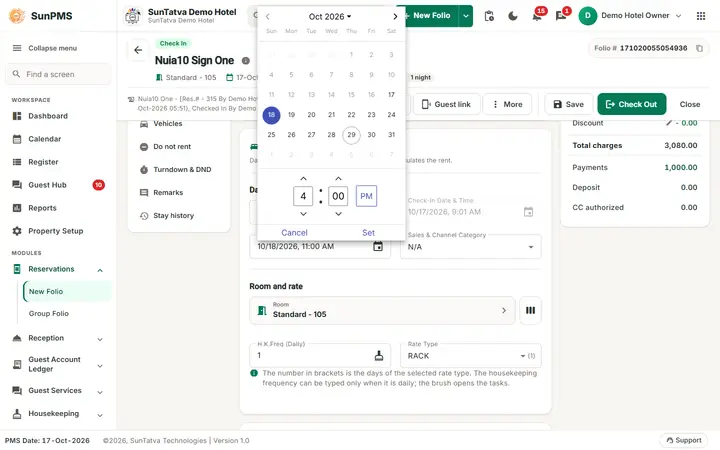
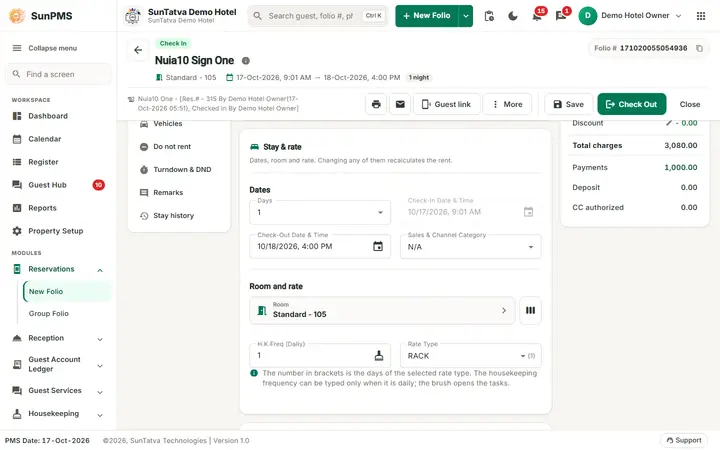
- Q: Can I extend instead of checking out? A: Yes, open the folio and move the check-out date later (Amending dates).
- Q: Why did bulk check-out stop for one guest? A: The reason is shown in a message; the process continues with the next guest after you click OK.
Screenshots