Amending Dates and Extending a Stay
On this page
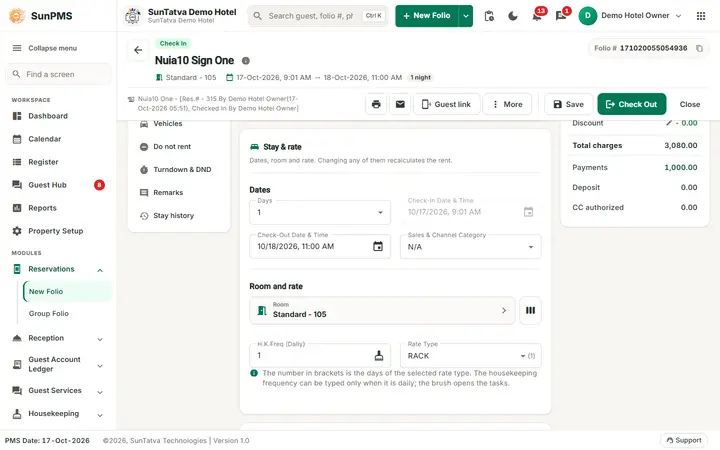
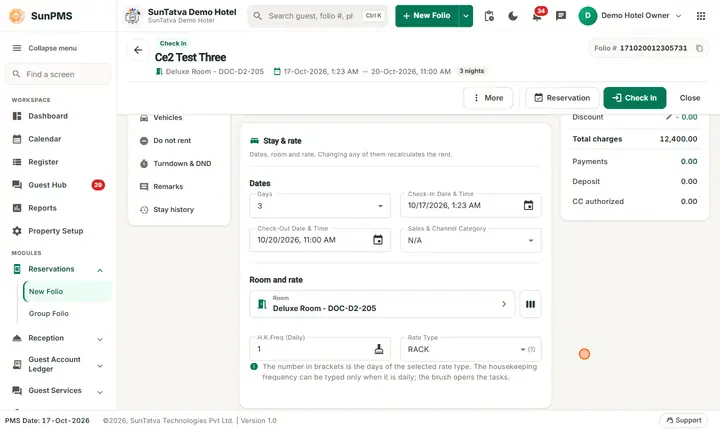
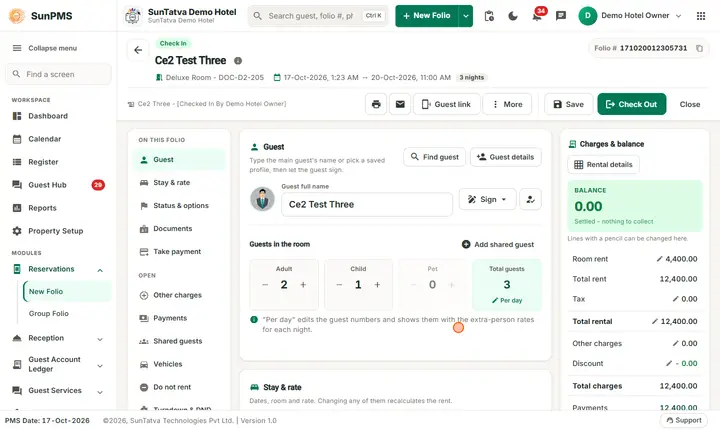
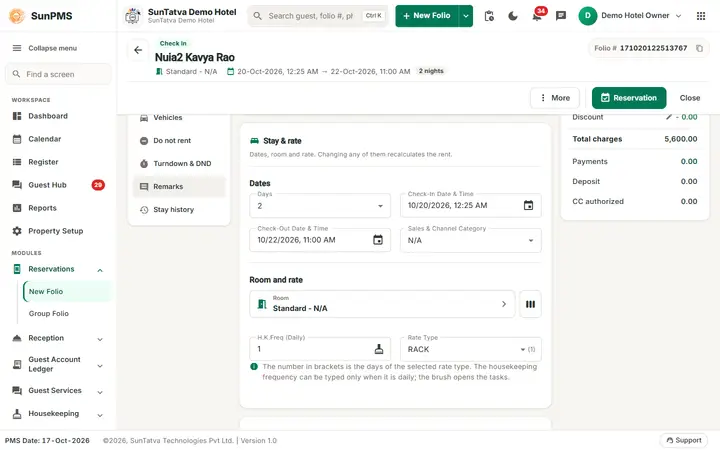
Guests change their plans: they arrive a day later, stay longer or leave early. You change the dates on the Stay Details tab of the folio. The rent and taxes are recalculated for the new nights, and the room is checked for availability when you save. This page lists the three date fields, what each one does for a reservation and for an in-house guest, and the messages that stop a change.
Before you start
- Open the folio (Search Reservation).
- To shorten a stay your role needs Ability to reduce stay days.
The date fields
| Field | What it does when you change it | Rules |
|---|---|---|
| Check-In Date & Time | Moves the arrival. The check-out date moves by the same number of nights, so the length of stay stays the same. | Locked once the guest is in house. For a group member it cannot be before the group's check-in date. |
| Days | Sets the number of nights. Check-out becomes check-in plus the days, keeping the check-out time. | Reducing needs Ability to reduce stay days. For a group member the check-out cannot be after the group's check-out date. |
| Check-Out Date & Time | Sets the departure date; Days is recalculated. | Cannot be earlier than check-in. The latest date is the last date for which rates exist (rate max date). Reducing needs the privilege. |
Each change reloads the rent of the stay for the new dates (and re-checks that the Rate Type exists for them). If the rate for the new dates is refused, the screen puts the old dates back.
How to move a reservation to other dates
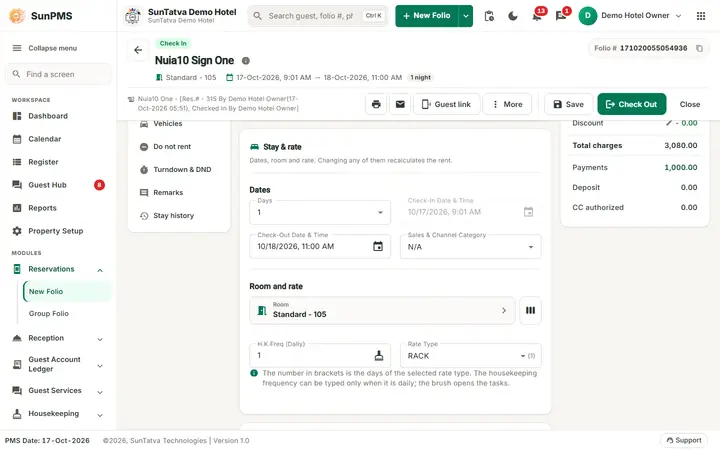
- Open the reservation and click Stay & rate in the left list.
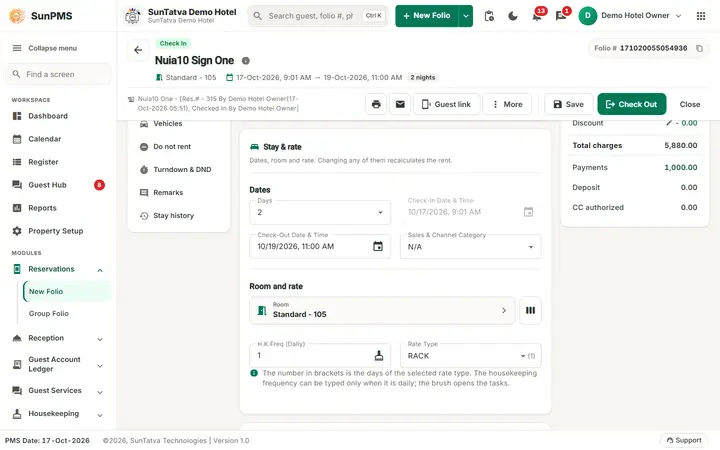
- Change Check-In Date & Time (check-out moves with it), or change Days / Check-Out Date & Time if the length also changes.
- Check the new rent in Charges & balance (right) and the Rate Type.
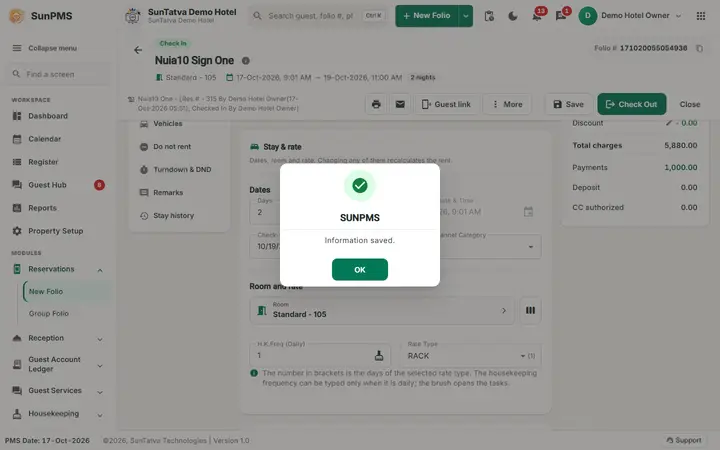
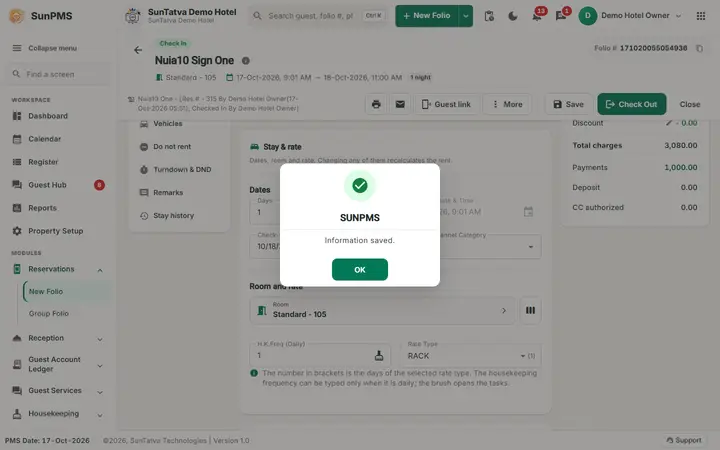
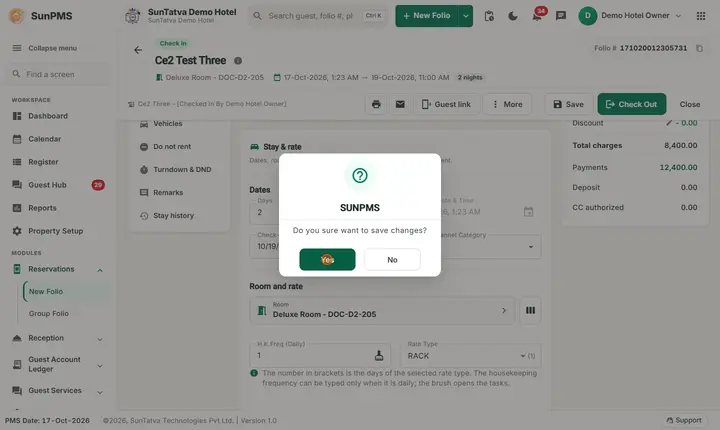
- Click Save. Result: the reservation is saved with the new dates. If no room is free for the new dates, Save shows Availability Fail (see below).
How to extend an in-house stay
- Open the in-house folio.
- Increase Days or move Check-Out Date & Time later.
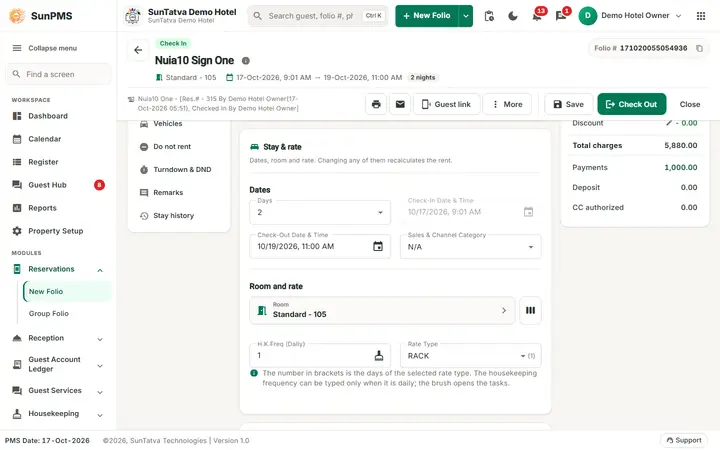
- Click Save. Result: the extra nights are added to the folio at the stay's rate. Other charges and payments stay as they were. If the same room is booked by another guest for the extra nights, Save returns Availability Fail with the table "Below guest(s) is already occupied on selected room" showing the other guest's name, folio number, room and times. Use Change Room to move to a free room for the extra nights, or add another room for those nights with Multiple Room (Room change and assignment).
How to shorten a stay or leave early
- Shorten: reduce Days or move Check-Out Date & Time earlier, then Save. Without the privilege you see Sorry, you do not have permission for reducing stay days.
- Early check-out: first reduce Days (or the Check-Out Date & Time) so that the departure is the PMS date or the day after, settle or refund the balance, then click Check Out. Clicking Check Out alone does not remove the unused nights (Check-out and invoice, How do I check a guest out early?).
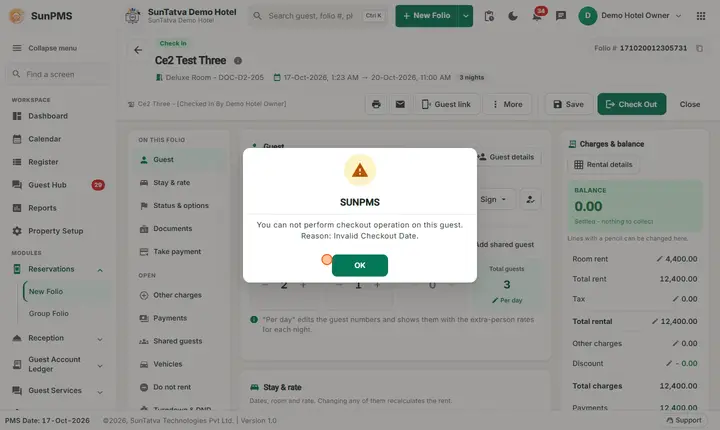
- You can check out at most one day beyond the PMS date: a later check-out date shows Invalid Checkout Date.
Rules and effects
- A group member must stay inside the group's dates (Group reservation).
- The number of nights must fit the Rate Type (a rate type shown with "(n)" days has a fixed length) or the rate may be refused.
- Changed nights also change taxes, the calendar and the CRS inventory.
Messages you may see
| Message (exact text) | Why it appears | What to do |
|---|---|---|
| Sorry, you do not have permission for reducing stay days | You shortened Days or Check-Out Date & Time without Ability to reduce stay days. | Ask for the privilege; the old value is restored. |
| Invalid stay date selected. Member's check-in date should be equal or greater than group check-in date. | Group member arrival before the group arrival. | Choose a date inside the group dates. |
| Invalid stay date selected. Member's check-out date should be equal or less than group check-out date. | Group member leaves after the group. | Choose a date inside the group dates. |
| Availability Fail (with a table of the occupying guest) | The room is not free for the new nights. | Change room or add another room for those nights. |
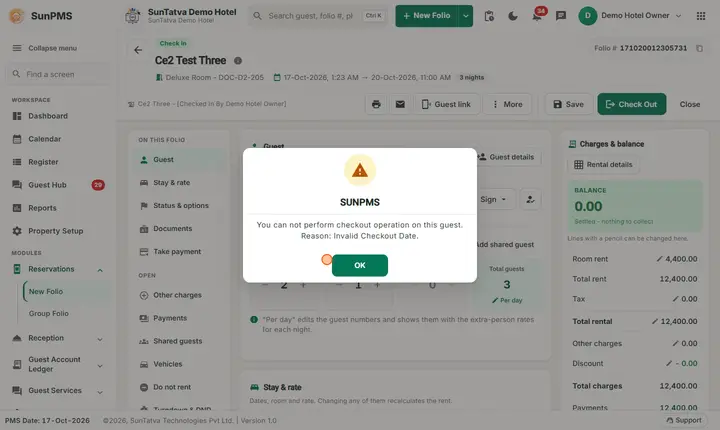
| You can not perform checkout operation on this guest. Reason: Invalid Checkout Date. | Check-out attempted when the departure date is more than one day after the PMS date. | Shorten the stay first or wait until the departure day. |
Tips and FAQ
- Q: I changed the arrival date and the departure moved too. A: That is intended; change Check-Out Date & Time afterwards if the length also changed.
- Q: The old dates came back after I typed new ones. A: The rate for the new dates was refused (for example no rate defined, or the rate type has a fixed length). Fix the rate and try again.
- Q: Can I change the arrival of an in-house guest? A: No. The check-in date is locked; extend or shorten the departure instead.
Screenshots