Folio - Remarks, Turndown, History and Extra Info
On this page
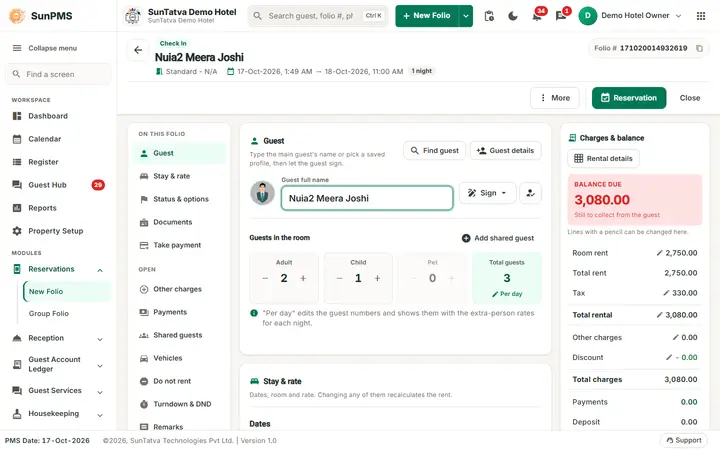
Besides stay, guest, charges and payments, a folio keeps notes and small service settings: free-text remarks in six categories, the room turndown time, Do Not Disturb, the housekeeping frequency, the guest's earlier stays and vehicle details. They are reached from the OPEN list at the left of the folio (Do not rent, Turndown & DND, Remarks, Stay history, Vehicles, Shared guests). An entry shows a badge or a check mark when it already holds something.
Before you start
- The folio is open (a new reservation or an existing one).
- For notes that must be seen by housekeeping or the night auditor, choose the matching category (below).
Remarks
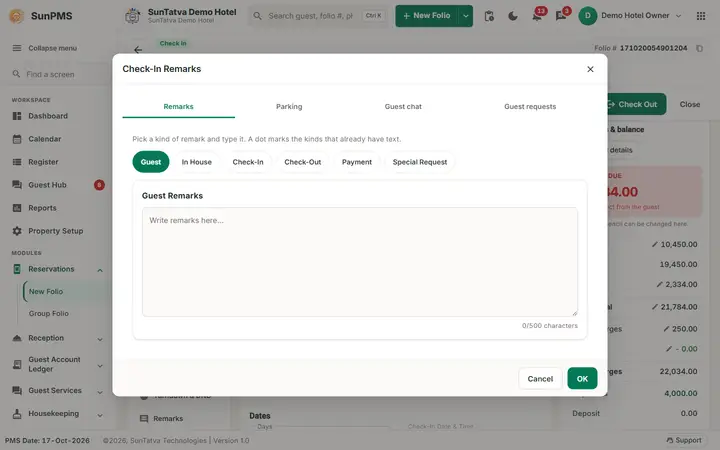
Click Remarks in the OPEN list. A window with six tabs opens. Click the tab for the kind of remark you want and type in the box (placeholder Write remarks here...). Each box accepts up to 500 characters.
| Tab | Use it for |
|---|---|
| Guest | Facts about the guest (VIP, allergies, likes). |
| In House | Notes for the stay while the guest is in house. |
| Check-In | Instructions for the check-in. |
| Check-Out | Instructions for the check-out. |
| Payment | Notes about payment (who pays what, deposit arrangements). |
| Special Request | Requests from the guest or the OTA (late arrival, extra bed, quiet room). |
| A category that contains text is highlighted, and Remarks in the OPEN list shows a check mark. With the Parking licence a Parking tab lists the guest's cars (save the folio first; when none is linked it says No parking linked to this stay with Link parking vehicle and Book parking) with Link parking vehicle and Unlink buttons for walk-in guests; the same tab is also in the Vehicle window (see Parking notifications, vehicle linking and walk-in guests); with the Guest Interface licence, tabs Guest chat and Guest requests appear. |
RTST - Room Turndown Service Time
Click RTST (tooltip Room Turndown Service Time and Do Not Disturb).
| Field | What it means | Rules |
|---|---|---|
| Tick box and Time | Switches the evening turndown service on and sets its time. | The time box is enabled only when the tick box is on; unticking clears the time. 24-hour clock. |
| Turndown Remark | A note for the housekeeper. | Optional. |
| Do Not Disturb | Shows whether the guest has asked not to be disturbed, who set it and until when. | Shown with the Guest Interface licence. Before check-in it says Save the reservation first - Do Not Disturb applies once the guest is checked in. For an in-house guest the Change list offers Keep as it is, Turn off, On, until turned off, On for 1 hour, On for 3 hours, On until 9:00 am. The choice is saved with the reservation (Update). |
| Click OK to keep the settings (they are saved when you save the folio) or Cancel. The Turndown & DND entry shows a check mark when turndown is on. | ||
| If turndown is on and the time is empty, saving the folio fails with Please Enter Room Turndown Service Time. |
House Keeping Task (H.K.Freq)
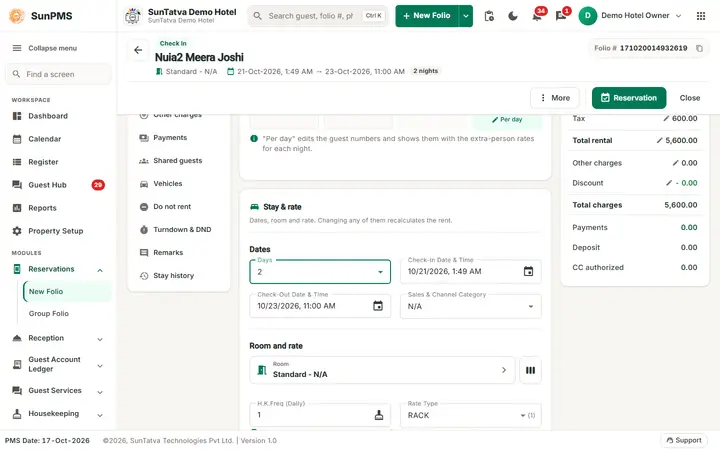
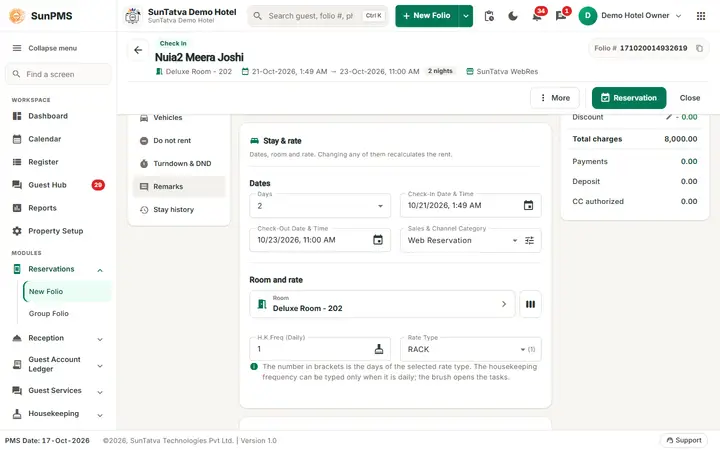
In Stay & rate the field H.K.Freq shows the housekeeping frequency in brackets, Daily, Weekly or None. For Daily you can type the number of days between services. Click the small brush icon inside the field (tooltip More Details) to open the window House Keeping Task: choose the frequency (number of days with minus/plus buttons, or the days of the week), tick the tasks (Check All or Default), type a Remark and click Apply, then OK. Cancel leaves without changes.
History
Stay history in the OPEN list opens the guest's earlier stays: a search box and a list of previous stays with a count on the entry.
Vehicle and shared guests
Vehicle details and the other guests sharing the room are entered in the guest tab; see Guest details and documents. Do not rent in the OPEN list shows (red count) whether the guest is on the Do Not Rent list.
How to add a remark
- Click Comments.
- Click the tab (for example Special Request) and type the text.
- Close the window and save the folio. Result: the remark is saved with the folio and the Remarks entry shows a check mark.
What happens behind the scenes
- Remarks, turndown time and remark, and the housekeeping frequency are stored on the folio and saved when you save the folio.
- Do Not Disturb set here is the same setting the guest can change from the guest portal.
Messages you may see
| Message (exact text) | Why it appears | What to do |
|---|---|---|
| Please Enter Room Turndown Service Time | Turndown is ticked but no time is set. | Set the time or untick turndown. |
| Save the reservation first - Do Not Disturb applies once the guest is checked in. | Information shown inside the Turndown window for an unsaved folio. | Save the folio first. |
| Please provide Vehicle Make. / Please provide Vehicle License. | Vehicle details are incomplete. | Fill both fields (see the guest details page). |
Tips and FAQ
- Q: How many characters can a remark have? A: 500 per category.
- Q: Where do I set the time for the turndown service? A: In RTST: tick the box, set Time and add a Turndown Remark.
- Q:Remarks has no check mark but I typed a remark. A: The remark was typed in a window you cancelled, or the folio is not yet saved.
Screenshots