Folio - Search Guest, Keep or New Profile, and Name Detail
On this page
Before you type a new guest on the folio, look for the guest in the guest database. A returning guest keeps one profile (address, phone, e-mail, documents, earlier stays) and you do not have to retype it. The Name Detail window is where the title, middle name, suffix and greetings of a guest are kept.
Before you start
- A folio is open (New Folio, or a reservation that is not checked in).
- You can select a guest whatever room type is chosen.
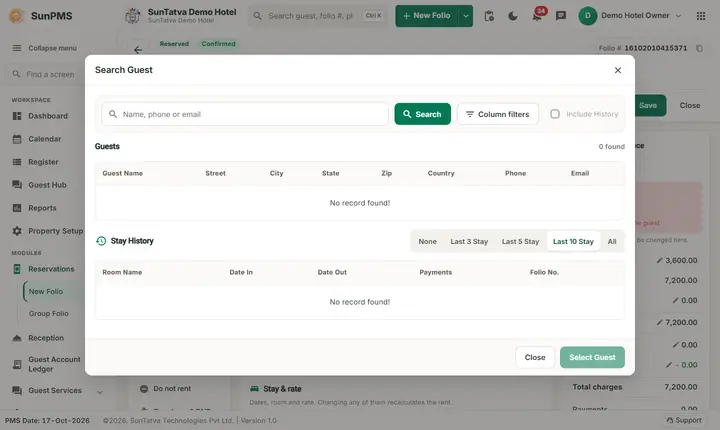
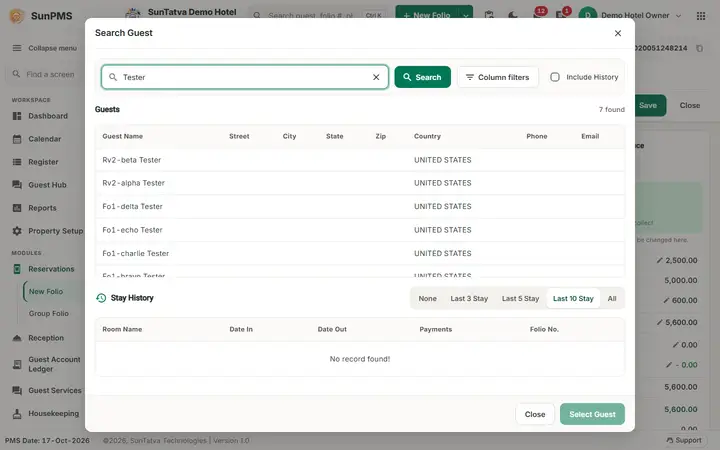
Screen layout of the Search Guest window
| Field / button | What it means | Rules |
|---|---|---|
| Search box (placeholder Name, phone or email) | Text to look for (name, phone or e-mail). | Searching starts by itself about 0.4 second after you stop typing (at least 2 characters), at once when you press Enter or click the green Search button. The x clears the text. |
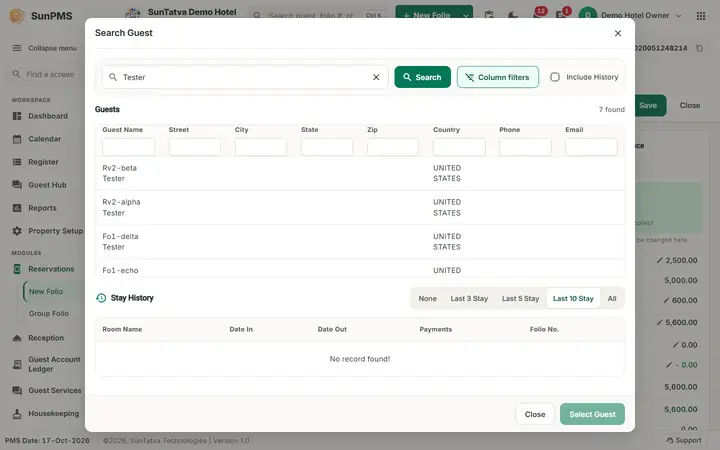
| Column filters button (next to Search) | Shows or hides a filter box under each column heading (Guest Name, Street, City, State, Zip, Country, Phone, Email). | Filters the rows already listed. |
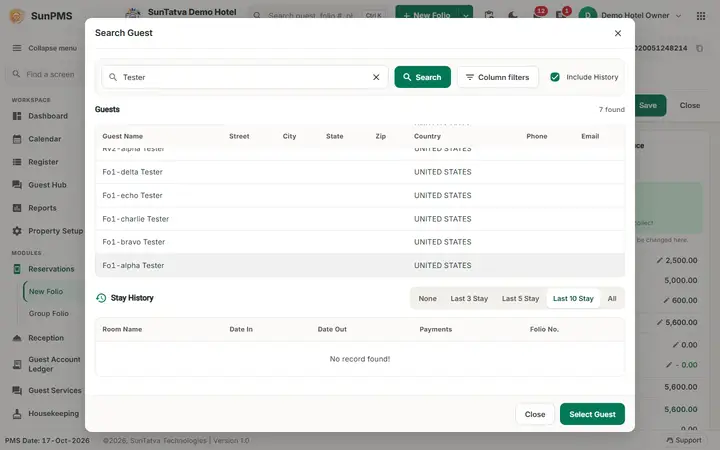
| Include History (check box, top right) | Fills the lower Stay History table with the earlier stays of the selected guest. | Enabled after a search returned rows. |
| Stay History buttons None, Last 3 Stay, Last 5 Stay, Last 10 Stay, All | How many earlier stays to list. | Default Last 10 Stay. |
| Stay History columns | Room Name, Date In, Date Out, Payments, Folio No. | Click a row to pick that stay (its rate and room can then be re-used, see below). |
| Select Guest | Applies the selected guest to the folio. | Disabled until you click a row in the top table. |
| Close | Closes the window without changes. |
How to use a returning guest
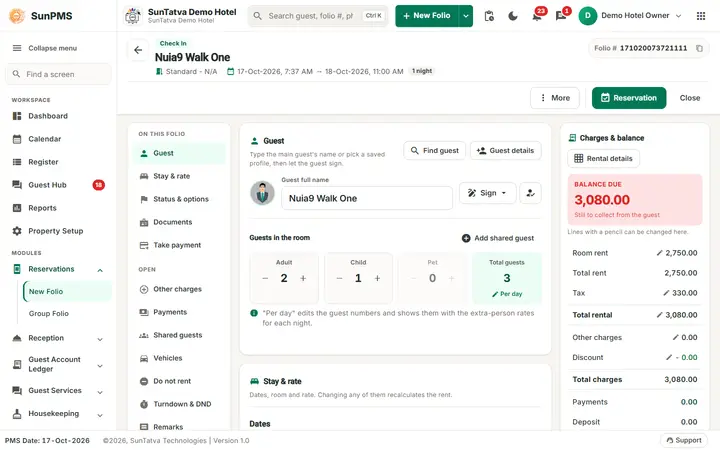
- In the Guest section click Find guest (top right of the section).
- Type a name (for example Tester). The matching guests are listed after a short pause; press Enter or click the magnifier to search at once. The same person can be listed twice if two profiles exist.
- Click the guest's row. Tick Include History if you want to see or re-use an earlier stay.
- Click Select Guest. What happens depends on the folio:
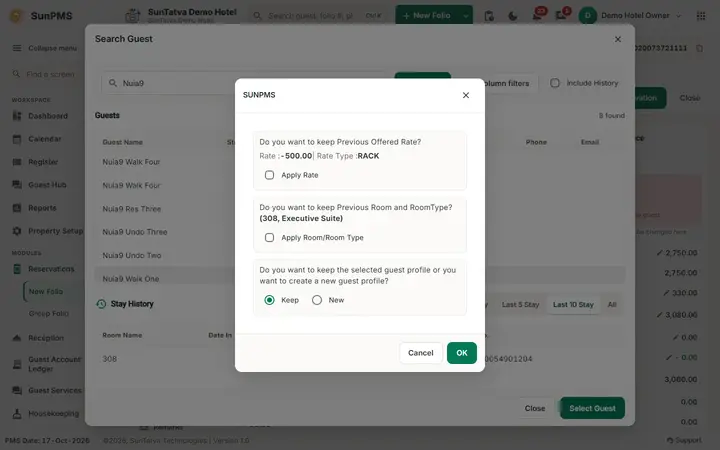
- New folio (not saved yet): a question window appears: Do you want to keep the selected guest profile or you want to create a new guest profile? with Keep (default) and New.
- Keep: the folio is linked to the existing profile. The profile (and its stay history) is shared by all stays of this guest.
- New: the details are copied into a new profile.
- Saved folio: no question is asked. The details of the selected profile are copied into the current guest of the folio and the Search Guest window stays open; click Close when you are done.
- If your hotel has Remember guest rate or Remember guest room switched on and the guest has history, the same window also offers Apply Rate and Apply Room/Room Type, with the earlier rate, rate type and room shown. Tick them to re-use those values.
- Click OK. The profile is applied to the folio. Click Cancel to leave the folio unchanged.
Result: the Guest Full Name box at the top shows the name of the selected profile, and Guest details shows the profile data.
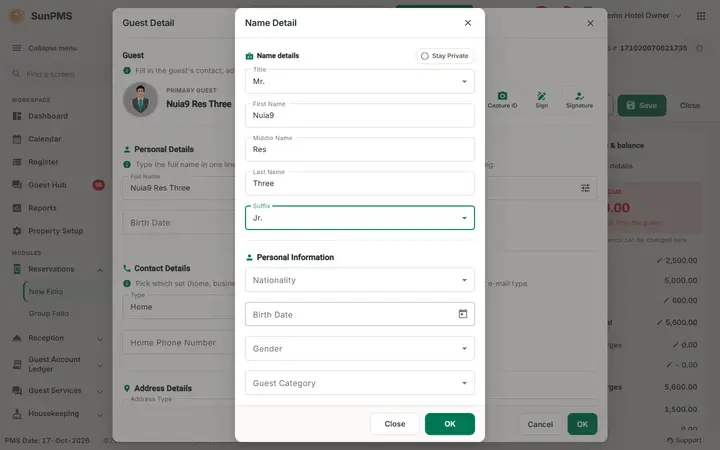
Name Detail
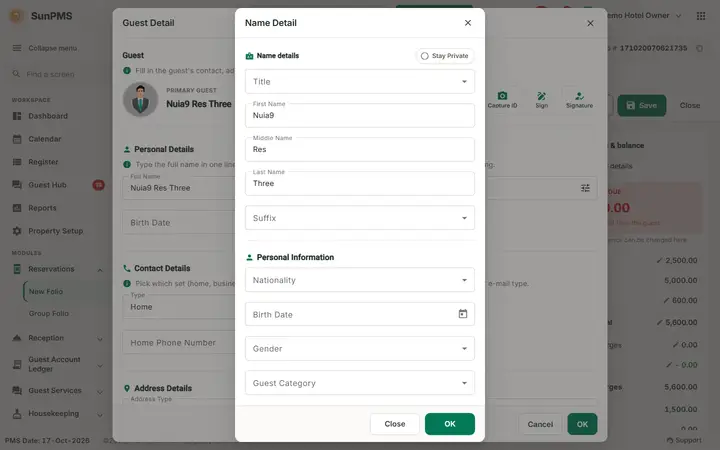
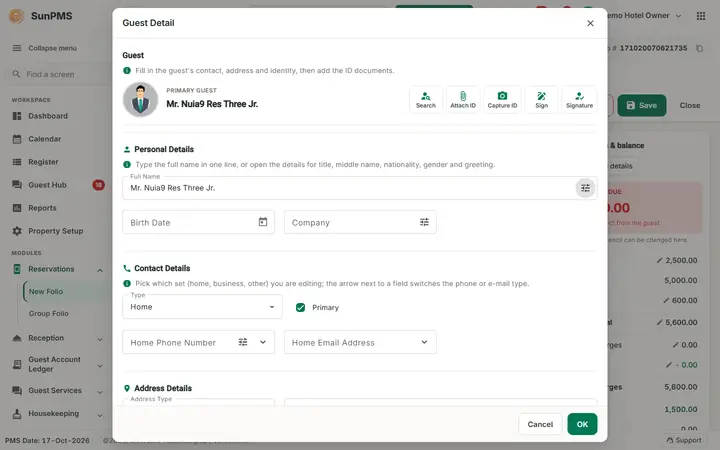
Open Guest details (button in the Guest section) and click the small sliders icon at the end of Full Name.
| Field | What it means | Rules |
|---|---|---|
| Stay Private (switch, top right) | Marks the stay information of this guest as private. | Not available for guests picked from the Guest Master or the Contact Master, or for folios posted by an integration. Set per folio: for a group, open each member's folio (the group's own Name Detail has no such switch). |
| Title | Miss., Mr., Mrs., Dr., Ms., Prof. | Optional. |
| First Name, Middle Name, Last Name | The name parts. | First name is required to save the folio (Please enter Guest First Name.). |
| Suffix | |, ||, |||, Jr., Sr. | Optional. |
| Nationality | Country list with NA. | Optional. |
| Birth Date | Date of birth. | A property minimum rental age may apply (Minimum Rental Age must be more then N years.). |
| Gender | Male, Female, Other. | |
| Guest Category | Category from the masters. | The list is empty until categories are set up (empty on the demo hotel). |
| Letter Greeting, Address Greeting | Form of address for printed letters and for addressing the guest: Miss., Mr., Mrs., Dr., Ms., Prof. | Optional. |
| OK / Close | OK writes the parts back to Full Name; Close discards. | The Guest Detail window stays open after OK. |
After OK, Full Name in Guest Detail shows the assembled name, for example Mr. Fo1-alpha Kumar Tester Jr. (title, first, middle, last, suffix). Click OK in Guest Detail to keep it, or Cancel.
Guest picture
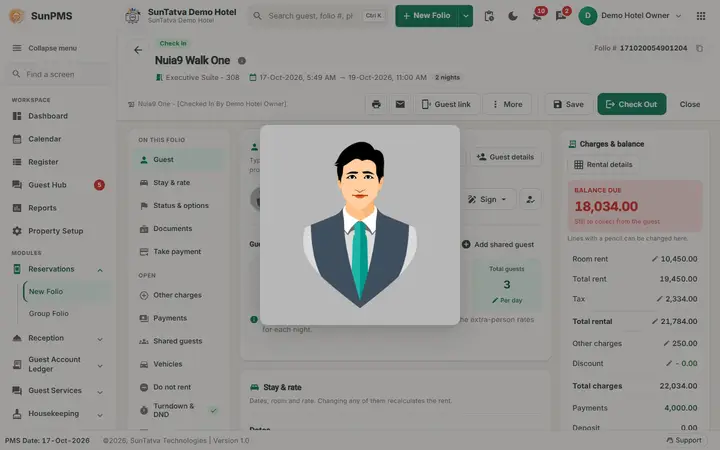
The round picture in front of Guest Full Name shows a default person icon (the folio never showed or stored a profile photo there). Click it: the picture opens in a larger frame; click it again to close. The pencil button Edit Profile Picture that used to sit in the frame never had a function and was removed. To store a face photo, use Documentation (document with face image) or the camera icon in Guest Detail.
Messages you may see
| Message (exact text) | Why it appears | What to do |
|---|---|---|
| No record found! | The search returned nothing, or the text is shorter than 2 characters. | Type at least 2 characters or press Enter; try a shorter text. |
| Do you want to keep the selected guest profile or you want to create a new guest profile? | After Select Guest. | Keep to re-use the profile, New for a copy. |
| Please enter Guest First Name. | Saving a folio without a first name. | Fill the first name. |
Tips and FAQ
- Q: Should I choose Keep or New? A: Keep for the same person, so the hotel has one profile per person and the stay history stays together. New only when the old profile is wrong and must not change.
- Q: Why is Guest Category empty? A: Categories are master data; none exist on the demo hotel.
Screenshots