New Folio - Reservation or Walk-in Check-in
On this page
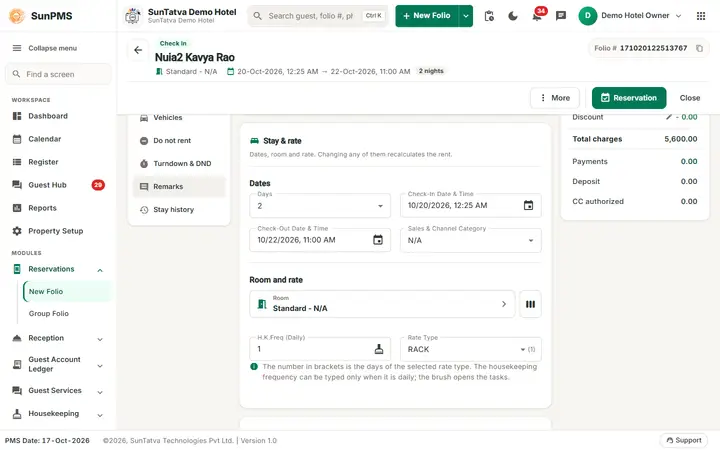
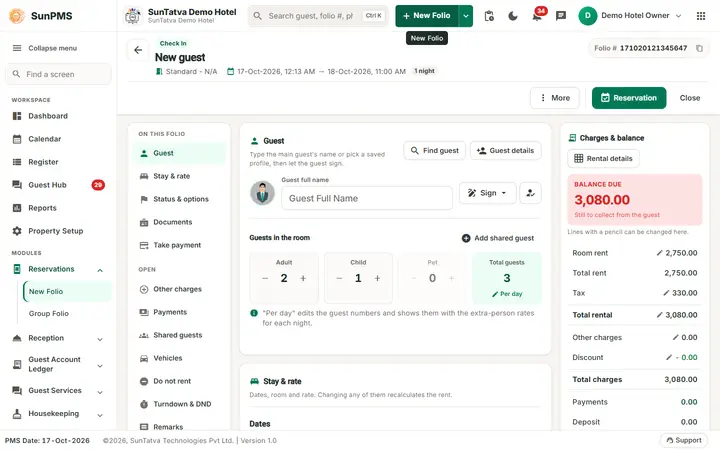
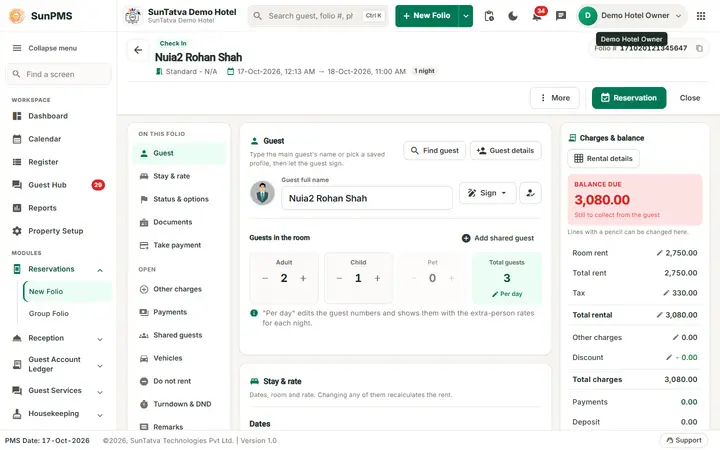
Click New Folio (the green split button in the header; the arrow next to it opens a menu with New Folio and Group Folio; or Reservations > New Folio in the sidebar, or press Ctrl+K and type "New Folio") to open an empty folio. The same blank folio is used to create a reservation (guest arrives later) or a walk-in check-in (guest is here now). You choose by the button you press at the end.
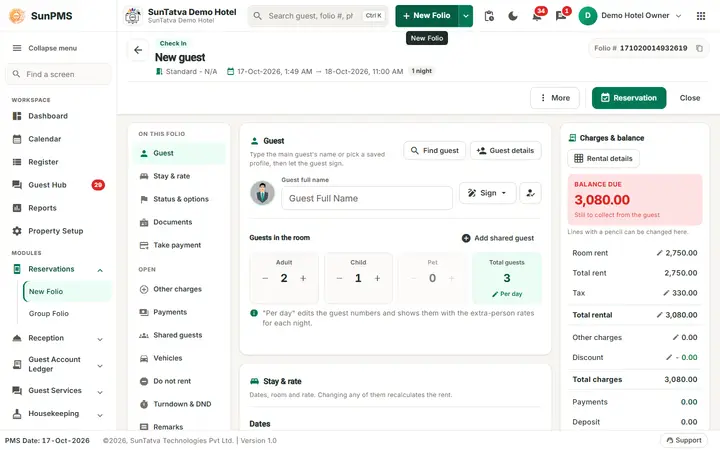
Defaults on a new folio
| Field | Default |
|---|---|
| Check-In Date | Today's PMS date, or the date you clicked in the Calendar |
| Check-In time | Current time for today; the property Default check-in time for a future date |
| Check-Out | Check-in date plus Default stay days, at the property default check-out time |
| Days | Default stay days (1 if not set) |
| Adults / Children / Pets | 1 / 0 / 0 (changes to the room type base occupancy when you pick a room type) |
| Status | The property Default reservation status (shown in Status & options) |
| Header chip | Check In; becomes Reservation when the date is after the PMS date |
How to make a walk-in check-in
- Click New Folio.
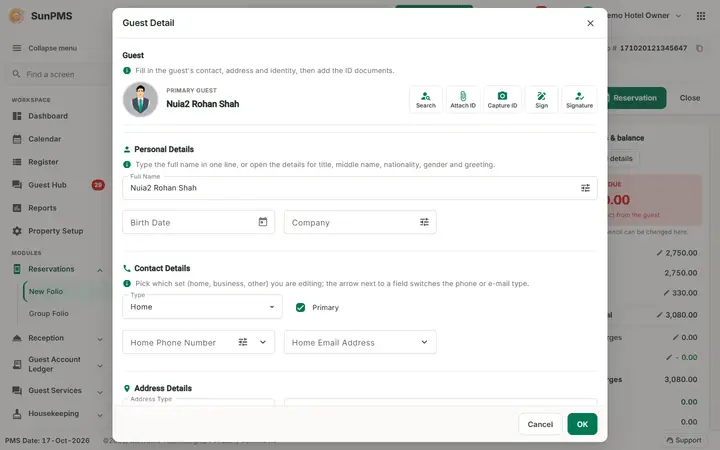
- In section Guest type the guest name in Guest full name or click Find guest to pick an existing guest.
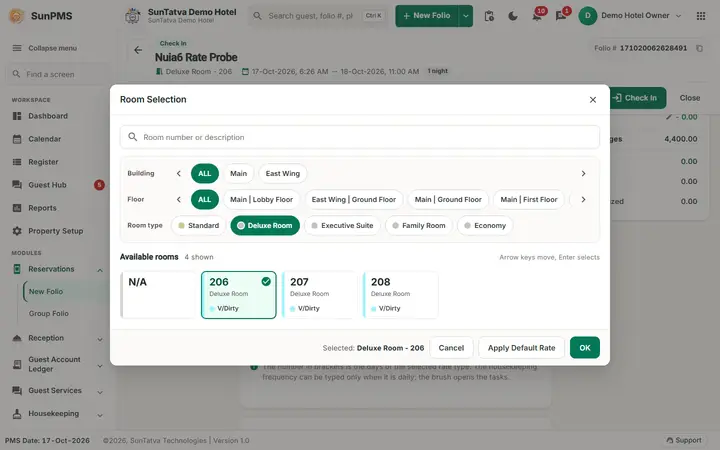
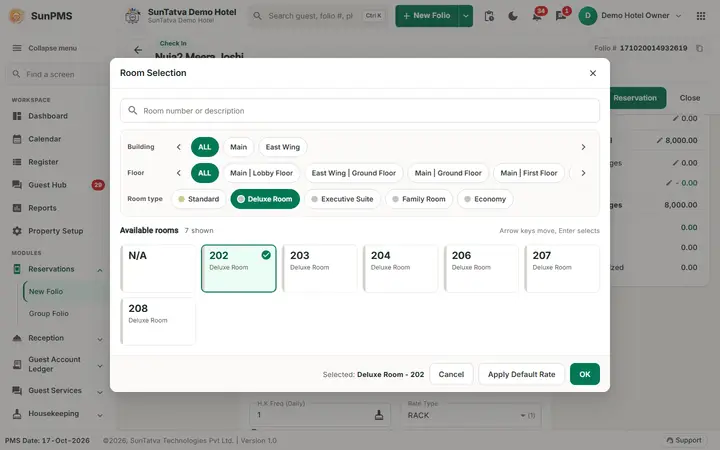
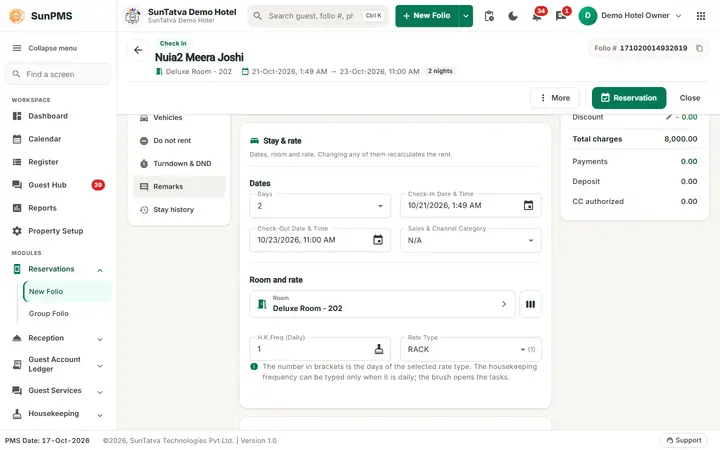
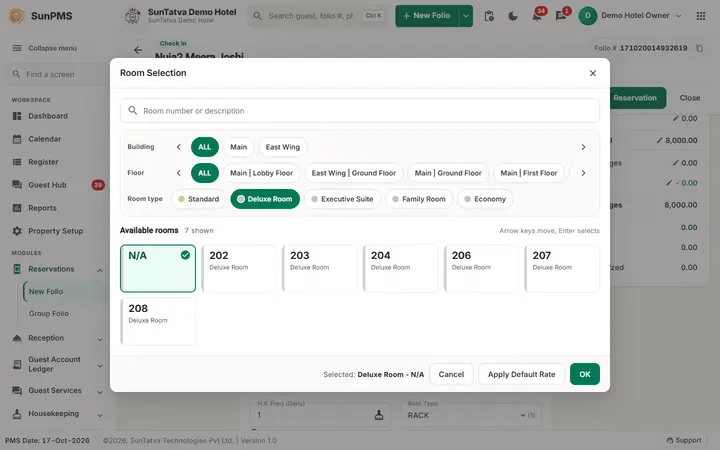
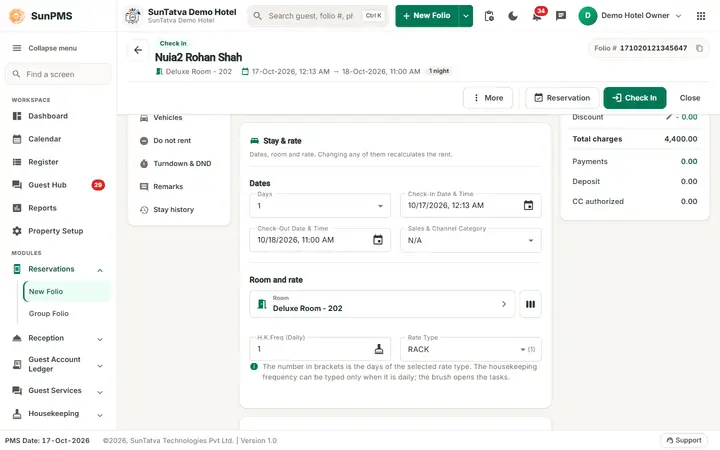
- In Stay & rate > Room and rate click the room button. The Room Selection window shows a search box, Building, Floor, Room type and Status chips and the available rooms as tiles. Pick a tile and click OK.
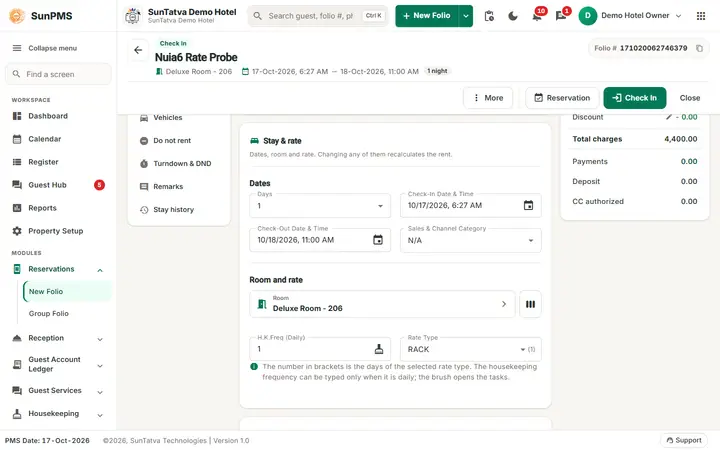
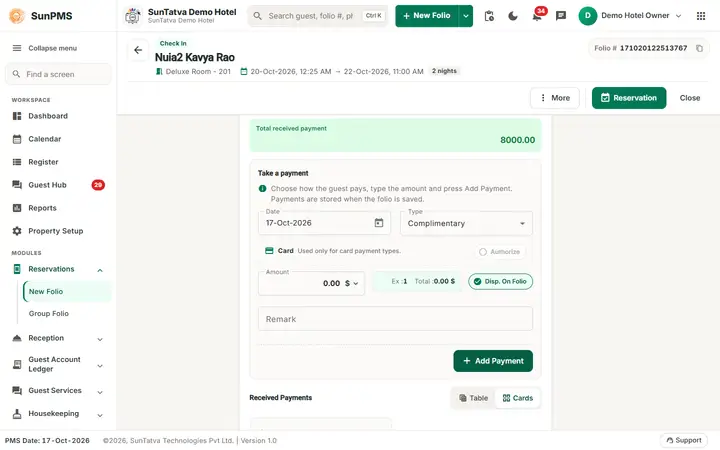
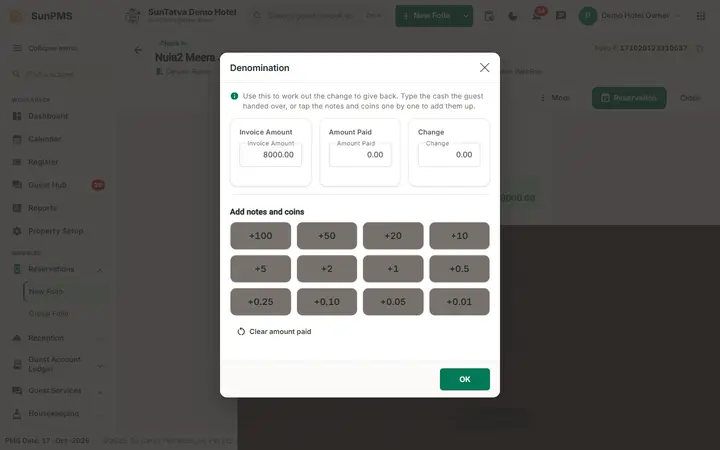
- Check dates, Rate Type and rate. Use Documents and Take payment (left list) to add guest documents and the advance payment if needed.
- Click Check In (top right). Result: confirmation message, optional folio / registration form printing (property settings), door-lock card dialog if a lock is configured, and you return to the previous screen.
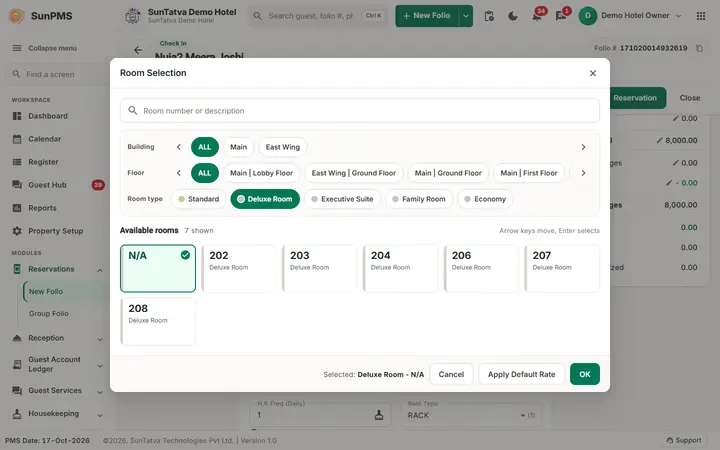
How to make a reservation
- Open New Folio and set a future Check-In Date & Time (or today) in Stay & rate.
- Select room type in Room Selection (a room is optional only if the property setting Reservation without room is on; pick the tile N/A to keep the room open).
- Fill guest name, rate, and the status button in Status & options (Confirmed / Unconfirmed).
- Click Reservation (top right). The message shows the Reservation #.
Button rules on a new folio
- Check In (top right) appears only when the check-in date is today or earlier, and a room is selected. For a future date only Reservation shows.
- Reservation is hidden for hourly stays and when Days is 0. When both buttons show, Check In is the green main button and Reservation is the outlined one.
- If the date is in the past, the minimum date follows the setting Do not allow to change audited transaction: when on, only today onward can be picked; when off, dates back to the property minimum date are allowed (a back-date confirmation is asked at check-in).
Copy reservation
Find Reservation has a Copy action. It opens a new folio filled from an old one: guest and documents are copied, the room is cleared, status resets to the default, CRS (online) data and check-in remarks are removed, and the title is Copy Reservation.
Messages you may see
| Message | Why | What to do |
|---|---|---|
| Please select a Room. | Reservation saved without a room while Reservation without room is off | Pick a room |
| Room Status is Vacant Dirty. Do you want to continue? | Check-in into a dirty room | Continue or choose another room |
| You are trying to make back date checkin. Are you sure you want to continue? | Check-in date earlier than PMS date | Confirm only if intended |
| Transaction you are trying to perform will change audited reports. | Back date while audited changes are blocked | Use today's date |
| Check-in already exist with Folio No:... | Same guest already checked in for the overlapping stay | Open the existing folio |
Tips and FAQ
- Q: Why is Check In missing? A: Date is in the future, or no room is selected.
- Q: Can I create a folio from the calendar? A: Yes, selecting a cell of the Calendar opens New Folio with room and date preset.
Screenshots