Folio - Locked Reservation, Copy Reservation and Read-Only States
On this page
A folio does not always accept every change. This topic explains the Lock switch, how Copy Reservation works, and what a cancelled or checked-in folio lets you do.
Before you start
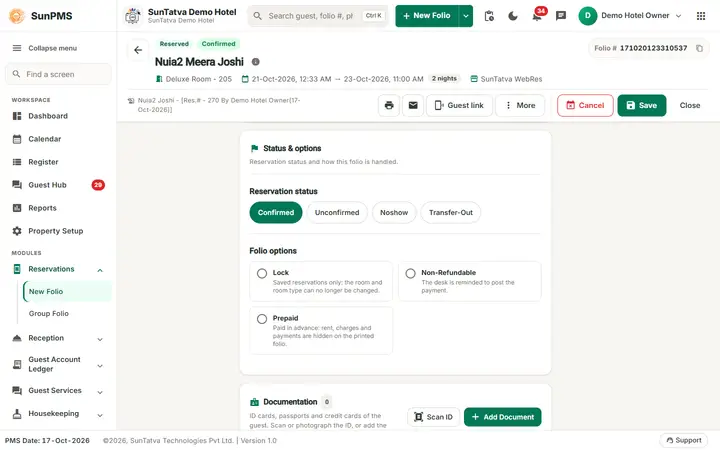
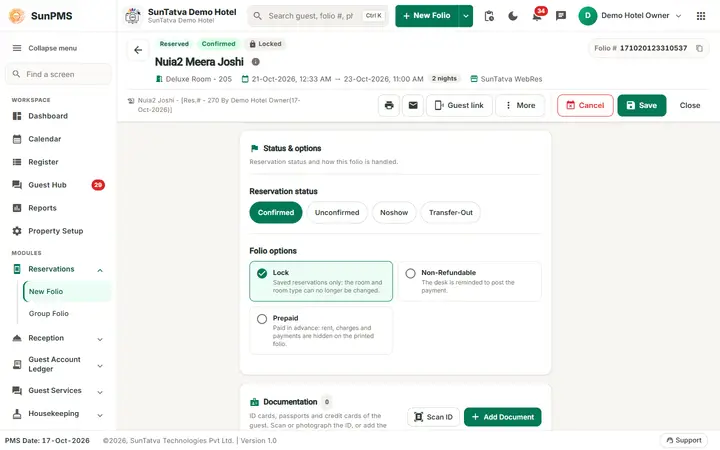
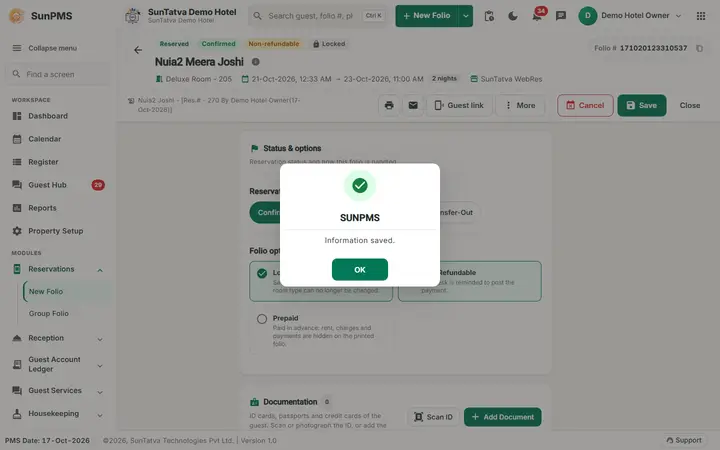
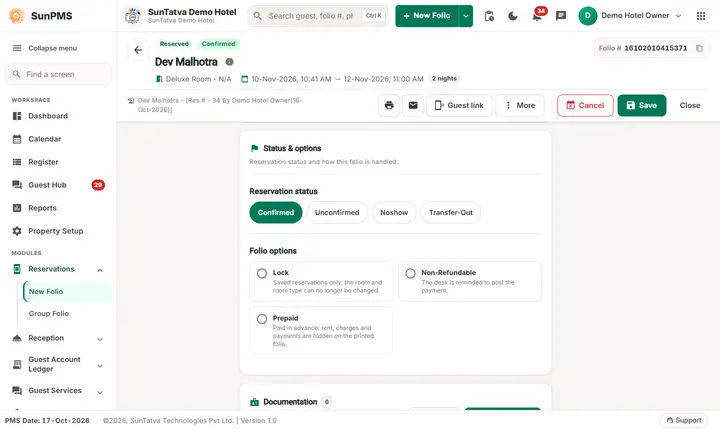
- Lock and the other Folio options (Non-Refundable, Prepaid) are in the section Status & options (click it in the ON THIS FOLIO list). Each is a button with a check mark and a one-line help; click it to turn it on or off, then Save. The switches show a green tick when on. No message appears when you switch them.
Folio options
| Switch | What it does | Rules |
|---|---|---|
| Lock | The room and the room type of the reservation can no longer be changed. | Save the reservation first. Needs the privilege Lock reservation. |
| Non-Refundable | Marks the booking non-refundable: cancelling warns you to post the payment (see Cancel). | Fixed for online bookings that are already non-refundable. |
| Prepaid | Marks the booking as prepaid. | Follows the Sales & Channel rules (see Stay details). |
All three were saved on the test reservation without any message and were still on after reopening.
What a locked reservation refuses
- Open a reservation that has Lock on.
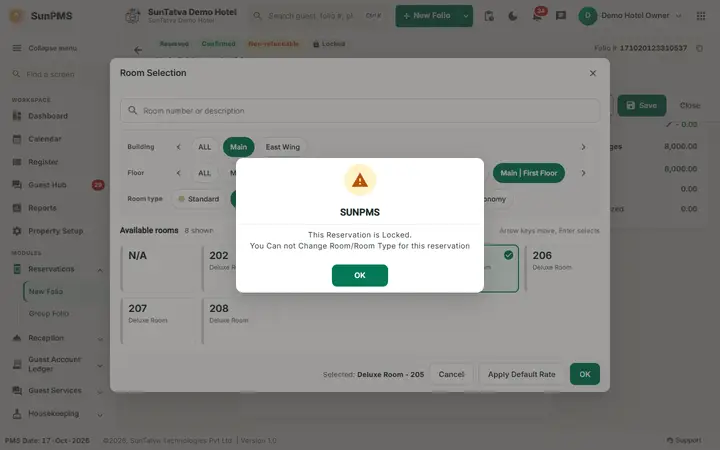
- Choose another room or room type (room button > Room Selection > OK). The folio accepts the choice on screen.
- Click Save. Result: the message This Reservation is Locked. You Can not Change Room/Room Type for this reservation appears as soon as you pick another room (the room is put back), and again on Save if the room type was changed. Dates, guest data, rate and remarks are not blocked by the lock.
To change the room, switch Lock off (privilege needed), Save, change the room, and lock again if you wish.
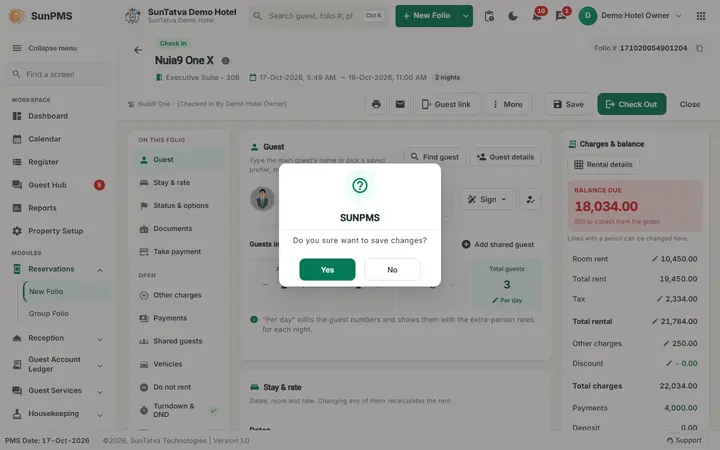
Close without saving
Close asks Do you sure want to save changes? when something changed. Yes saves, No leaves without saving.
Copy Reservation
Use it when a guest books the same stay again, or a second room for the same dates.
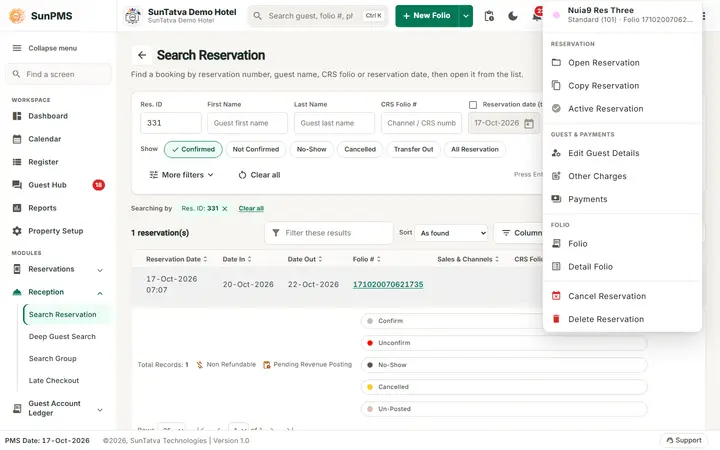
- Open Search Reservation, find the booking and click the three dots at the end of its row.
- Choose Copy Reservation. The system asks Are you sure you want to Copy this Reservation? Click Yes.
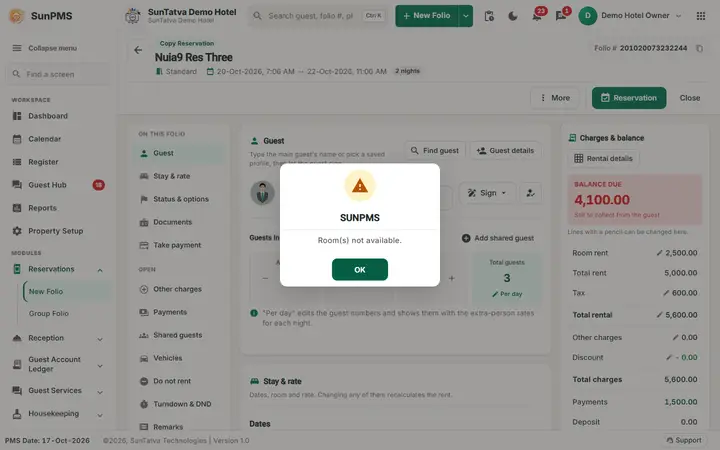
- A new folio opens with the title Copy Reservation and a new folio number. The guest, the dates, the room type, the rate and the folio options (Lock, Non-Refundable) are copied.
- Change what is different (dates, room) and click Reservation. Until then nothing is stored and the original is unchanged.
The row menu of Search Reservation also offers Open Reservation, Cancel Reservation, Active Reservation, Delete Reservation, Edit Guest Details, Other Charges, Payments, Folio and Detail Folio.
Read-only states
| Folio | What is blocked | What still works |
|---|---|---|
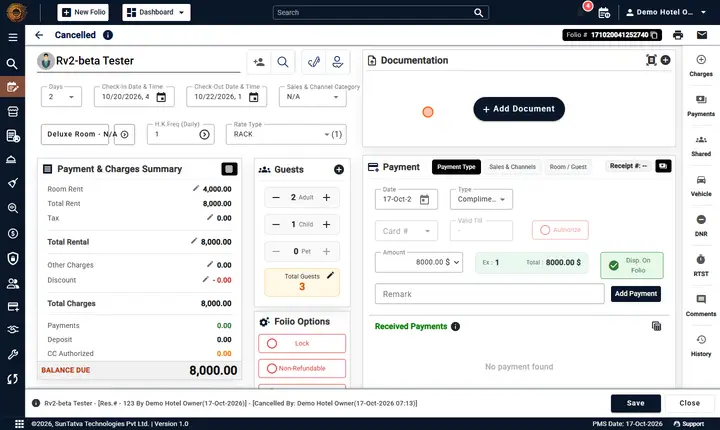
| Cancelled | The status buttons (Confirmed, Unconfirmed, Noshow, Cancelled, Transfer-Out) are greyed out. The buttons Reservation, Cancel, Check In are not shown. | Save, Close, the print and e-mail icons, the OPEN list (Comments, History). The bottom bar shows who cancelled and when. |
| In house (Check In) | The Check-In Date & Time is greyed out. | Check-out date, charges, payments, remarks, Change Room. |
| Checked out | Most fields. | Save is disabled unless you have the privilege Access to update checked-out guest. |
| Locked | Room and room type (checked at save). | Everything else. |
Keyboard shortcuts
The folio has one shortcut: Ctrl+S saves (the tooltip of Save / Reservation says so). Use Tab to move between fields; the action buttons are at the top right of the header.
Messages you may see
| Message (exact text) | Why it appears | What to do |
|---|---|---|
| This Reservation is Locked. You Can not Change Room/Room Type for this reservation | Save after a room or room type change on a locked reservation. | Switch Lock off first, or undo your room change. |
| Do you sure want to save changes? | Close on a folio with changes. | Yes to save, No to leave. |
| Are you sure you want to Copy this Reservation? | Row menu > Copy Reservation. | Yes to open the copy. |
| Are you sure you want to cancel this Reservation? / Reservation cancelled. | Cancel on the folio. | See Cancel. |
Tips and FAQ
- Q: Why can I not change the room of this booking? A: Look at Lock in Folio options. Switch it off (privilege Lock reservation) and save, then change the room.
- Q: Does Copy Reservation give me a new folio number? A: Yes. The copy gets its own folio number when you click Reservation; the original stays as it is.
- Q: Can I reopen a cancelled folio for editing? A: Only Save and Close remain. Use Active Reservation in Search Reservation, or Copy Reservation.
Screenshots