
Booking Transactions - Reservations Without Rooms
On this page
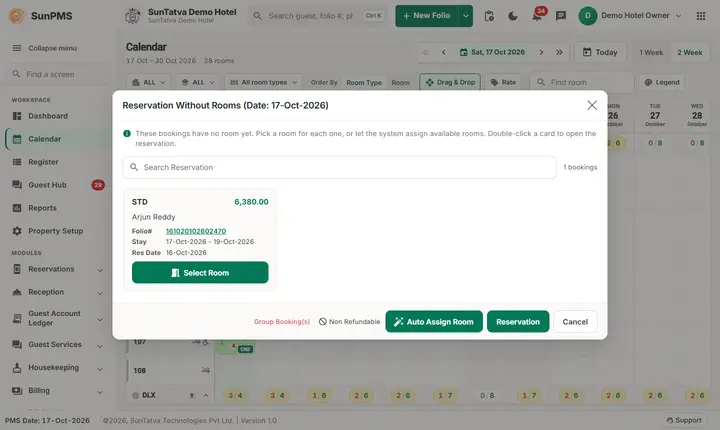
Many bookings, especially from online channels, arrive with a room type but no room number. They are the "reserved without room" (R/WO) bookings. The window Reservation Without Rooms (Date:
Before you start
- The bookings exist as confirmed or unconfirmed reservations with a room type and no room (New reservation).
- Rooms of that room type are free for the stay dates (not occupied, blocked or already given to another booking).
How to open it
- Open the Calendar (Calendar).
- In a room-type row each date shows two numbers, unallocated bookings and available rooms (for example 2/5). Click that cell. Result: the window opens with the bookings of that date.
Screen layout
Reservation Without Rooms window
| Element | What it means | Rules |
|---|---|---|
| Title Reservation Without Rooms (Date:...) and the help line These bookings have no room yet. Pick a room for each one, or let the system assign available rooms. Double-click a card to open the reservation. | The date you clicked. | |
| Count (1 bookings) | Number of cards listed. | |
| Search Reservation | Filters the cards while you type. A cross clears it. | Matches the card text (folio, guest, room type). |
| Booking card | One booking: room type name, Folio #, guest name, date in - date out, Res Date (the booking date), the room button and the total amount. | Double-click the card to open the folio. |
| Room button | Shows Select Room until a room is chosen, then the room name. | Opens the room picker. |
| Legend at the bottom | Group Booking(s) (red text) and the Non Refundable icon explain the colour and icon on cards. | |
| Auto Assign Room | Fills a free room into every card that has none. | See below. |
| Reservation | Saves the rooms you chose. | At least one card must have a room. |
| Cancel | Closes the window. | Unsaved choices are lost. |
| No Member found | Shown when the list is empty or the search matches nothing. |
Room picker (window titled "Room Selection", the word Room follows your property's naming)
| Element | What it means |
|---|---|
| Search Available Rooms | Filter by room name. |
| Building chips and Floor chips | Narrow the rooms; use the arrows to scroll the chips. |
| Room Types | Room types that have free rooms; the colour dot is the room type colour. |
| Available Rooms | The free rooms as cards; click one to select it. |
| Save | Keeps the choice and returns to the list. If no room is selected: Please select a room. |
| Cancel | Clears the choice for this booking and returns. |
How to assign rooms
- Click the room button of a card, pick a room (filter by building, floor or room type if you wish) and click Save. If no room is free the message No rooms available. appears.
- Repeat for the other cards, or click Auto Assign Room to give every empty card the first free room of its room type. A room already chosen on another card is not offered twice.
- Click Reservation to save. Result: Room(s) assigned successfully. The rooms are written to the reservations, the Calendar reloads and the bookings leave the unallocated count.
Messages you may see
| Message (exact text) | Why it appears | What to do |
|---|---|---|
| Sorry, you do not have permission access past dated transaction. | You double-clicked a booking whose dates are before the PMS date. | Ask a manager with the past-date privilege. |
| Please assign a Room to the Reservation. | Reservation clicked while no card has a room. | Choose a room first. |
| Please select a room. | Save in the room picker with nothing chosen. | Click a room card. |
| No rooms available. | No free room of that type for the dates. | Change dates, free a room, or use another type. |
| Room(s) assigned successfully. | Saved. | None. |
| No Member found | The list is empty or the search matches nothing. | Clear the search. |
Tips and FAQ
- Q: Does Auto Assign save the rooms? A: No. It only fills the cards; click Reservation to save.
- Q: I assigned the wrong room. A: Open the booking and use room change (Room change and assignment).
- Q: Does assigning a room check the guest in? A: No. It only gives a room number to the booking.