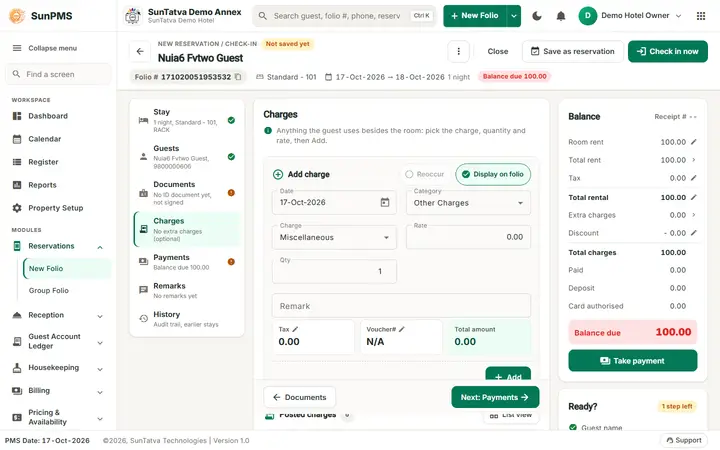
Simplified Check-In / Reservation Screen (guided folio)
On this page
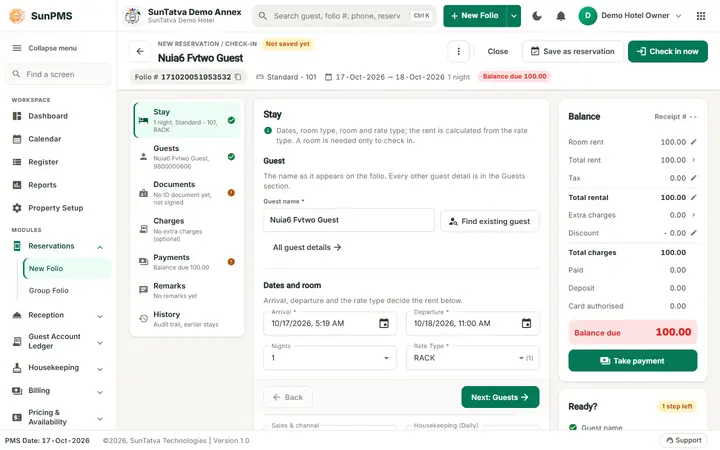
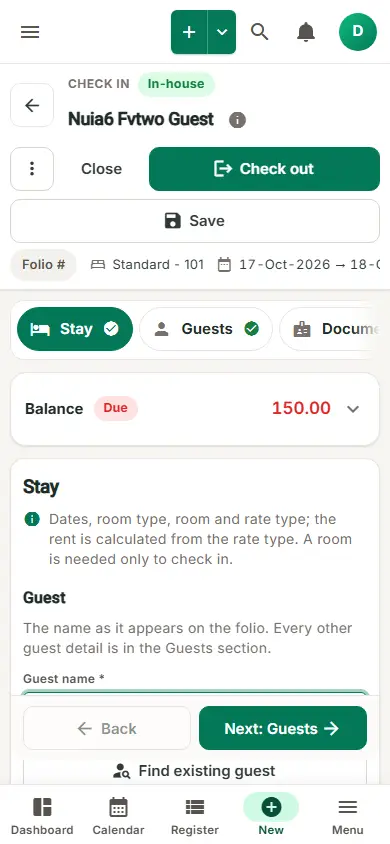
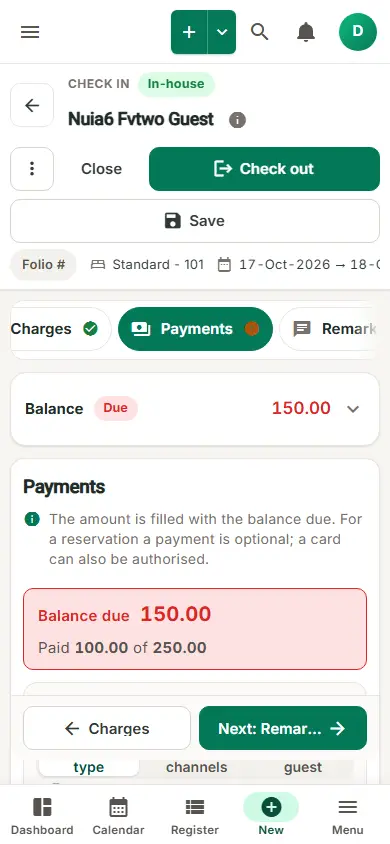
The simplified folio is a cleaner version of the folio screen. The folio is split into 7 sections in the order the desk works - Stay, Guests, Documents, Charges, Payments, Remarks, History - and only one is open at a time, with a short "what to do" line on top of it. It has every feature, rule, privilege and message of the standard folio; only the layout is different. Use it when new or occasional staff take bookings and check guests in.
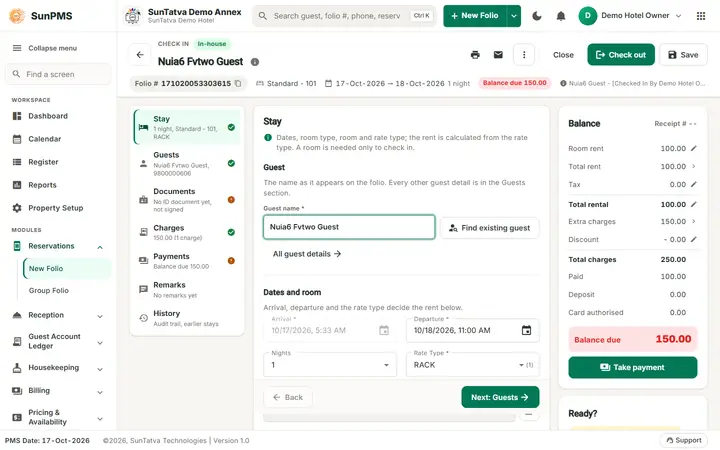
Before you start
- Tick Simplified Check-In / Reservation Screen under Folio Screen Layout in Property Setup > Feature Setting (Feature Setting, how to switch). The change applies to folios opened after you save. Untick it to return to the standard screen.
- Every folio, new or saved (reservation, in-house, checked out, cancelled), opens on Stay. A new folio puts the cursor in Guest name.
- Rooms, room types and rate types must exist; check-in needs an open shift when Shift Operation is on.
Screen layout
| Area | What it shows |
|---|---|
| Identity header (top) | Back arrow; the eyebrow (NEW RESERVATION / CHECK-IN on a new folio, CHECK IN, RESERVATION, CHECK OUT... on a saved one) with a status chip (Not saved yet, Reservation - confirmed, Reservation - unconfirmed, In-house, Checked out, Cancelled, No-show, Transfer-out) and Prepaid when the stay is prepaid; the guest name (Guest not entered yet) with an info button on a saved folio; the action buttons (below). Under the name: the Folio # pill (click to open the audit trail, copy icon), the room (Standard - 101, "No room yet"), arrival -> departure with the number of nights, Sales & Channel, the group, a Balance due / Settled chip with the amount and, on a saved folio, the line " |
| Section list (left) | The 7 sections, each with a live subtitle (for example "1 night, Standard - 101, RACK", "Balance due 150.00", "No remarks yet") and a mark: a green tick when the section is complete, an orange ! when something is missing (no room, no document, a balance due). Click any section; nothing forces the order. On tablets and phones the list becomes a sideways scrolling chip bar and the current section is kept in view. |
| Section panel (centre) | The section title, a one-line help text, the fields, and at the bottom Back and Next: . The footer stays in view while the fields scroll. |
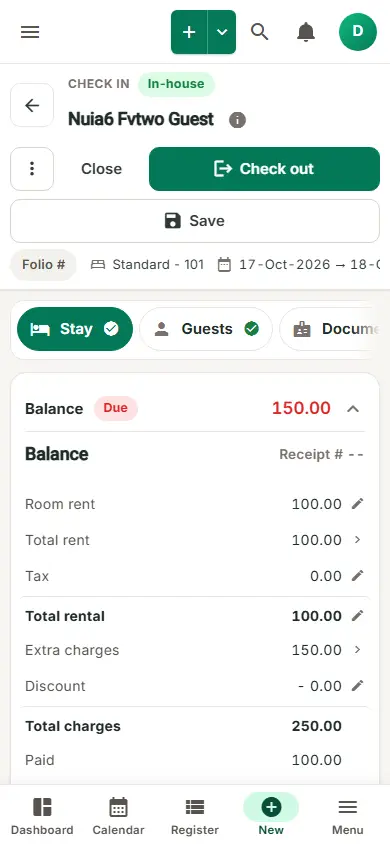
| Balance (right) | Receipt #, Room rent (pencil = change the nightly rent), Total rent (opens the rent by night in Stay), Tax (opens Tax exempt), Total rental (pencil = change the total), Extra charges (opens Charges), Discount (pencil = discount, with the Access to discount privilege), Total charges, Paid, Deposit, Card authorised, Balance due and Take payment (opens Payments). |
| Ready? (right, under Balance) | A chip with what is left (3 steps left, Ready to check in, Checked in - nothing due, Checked in - balance due...) and a checklist: Guest name, Room assigned, Stay length and rate type, ID document, the signature line and the optional payment line. Click a line to go to its section. How saving and check-in work opens a short explanation of what the header buttons will do for this folio. |
Header buttons and when they show
The buttons sit at the right of the identity header (under the name on a phone).
| Button | Shown when | What it does |
|---|---|---|
| Print / Email icons, WhatsApp | Saved folio (WhatsApp when it is set up) | Print window, e-mail window (its first entry Guest Interface Link sends the guest's own page, see Guest link panel), WhatsApp menu. On a phone they are under More. |
| Guest link | Confirmed saved reservation, Guest Portal on | Opens the Guest link panel. |
| More (three dots) | Always | Folio name and number with the status; Share folio (phones); Change room (in-house), Door lock key (door lock configured), V/Ready or V/Clean (room status change with the matching privilege); Audit trail; Undo (privilege Access to undo room). |
| Close | Always | Leaves the folio. With unsaved changes it asks "Do you sure want to save changes?" (Yes saves first). |
| Cancel reservation | A saved reservation | Red button; disabled without the cancel privilege (the CRS cancel privilege for OTA bookings). |
| Save as reservation | New folio or reservation, nights > 0 | Saves the booking without checking in. Ctrl+S when Save is not shown. |
| Check in now | Arrival is today, a room is assigned | Checks the guest in. Disabled while the status is Unconfirmed. |
| Check out | In-house folio | Starts the check-out. |
| Save | Saved folio | Saves changes (Ctrl+S). On a checked-out folio it needs the privilege to update checked-out guests. |
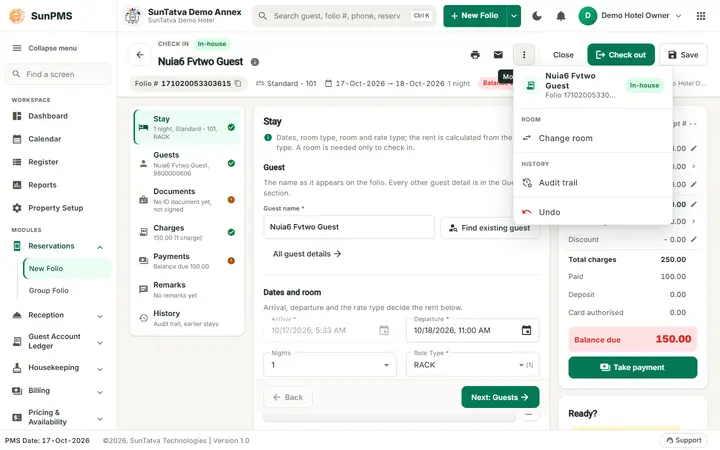
The 7 sections
1 Stay
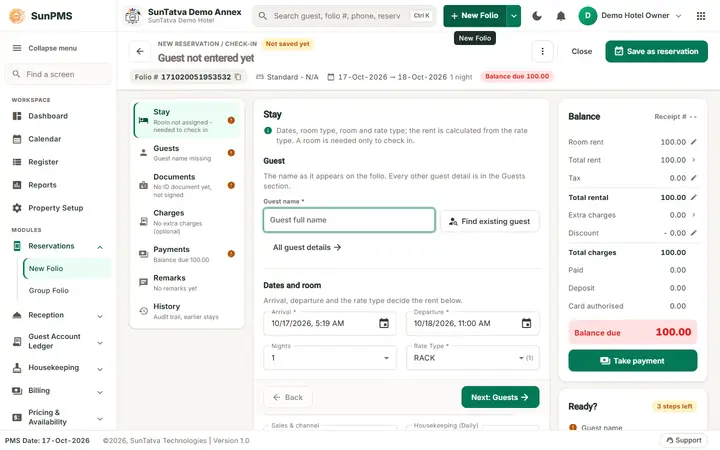
- Guest: Guest name * (the name as it appears on the folio), Find existing guest (a returning guest fills in every detail) and All guest details (goes to Guests).
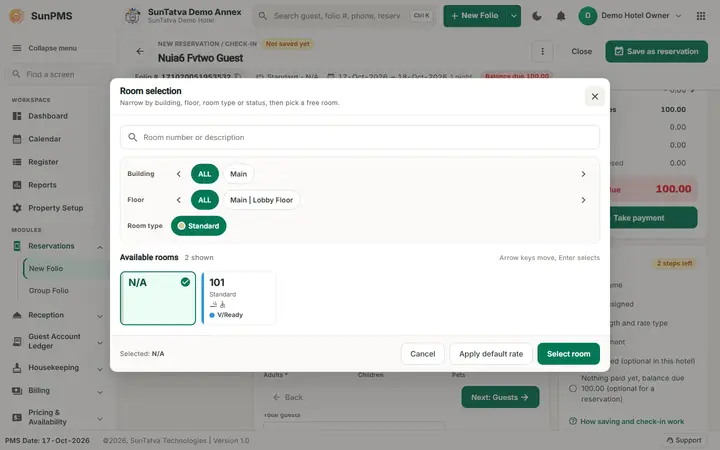
- Dates and room: Arrival *, Departure * (the calendar buttons pick date and time), Nights (or Hours for an hourly stay), Rate Type * (the number in brackets is the nights at that rate), Room type & room (click to open Room selection; the chip not assigned yet shows until you pick one; the icon next to it opens Multiple rooms when Multi Room Selection is on), Sales & channel (when Sales & Channel is on; the icon opens the channel details) and Housekeeping (Daily) (the icon opens Housekeeping tasks). The rent is calculated from the rate type.
- Guests in the room: Adults * (+ / -), Children, Pets (only when the room type allows pets) and Total guests; its pencil opens the per-day counts and extra-person rates.
- Reservation status and options: Confirmed, Unconfirmed (and No-show / Transfer-out where they apply) and the switches Lock room (keeps the room and its type), Non-refundable (payments are not refunded) and Prepaid (the stay is paid in advance).
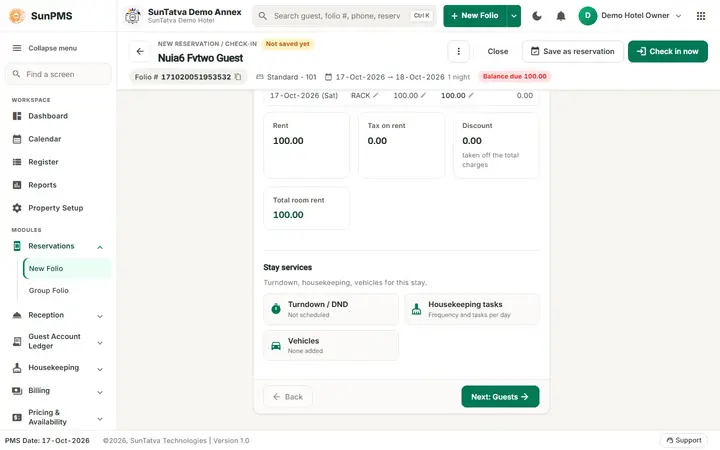
- Room rent by night: the buttons Discount, Tax exempt and Rental adjustment (saved in-house folio, when allowed), the table (date, rate type, rate, total, occupancy tax, per day tax, per stay tax, total tax, on folio; the pencils change a date range) and four boxes: Rent, Tax on rent, Discount ("taken off the total charges") and Total room rent.
- Stay services: Turndown / DND (turndown time and remark, do not disturb), Housekeeping tasks (frequency and tasks per day), Vehicles (see below) and, with SunSpa, Spa treatments.
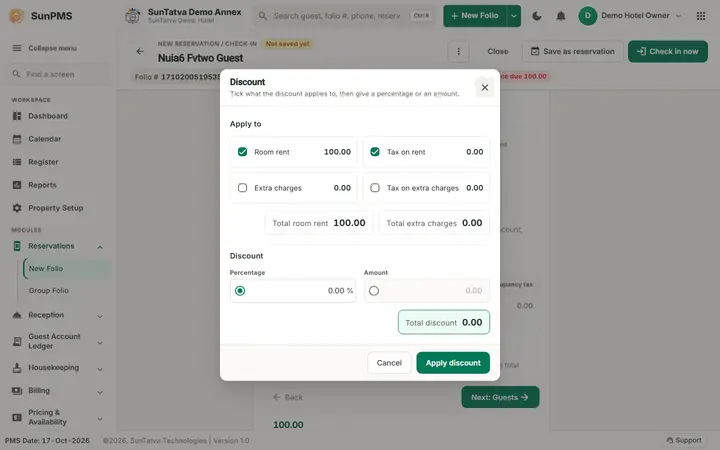
The Discount window has Apply to (Room rent, Tax on rent, Extra charges, Tax on extra charges), then Percentage or Amount, Total discount and Apply discount:
2 Guests
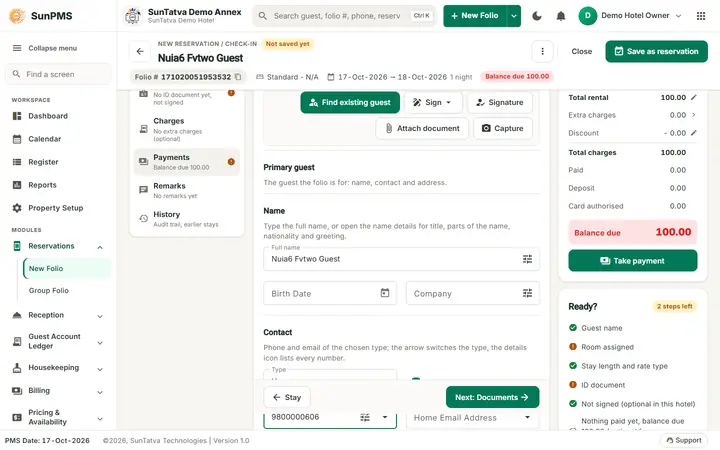
On top: the guest card with Find existing guest, Sign (menu: signature pads, Phone / tablet (SunHardware), On Screen), Signature, Attach document, Capture and, when an ID scanner is configured, Scan ID. Then Primary guest: Name (Full name - the details icon opens Name details; Birth Date, Company), Contact (phone Type, number, e-mail; Primary) and Address (type, street, city, state, ZIP code, country; the zip code fills city and state where it is known). Below: Shared guests (other guests in the room, Add guest, edit or delete from the list) and Do not rent (No / Yes (warning) / Yes, and the DNR reasons).
3 Documents
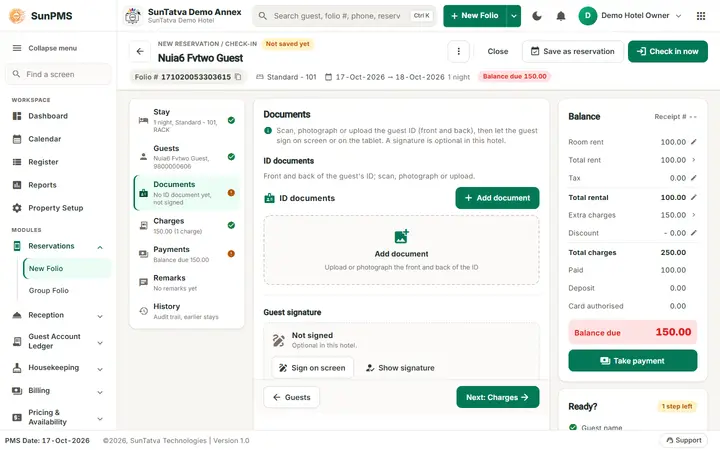
ID documents with Add document (and the scan buttons that are configured: Scan on phone with SunHardware, ID scanner, Test card); the documents show as a table (Document type, Number, Valid till, Name, Images, with View, Edit, Print, Delete). Guest signature: Sign on screen, Sign on tablet (SunHardware), one button per signature pad, Show signature, and the state Signed / Not signed with "Required at check-in in this hotel." or "Optional in this hotel." (from Sign Mandatory at check-in in Guest Data Mandatory).
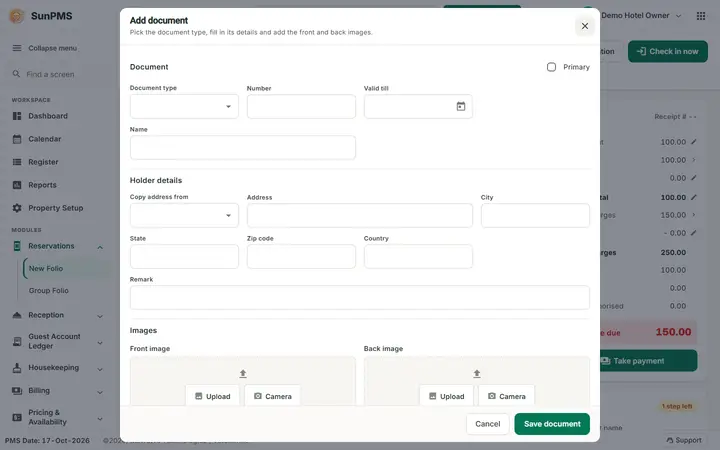
Add document has the document type, number, valid till, name, the holder's address (Copy address from) and the front and back images (Upload or Camera):
4 Charges
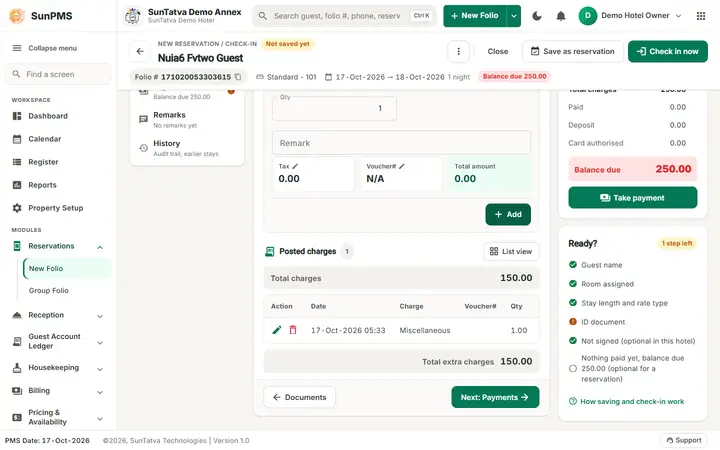
Add charge form: Reoccur and Display on folio switches, Date, Category, Charge, Rate, Qty, Remark, Tax (pencil = tax exempt for this charge), Voucher#, Total amount, then Add (Update and Cancel when you edit). Posted charges lists every charge with Edit and Delete (grid or list view; deleted charges when the property shows them) and Total charges; Total extra charges sums them.
5 Payments
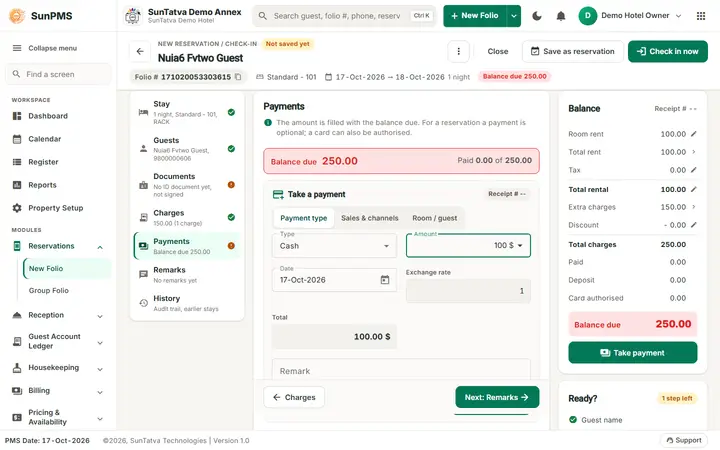
The red or green bar shows Balance due and "Paid x of y". Take a payment has the tabs Payment type, Sales & channels, Room / guest and Receipt #; the form: Type (on Sales & channels the channel, on Room / guest the Room name, Guest and Browse guest), Amount (pre-filled with the balance; the currency menu appears when Multiple Currency is on), Date, Deposit type (Deposit on), Exchange rate, Total in the hotel currency (read only), Remark, and for card types the Card row (Card #, Valid till, Authorize) and Display on folio. Add payment puts the line under Received payments (Table view / cards, Summary; Edit, Delete, Refund, Auth to sale where allowed). Payments are stored when you save the folio.
6 Remarks
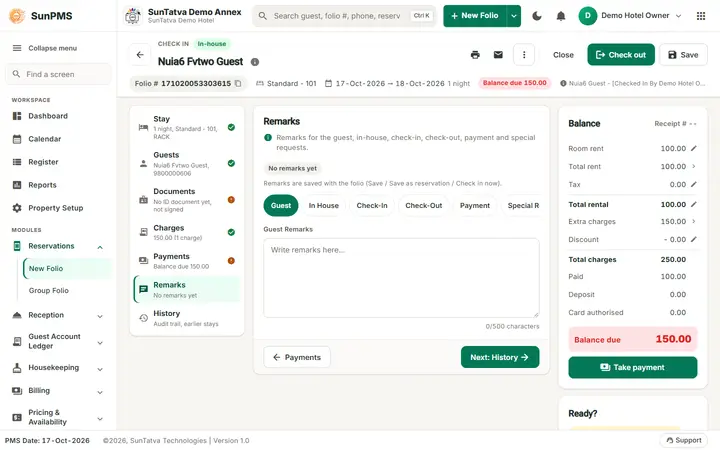
The tabs Guest, In House, Check-In, Check-Out, Payment, Special Request (500 characters each; No remarks yet when all are empty), plus Parking, Guest chat and Guest requests when those modules are on. Remarks are saved with the folio.
7 History
Audit trail (every change to this folio - who, when, what; Open audit trail) and Earlier stays of this guest (earlier folios, with a search box).
Vehicles
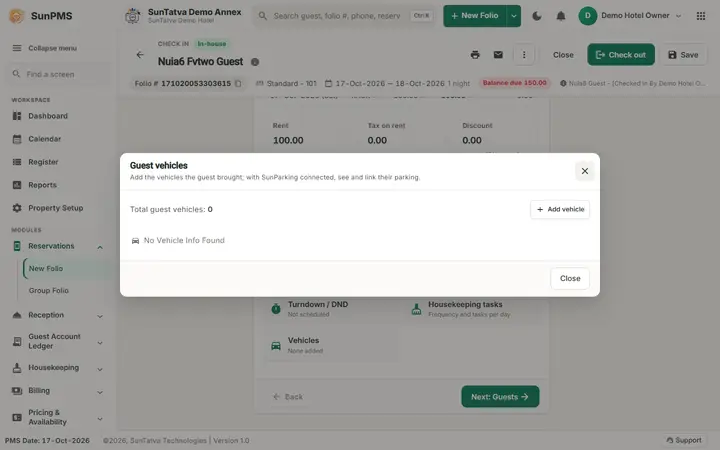
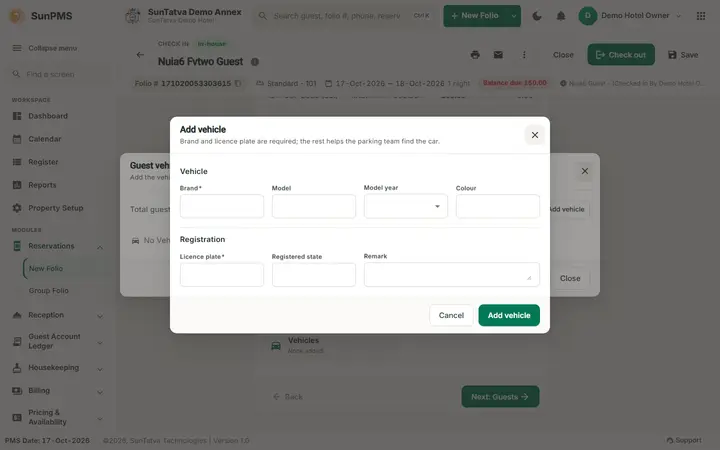
The Vehicles tile in Stay services opens Guest vehicles (total, Add vehicle, Link parking vehicle with SunParking). Add vehicle needs Brand and Licence plate; Model, Model year, Colour, Registered state and Remark are optional.
Popups
All popups share one style: a title, one "what to do" line, a round close button, sections, labels above the fields and a footer with Cancel on the left of one primary button that says what it does. The main ones: Room selection (Select room, Apply default rate), Multiple rooms, Number of guests, Discount (Apply discount), Tax exempt, Rental adjustment, Find guest, Sales & channel, Add document / Edit document (Save document), Guest vehicles / Add vehicle, Shared guests, Cash denomination (Use this amount), Turndown and do not disturb, Housekeeping tasks and the audit trail.
On a phone
On a phone the section list is a sideways chip bar under the header, the header buttons wrap under the name, and Balance is a collapsible bar (Balance, Due / Settled, the amount and an arrow) above the section; tap it to see the whole balance. The Back / Next:... footer stays above the bottom menu (Dashboard, Calendar, Register, New, Menu).
How to check in a walk-in guest
- Click New Folio in the top bar. The screen opens on Stay with the cursor in Guest name.
- Type the Guest name, or click Find existing guest for a returning guest. Add the phone number under Guests if you have it.
- In Stay check Arrival (today), Departure or Nights, the rate type and the guests.
- Click Room type & room, pick the room type and a free room, then Select room. The Ready? card shows what is still open.
- Optional: Documents (ID and signature), Charges, Payments (advance payment).
- Click Check in now. Answer the questions that appear (for example "Room Status is Vacant Dirty. Do you want to continue?", or Continue / Payments when the hotel asks for a payment at check-in). Result: the guest is in-house and the room occupied. Like the standard screen, the app then returns to the page you came from.
How to make a reservation
- New Folio, type the guest name.
- In Stay set the future Arrival and Departure, rate type and guests. A room is optional when Reservation W/O Room is on.
- Click Save as reservation (or Ctrl+S). Result: "Reservation #: n" (after the hotel's reservation message, if one is set).
How to take a payment / add a charge
- Open the folio and click Charges in the section list.
- Pick Category, Charge, check Rate and Qty, click Add. The charge appears under Posted charges.
- Click Payments (or Take payment under the balance). Choose the Type, check the Amount and click Add payment.
- Click Save (or Ctrl+S). Result: "Information saved." Charges and payments are stored only when you click Save, Check in now or Check out.
- For a cash payment, when Display Change Screen On Cash Payment is on (Display Setting), the Cash denomination window opens: tap the notes and coins the guest hands over, or click Use this amount. When this computer has a cash drawer (Hardware Setting) it opens as the cash payment is saved.
How to check out
- Open the in-house folio. Take the remaining payment in Payments if needed.
- Click Check out and confirm "Are you sure you want to do check out?". With unsaved changes you are asked "Do you sure want to save changes?" first; after "Information saved." click Check out again if the folio is still in-house. Result: the folio is checked out and the app returns to the previous page. Check-out works only when the departure is not later than tomorrow (business date) and, depending on settings, the balance is zero and no card authorisation or deposit is left.
Keyboard
- Ctrl+S = Save on a saved folio, Save as reservation on a new folio (only when no popup is open; same checks as the buttons).
Messages you may see
| Message (exact text) | Why | What to do |
|---|---|---|
| Reservation #: n | Reservation saved | Note the number. |
| Information saved. | Changes saved | - |
| Room Status is Vacant Dirty. Do you want to continue? | Checking in to a dirty room | Yes to continue, No to pick another room. |
| -Please click Continue to Checkin without Payment. -Please click Payments to record Payment. | Hotel asks for a payment at check-in | Payments opens the Payments section. |
| Are you sure you want to do check out? | Check out clicked | Yes / No. |
| Do you sure want to save changes? | Close or Check out with unsaved changes | Yes saves first. |
| Are you sure you want to cancel this Reservation? | Cancel reservation clicked | Yes, then "Reservation cancelled." |
| Reservation cancelled. | Cancelled | - |
| You can not perform checkout operation on this guest. Reason: Invalid Checkout Date. | Departure later than tomorrow | Change the departure. |
| You can not perform checkout operation on this guest. Reason: Balance is not zero. | Zero-balance check-out is on | Take the payment. |
| Please select a Room. | Check-in without room | Pick a room in Stay. |
| No Show Reservation Status is not allowed for future date. | No-show on a future arrival | Use another status. |
| Please Enter Room Turndown Service Time | Turndown on without time | Set the time (Stay services > Turndown / DND). |
| Minimum Rental Age must be more then n years. | Guest too young | Check the birth date. |
| Are you sure you want to perform undo operation? | More > Undo | Give the reason, then "Undo operation successfully done." |
All other messages are the standard ones; see Messages - check-in.
Tips and FAQ
- Q: How do I go back to the standard screen? A: Untick Simplified Check-In / Reservation Screen in Property Setup > Feature Setting and click Save. The next folio you open uses the standard layout (how-to).
- Q: Where did the standard buttons go? A: Additional guest details -> Guests (inline). Stay, room, rate, guests, status, lock / non-refundable / prepaid, rental details, Discount, Tax exempt and Rental adjustment -> Stay. Documents and signature -> Documents. Charges -> Charges. Payments -> Payments. The right-hand icon strip: Comments -> Remarks; Vehicle, Turndown (RTST) and Housekeeping -> Stay services; Shared guests and DNR -> Guests; History -> History. Change room, Undo, Door lock and V/Ready -> More. Print, Email, WhatsApp -> the header.
- Q: Do I have to go through every section? A: No. The marks only guide you; the buttons and their checks decide. A walk-in needs a name, a room and a rate type.
- Q: Why is Check in now missing? A: The arrival is not today or no room is assigned. It is disabled for an Unconfirmed reservation.
- Q: The guest name changed after I typed it. A: Special characters are removed and the name is formatted, as on the standard screen.
Screenshots