
Folio - Guest Link Panel
On this page
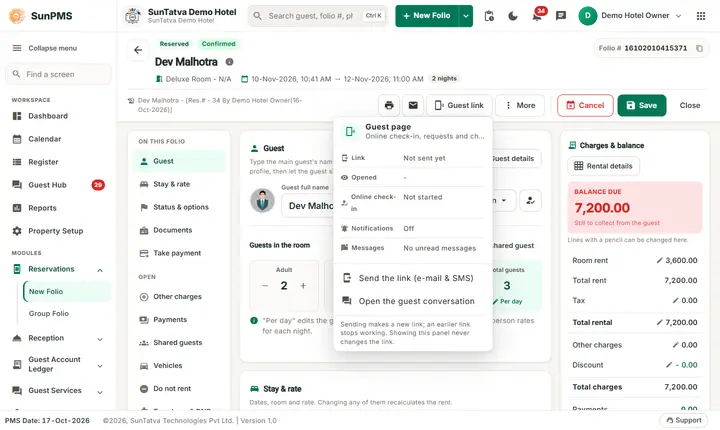
The Guest link button in the folio header shows, in one small panel, everything about the guest's own page for this stay: whether the link was sent and how, whether the guest opened it, whether the online check-in was submitted and approved, whether the guest allowed notifications on the phone and how many messages from the guest are still unread. The panel also holds the actions: copy the link, review the online check-in, send or resend the link and open the guest conversation. Use it before arrival to see who has not been sent a link yet, and on arrival day to see whether the guest already checked in online.
Before you start
- The Guest Portal is on in Guest Portal Setting. With it off, the button is hidden (the panel itself would say "The guest portal is turned off").
- The folio is saved, status Confirmed and not checked out. An Unconfirmed or cancelled reservation has no Guest link button.
- The guest needs an e-mail address or a mobile number, otherwise no link can be sent.
Screen layout
Click Guest link (phone icon with rings). The panel loads the status each time it opens and never creates or changes a link by itself.
| Row | What it shows |
|---|---|
| Link | Not sent yet, Sent 2 hours ago (with (3 times) after a resend) or Disabled - it no longer opens. Chips show how the latest link went: E-mail, SMS, WhatsApp. A grey line "to..." names the address or number. |
| Opened | Not opened yet, or Last seen 5 minutes ago when the guest opened the page. |
| Online check-in | Not started, Started, not submitted, Submitted - waiting for review (with when), Approved (with when), Sent back to the guest / Sent back - the guest is changing it (with the reason you gave), Replaced by a newer submission. |
| Notifications | On - 1 device / On - 2 devices when the guest allowed push notifications on the phone, otherwise Off. |
| Messages | No unread messages, or n unread from the guest (shown in amber). |
| QR code | Scan to open the guest page, with the link under it. Shown when the current link is known (after you send it from this browser, or when the API returns it). Before that the panel says the QR code and link appear after you send the link; Owners and Administrators always see them. |
Under the panel the menu offers these actions:
| Action | Shown when | What it does |
|---|---|---|
| Copy link | A link is shown | Copies the guest link to the clipboard. |
| Review the online check-in | The online check-in is Submitted - waiting for review | Opens the submission for approval or sending back (see Guest Services overview). The panel refreshes afterwards. |
| Send the link (e-mail & SMS) / Resend the link (e-mail & SMS) | Always. The text adds , WhatsApp when WhatsApp is enabled | Sends the link by e-mail and SMS (and WhatsApp) and opens a window listing for each reservation where it went and the link. |
| Open the guest conversation | WhatsApp is enabled, or the Guest Interface licence is on | Opens the chat with the guest in the chat dock (started if you write first). |
A note under the actions repeats the rule: Sending makes a new link; an earlier link stops working. Showing this panel never changes the link.
How to send the guest link
- Open the confirmed reservation and click Guest link.
- Read the Link row. If it says Not sent yet (or the guest says the link does not work), click Send the link (e-mail & SMS).
- Read the window that opens: for each reservation it shows where the link went. If the guest has neither an e-mail address nor a mobile number the message Add an e-mail or mobile number to send the portal link. appears; add one in Guest details and send again.
- Open the panel again: Link now shows Sent just now with the channel chips, and the QR code appears so the guest can scan it at the desk.
How to follow the online check-in
- Click Guest link and read Online check-in.
- When it says Submitted - waiting for review, click Review the online check-in, check the details, then approve it or send it back with a reason. The row then reads Approved or Sent back to the guest.
- When the guest arrives, the approved details and documents are already on the folio, so check-in is one click (see Check-in).
What happens behind the scenes
- The status comes from the Guest Portal tables (API
GuestPortal); opening the panel only reads them. Resend replaces the link, so the old one stops opening. - The Guest Hub and the bell notifications use the same status, so a guest message or a submission also appears there.
- The button belongs to a single reservation folio; the group folio has no Guest link button.
Messages you may see
| Message (exact text) | Why it appears | What to do |
|---|---|---|
| Loading the guest link... | The panel is reading the status | Wait a second. |
| Could not load the guest link status. | The API did not answer | Close and open the panel again. |
| The guest portal is turned off (Property Setup > Configuration > Guest Portal Setting). | The setting is off | Ask an administrator to turn it on. |
| Add an e-mail or mobile number to send the portal link. | Guest has no contact data | Add it in Guest details. |
| The guest link could not be sent. | The API refused the send | Read the reason shown, fix it and send again. |
Tips and FAQ
- Q: Why is there no Guest link button? A: The reservation is not saved, is Unconfirmed, cancelled or checked out, or the Guest Portal is off.
- Q: The guest lost the e-mail. Does resending break anything? A: The old link stops working and a new one is sent; the guest uses the new one.
- Q: Can I show the guest the QR code on my screen? A: Yes, after sending, the panel shows it; the guest scans it with the phone camera.
- Q: Where do I see all guests who have not opened their link? A: In the Guest Hub and the online check-in lists, see Guest Services.