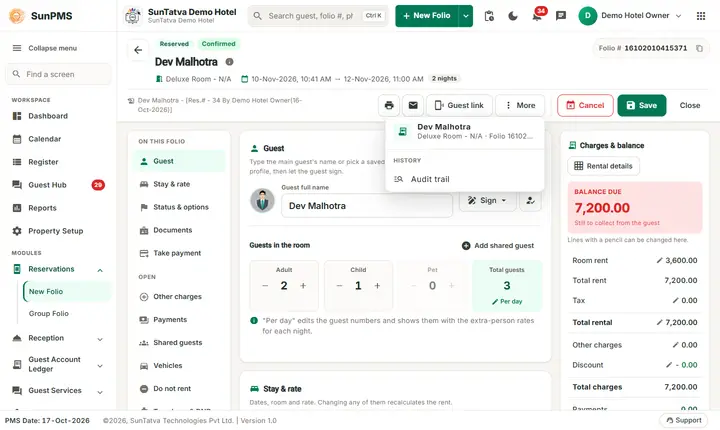
Folio - Header, Information Icon, Folio Number and Audit Trail
On this page
The identity header at the top of the folio screen tells you in one glance which folio you have open, where the stay stands, who created it and how to print or e-mail it. It is the same on a new reservation, an in-house stay and a checked-out stay.
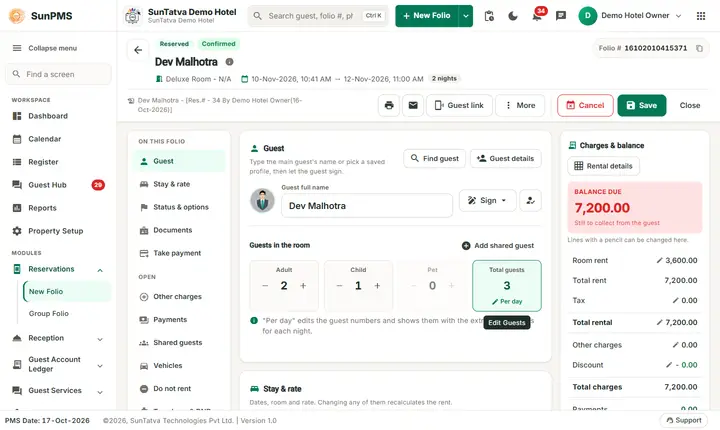
Before you start
- Save the folio once. The information icon, the folio number and the print / e-mail icons appear only for a saved folio. A new folio shows the status chip, the guest name, room and dates, the back arrow and the Folio # pill only.
Screen layout
| Part | What it means | Rules |
|---|---|---|
| Back arrow (left of the guest name) | Returns to the screen you came from (Find Reservation, Dashboard list, Calendar...). | Does not save. Use Save first if you changed the folio. |
| Status chips (above the guest name) | Where the stay is: Check In (new folio or in house), Reserved with Confirmed / Unconfirmed, Checked Out, Cancelled, No-Show, Copy Reservation. A Prepaid chip shows for a prepaid stay. | Reserved is a booking that is not checked in yet. The guest is in house only when the chip says Check In. |
| Guest name | Big name line; "New guest" until you type one. | |
| Facts line | Room (type - room), arrival date and time to departure date and time, number of nights, Sales & Channel, and Group: name for a group member. | |
| Information icon (round i next to the title) | Opens a small table about the folio. | Saved folios only. |
| Folio # pill (top right) | The folio number. Click the copy icon inside the pill to copy the number. Click the pill to open the Audit trail. | Online bookings show a second pill with the channel reservation number (CRS folio) and the channel name. |
| Printer icon | Opens the Print window. | Saved folios only. See below. |
| Envelope icon | Opens the Email window. | Saved folios only. See below. |
| Guest link button | Opens the Guest link panel. | Confirmed saved reservations, Guest Portal on. |
| More (three dots) | Menu: Change Room, Set room V/Ready / V/Clean, DoorLock Key, Audit trail, Undo. On a phone it also holds Share folio (Print, Email, WhatsApp). | Each entry follows its own rules. |
| Audit line (grey text under the name) | The same facts as the information icon in one line, for example Dev Malhotra - [Res.# - 34 By Demo Hotel Owner(16-Oct-2026)]. | Shown for saved folios. |
The information icon
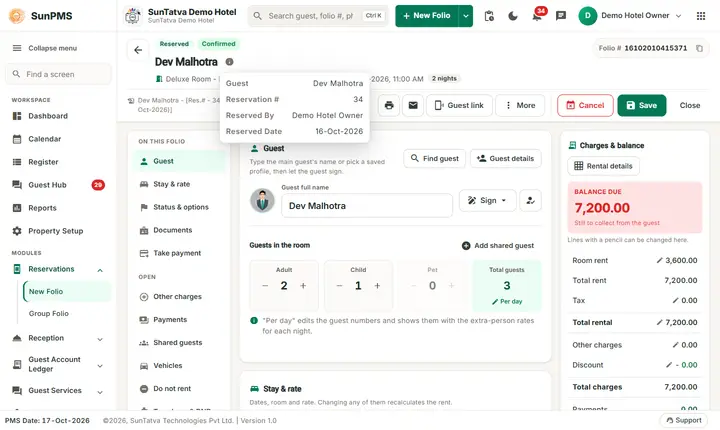
Click the icon next to the guest name. The table lists:
| Row | Shown when |
|---|---|
| Guest | Always. |
| Group | The folio belongs to a group reservation. |
| Reservation # | The folio started as a reservation (a walk-in that was checked in directly has none). |
| Reserved By and Reserved Date | Same as above. The date includes the time. |
| Checked In By | The guest has been checked in. |
| Checked Out By | The guest has been checked out. |
| Cancelled By and Cancelled Date | The reservation was cancelled. |
The Print window
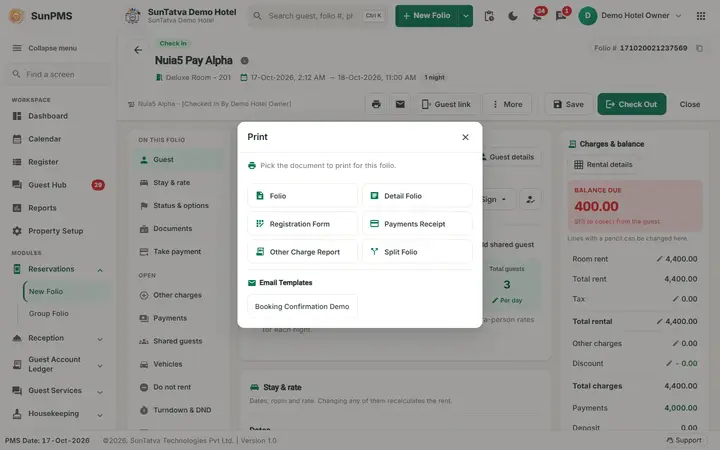
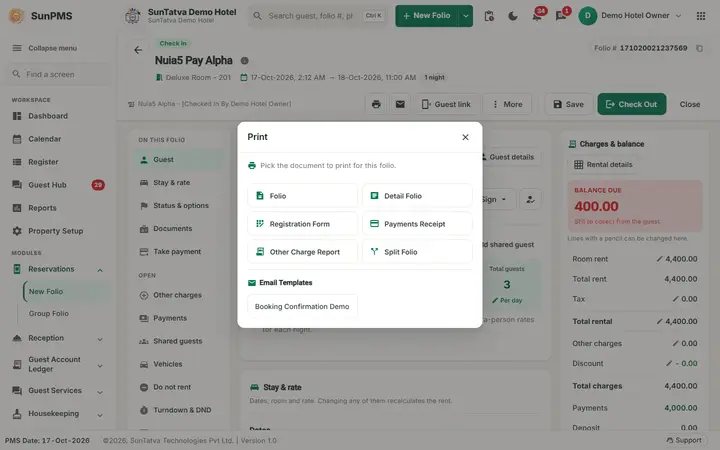
Click the printer icon. The Print window lists the documents that can be printed: Reservation Confirmation (only while the folio is still a reservation), Folio, Detail Folio, Registration Form, Payments Receipt, Other Charge Report, Split Folio and, under Email Templates, every print-ready template of your hotel (the demo hotel has Booking Confirmation Demo). Hotels in India and Malaysia also see a country specific folio. A Cancellation Report is listed for a cancelled folio. Details are in Print and e-mail.
The Email window
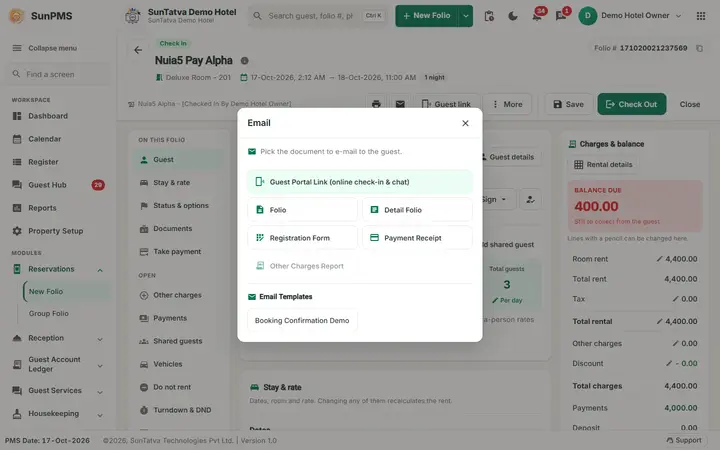
The envelope icon opens the Email window with the same documents, so you can send them to the guest. With the Guest Portal on, the first entry of the window is Guest Interface Link, which sends the guest page link; the same link is managed from the Guest link button (see Guest link panel). The WhatsApp and Reservation Chat icons appear only with their licence or channel (see WhatsApp, chat and guest portal link).
Audit Trail
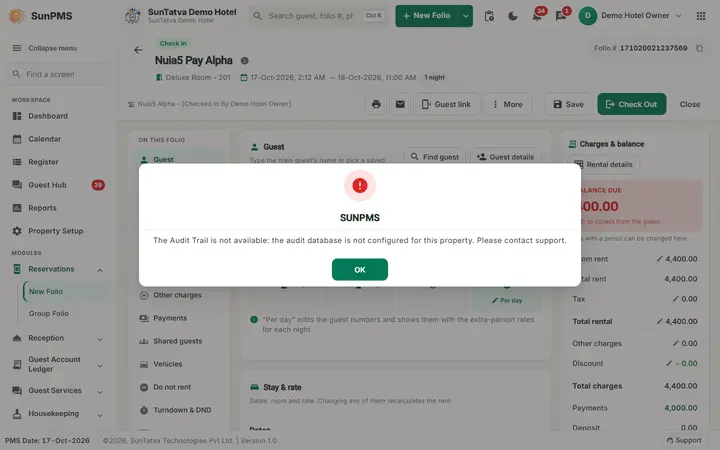
Click the Folio # pill (or More > Audit trail). The Audit Trail window is meant to list every change made to the folio, with user and time, so a manager can see who changed the rate, the dates or the room.
When the Sales & Channel of the stay changes, each changed value is written as one line "old => new": Sales & Channel Name, Sales & Channel Is Apply Rate, Sales & Channel Is Apply Commission, Sales & Channel Commission On, Sales & Channel Commission Amount, Sales & Channel Commission Per Rent, Sales & Channel Commission Per Other Charges, Sales & Channel Commission Per
Messages you may see
| Message (exact text) | Why it appears | What to do |
|---|
Tips and FAQ
- Q: Why do I not see the information icon on my new folio? A: It appears after the first save. Use Reservation or Check In first.
- Q: Where do I see who cancelled a booking? A: Open the cancelled folio and click the information icon: Cancelled By and Cancelled Date.
- Q: What is the second pill next to the folio number? A: The reservation number of the online channel (OTA), with the channel name.
- Q: Does the back arrow save my changes? A: No. Click Save or Close (which asks Do you sure want to save changes?).
Screenshots