Folio - Payments in Detail
On this page
Payments, advance, deposit and refund lists the fields and messages. This page follows real sessions in the demo hotel with the numbers: choosing the payment type, paying in a foreign currency, the rules for editing and deleting, refunds, and the receipt.
Videos: payment types, currency and corrections and save, refund, delete and receipt.
- Watch on YouTube: https://www.youtube.com/watch?v=kSb_4vkYZ9I
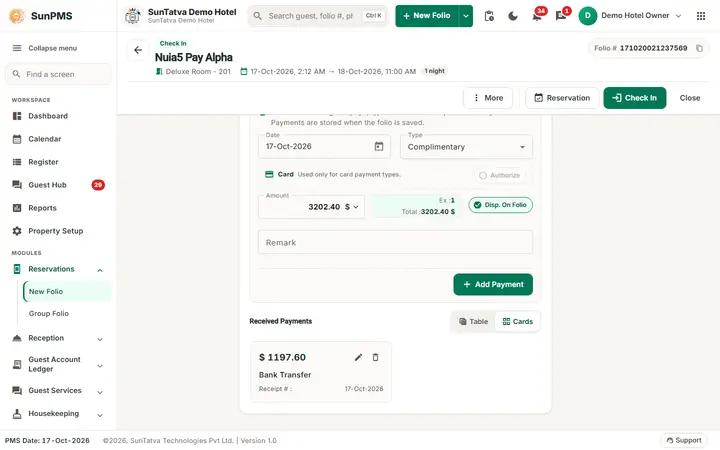
How the Take payment section works
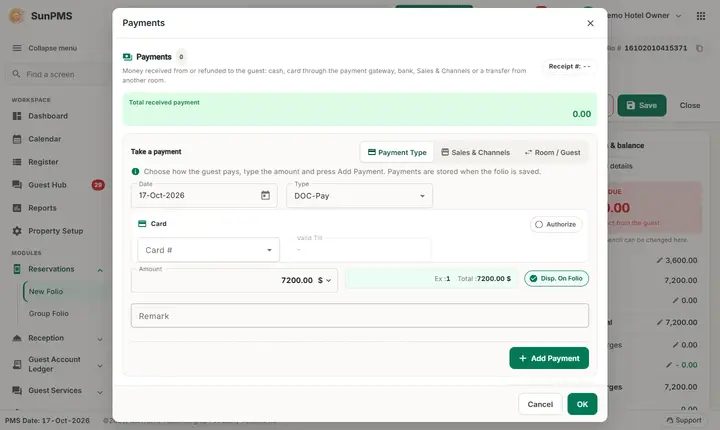
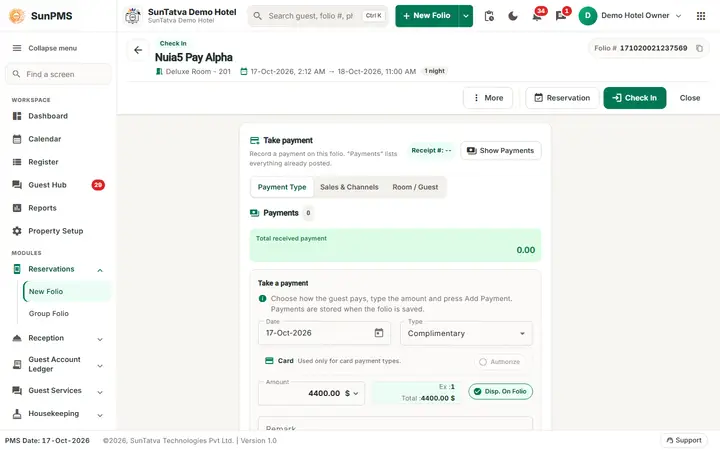
- The Amount box always starts with the Balance due of the folio (balance formula). For a full payment you only choose the Type and click Add Payment.
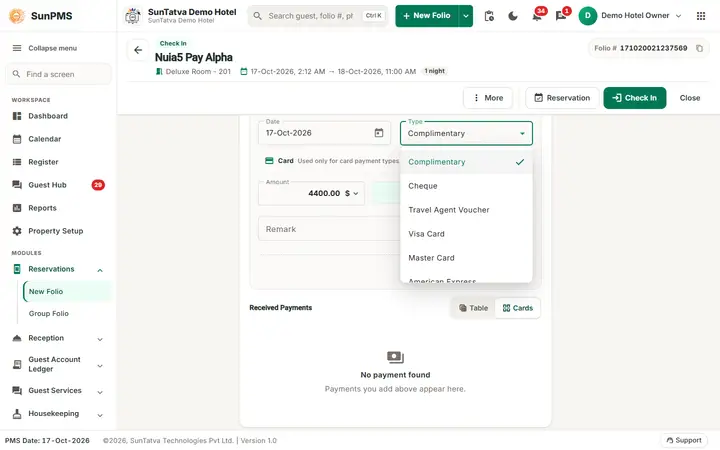
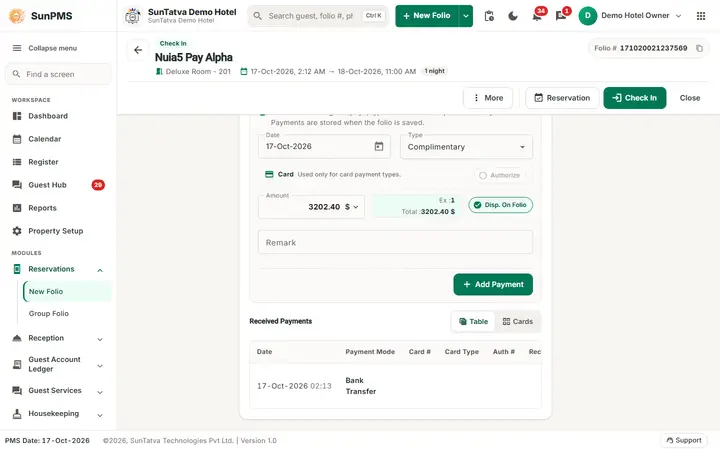
- The Type list is the payment types of the hotel (payment type master). The first type of the list is selected by default. In the demo hotel that is Complimentary, so always look at the type before you click Add Payment. Types of the demo hotel: Complimentary, Cheque, Travel Agent Voucher, Visa Card, Master Card, American Express, UPI, Bank Transfer, Credit Card, Cash, Check, Bad Debts, Debit Card.
- The type decides what else you must give: a card type needs a card document (Card #, Valid Till) or a terminal and offers Authorize; cash opens the denomination window when you save; other types need nothing more.
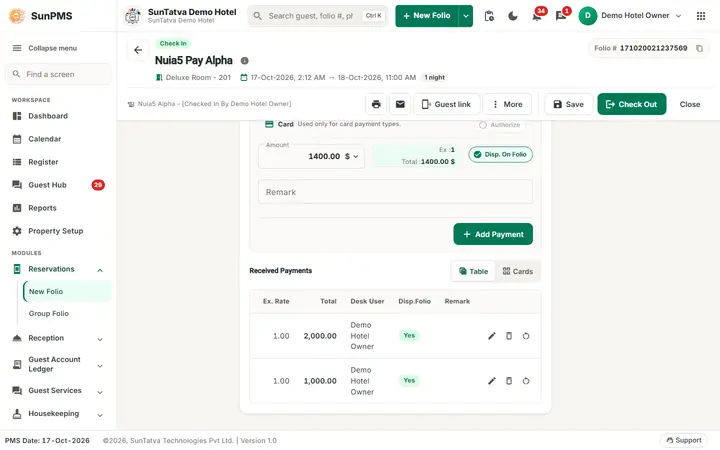
- Add Payment puts the line in Received Payments and updates Payments and Balance due at once. The line is only a draft until you click Save, Check In or Check Out.
Foreign currency
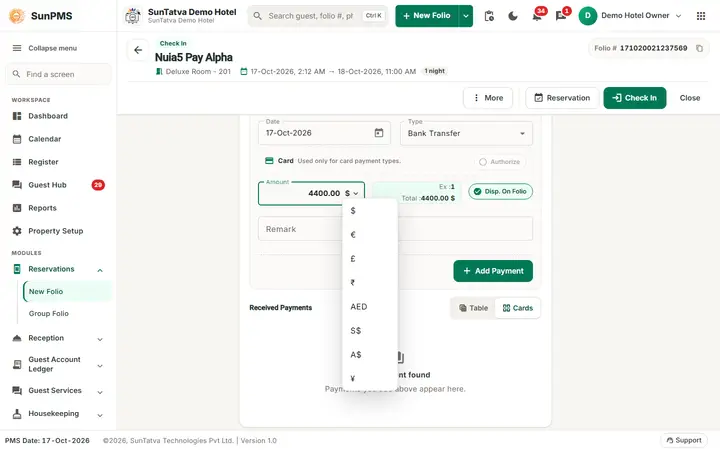
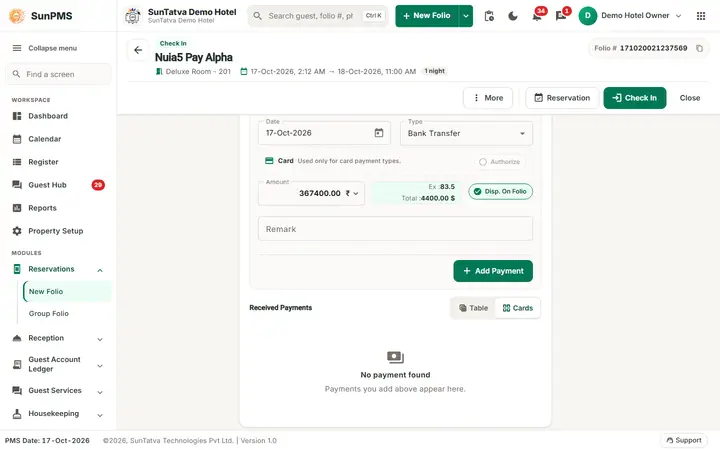
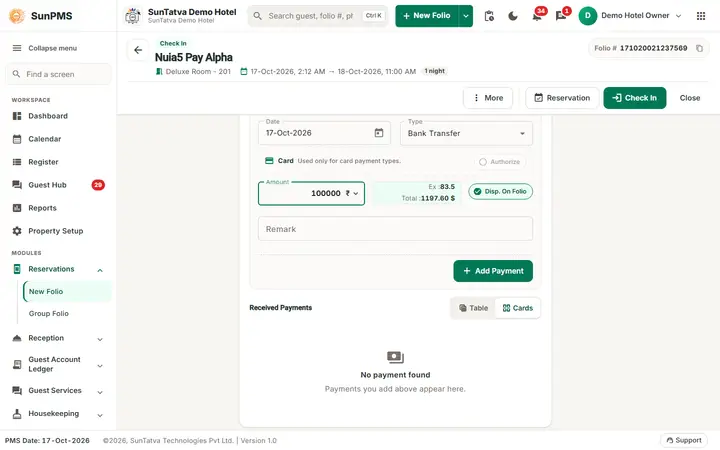
Shown when Multiple Currency is on in Feature Setting. The currency sign beside the Amount is a menu (the list comes from Exchange Rate). The two tiles beside the amount show Ex: (the exchange rate) and Total: (the amount that will be booked in the base currency of the hotel).
| Step in the demo (guest FO2-Alpha Money) | Amount box | Ex | Total |
|---|---|---|---|
| Balance Due 5,920.00 ($, the base currency) | 5920.00 $ | 1 | 5920.00 $ |
| Choose the rupee sign | 494320.00 ₹ (= 5,920.00 x 83.5) | 83.5 | 5,920.00 $ |
| Type 100000 | 100000 ₹ | 83.5 | 1,197.60 $ (= 100,000 / 83.5) |
After Add Payment the line shows the rupee amount, the rate and the total in dollars: Payments rose from 3,000.00 to 4,197.60 and Balance Due fell from 5,920.00 to 4,722.40. The folio always totals in the base currency; the paid currency and rate stay on the line (columns Amount, Ex. Rate, Total).
Rule: foreign amount = base amount x rate, base amount = foreign amount / rate. The rate is the one in the master for the payment date; the folio does not let you type a rate.
Received Payments (grid and table)
The Table / Cards switch above the list changes between a table and cards. Table columns: action icons, Date (with time), Payment Mode, Card #, Card Type, Auth #, Receipt #, Amount (in the paid currency), Ex. Rate, Total (base currency), Desk User, Disp.Folio, Remark. The info icon beside the heading (Payment Summary) totals the payments.
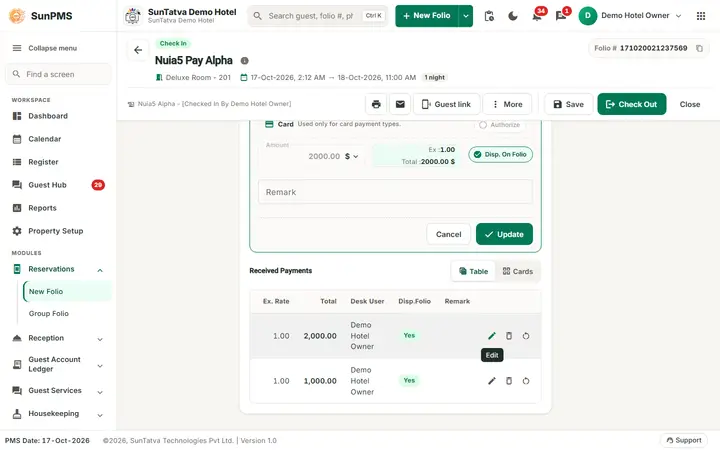
Action icons: pencil (edit), bin (delete), arrow (refund; saved lines only).
Editing a payment
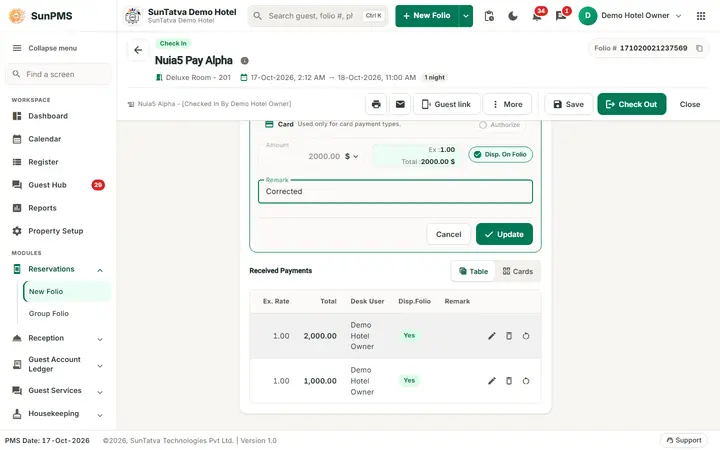
Click the pencil. The panel opens on the tab that matches the payment: Payment Type for a normal payment, Sales & Channels for a payment of the booking's channel, Room / Guest for a payment transfer (see Payment transfer and company billing). Update saves the line through that tab, so it is checked as what it is. The tab header above the form highlights the same tab, on the folio's own Payment panel and in the Show Payments window, so after an edit or a refund the highlighted tab is the one the next Add Payment uses. Then:
- Type is always locked.
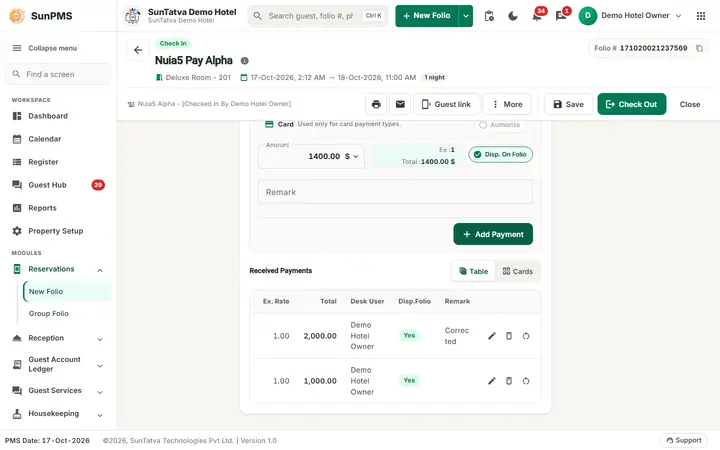
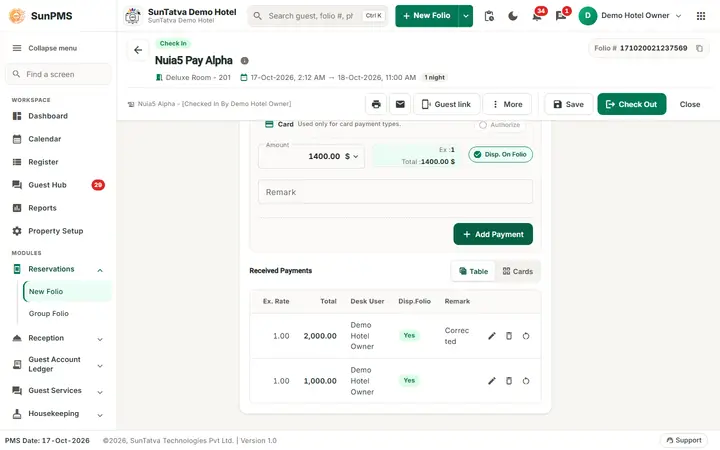
- Date, Amount and the currency menu are locked as well when the property setting Do not allow to change audited transaction is on (it is on in the demo hotel) or the payment is a card payment. Only the Remark and Disp. On Folio can change. If the amount is wrong, delete the line and add it again (an unsaved line) or refund it (a saved line).
- Cancel beside Add Payment leaves the edit mode. After Update the Date, Amount and currency boxes become editable again and the Amount shows the balance due.
Deleting a payment (void)
- Click the bin. A line that is not saved is removed after Are you sure you want to delete? Yes. A saved line is marked deleted and leaves Payments at once; after Save it is kept in the database as a deleted payment.
- You cannot delete a payment that has a refund: You can not delete this Payment. / Reason: Refund Payment exist. Delete the refund line first.
- When the setting Display deleted payment is on, a Deleted Payments switch lists the deleted lines; deleting one again asks Are you sure you want to permanentaly delete the selected record? and removes it for good.
- Who may delete depends on the privileges (cash/bank/others, credit card, credit-card authorization, business source; each with today and past-date variants). A card payment taken with the gateway cannot be deleted once processed; use a refund.
Refunding a saved payment (worked example)
Guest FO2-Foxtrot Pay paid 3,000.00 cash and 1,000.00 UPI; both saved (Information saved., plus the window Denomination for the cash). Payments 4,000.00.
- Switch to the table view and click the arrow icon of the cash line. Refund Payment opens with Payment Date (today), Payment Type, Original Amount (the part of the payment that can still be refunded) and Refund Amount, Remark.
- Type 500 and the remark Laundry credit, click OK.
- A new line Cash | Refund with -500.00 appears and Payments become 3,500.00. The original line stays. Click Save.
- Delete the UPI line (bin, Yes) and Save: Payments become 2,500.00 (3,000.00 - 500.00).
Rules: Please enter Refund Amount. (zero or empty); Refund Amount should not be greater then Original Amount.; the arrow is offered for Payment Type payments and Sales & Channels payments (each with its refund privilege), never for a payment transfer to or from another room; no refund when the booking is Non-Refundable, for group payments or for an authorization; refunds always carry today's date, even for an older payment. With Do not allow to change audited transaction on, a refund cannot be back-dated: Back dated payment not allow to add. Reason: It will changed the audited reports.
Zero and negative amounts
- Amount 0: Please specify payment amount.
- Negative card amount: You cannot add negative Credit Card payment. Negative deposit: You cannot add negative deposit payment.
- Negative cash or bank amount: allowed only with the privilege Add negative payment (Negative payment amount not allowed. otherwise). It is a way to record a refund without the refund window; prefer the refund icon, which keeps the link to the original payment.
Receipt and receipt number
- Payments Receipt (printer icon on the folio header) opens Payment Receipt: a Payment Type filter, the list of payments (Date, Payment Mode, Receipt #, Amount), and Print. Tick the payments you need. Please select atleast one Payment Receipt. appears when none is ticked. The same list is used for the e-mail and WhatsApp receipt.
- Receipt # at the top of the Take payment section and in the list is filled only when Receipt Number (Payment) is set to Auto Increment in Folio Setting. In the demo hotel it is Random Number, so the receipt number is empty (--) on screen and in the table; the receipt still prints.
- For a cash payment the window Denomination appears on Save when Display change screen on cash payment is on (Payment denomination): record the notes and coins received (Amount Paid), the Invoice Amount and the Change returned.
What happens behind the scenes
- Each payment is stored with the date, time, user, shift and the currency and rate used. It counts in the shift report of the user who saved it.
- Payments, deposits and authorizations are separate: only normal payments reduce Balance due.
- A refund is a new negative payment with a link to the original (
refRefundPaymentID); the original is never changed.
Messages you may see
| Message | Why | What to do |
|---|---|---|
| Please specify payment amount. | Amount is 0 | Enter an amount |
| Please enter valid Amount. | Amount is not a number | Correct it |
| Please select Payment Type. | Add Payment on the Payment Type tab without a type (editing and refunding use the payment's own tab) | Choose one |
| You can not delete this Payment. Reason: Refund Payment exist. | The line has a refund | Delete the refund first |
| Are you sure you want to delete? | Bin clicked | Yes / No |
| Please enter Refund Amount. / Refund Amount should not be greater then Original Amount. | Refund dialog | Fix the amount |
| Back dated payment not allow to add. Reason: It will changed the audited reports. | Date before the PMS date | Use today |
| Do not allow payment before night audit. | Night audit overdue and the setting is on | Run night audit |
| Please select atleast one Payment Receipt. | Receipt picker empty | Tick a line |
| Information saved. | Folio saved with payments | None |
Tips and FAQ
- Q: The balance fell but the guest says nothing is paid in the report. A: The payment was not saved. Click Save.
- Q: The guest pays half in dollars and half in rupees. A: Add two lines; change the currency for the second one before typing the amount.
- Q: I picked the wrong type. A: The type cannot be edited. Delete the unsaved line and add it again, or refund the saved line and add a new one.
- Q: The currency list shows a currency that was deleted in Exchange Rate. A: Since 19-Oct-2026 the payment currency menu offers active currencies only; a payment already taken in a currency that was deactivated later still shows on the folio.
Screenshots