Folio - Payment Transfer and Billing to a Company
On this page
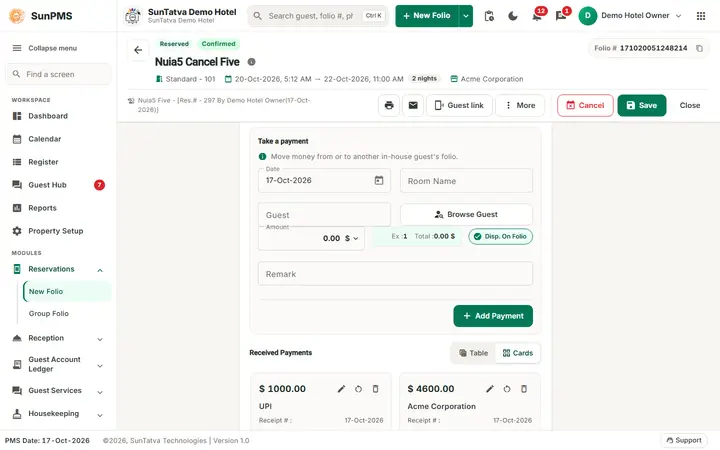
The Take payment section has three tabs: Payment Type (money from the guest), Room / Guest (money from another in-house guest) and Sales & Channels (money owed by a company). This page covers the last two.
Videos: payment transfer and bill to company.
- Watch on YouTube: https://www.youtube.com/watch?v=_ajXvQ5XrM8
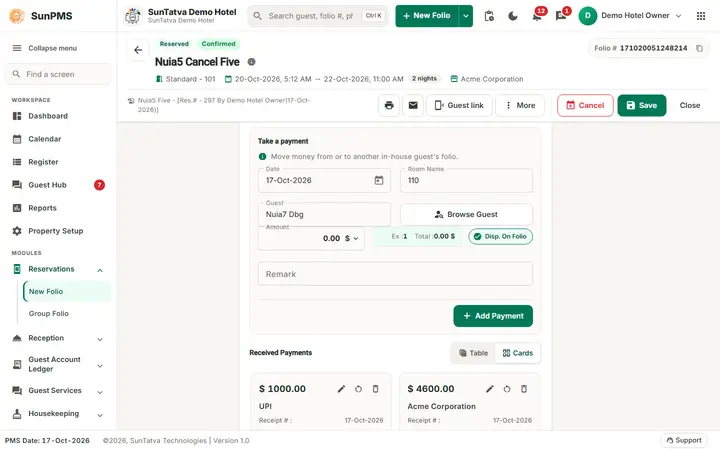
A. Payment transfer (tab Room / Guest)
Use it when one in-house guest pays, fully or partly, for another in-house guest: a company room that settles a colleague's room, a parent paying for a child's room. The paying guest's folio is debited, the other folio is credited.
How to
- Open the folio that receives the payment (the bill that is being paid) and click the tab Room / Guest.
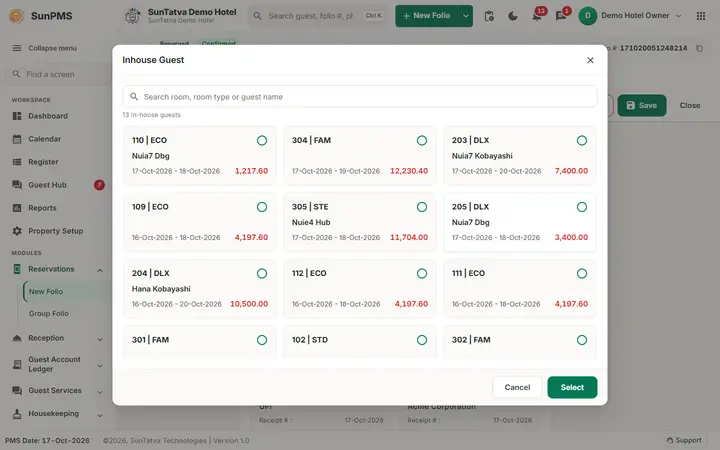
- Click Browse Guest. The window Inhouse Guest lists everybody in house: room and room type, name, stay dates and the folio total, with a search box. Choose the guest who pays (radio button) and click Select. Room Name and Guest are filled.
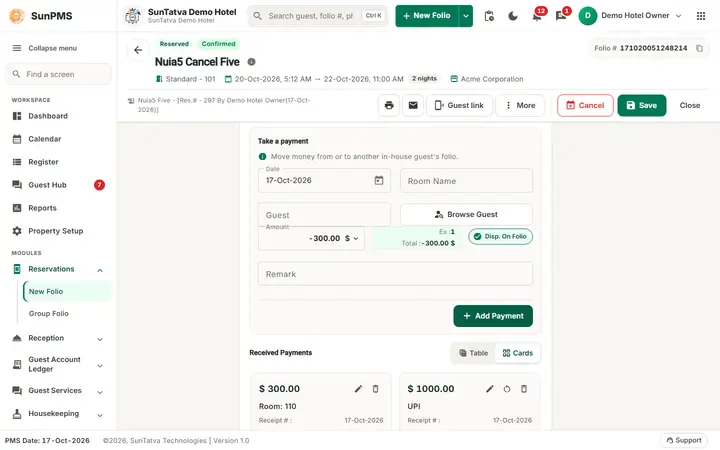
- The Amount starts with the balance due of your folio. Type the amount the other guest pays and click Add Payment.
- Click Save.
Worked example (demo hotel)
Folio FO2-Foxtrot Pay (room 306) was paid by FO2-Delta Guest (room 305): Foxtrot's balance due was 16,984.00 and Delta paid 300.00.
| Folio | New line | Effect |
|---|---|---|
| Foxtrot (306) | Room: 305 +300.00 | Payments 4,800.00 to 5,100.00, Balance Due 16,984.00 to 16,684.00 |
| Delta (305) | Room: 306 -300.00 | Payments fall by 300.00 (to -3,100.00 after several transfers), Balance Due rises by the same amount |
The two lines are linked to each other. In Delta's table the line shows the other room's name; its pencil is available, its payment type is empty.
Rules and effects:
- The paying guest did not need enough payments in the test: the transfer simply debited the paying folio (its Payments went negative).
- Click the pencil of a transfer line: the panel opens on Room / Guest with Room Name and Guest filled; Browse Guest is disabled while you edit. The line is a normal payment line (edit remark, delete before saving).
- A transfer line has no refund arrow: a refund is offered only for Payment Type and Sales & Channels payments.
- Please select a Guest. appears if you click Add Payment without choosing a guest.
- A folio that has a transfer entry cannot be undone (You can not perform undo operation. Reason: Payment transfer entry exist.).
- The folio has no function to transfer a charge to another room; use Split folio to print a separate invoice.
B. Billing a booking to a company (tab Sales & Channels)
Use it for a guest whose room is paid by a company with a credit agreement. The guest pays nothing at the desk; the amount is a receivable from the company, invoiced later through Sales & Channel invoices.
How to
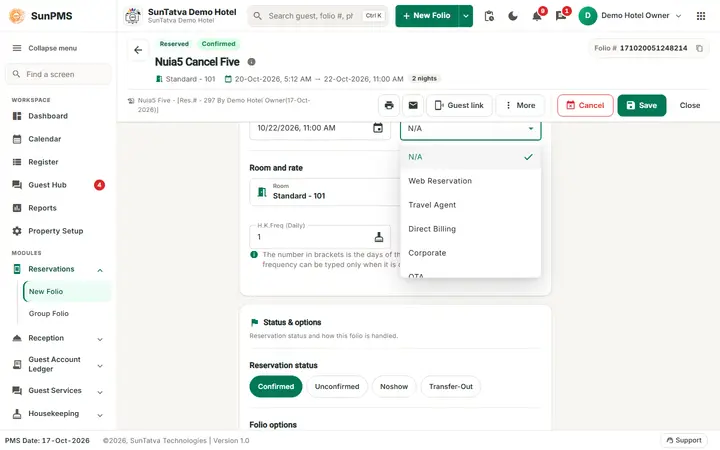
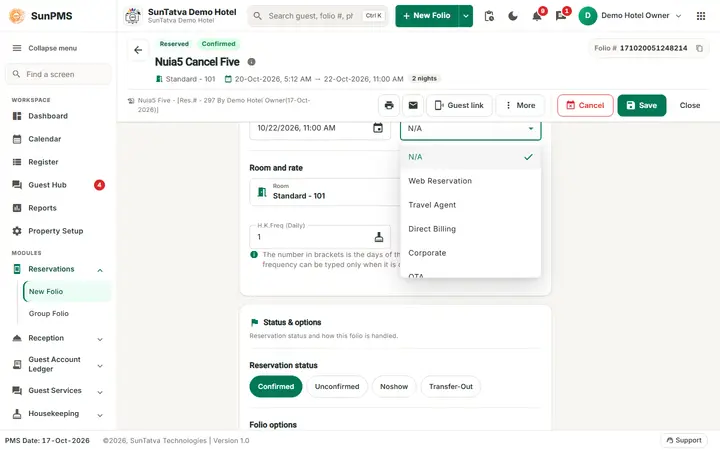
- On the new folio set dates and room type, then open Sales & Channel Category and choose the category, for example Corporate (categories of the demo hotel: Web Reservation, Travel Agent, Direct Billing, Corporate, OTA, Government, Tour Operator, Airline Crew, Wedding Planner).
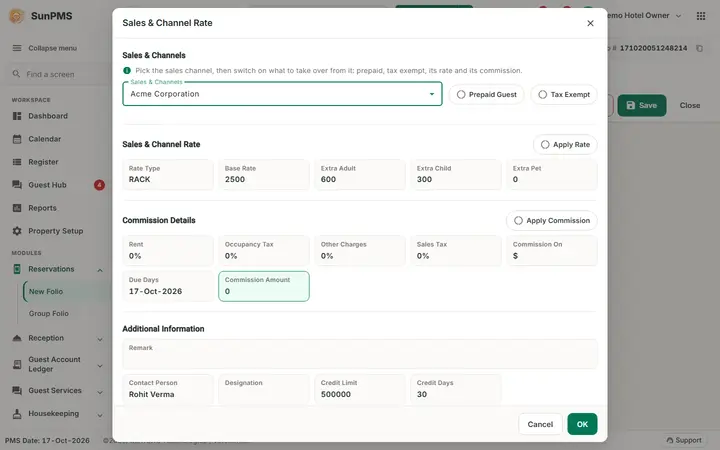
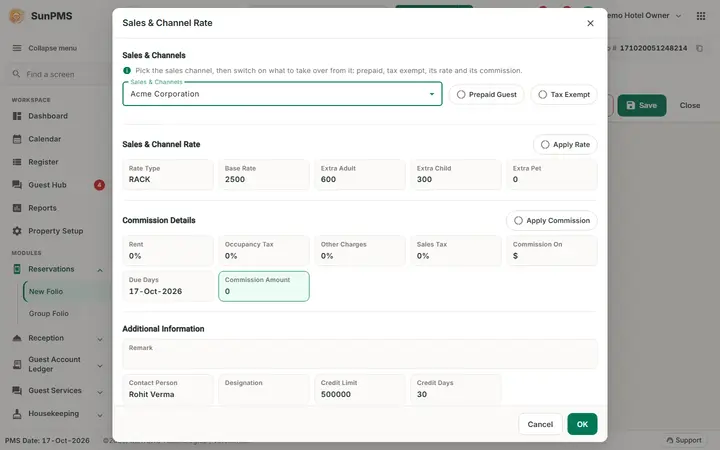
- The window Sales & Channel Rate opens. Choose the company in Sales & Channels (Corporate: Acme Corporation, Zenith Software Ltd). The window shows the company's terms:
- switches Prepaid Guest, Tax Exempt, Apply Rate, Apply Commission;
- Sales & Channel Rate: rate type (RACK), Base Rate (4400), Extra Adult (800), Extra Child (400), Extra Pet;
- Commission Details: Rent, Occupancy Tax, Other Charges, Sales Tax percentages, Commission On, Due Days, Commission Amount (all 0 for Acme);
- Additional Information: Contact Person (Rohit Verma), Credit Limit (500000) and Credit Days (30). Click OK.
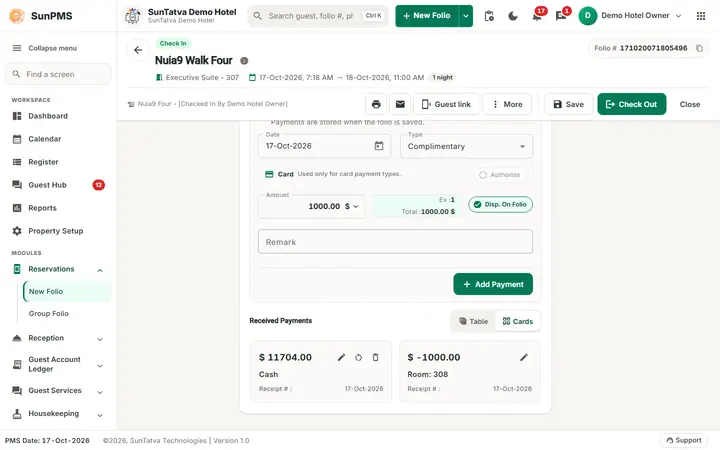
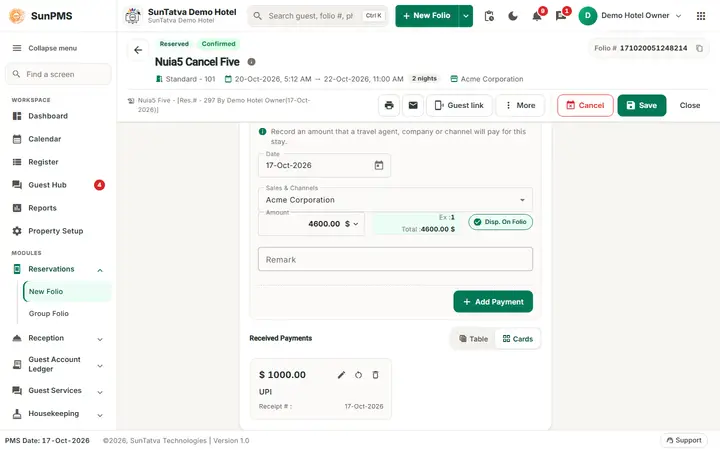
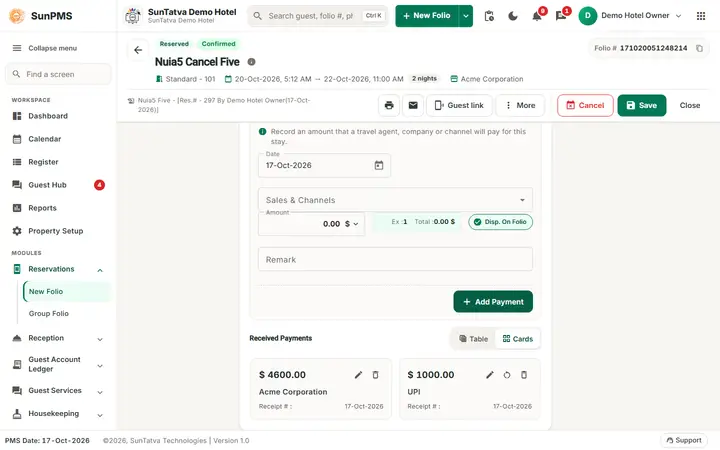
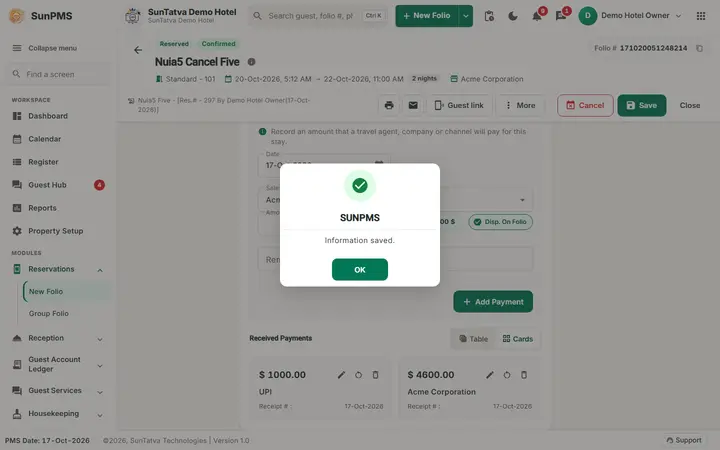
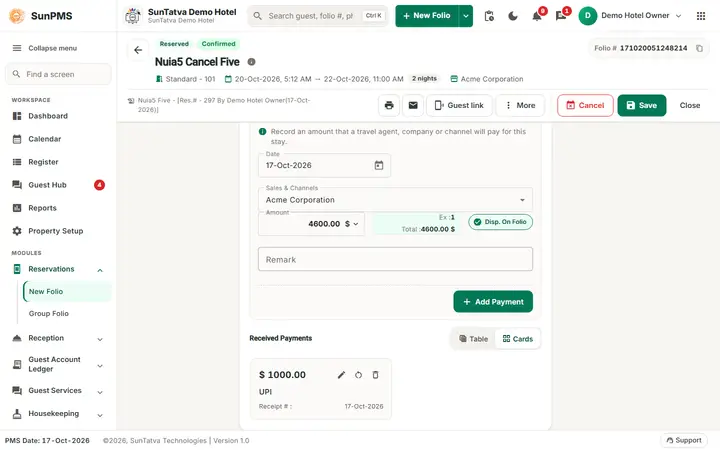
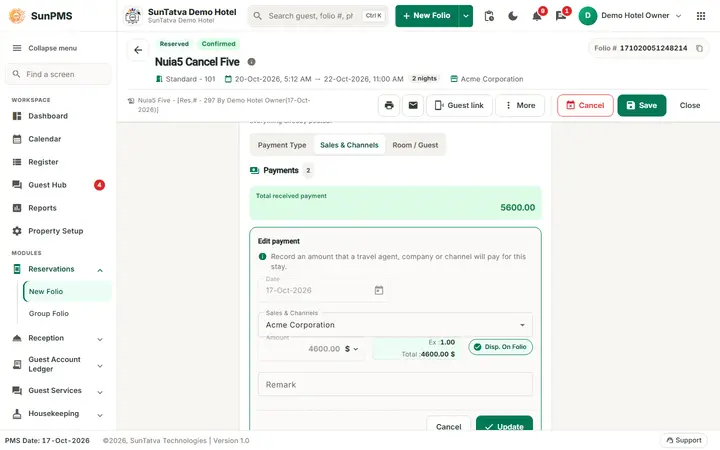
- In the Take payment section open the tab Sales & Channels. The list holds the folio's company; the Amount starts with the balance due.
- Click Add Payment and then Reservation (or Check In).
Worked example
Reservation for 25-27 Oct, Deluxe Room, 2 adults and 1 child, category Corporate, company Acme Corporation: Total Charges 8,000.00 (4,000.00 x 2 nights, Deluxe has no tax). The payment line Acme Corporation 8,000.00 brings Payments to 8,000.00 and Balance Due to 0.00. After Reservation the program answered Reservation #: 114.
Rules:
- While a payment of the company exists the company cannot be changed: Payment exist with Sales & Channel X. Note: Remove Sales & Channel payment to change Sales & Channel.
- The pencil of a company payment opens the panel on the Sales & Channels tab with the company in Sales & Channels; the Amount stays locked. Update is checked as a Sales & Channels payment. The tab header highlights Sales & Channels, on the folio's own Take payment section as in the Show Payments window. A refund of a company payment also switches to (and highlights) Sales & Channels.
- The payment of a company can be deleted or refunded only with the Sales & Channel privileges (for a refund: Refund Payment (Sales & Channel), or Refund Past Payment (Sales & Channel) for an older payment), and not once a Sales & Channel invoice was created for it (Sales & Channel invoice created).
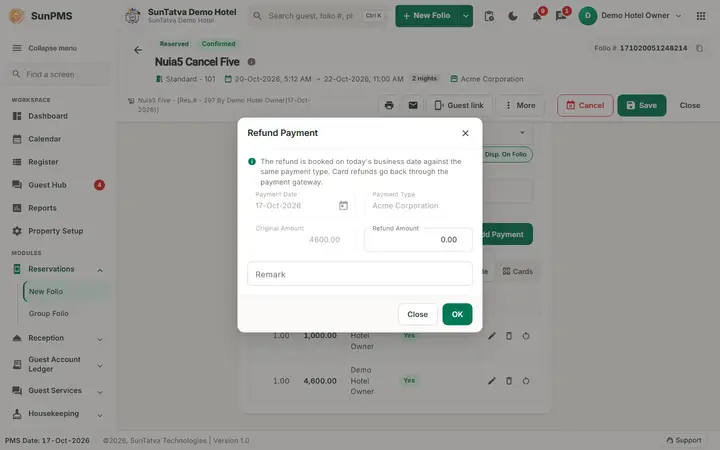
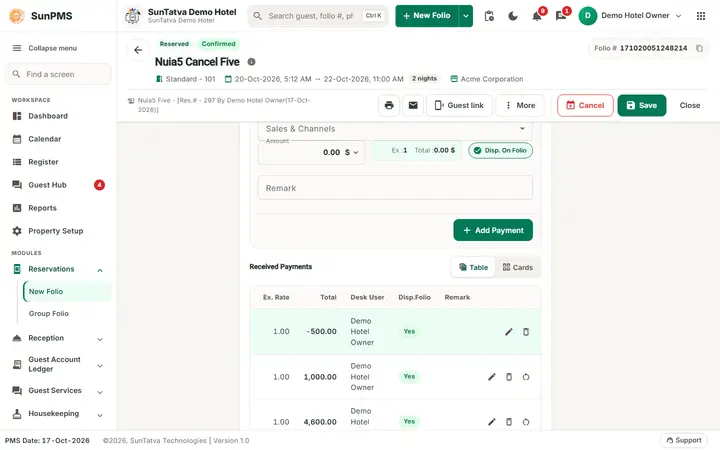
- Refund: click the arrow of the company payment. Refund Payment shows the company in Payment Type, the Original Amount and Refund Amount; type the amount and a Remark, click OK, then Save the folio. The refund is a negative line of the same company (Acme Corporation | Refund), so the receivable falls by that amount. In the demo (reservation DC24D-Corp Guest, 26-28 Oct, Acme Corporation 8,000.00) a refund of 1,000.00 with the remark Company refund added the line Acme Corporation | Refund -1,000.00, Payments fell to 7,000.00 and Balance due rose to 1,000.00 (demo figures change).
- A folio with a Sales & Channel invoice cannot be undone (You can not perform undo operation. Reason: Sales & Channel invoice created.).
- Credit limit and credit days are shown in the window; in the test the folio did not check the limit (the amount of 8,000.00 was far below it).
What happens behind the scenes
- Transfers write two linked payment rows (
refCheckInID,refPaymentID); the first is flagged as the transfer source. - A company payment is a payment row with the business source instead of a payment type; the Sales & Channel invoice screens read these rows to bill the company (Creditable invoice).
Messages you may see
| Message | Why | What to do |
|---|---|---|
| Please select a Guest. | Add Payment on the Room / Guest tab without a guest | Browse Guest and select |
| Please select Sales & Channels. | Add Payment on the Sales & Channels tab without a company | Choose the company |
| Payment exist with Sales & Channel X. Note: Remove Sales & Channel payment to change Sales & Channel. | Changing the company after a payment | Delete the payment first |
| Please select a Sales & Channel. | Detail icon of the category without a category | Choose a category |
| No Sales & Channels available for this category. | The category has no company | Choose another category |
Tips and FAQ
- Q: Can the guest pay extras personally while the company pays the room? A: Yes: add the company payment for the room amount, and take the extras with a normal payment, or print a split folio.
- Q: The tab Sales & Channels is empty. A: The folio has no company: choose a category and company first.
Screenshots