
Payment Denomination
On this page
The Denomination window is a small change calculator. After you record a cash payment it shows the amount the guest gave you and the change to hand back, with buttons for each note and coin. It is only a helper: it does not change the payment that was saved.
Before you start
- The property setting Display Change Screen On Cash Payment is switched on (Display Setting).
- You saved a payment on the Payment tab of a folio (Payments and deposits) or on the group folio.
- The payment amount (Invoice Amount) is greater than zero.
When it appears
- Enter the payment on the folio and click the save button of the payment.
- The snack bar shows Payments saved successfully.
- The Denomination window opens on top of the folio.
Screen layout
| Field / button | What it means | Rules |
|---|---|---|
| Amount Paid | Cash the guest hands over. | Type a number, or build it with the buttons below. Numbers with decimals only; anything that is not a number becomes 0. Shown with the property's decimal digits. |
| Invoice Amount | The payment amount just saved. | Read only. |
| Change | Amount Paid minus Invoice Amount. | Read only. The label and value turn red when the result is negative (the guest paid less than due). |
| Buttons +100, +50, +20, +10, +5, +2, +1, +0.5, +0.25, +0.10, +0.05, +0.01 | Each click adds that value to Amount Paid and recalculates Change. | Click several times for several notes. To start again, type a new figure in Amount Paid. |
| OK | Closes the window. | No confirmation is asked, even if the change is negative. |
| Close icon (top left) | Same as OK. |
How to use it
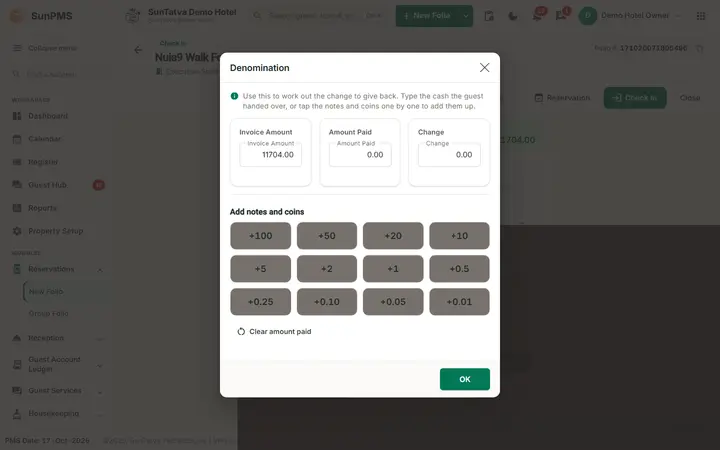
The window right after a cash payment is saved.
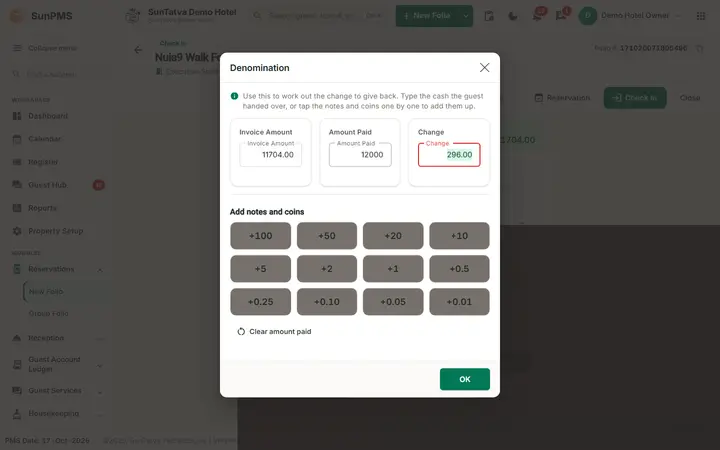
After you click the note buttons, Amount Paid and Change are filled in.
- When the window opens, Invoice Amount shows what is due.
- Click the note and coin buttons for what the guest hands over (or type the amount in Amount Paid).
- Read Change and give that amount to the guest.
- Click OK. Result: the window closes. Nothing is stored; the payment was already saved.
What happens behind the scenes
- The window never creates, changes or deletes a payment. If the guest paid less, record another payment on the folio.
- The note buttons are fixed values; they are not linked to the denominations in the shift end dialog (Shift End Details).
Messages you may see
| Message (exact text) | Why it appears | What to do |
|---|---|---|
| Payments saved successfully. | The payment was saved just before the window opened. | None. |
The window itself shows no error messages.
Tips and FAQ
- Q: I do not see the window after a cash payment. A: Check the setting Display Change Screen On Cash Payment. It also needs a payment above zero.
- Q: Change is red. A: Amount Paid is below the Invoice Amount. Click more buttons or correct the figure.
- Q: The currency of the buttons is wrong. A: The buttons are generic values (100, 50... 0.01); they are not tied to a currency.