
Shift End Details
On this page
When a property uses shifts, signing out is not instant. The dialog Shift Details first shows what you collected during your shift and lets you count the cash in your drawer. Clicking Shift End closes your shift and signs you out. Use it at the end of every working period so the cashier report matches the cash you hand over.
Before you start
- The property setting Shift Operation is on (Feature Setting). If it is off, Sign out logs you out directly and this dialog never opens.
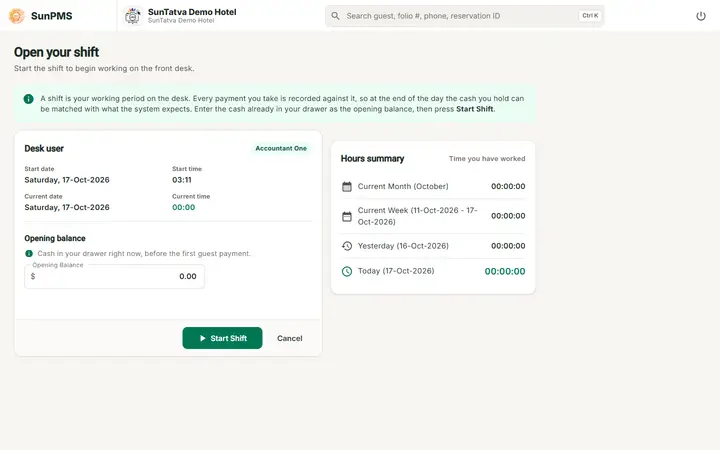
- You started a shift after logging in (Shift Start and End).
- The dialog is not shown when you are already on the shift start page.
How to open it
- Click your name at the top right and choose Sign out.
- Answer Yes to the question "Are you sure you want to Sign out?". Result: the 1000 px wide dialog Shift Details opens and cannot be closed by clicking outside it.
Screen layout
Left card: Payment Info
| Item | What it means | Rules |
|---|---|---|
| Opening Balance: | The cash you entered when you started the shift, with the currency symbol. | Read only. |
| Column Payment Type | Cash, Bank, Card, Others, Direct Billing, their refund and delete rows, Extra Income (Miscellaneous Income) and Extra Expense (Miscellaneous Expense). | One row per type that has activity in your shift. |
| Column Quantity | Number of transactions of that type. | |
| Column Total | Amount. Green for Cash, Bank, Card, Others, Direct Billing and Extra Income; red for everything else (refunds, deletes, expense). | Right aligned, number format from your property settings. |
| Total Quantity | Sum of the Quantity column. | |
| Total Amount | Closing balance of the shift: money in minus money out, as worked out by the server. | This value is saved as the shift's closing balance. |
| No record found! | Shown in the table when the shift has no transactions. |
Right card: Denominations
| Item | What it means | Rules |
|---|---|---|
| Currency | Note or coin value. | Read only. |
| Quantity | How many of that note/coin you counted. | Click the number to edit it, then type. Numbers only. |
| Total | Currency x Quantity for that row. | Recalculated as you type. |
| Quantity (footer) | Total count of notes and coins. | |
| Total Cash In Drawer | Sum of all denomination rows. | Turns red as soon as you edit any quantity, so you can see it is your counted figure. |
Buttons:Shift End and Cancel. The small close icon at the top left closes the dialog only.
How to end your shift
- Open the dialog as above and check Payment Info against your cash register slips.
- In Denominations click the quantity for each note and coin and type the count. Check that Total Cash In Drawer equals the cash you are handing over.
- Click Shift End. Result: the shift is closed with the closing balance shown in Total Amount, you are signed out and the shift appears in the daily shift and cashier reports.
What the buttons do
| Button | Effect |
|---|---|
| Shift End | Closes the shift (marks it closed) and signs you out. |
| Cancel | Closes the dialog only and keeps you signed in, with the shift still open. |
| Close icon (top left) | Closes the dialog only. You stay logged in and the shift stays open. |
What happens behind the scenes
- The figures come from the payments, refunds, deletions and extra income/expense recorded under your user and your open shift.
- The denomination counts are for your own check on this screen; the screen sends only the closing balance (Total Amount) when you click Shift End.
- Ending the shift is done per user; see Night Audit for the audit itself.
Messages you may see
| Message (exact text) | Why it appears | What to do |
|---|---|---|
| Are you sure you want to Sign out? | You chose Sign out. | Yes to continue. |
| No record found! | Shift has no payments, or no denomination setup. | Normal for an empty shift; you can still click Shift End. |
Tips and FAQ
- Q: Total Cash In Drawer does not equal Total Amount. A: Total Amount also includes Card, Bank and other non-cash lines. Compare the drawer with the Cash line (plus Opening Balance as your cashier policy says).
- Q: I do not get this dialog. A:Shift Operation is off in Feature Setting.
- Q: Where do I see past shifts? A: In the Daily Shift and Cashiers reports (Daily collection reports).