Folio - Deposits, Invoice and the Missing Credit Note
On this page
Video: deposit, refund and check-out
- Watch on YouTube: https://www.youtube.com/watch?v=IIcWt7kQSTM
A. Deposits
A deposit is money the hotel holds for the guest: a security deposit, a key card deposit, a parking deposit. It is not a payment for the stay.
Before you start
- Feature Setting > Deposit is on. Without it the Deposit Type field does not show in the Take payment section (it is off by default; the demo hotel had it off).
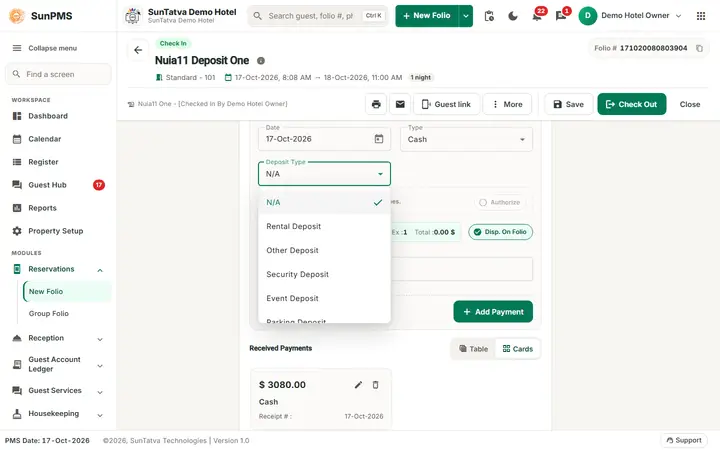
- Deposit types are set in the Deposit master. Demo hotel: Rental Deposit, Other Deposit, Security Deposit, Event Deposit, Parking Deposit, Key Card Deposit, Damage Deposit, Group Deposit, Airport Pickup Deposit. Each type may be linked to an other charge (for example Security Deposit to Miscellaneous, Parking Deposit to Parking).
- Rental Setting > Allow Check-Out with Deposit decides what happens at check-out (off in the demo hotel: the Deposit window opens).
How to take a deposit
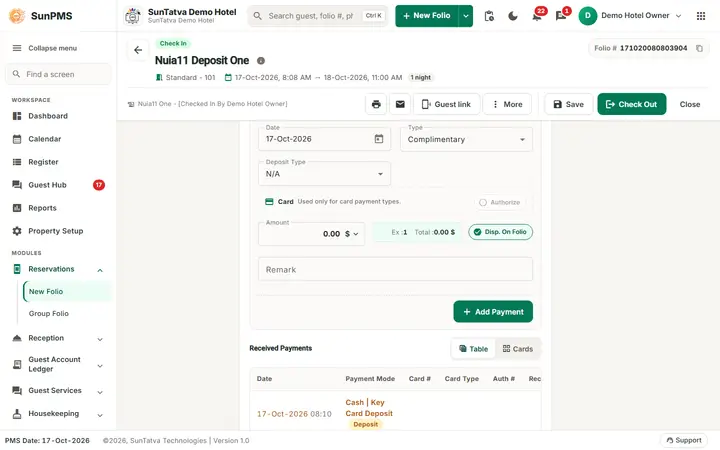
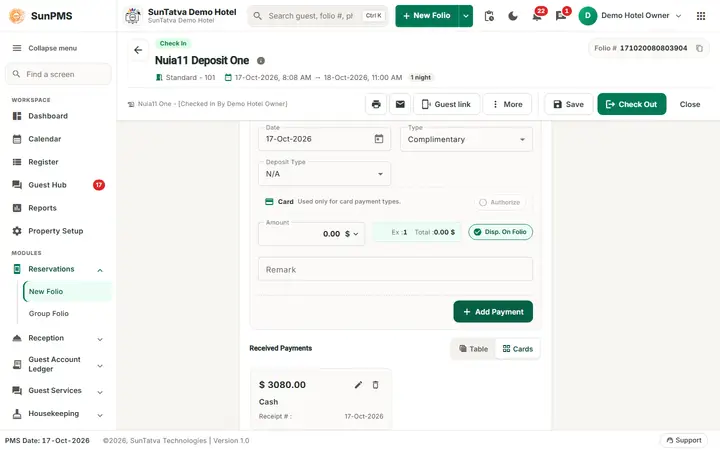
- In the Take payment section choose the payment Type (for example Cash).
- Open Deposit Type (next to Type) and choose the deposit, for example Key Card Deposit. N/A means an ordinary payment.
- Type the Amount, click Add Payment, and Save. Negative deposit amounts are refused: You cannot add negative deposit payment.
What the deposit does to the numbers
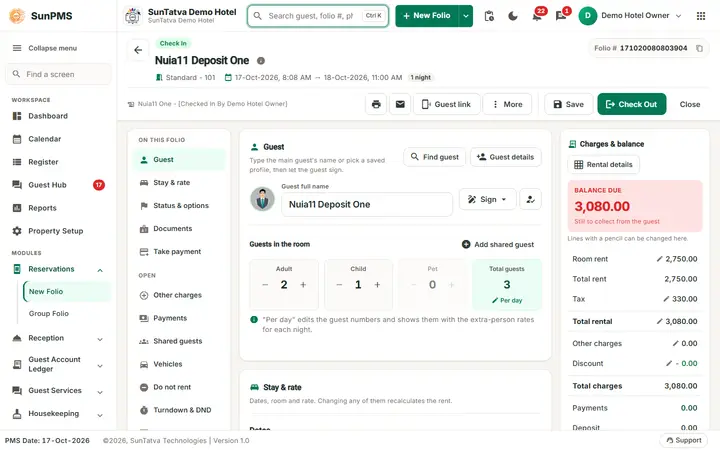
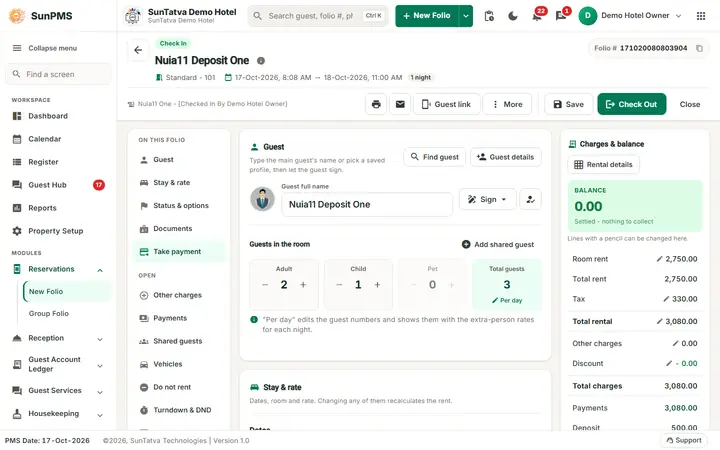
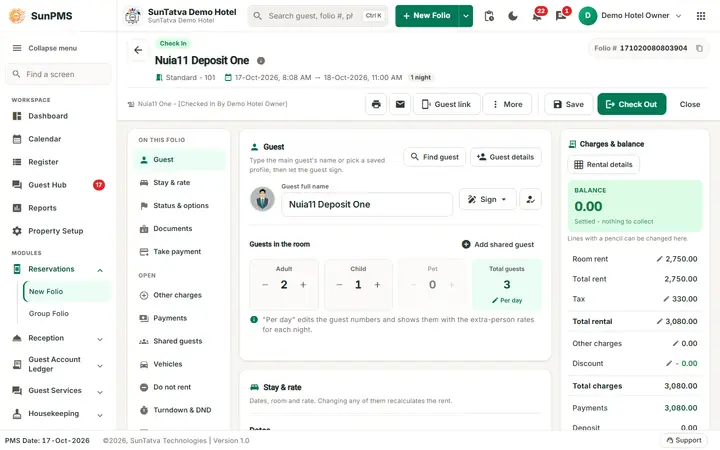
Worked example (guest FO2-Bravo Company, one night): Total Charges 2,520.00, Payments 2,520.00 (the room, paid in cash), Deposit 500.00, Balance Due 0.00. The deposit is shown in its own box and is not part of Payments or Balance Due (balance formula).
Settling the deposit at check-out
- Click Check Out and confirm. If the folio has unsaved changes the program first asks Do you sure want to save changes? and saves (Information saved.).
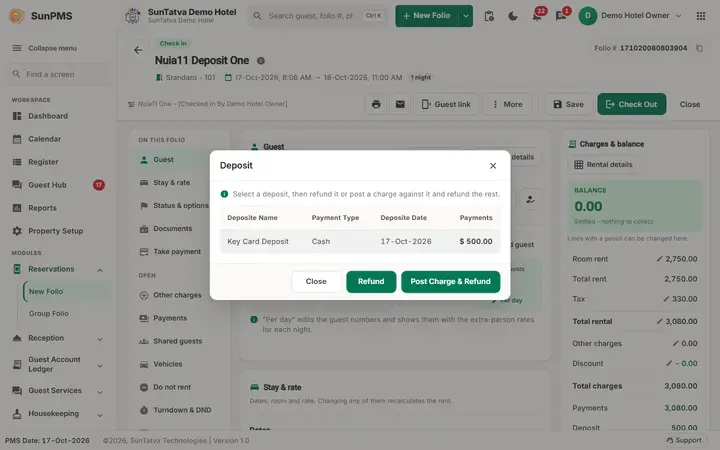
- With Allow Check-Out with Deposit off and a deposit on the folio, the window Deposit opens. Columns: Deposite Name, Payment Type, Deposite Date, Payments. Select the line, then:
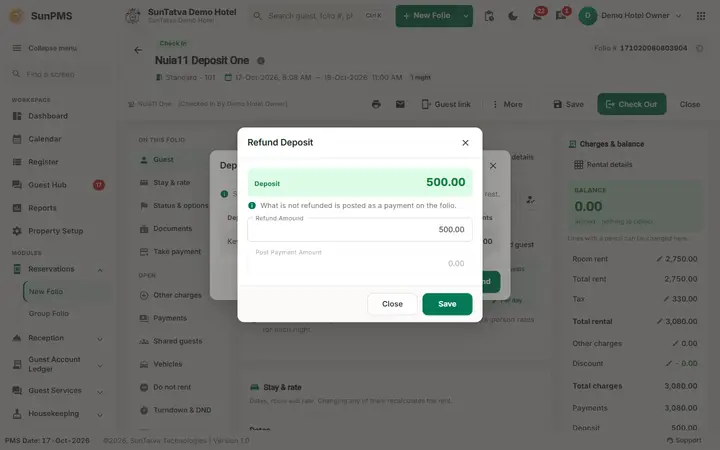
- Refund: opens Refund Deposit with the Deposit amount, Refund Amound (editable, default the full amount) and Post Payment Amount (the part you keep, as payment). Save. Refunding less than the deposit asks You are trying to refund less than Deposit amount. Therefore remaining amount will be treated as payment. Are you sure want to continue?; a refund above the deposit gives Refund amount cannot be greater than Deposit amount.
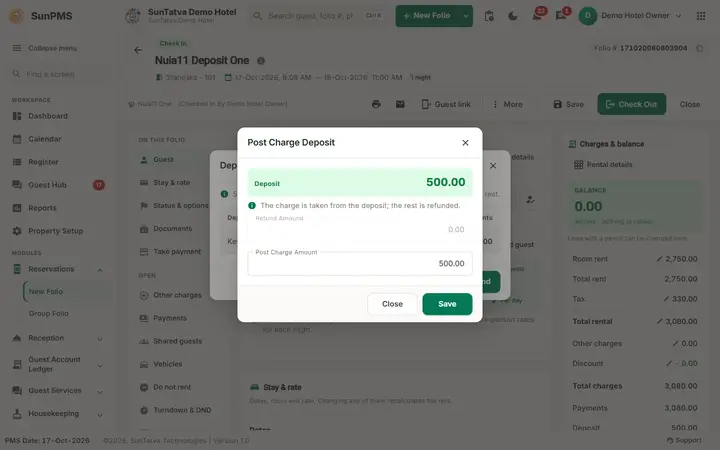
- Post Charge & Refund: opens Post Charge Deposit with the Deposit, Refund Amound and Post Charge Amount. The amount is posted as an other charge, the one linked to the deposit type, and the rest is refunded. Posting less than the deposit asks You are trying to post charge less than Deposit amount. Therefore remaining amount ( n ) will be refunded to Guest account. Are you sure want to continue?; above it: Post Charge amount cannot be greater than Deposit amount. A deposit type with no linked charge gives You can not post this deposit to charge. Reason: There is no other charge assosiated with selected deposit. The button is disabled for a Rental Deposit.
- Nothing selected: Please select Deposit.
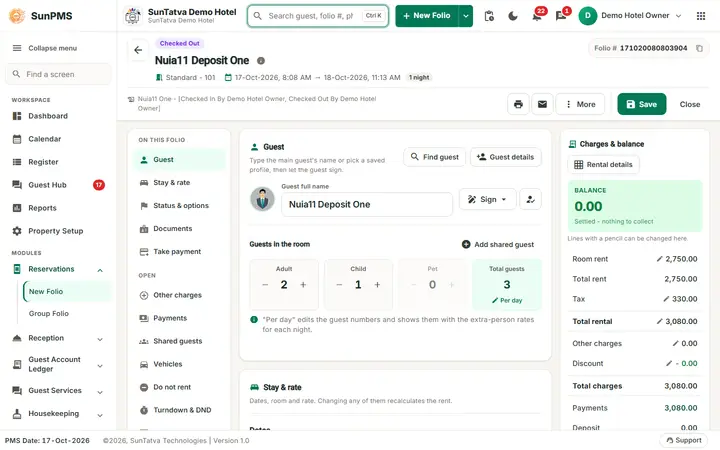
- After Save the refund is stored as a negative payment linked to the deposit and the folio is saved, but the guest is not checked out yet. Click Check Out again.
- One deposit at a time. If another deposit remains, the Deposit window opens again. In the test: after the refund Payments stayed 2,520.00, Deposit fell from 500.00 to 0.00, and the second Check Out went through (folio in Checked-Out Guests, room Vacant Dirty).
B. Invoice and receipt
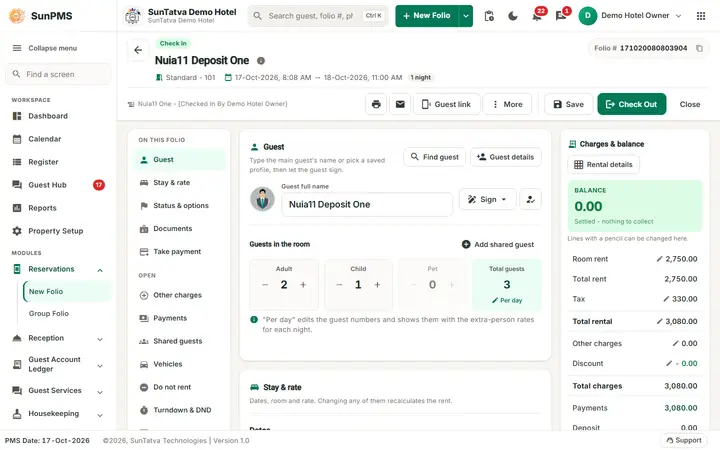
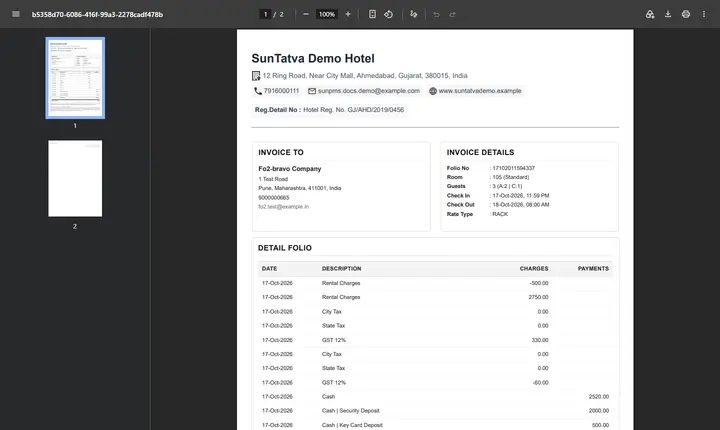
- The program has no separate invoice number: the Folio # is the invoice number. The printed folio is titled with INVOICE TO (guest, address, e-mail) and INVOICE DETAILS (Folio No, Room, Guests, Check In, Check Out, Rate Type), then a FOLIO SUMMARY of Rental Charges, Occupancy Tax, Other Charges, Total charges, Payment by Guest and the Balance Amount, house rules and a signature line.
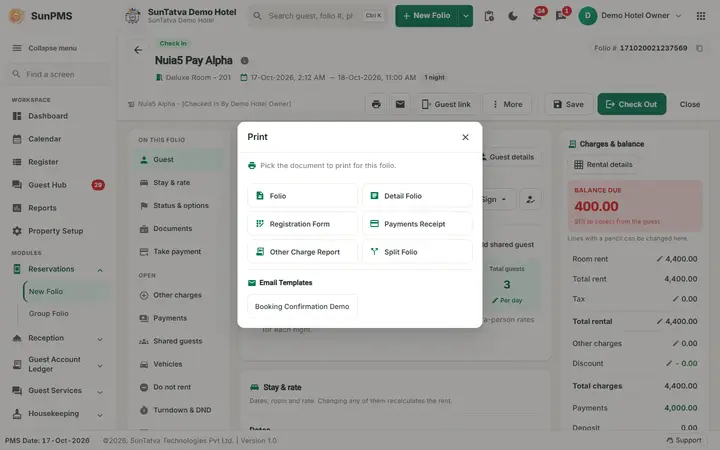
- Print from the printer icon: Folio (summary), Detail Folio (every night, charge and payment line), GST Folio, Payments Receipt (Printing). Reprint any time, also for a checked-out folio.
- The folio is printed automatically at check-out when Print check-out folio is on in Folio Setting (Folio or Detail Folio).
In the Detail Folio of the test guest the rental adjustment shows as its own line (Rental Charges -500.00, with its GST line -60.00), each tax of each night is a line (City Tax, State Tax, GST 12%), and deposits appear among the payments as Cash | Security Deposit and Cash | Key Card Deposit with their refunds.
C. Credit note: not available
SunPMS has no credit-note document. Correct a bill with the tools of the folio, then reprint the folio:
- a wrong charge: delete the line, or add a negative charge (Other charges);
- a wrong rate: rental adjustment or a new rate (Rate and tax);
- money returned: refund;
- a checked-out folio that must be changed: privilege Update checked-out guest, or undo the check-out (needs the secondary database, see Undo transaction). For a company invoice with its own number use the Sales & Channel invoices (creditable invoice).
Messages you may see
| Message | Why | What to do |
|---|---|---|
| Please select Deposit. | Refund or Post Charge without a selected deposit | Select the line |
| Refund amount cannot be greater than Deposit amount. | Refund above the deposit | Lower it |
| Post Charge amount cannot be greater than Deposit amount. | Charge above the deposit | Lower it |
| You can not post this deposit to charge. Reason: There is no other charge assosiated with selected deposit. | Deposit type without a linked charge | Link a charge in the Deposit master, or use Refund |
| You cannot add negative deposit payment. | Negative deposit | Use the refund |
Tips and FAQ
- Q: The Deposit Type field is missing. A: Switch on Deposit in Feature Setting.
- Q: The guest paid a deposit and the balance did not change. A: By design; the deposit is held. Settle it at check-out.
- Q: I refunded the deposit but the guest is still in house. A: Click Check Out again.
Screenshots