Folio - Documents (ID, Passport) with Front and Back Images
On this page
The Documentation section keeps the identity documents of the guest: type, number, name, expiry, address and a picture of the front and the back. Hotels attach them at reservation or at check-in because the law or the hotel policy asks for an identity proof. This page lists every field and icon of the Add Document window; the overview of all folio panels is in Guest details and documents.
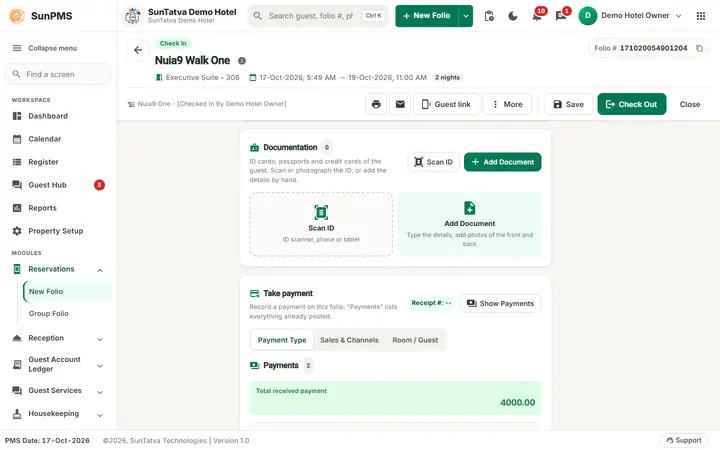
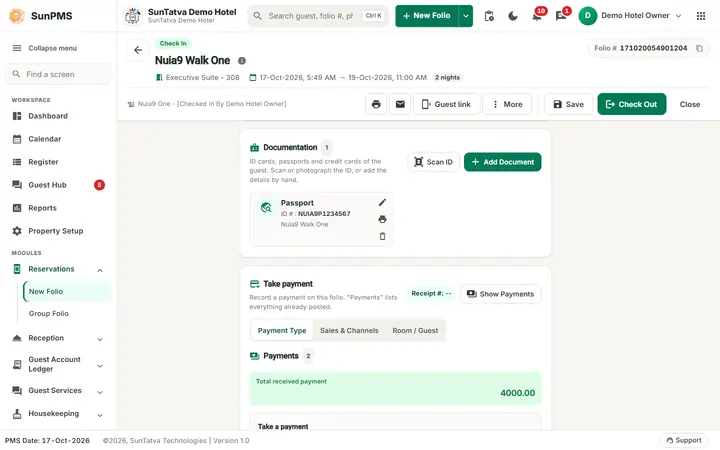
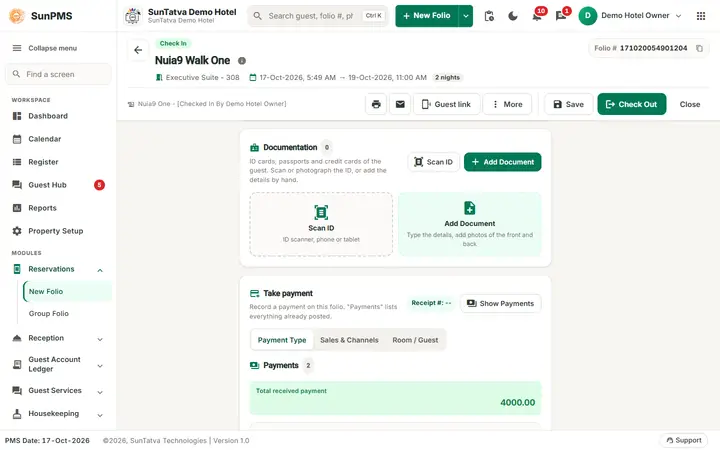
The section (click Documents in the ON THIS FOLIO list) shows a count next to its title, the buttons Scan ID and Add Document and, while there is no document, two big tiles: Scan ID (ID scanner, phone or tablet) and Add Document (Type the details, add photos of the front and back). Saved documents appear as cards.
Before you start
- Open the folio (new or saved).
- Have the document or its picture file ready (PNG or JPG).
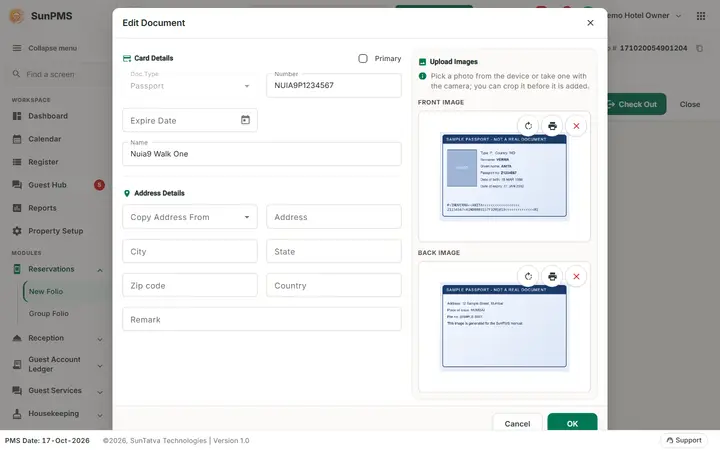
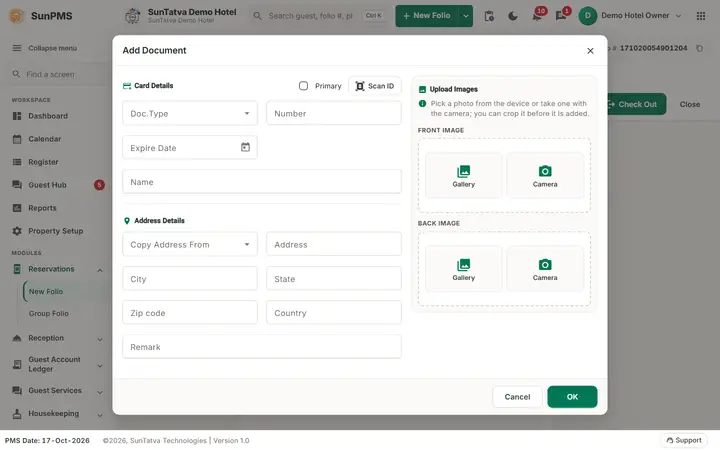
Screen layout of the Add Document window
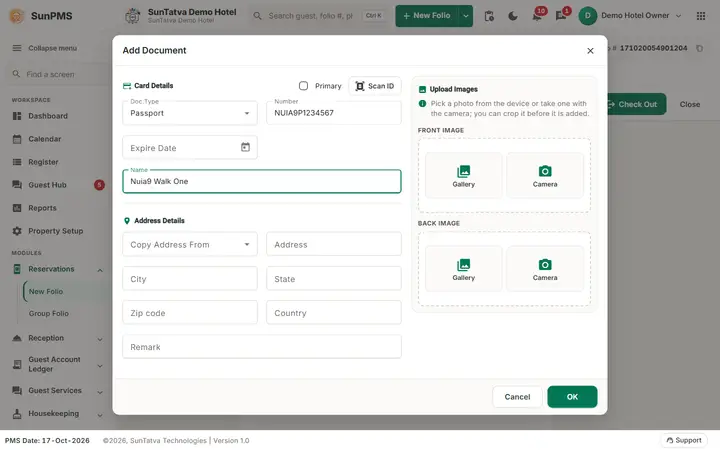
| Field / button | What it means | Rules |
|---|---|---|
| Primary (tick box, top of Card Details) | Marks this document as the main document of the guest. | The folio keeps one primary document; when you tick a second one the system asks which to keep (Are you sure you want to change Primary Document?). |
| Scan ID button (next to Primary) | Sends the scan to a paired phone, tablet or station, or opens the SunHardware app on this device (see below). | Needs the SunHardware licence and Hardware setting. |
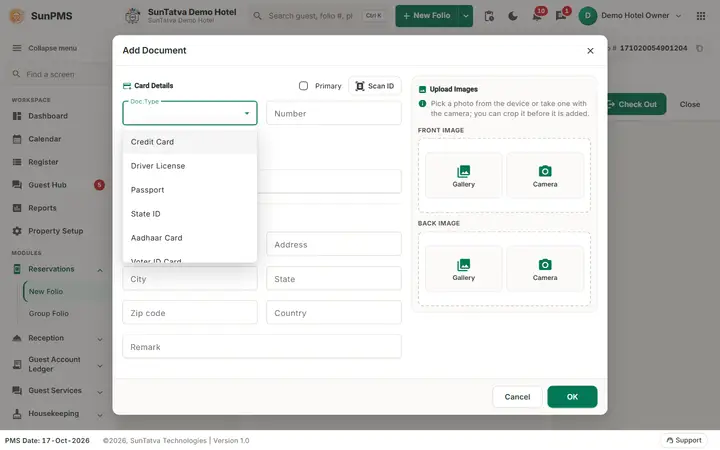
| Doc.Type | Document type list: Credit Card, Driver License, Passport, State ID, Aadhaar Card, Voter ID Card, PAN Card, Visa, Employee ID Card, Driving Licence India (the list comes from the document master). | Required (Please select Document Type.). Credit Card switches the form to card fields (see below). |
| Number | The document number. | Required (Please enter the Document Number.). The same document cannot be added twice (Cannot upload same document again.). |
| Name | The name printed on the document. | Optional. |
| Expire Date | Valid-until date. | Optional; an invalid date gives Invalid Expire Date. The x in the box clears it. |
| Copy Address From | N/A, Home, Office, Other: copies the address of the guest profile into the address fields below. | Optional. |
| Address, City, State, Zip code, Country | Address on the document. | Optional. |
| Remark | Free text. | Optional. |
| Front Image and Back Image: Gallery, Camera | Gallery picks a picture file; Camera captures with the device camera. | JPG or PNG. After choosing, the Document Crop window opens (below). |
| OK / Cancel | OK adds the document to the folio; Cancel closes without adding. | OK only adds the document to the folio. It is stored when you save the folio. |
How to add a document with pictures
- In the Documentation section click Add Document (the green button at the top, or the big tile).
- Choose Doc.Type and type the Number (and Name, Expire Date if you have them).
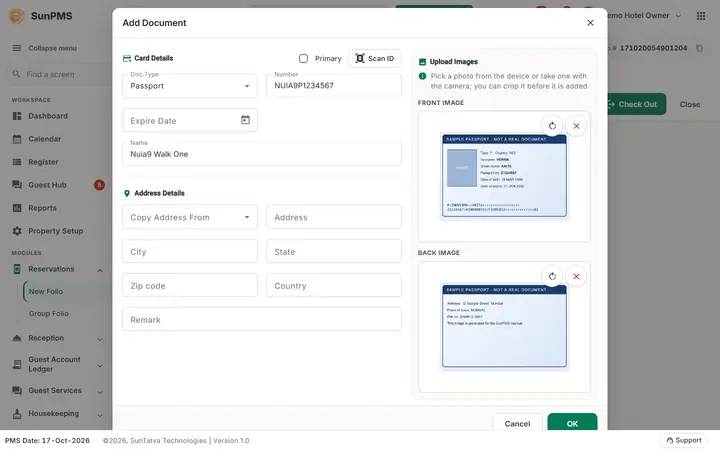
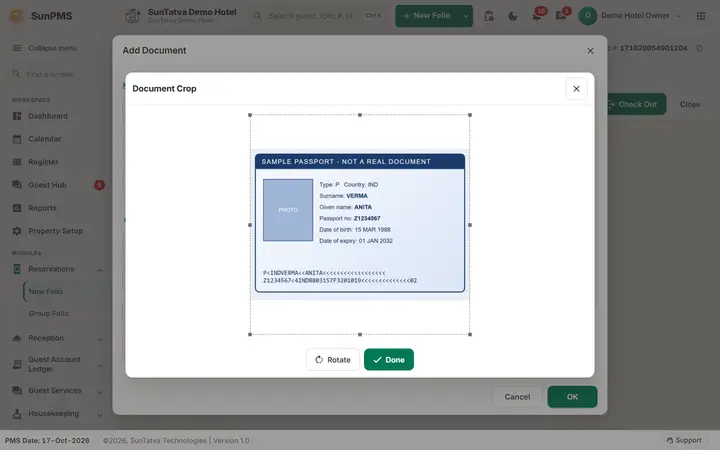
- Under Front Image click Gallery and choose the file. The Document Crop window shows the picture with a frame. Drag the frame to cut away the border. Rotate turns the picture; Done confirms it.
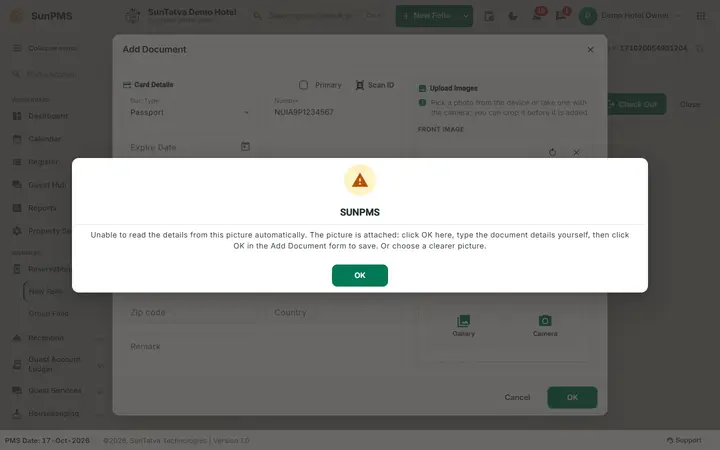
- The system tries to read the document from the picture. If it cannot it shows: Unable to read the details from this picture automatically. The picture is attached: click OK here, type the document details yourself, then click OK in the Add Document form to save. Or choose a clearer picture. Click OK on this message: it closes only the message, the Add Document window stays open.
- Add the Back Image the same way (no read attempt, no message).
- Click OK in the Add Document window. A card with the document type, the number (ID #:...) and the name appears in the section.
- Save the folio (Reservation, Check In or Save). The documents are stored with the folio.
Scan ID (SunHardware)
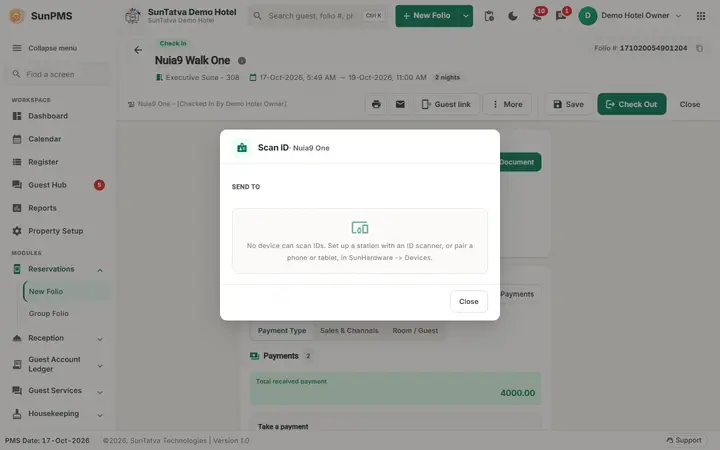
Click Scan ID (in the section, or inside Add Document). The window Scan ID - guest name opens with Send to and a tile for every device that can scan: paired phones and tablets and stations, each with a green dot when online, the tag last used and a note when it is offline (offline - it will be woken or runs when it connects). The tile This device (opens the SunHardware app here) appears on a tablet or phone. Click a tile: the task is sent, a progress track shows its steps, and you can choose Continue working; when the device finishes, the scanned details open in the Add Document form by themselves. After a scan the question Do you want to replace Guest detail? copies the name and address from the ID. If no device is paired the window says so; pair one in Setup > Hardware. Details: SunHardware ID scan.
The document card
Each card shows three icons: Edit (opens the window again), Print (appears when the document has a picture; prints the front and back) and Delete. A virtual credit card shows an i icon. Credit card documents show the masked card number and can be viewed with your password (see Guest details and documents).
How to delete a document
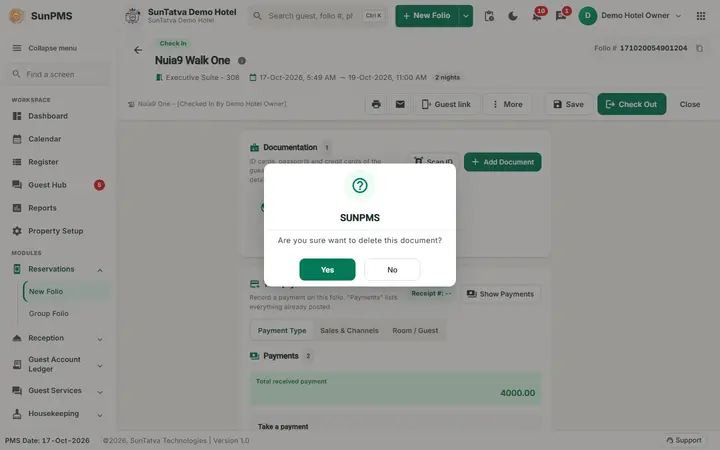
Click Delete on the card. The system asks Are you sure want to delete this document? Click Yes; the card disappears from the panel. The deletion is stored when you save the folio.
Messages you may see
| Message (exact text) | Why it appears | What to do |
|---|---|---|
| Unable to read the details from this picture automatically. The picture is attached: click OK here, type the document details yourself, then click OK in the Add Document form to save. Or choose a clearer picture. | The picture could not be read automatically. | Click OK on the message, type the details, click OK in the form. |
| Please select Document Type. / Please enter the Document Number. | OK pressed without type or number. | Fill both. |
| Cannot upload same document again. | The same type and number already exists on the folio. | Edit the existing document. |
| Are you sure want to delete this document? | Delete icon. | Yes to delete. |
| Are you sure you want to change Primary Document? | Another primary document exists. | Yes to make this one primary. |
Tips and FAQ
- Q: I clicked OK on the message but nothing happened. A: That only closes the message. The Add Document window is still open: type the details and click its OK.
- Q: The documents disappeared after I closed the folio. A: They are saved with the folio only. Save the folio before closing.
- Q: Can I scan the document with a phone? A: With the Hardware licence, the SunHardware scan icon in this window and in the panel opens the scan on a paired phone or tablet (see Guest details and documents).
- Q: What does Camera do? A: It captures the picture with the device camera instead of choosing a file.
Screenshots