SunHardware: ID Scan and Signature on Phone or Tablet
On this page
SunHardware turns a normal phone, tablet or iPad into your ID scanner and signature pad. The front desk presses a button in the check-in screen; the paired device opens the task, the guest (or the desk) scans the ID or signs, and the result comes back into the PMS form. The reading is done on the device itself, with an open model; there is no server OCR.
Before you start
- Licence HARDWARE_INTEGRATION on the hotel property (owner: Property Setup > Licences).
- A SunHardware property of the same owner. Create it from the SunAuth landing page (Sun Hardware > create).
- At least one device paired in SunHardware (SunHardware console > Devices shows a QR code or code; install the SunHardware app on the phone/tablet and scan it).
- For signatures: at least one active agreement (template) in SunHardware.
Hardware Setting screen
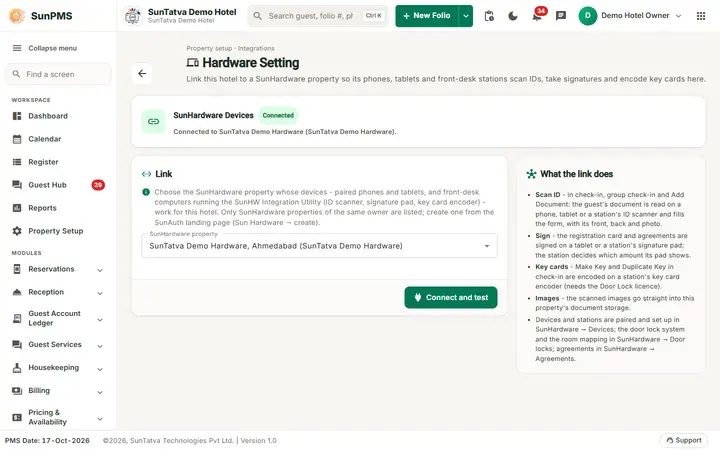
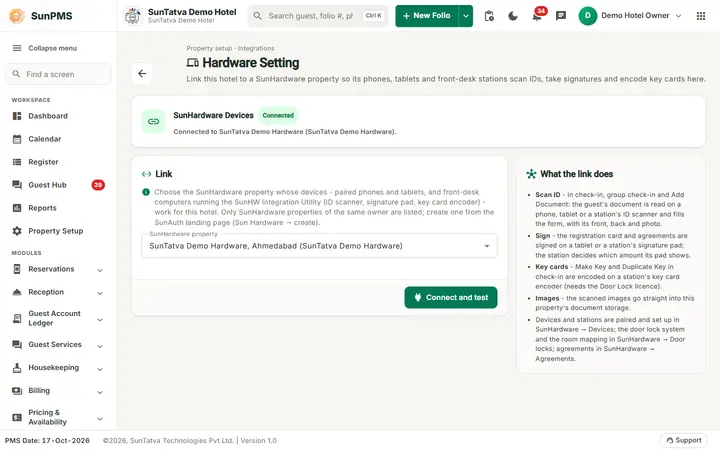
Title Hardware Setting, with a back arrow to Property Setup. Without the licence the page shows only: The hardware link needs the SunHardware Integration licence - the property owner can buy it from Settings → Licences.
| Field / item | Meaning | Rules |
|---|---|---|
| Status badge | Linked or Not linked | Reflects the saved link. |
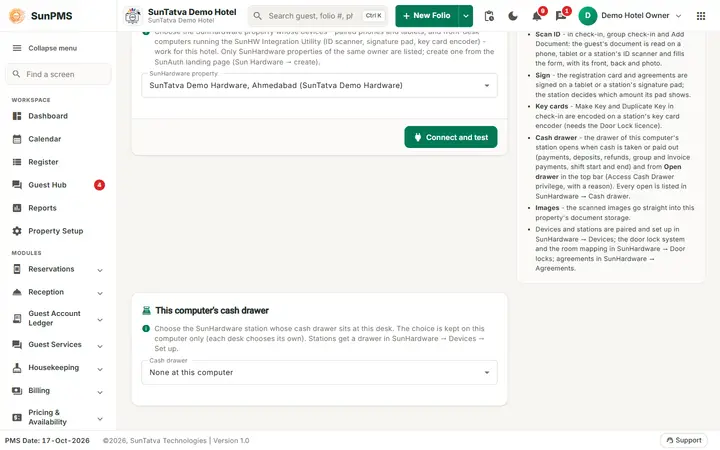
| SunHardware property | The SunHardware property whose devices serve this hotel | Lists only properties of the same owner as Name, City (Group). Choose Not linked to remove the link. If none: No SunHardware property was found for this owner. |
| Save | Stores the link | Snackbar Saved. |
| Info panel What the link does | Reminds you of Scan ID, Sign on tablet, Images | - |
How to link
- Open Property Setup > Configuration > Hardware Setting.
- Choose the SunHardware property.
- Click Save. Result: badge changes to Linked; the buttons below appear in check-in.
How to scan an ID
- Open a reservation > Documents (guest documents).
- Click the scan icon with tooltip Scan ID on a phone or tablet (SunHardware) (also in the Add Document pop-up: Scan on a phone or tablet (SunHardware), or choose Scan with phone / tablet).
- In the window Scan ID ·
pick the device under Send to. Green dot = online; offline - it will be woken means a push wakes it. A device that cannot run the reader shows signatures only. This device opens the app on the same tablet. - Hand the device to the guest. The window shows Sending to the device..., Sent - waiting for the device to open it, Opened on the device, In progress on the device, Sending the result... and then Done.
- The Add Document form fills in: document type (matched to your own document types), number, name, dates, issue country and place, address, city, state, zip, country, plus front, back and photo. A banner reads Filled from a SunHardware scan (N fields). Check every field against the card before saving. with warnings and Clear AI-filled fields.
- Check every field and click Save.
Other buttons: Send to another device (reassign), Cancel task, Continue working (close the window; the result opens when ready), Close. If the app does not open on the same device: The SunHardware app did not open on this device. Install it, or send the task to a paired phone instead. with Use a paired phone.
How to get a signature on the tablet
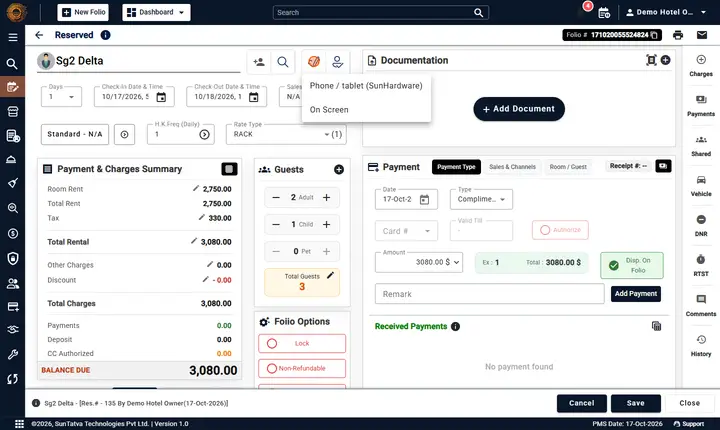
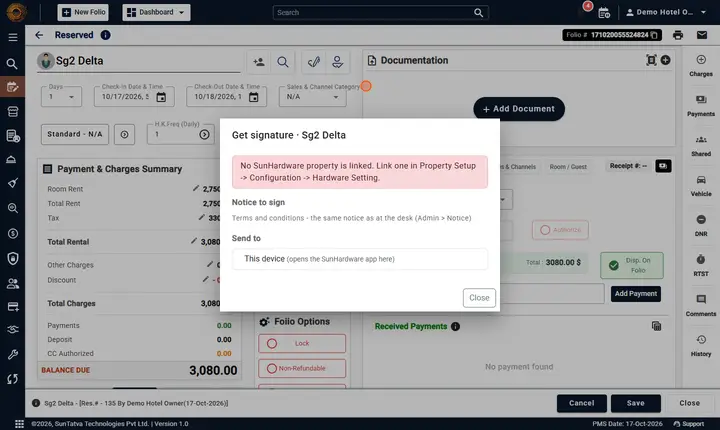
- In the reservation (stay details or guest details), open the Sign menu and choose Phone / tablet (SunHardware) (or click the Get signature button).
- In Get signature ·
tick the Agreements to sign (the first active one is pre-ticked; each shows language and version) and choose the device. The agreement text uses the guest name, room number, check-in and check-out dates and folio. - The guest reads and signs on the device. Result: the signature is attached to the guest; saving the reservation points to the stored image, nothing is uploaded twice.
Cash drawer
A SunHardware Windows station with a cash drawer can open it for the front desk. In Hardware Setting the card This computer's cash drawer stores which station sits at this desk (kept in this browser). From then on the drawer opens when cash is received or paid out in the PMS (folio, check-in and check-out payments, deposits, refunds, group and invoice payments, start and end of a shift), and the cash register icon Open cash drawer in the top bar opens it by hand with a reason (privilege Access Cash Drawer). Every open is listed in SunHardware > Cash drawer. Details and messages: Hardware Setting.
What happens behind the scenes
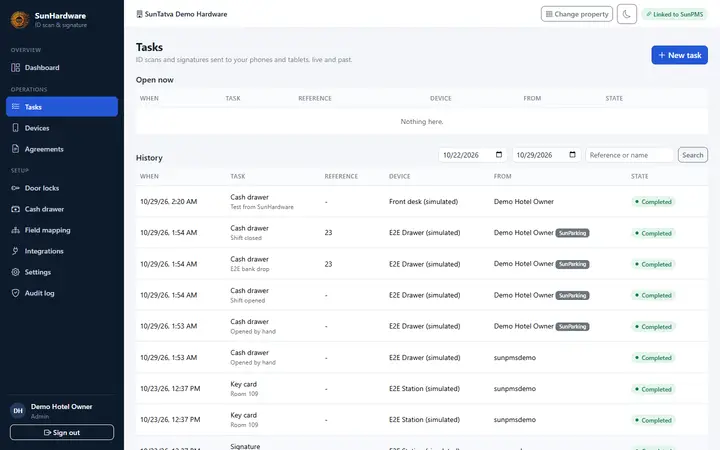
- The desk creates a task in SunHardware (states: created, dispatched, acked, capturing, uploaded, completed; or cancelled, failed, expired). The PMS watches the task with a short-lived token and fills the form when the result arrives.
- Images are stored through the PMS in the property's document storage: ID sides under the year folder, signature under the
Signaturefolder of the check-in year. The device deletes its copies after upload. - SunHardware licences are separate (plan, extra devices, ID scan, signature); completed tasks are metered.
Messages you may see
| Message (exact text) | Why | What to do |
|---|---|---|
| Choose at least one agreement. | Signature task with no agreement ticked | Tick one. |
| No active agreements. Create them in SunHardware. | No agreement templates | Create in SunHardware. |
| No paired device. Pair one in SunHardware → Devices. | No device paired | Pair one. |
| Expired - nobody completed it in time | Task timed out | Send it again. |
| The device reported a problem | Task failed on the device | Retry or use another device. |
| Cancelled | Task cancelled | - |
| Could not save the hardware link. | Saving the link failed | Retry; check licence and owner. |
| SunHardware request failed. | Generic server failure | Retry; contact support. |
Tips and FAQ
- Q: Is the ID sent to a cloud OCR? A: No. It is read on the device.
- Q: The reading is wrong. A: Always compare with the card. Use Clear AI-filled fields and type manually if needed.
- Q: Scan buttons are missing in check-in. A: The hotel is not linked, or HARDWARE_INTEGRATION is not active.
- Q: Difference to Scanner Integration / Signature Pad Integration? A: Those connect wired desk devices (see Scanner, Signature pad); SunHardware uses phones and tablets.
Signature and notice (one flow)
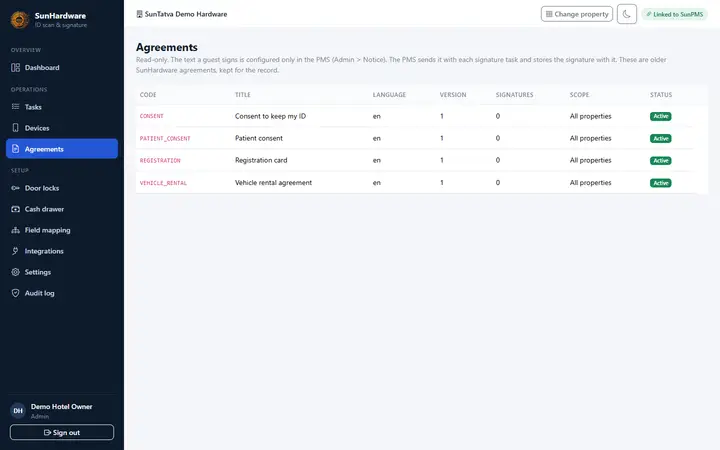
SunHardware keeps no agreement or notice text of its own. When the PMS asks for a signature, it sends the signing notice (Notice Setup, Signpad Notice: id and text) with the task; the device shows exactly that text and returns the signature, which the PMS stores with the notice id and text (source tablet). The Agreements screen in SunHardware is read-only (older records) and tasks started in the SunHardware console no longer offer Signature. A signature task sent without a notice is refused: The text to sign comes from the PMS (Admin > Notice). See Signature and notice flow.
Screenshots