SunParking: Guest Parking and Valet
On this page
SunParking is the platform's car-park, valet and parking-service product. Linked to your hotel, it shows each guest's cars on the stay, lets the desk ask the valet to bring a car, lets you reserve parking with the room, posts parking paid "to the room" onto the folio, and warns at check-out if a car is still in the car park.
Before you start
- Licence PARKING_INTEGRATION on the hotel (owner: Property Setup > Licences). Without it, the page shows The parking link needs the SunParking Integration licence - the property owner can buy it from Settings → Licences. and the check-in tab is hidden.
- A SunParking car park (property) of the same owner. Create it from the SunAuth landing page (Sun Parking > create).
- In Other Charges, mark the charge to be used for parking with POS Charge so SunParking can offer it. The charge is chosen in SunParking (Setup > Integrations).
Guest self-service (guest portal)
Guests of a linked stay can serve themselves for the car from the guest portal tab Your vehicle: Get my car (now, in 10 / 20 / 30 minutes or at a time, with a pickup point and a note, with a status line and a cancel while it is still requested), Ask the desk for help for a car they parked themselves, services from the car park's catalogue with their price (charged when the parking team presses Done), Staying longer?, Arriving by car? (vehicle, ETA, needs valet) and the amount due (read only). The logic lives in SunParking and the same requests are available on the car park's own ticket page, so every guest request becomes one bell item (Parking section) and one line in SunParking Guest requests. Details and screenshots: Guest portal, the guest's page and Parking notifications and vehicle linking.
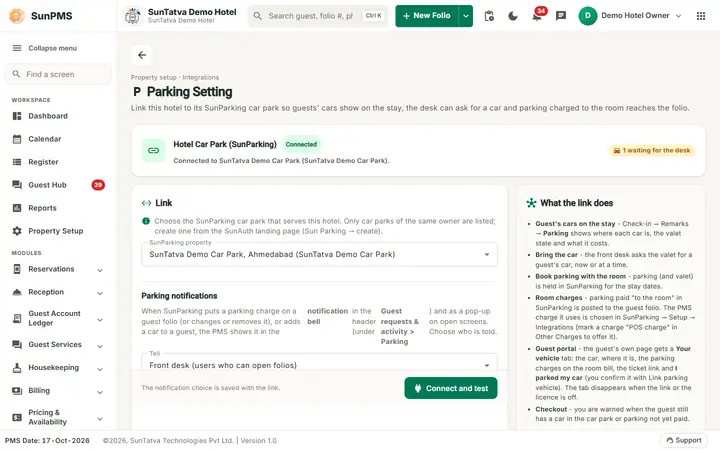
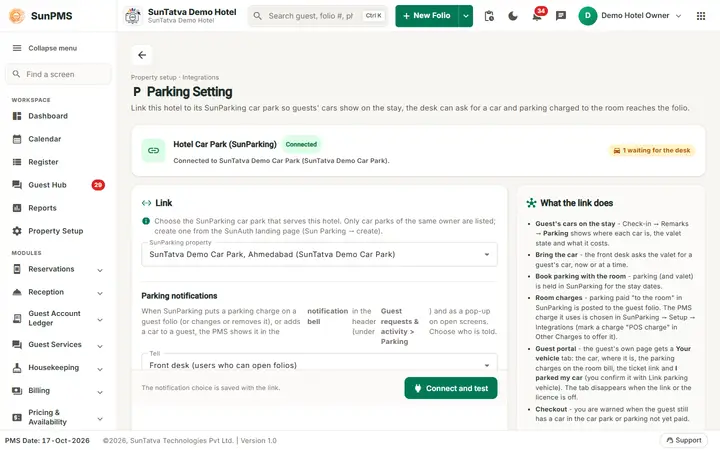
Parking Setting screen
| Field / item | Meaning | Rules |
|---|---|---|
| Status badge | Linked / Not linked | |
| SunParking property | The car park serving this hotel | Lists only the owner's car parks as Name, City (Group). Not linked removes the link. If none: No SunParking car park was found for this owner. |
| Save | Stores the link | Snackbar Saved; error Could not save the parking link. |
| Panel What the link does | Cars on the stay; Bring the car; Book parking with the room; Room charges; Checkout warning |
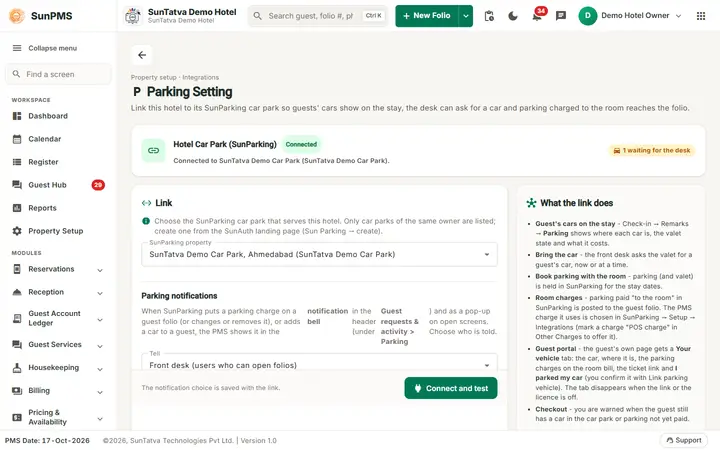
Parking Setting with the SunParking property chosen.
How to link
- Open Property Setup > Configuration > Parking Setting.
- Choose the SunParking property.
- Click Save.
Parking tab in the reservation
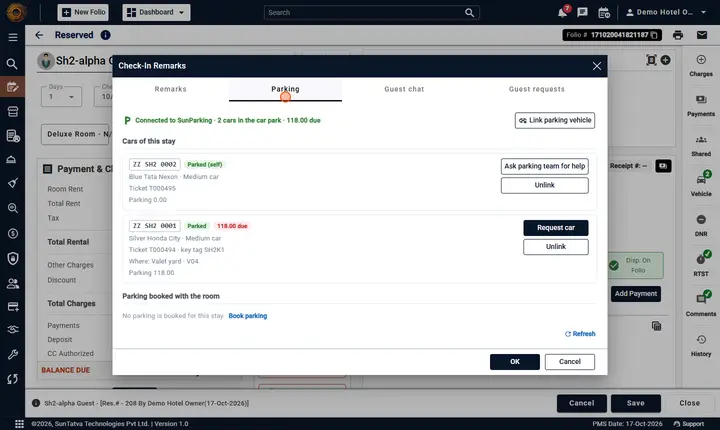
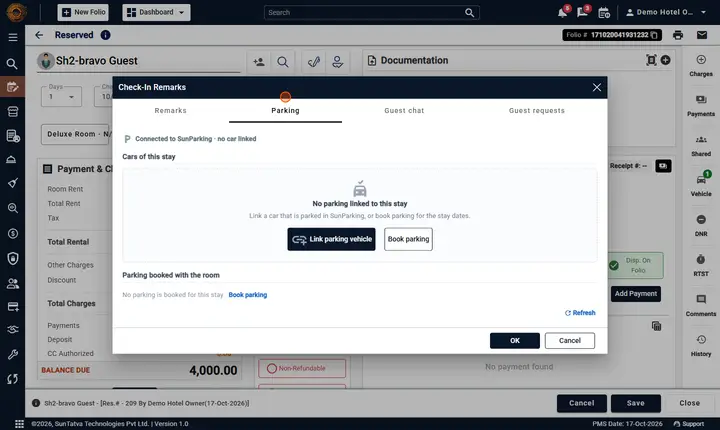
Open the reservation > Remarks area > tab Parking (shown when the licence is active and the reservation is saved; otherwise Guest chat, requests and parking are available once the reservation is saved.).
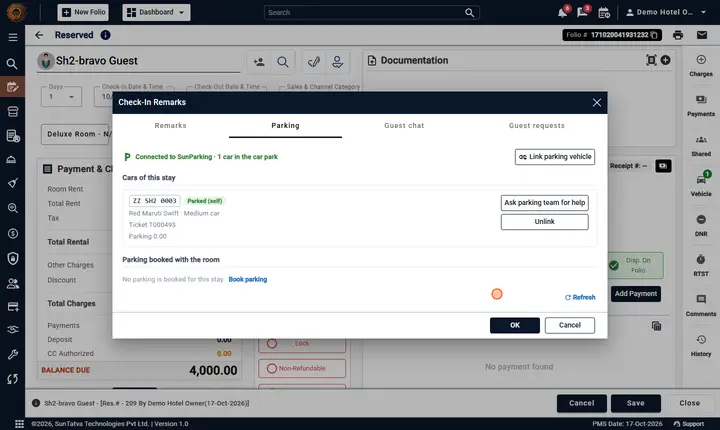
Cars of this stay
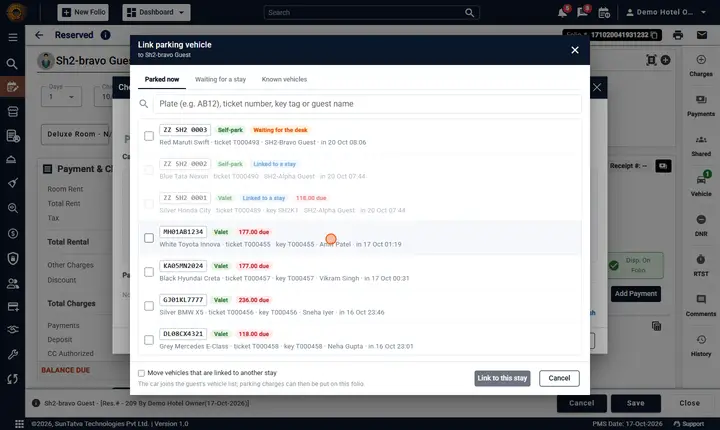
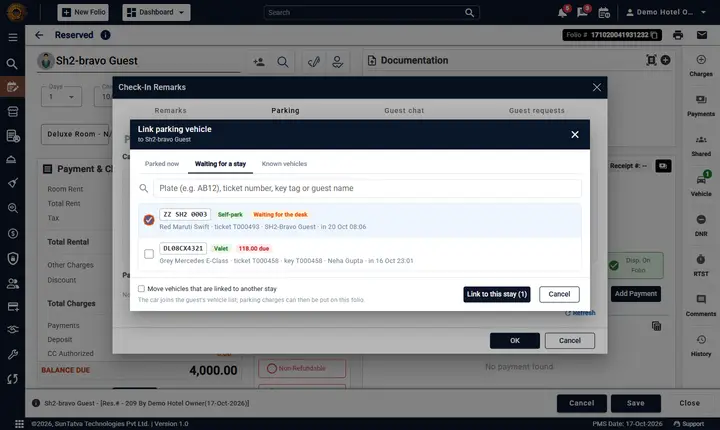
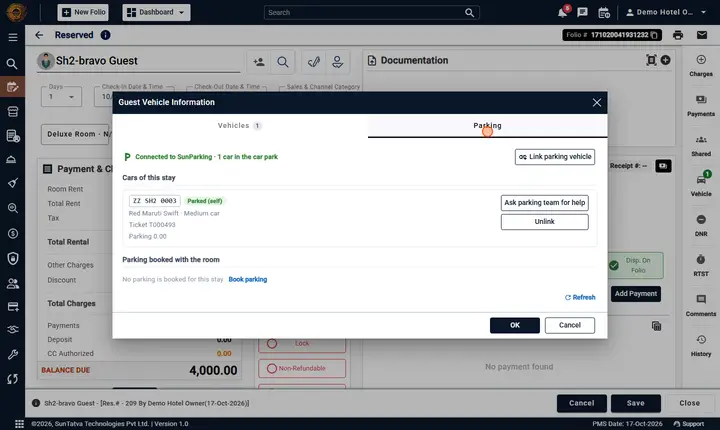
Each car shows the plate, a status chip, colour/make/model, size, ticket number, key tag (valet), and, if parked, Where: area · slot. Parking amount, amount posted to the room and due. Empty: No car is in the car park for this stay. Status chips: Parked (self), and for valet Dropped off, Being parked, Parked, Requested, Coming, Ready at porch, Handed over, or Left.
Bring the car
For a valet car that is Parked: Bring the car now, or pick a date and time and click At.
Parking booked with the room
Lists reservations: code, status (Booked, Arrived, Completed, Cancelled, No-show), from/to, size, plate, valet, area, ticket. Cancel works on Booked ones.
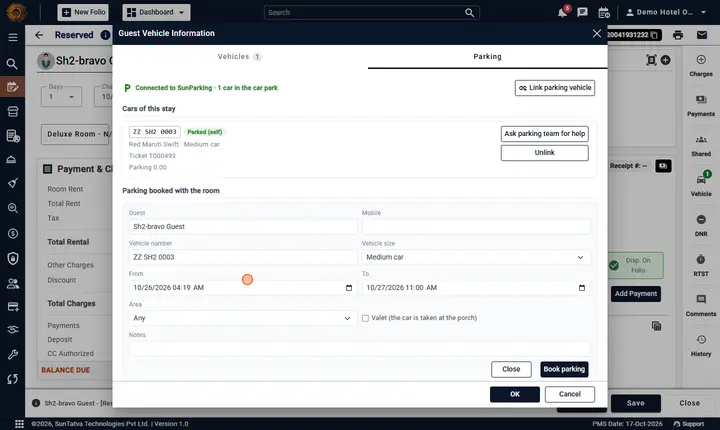
Book parking
- Click Book parking.
- The form is prefilled from the stay: Guest, Mobile, Vehicle number (suggestions from the guest's vehicles), Vehicle size, From, To (stay dates, default times 14:00 and 11:00), Area (if more than one), Valet (the car is taken at the porch) (if the car park offers valet), Notes.
- Click Book parking. Errors on the form: Enter the guest name. and Enter when parking starts and ends.
At check-out
When you click Check Out and the guest still has a car in the car park, unpaid parking, or a parked car with the guest's name that is not linked, the window Parking is still open for
What happens behind the scenes
- Parking paid to the room in SunParking posts to the folio through the PMS "other charges from parking" posting, with the same rules as SunPOS: same invoice number updates, a refund removes.
- The restaurant (SunPOS) can also link to the same car park to validate parking on a bill.
- PMS reads the stay's cars by folio and room number.
Tips and FAQ
- Q: The Parking tab is missing. A: Licence not active, no car park linked, or the reservation is not saved yet.
- Q: Where do parking charges appear? A: On the folio under the charge head chosen in SunParking.
- Q: Can I extend parking? A: Do it in SunParking (guest ticket and console).
Connect in one step from SunParking
In SunParking, Setup, Integrations, each Sun app (SunPMS hotel, SunPOS restaurant, SunHardware) is a card with a status chip: Connected, Not connected or Needs attention. When the owner has only one candidate it is pre-selected. Press Connect and test: both sides of the link are saved and the connection is tested (SunAuth token for the other app); the card then says "Connected to
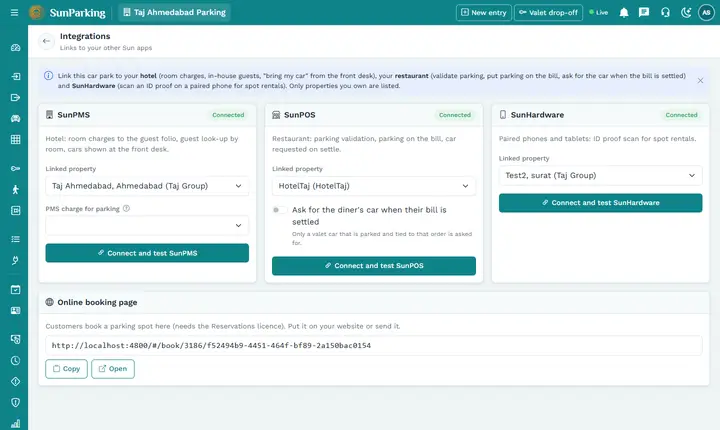
The Integrations screen of SunParking with one card per Sun app.
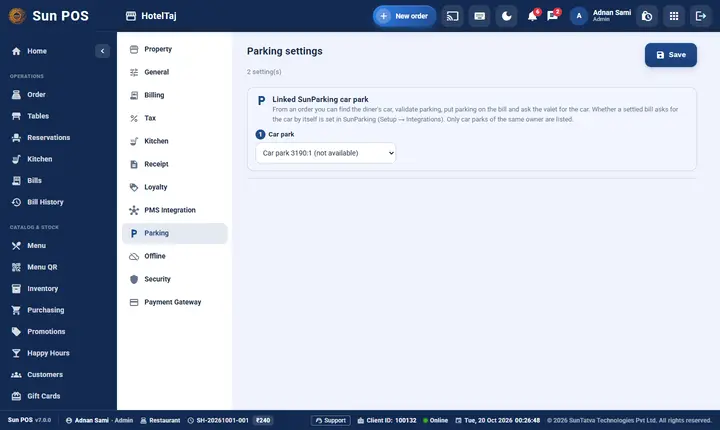
On the SunPOS side the link shows under Settings > Parking.
Screenshots