Guest Portal (the guest's page)
On this page
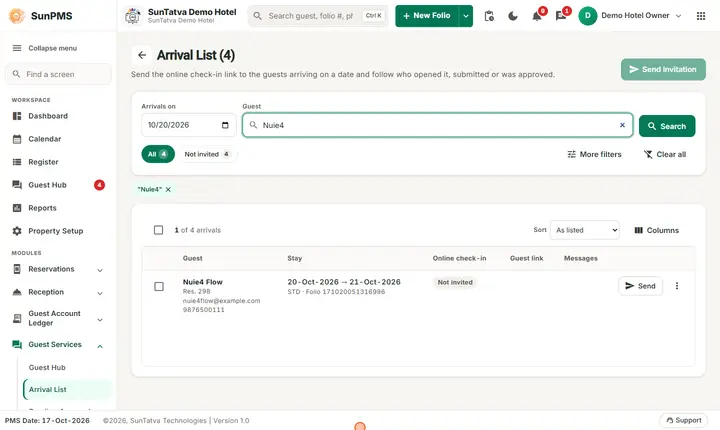
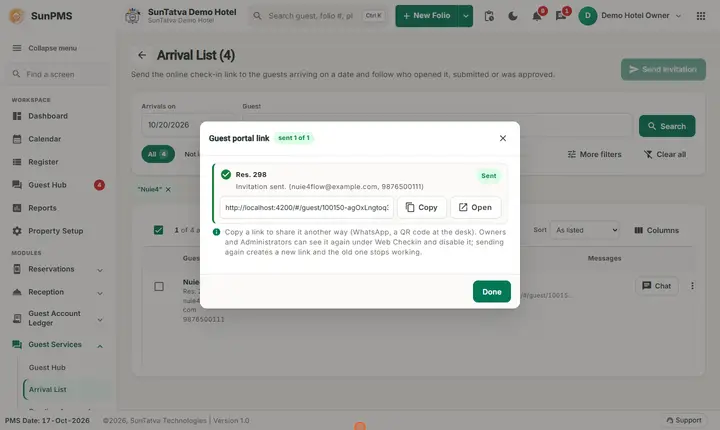
This is what your guest sees on their phone. Staff need to know it to help guests who call the desk. The page works in a browser; there is no app and no password. The link is the credential, so a guest must not share it.
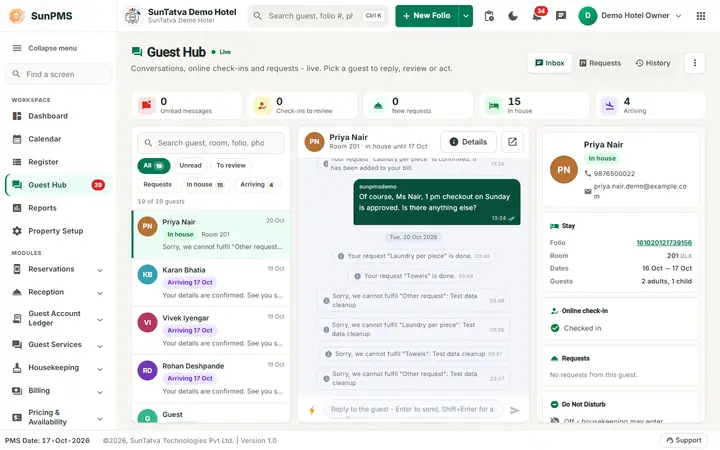
Before you start
- You sent the link from Arrival List or the reservation screen.
- The portal is on in Guest Portal Setting.
What the page contains
The bottom bar has up to five tabs: Stay, Check-in (needs ONLINE_CHECKIN), Services, Your vehicle (needs PARKING_INTEGRATION and a linked SunParking car park, see below) and Chat (Services and Chat need GUEST_MODULE). A badge on Services or Chat counts new updates. The header shows the hotel name, logo, Welcome,
Stay tab
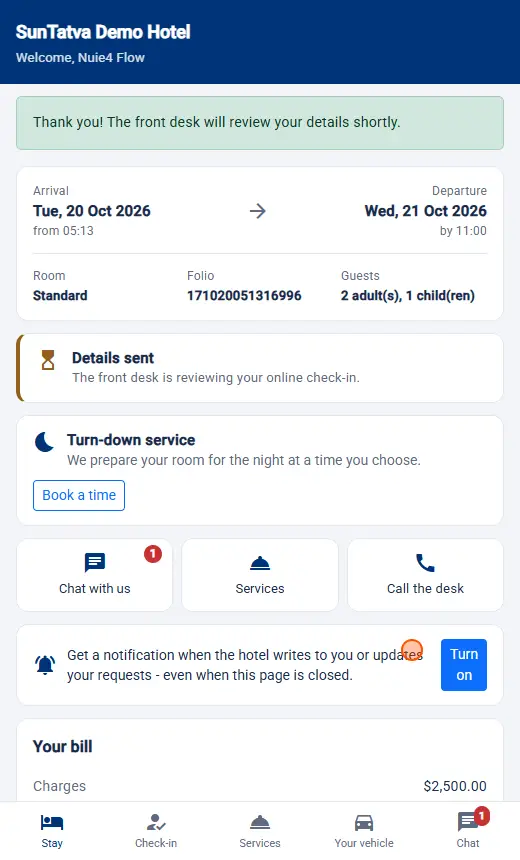
| Card | Content |
|---|---|
| Dates | Arrival (from time) and Departure (by time). |
| Facts | Room, Folio, Guests. |
| Check-in status | Check in online with Start; Details sent (desk reviewing); Online check-in confirmed (collect the key at the desk); Please review your details with the desk's reason and Update and resend; You are checked in. |
| Do Not Disturb | In-house guests only (GUEST_MODULE). Buttons Until I turn it off, 1 hour, 3 hours, Until 9:00 am, then Turn off. |
| Turn-down service | Book a time / Change with Time and Note (optional), Save, Back, Cancel it. |
| Quick buttons | Chat with us, Request a service / Services, Call the desk. |
| Notifications | Turn on push notifications; on iPhone/iPad the page explains Share > Add to Home Screen first (iOS 16.4 or later). |
| Your requests, Latest updates | Open requests with status and kitchen progress, recent news. |
| Your bill | Charges, Taxes, Paid, Balance (live from the PMS). |
| Hotel | Address, phone, e-mail. |
Check-in tab
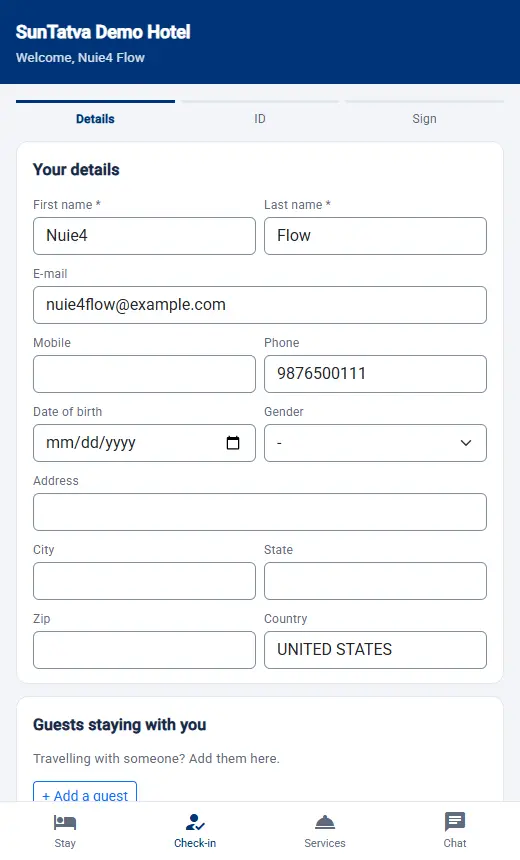
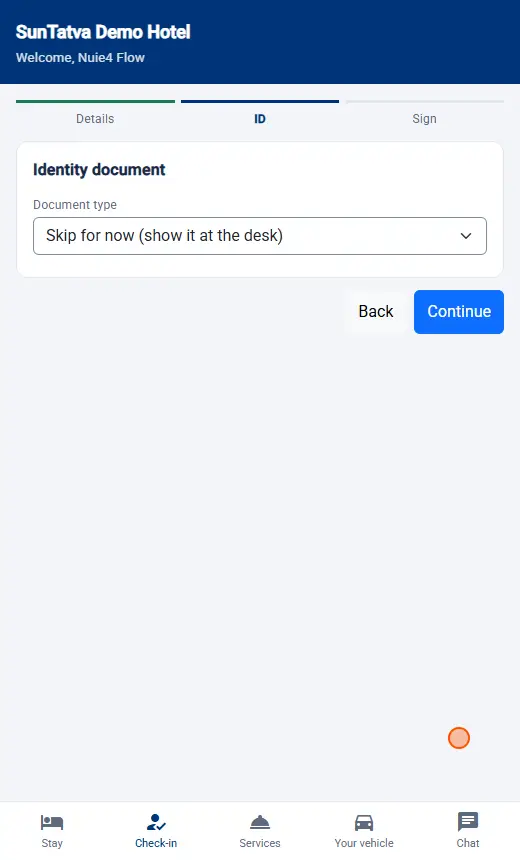
Steps: Details, ID, Card (only if card capture is enabled), Sign.
- Details. First name*, Last name*, E-mail, Mobile, Phone, Date of birth, Gender, Address, City, State, Zip, Country. Guests staying with you (add up to 10: first and last name, date of birth, gender, Remove) and Vehicle (up to 5: licence plate*, state, make, model, colour).
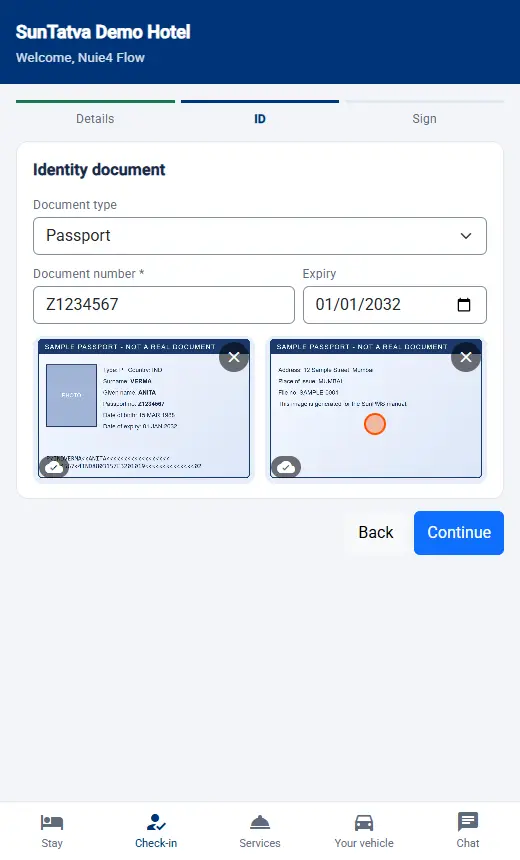
- ID.Document type (Driving licence, Identity card, Passport, Other, or skip / keep the one on file), Document number*, Expiry, photos of **Front *** and Back (camera or file; each shows a cloud tick when saved or Not saved - tap to retry).
- Card.Add a card opens the payment provider's secure form; the card is stored for incidentals and not charged now. Remove or Use a different card.
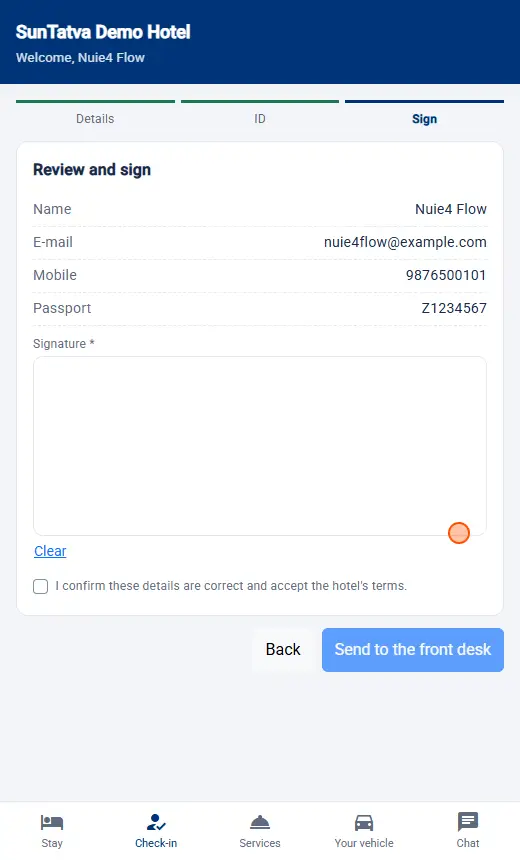
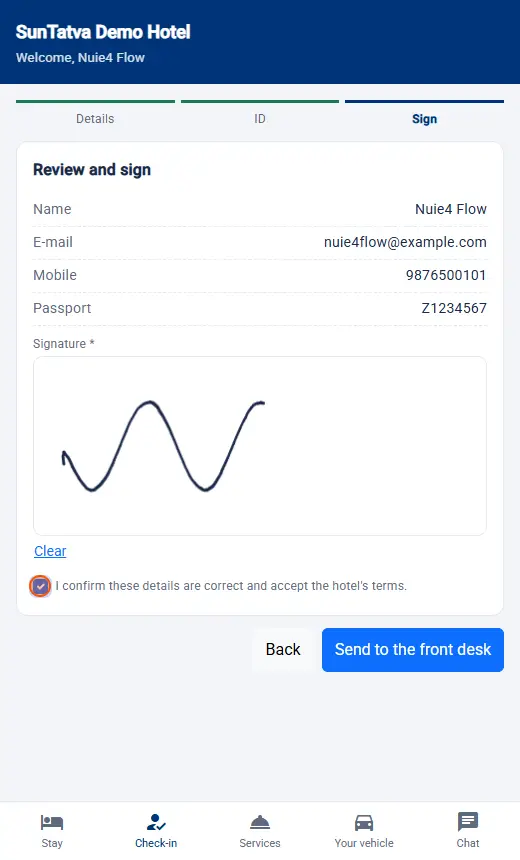
- Sign. A summary, the hotel's notice, a **Signature *** box with Clear, and the tick I confirm these details are correct and accept the hotel's terms. Button Send to the front desk enables when signed and ticked.
After sending: Thank you! The front desk will review your details shortly. The guest may change and resend at any time; the desk reviews the latest version.
Services tab
Opens after check-in; before that it reads Requests open once you are checked in. You can already chat with the front desk.
- Room service (if a restaurant is linked): Open the menu, category chips, +/-, a note for the kitchen, then Order N item(s) ·
+ tax · charge to room . Confirmation: Your orderis with the kitchen. It will be charged to your room. - Housekeeping: Request per task.
- Amenities & extras: price (+ tax), quantity, Request. Free items show Free.
- Something else?: free text and Send request.
- My requests: status badges and Cancel while still New.
Chat tab
Message the front desk (up to 2000 characters). The page shows Front desk is typing, Seen, and day times. Replies arrive live.
Your vehicle tab
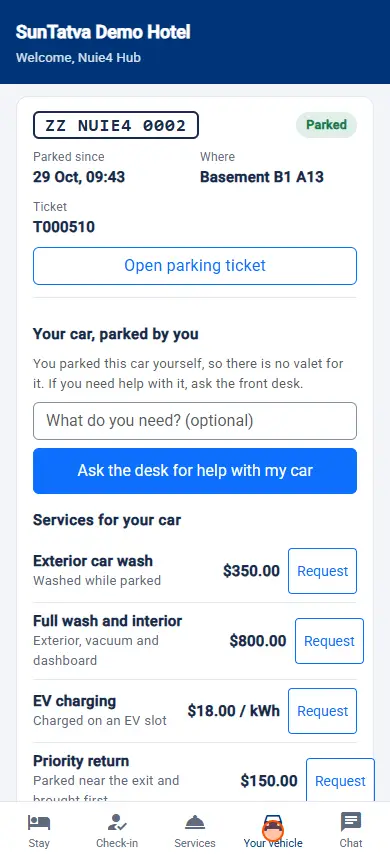
The tab shows the car the guest brought, where it is, the parking charged to the room and the link to the car park's ticket page. It is there only when the hotel has the licence SunParking Integration and a SunParking car park linked in Property Setup > Parking Setting. When either is missing the tab is not in the bottom bar at all and the rest of the page is unchanged. The guest sees only the vehicles and charges of their own reservation.
▶ Watch: guest portal, Your vehicle
| Card | Content | Rules |
|---|---|---|
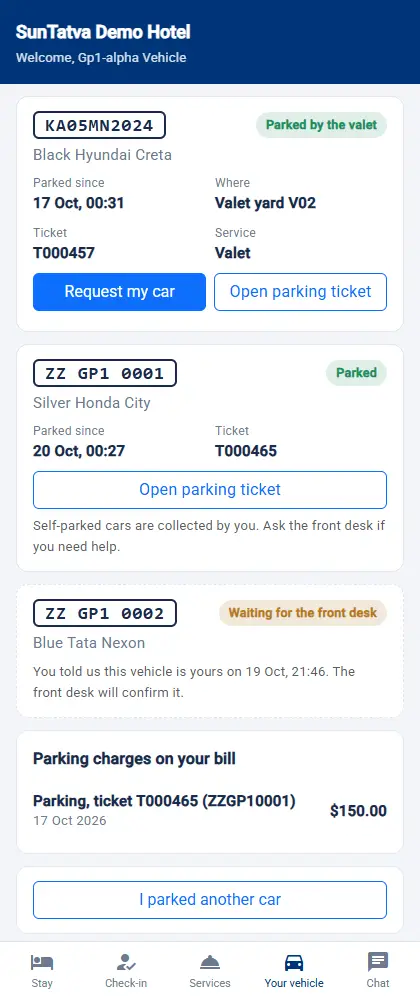
| Vehicle card | The plate in a plate box, make, model and colour as the car park holds them (the guest profile's text when the car park has none), Parked since (or Left), Where (area and slot, if the car park gave one), Ticket, Service Valet for valet cars. A coloured label shows the state: Handed to the valet, Parked / Parked by the valet, Car requested, Valet is bringing your car, Ready at the porch, Left the car park, or On your stay (known to the hotel, no ticket yet). | Cars that left the car park more than a day ago are shown only from the hotel's own record (On your stay / Left the car park). |
| Open parking ticket | Opens the car park's own ticket page (running charge, status) in a new tab. | Shown only when SunParking gave a ticket link. |
| Request my car (now part of Get my car, see Parking services below) | Asks the valet to bring the car. | Shown only on a valet car that is parked now, on a stay that is not checked out. Self-parked cars never show it; the page says the guest collects the car. Needs the SunParking Valet licence on the car park side (on the dev hotel it was added as Complimentary for car park 3190 on 20-Oct-2026 and the full flow was tested: the guest sees We are bringing your car. and the desk bell shows Guest asked for the car); without it the guest sees Valet is not licensed for this property... and should call the desk. |
| Dashed card Waiting for the front desk | A vehicle the guest said was theirs (see below) that the desk has not connected yet. | Stays until the desk links it, or for 14 days. |
| Parking reserved for you | Parking booked with the room in SunParking: from - to, plate, valet, and Reserved / Arrived / Completed / Not used. | Cancelled bookings are not shown. |
| Parking charges on your bill | The parking lines on the guest's folio: date, Parking, ticket T... (plate), amount. A Total row appears with more than one line. | Read only. Lines come from SunParking room-charge payments; if the amount on the ticket changes or is voided, the line changes with it. Nothing has been added to your room bill for parking yet. when there is none. |
| Need help with your car? Call the front desk | Dials the hotel phone. | Shown when the hotel has a phone number. |
I parked my car
A guest with no vehicle sees No vehicle on your stay yet and the button I parked my car (later I parked another car). The form asks for Vehicle number (required, letters, numbers, spaces and dashes) and optionally Make / model and Colour.
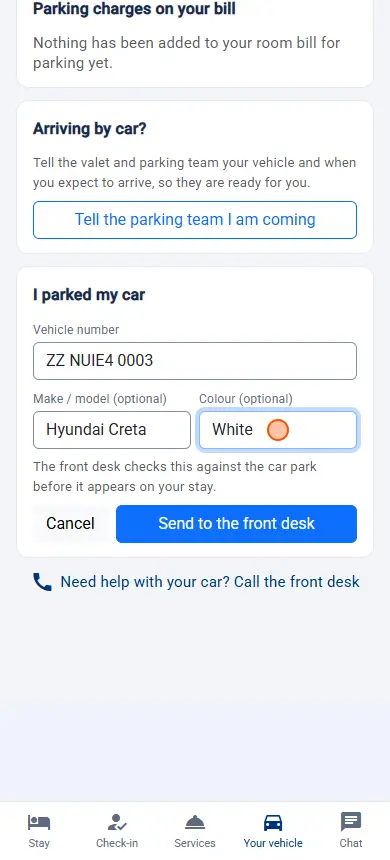
- The guest types the number and taps Send to the front desk.
- The page shows Thank you. The front desk will confirm your vehicle shortly. and the car as Waiting for the front desk.
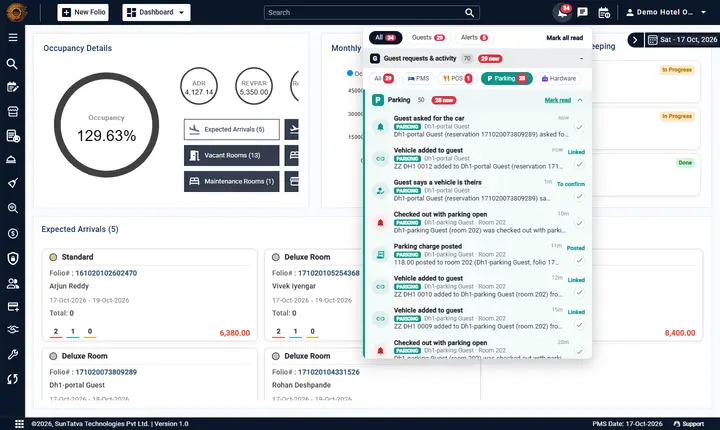
- The front desk is told (Guest says a vehicle is theirs in the notification bell (Parking section)) and links the car (Parking notifications and vehicle linking). Only then does it become a vehicle of the stay.
The guest cannot link a car by themselves, and the page never says what the car park found for a number: a plate that is parked on someone else's ticket gets the same friendly answer. Limits: a vehicle already on the stay or already sent is refused politely, a stay can have 3 cars waiting for the desk at once, and 5 sends per hour per link.
Parking services: serve yourself for the car
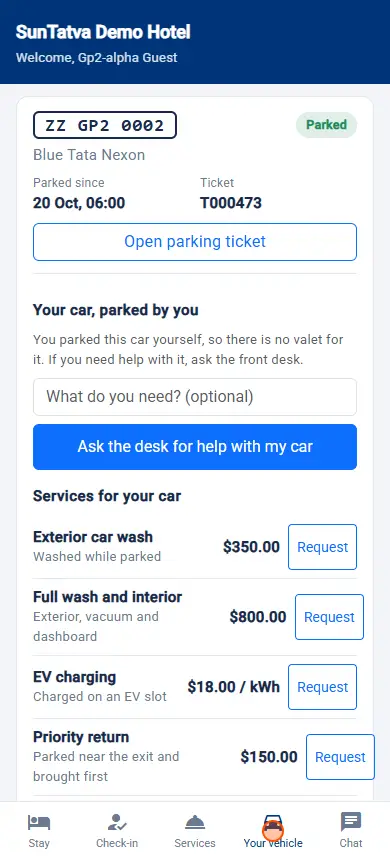
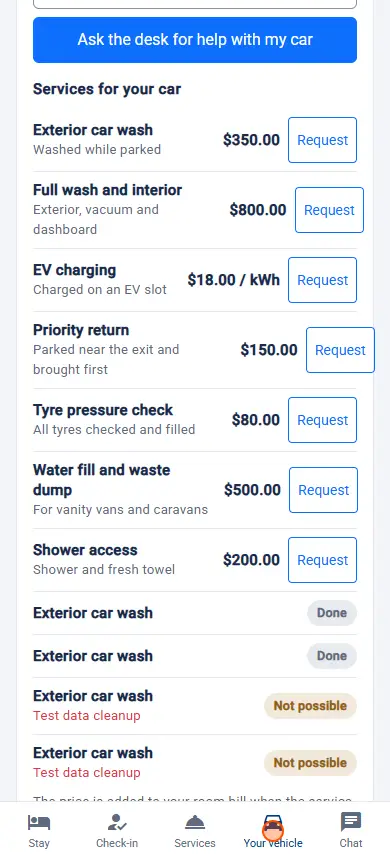
Under each car on the Your vehicle tab the guest has the parking services of the car park (a feature of the SunParking module; the same requests can be sent from the car park's own ticket page). Buttons are big and work at 390 px. What is offered depends on the car and the licences: Get my car needs a parked valet car and the SunParking Valet licence; everything else needs only Parking Integration and the link. Anything not licensed or not possible is simply not shown.
| Service | What the guest does | What happens |
|---|---|---|
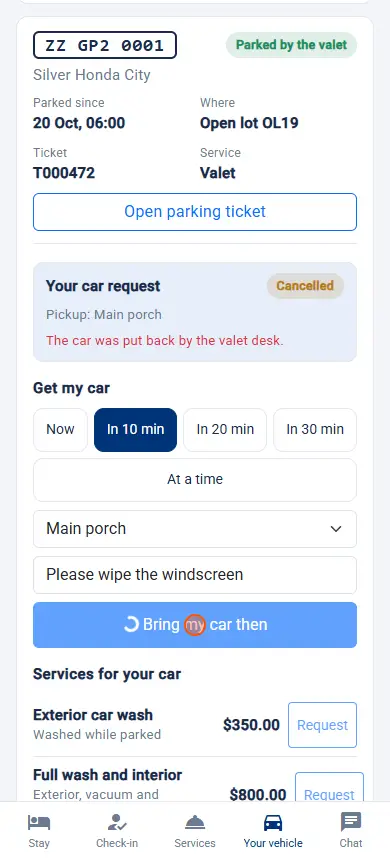
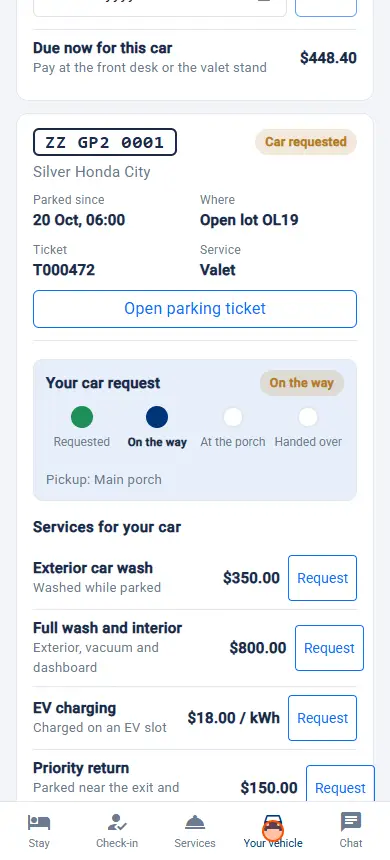
| Get my car | Chooses Now, In 10 min, In 20 min, In 30 min or At a time (a time within two days), optionally a Pickup point (the car park's list, setting Guest.PickupPoints; default Main porch, Reception, Car park exit) and a note, then Bring my car now / Bring my car then. | The valet board shows the car as requested (source SunPMS guest portal), with the time. The guest sees a status line: Requested, Accepted, On the way, Ready at the porch, Handed over; the page refreshes by itself. Cancel request is offered while it is still Requested and puts the car back. |
| Ask the desk for help with my car | Shown instead of Get my car for a car the guest parked themselves (no valet), with an optional note. | One request for the parking team and one item in the hotel bell. The desk's answer (Accepted, In progress, Done or Not possible with the reason) shows on the page. |
| Services for your car | Taps Request next to a service from the car park's catalogue (for example exterior wash, tyre pressure check) that the car park marked as visible to guests. The price shown depends on the size of the vehicle. | The request shows as Requested. Nothing is charged yet. When the parking team presses Done the service is added to the ticket (and goes to the room bill with the ticket). The guest sees Done or the reason when the team could not do it. |
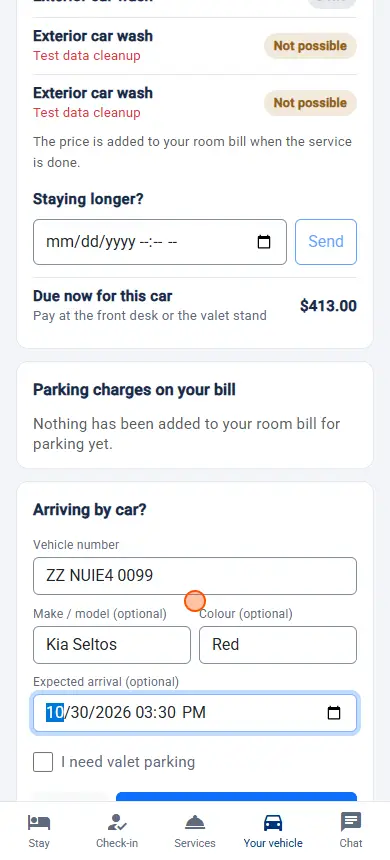
| Staying longer? | Chooses when the car will leave (within 30 days) and taps Send. | The parking team sees a request to extend and confirms the time with the guest. |
| Due now for this car | Read only: what is due on the ticket now. | Payment stays at the front desk or valet stand. |
| Arriving by car? card | A guest whose stay is not over, even without a car yet, taps Tell the parking team I am coming, types Vehicle number, optional make / model and colour, Expected arrival and ticks I need valet parking. | The parking team (and the valet team if valet was ticked and licensed) sees the vehicle and the time before the guest arrives. It is shown on the page as The team knows; the guest can cancel it while Requested. |
▶ Watch: guest portal, parking services
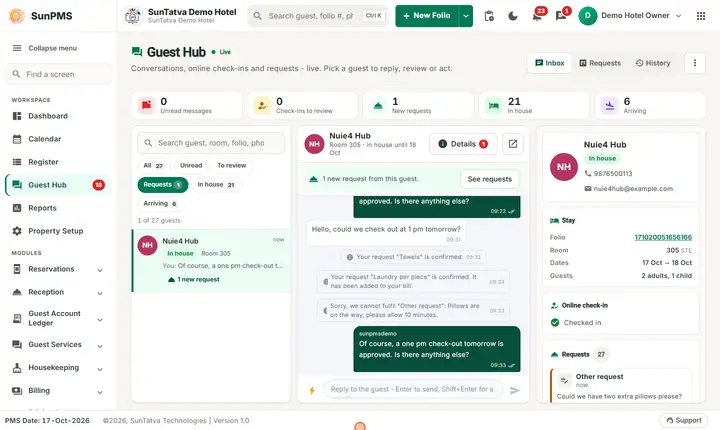
On the hotel desk. Every request creates exactly one item in the notification bell (section Parking, title for example Guest asked for the car, Guest asked for a parking service, Guest needs help with the car, Guest announced arrival by car) and is listed on the Guest Hub board under Parking. The parking team processes it in SunParking, Guest requests: Accept, Start, Done or Reject (a short reason is required and shown to the guest). For a car request, Start sends the runner and Done marks the car ready at the porch; the handover is on the valet board.
Rules and limits: a request always belongs to the guest's own stay or ticket; the guest cannot see or change anyone else's. Sending the same request twice returns the first one. At most 20 sends per 10 minutes per link (portal) and 25 per ticket (SunParking). The page is in English only.
What lands on the reservation after approval (checked 18-Oct-2026)
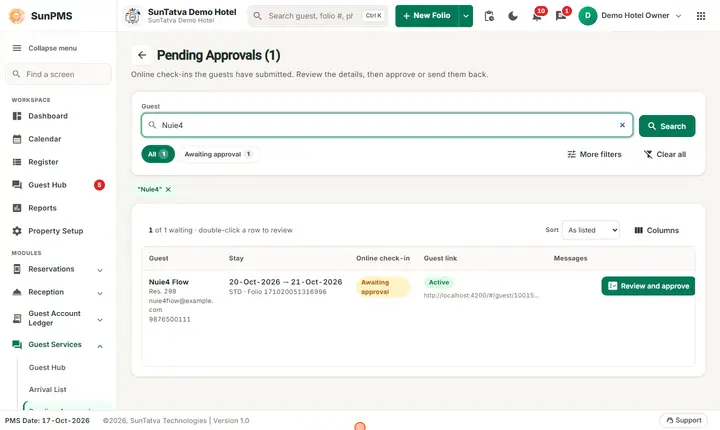
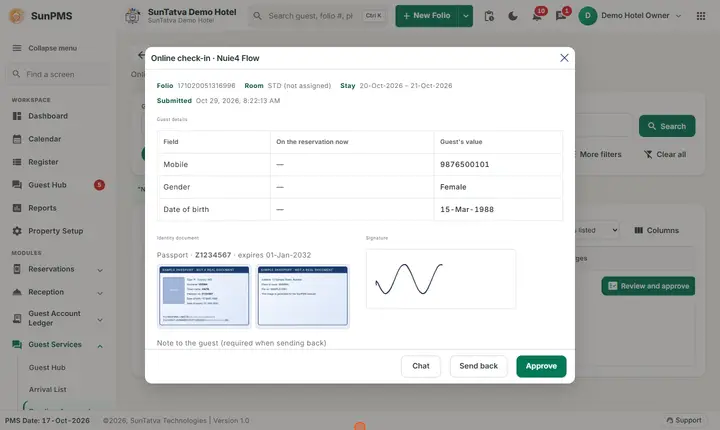
A full submission was approved and read back from the folio: gender, date of birth, Address, City, State, Zip and Country appear in the Guest Detail window; the passport shows in the Documentation box; the guest travelling along is in Shared (badge 1) and the car in Vehicle (badge 1). The review window lists only what changed, with the value on the reservation next to the guest's value. Note: the single phone of the reservation (shown as Mobile in the Arrival List) is replaced by the portal's Phone field when the guest fills it; the portal's Mobile is not stored separately. A new reservation without an address shows the country UNITED STATES until the guest's country replaces it.
Guest messages you may see
| Message (exact text) | Why |
|---|---|
| This link is not available | Link disabled, replaced by a newer one, or invalid. Ask the hotel for a new link. |
| Please enter your first and last name. | Name missing |
| Please enter a valid e-mail address. | E-mail format wrong |
| Please enter a mobile number so we can reach you. | Neither mobile nor phone given (either field is enough) |
The two number fields are kept apart on approval: Phone becomes the home phone, Mobile becomes the mobile number (see Pending Approvals). The number the desk typed on the reservation appears in Phone unless the desk gave it the type Mobile.
| Please enter the first and last name of each guest staying with you. | Companion incomplete |
| Please enter the licence plate of each vehicle. | Vehicle incomplete |
| Please enter the document number. | Document type chosen without a number |
| Please add a photo of the front of your document. | No front photo |
| Please wait for the photo to finish uploading. | Photo still uploading |
| That file is not a photo we can use. Please take a picture of the document. | Wrong file type |
| Please sign in the box. / Please accept the terms to continue. | Signature or terms missing |
| Please tell us what you need. | Empty "Something else?" request |
| Request sent:
How to help a guest
- Link does not open: check Guest link in the list; enable it or send a new link.
- Photo upload fails: ask the guest to retry with good light; they can skip the ID and show it at the desk.
- Guest never got the link: open the row menu in the Arrival List and copy the link to send by WhatsApp or show a QR.
What happens behind the scenes
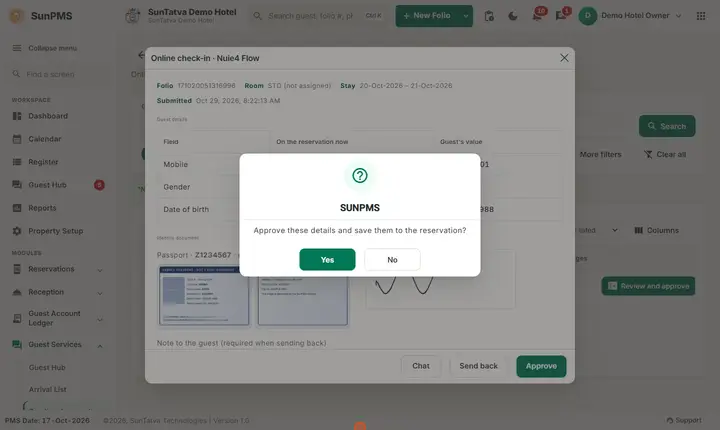
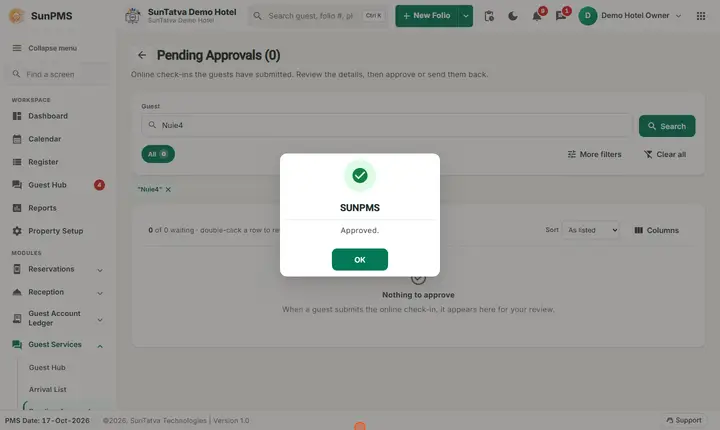
Nothing reaches the reservation until the desk approves. Photos and the signature are saved straight into document storage. The card number never reaches SunPMS; only a token from the payment gateway is kept. Room service orders are placed in SunPOS and charged to the room when the restaurant settles them.
Tips and FAQ
- Q: Does the guest need an app? A: No, a browser is enough; they may add the page to the home screen.
- Q: Can the guest see other guests' data? A: No. The page shows only that reservation.
- Q: Can the guest pay online here? A: No. The page shows the bill; the card entered is only stored for the desk.
Signature and notice (one flow)
The guest signs the same notice as at the desk (the Signpad Notice of Notice Setup; the older Online Self Check-In notice is used only when no signing notice exists). The guest must tick the terms and sign. When the desk approves the submission, the signature is stored with the notice text and source portal. See Signature and notice flow.
If the page says "We are having a moment"
The hotel's system is briefly unavailable (for example during maintenance or when the database server is being moved). The link is still valid for the whole stay. Wait a moment: the page tries again by itself every 20 seconds, or tap Try again. If it lasts, call the front desk (the phone number is shown when the hotel has entered it). See Troubleshooting the guest portal and Moving the database server.
Screenshots